

Overview
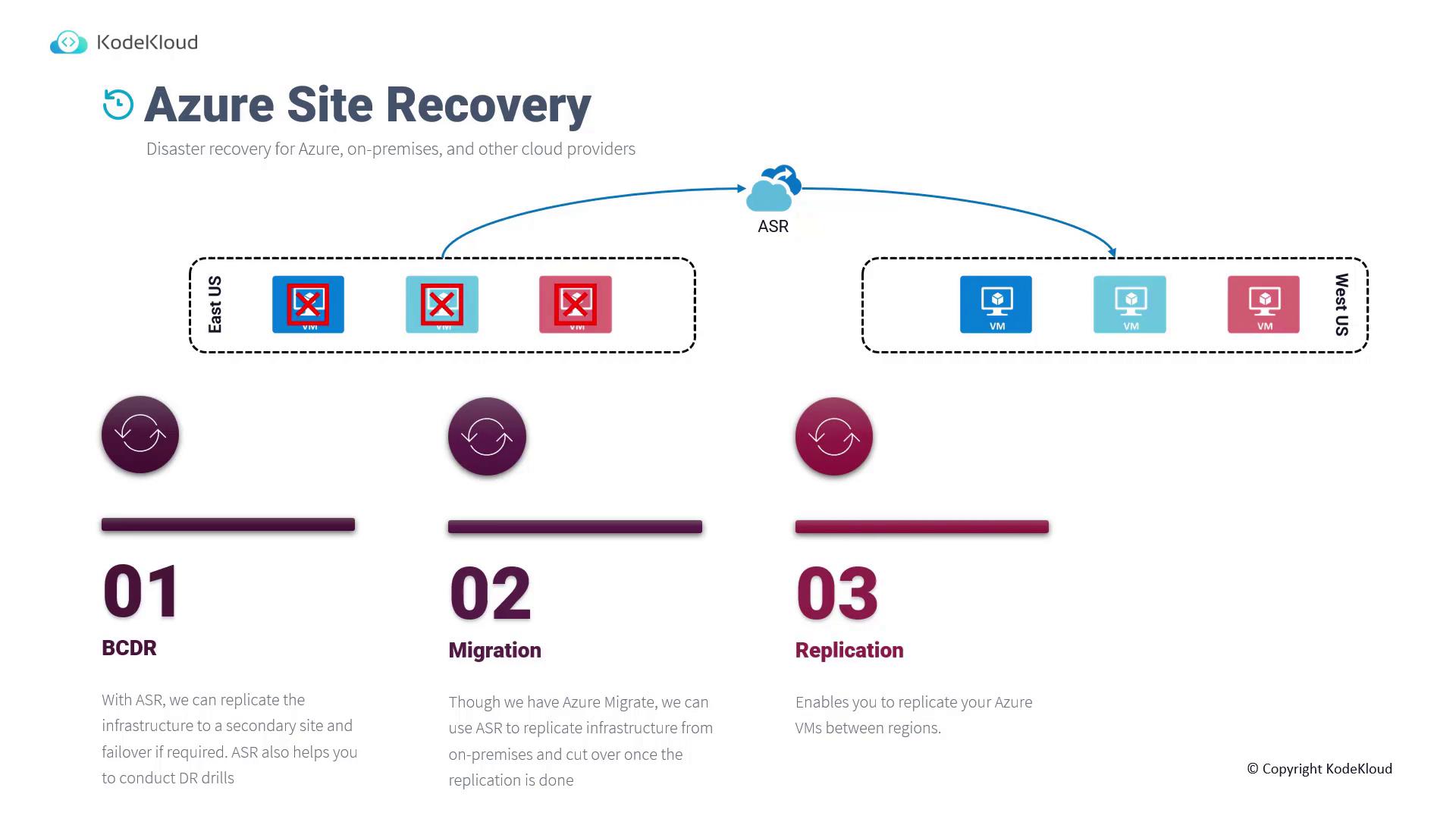
Imagine you have a set of VMs running in East US. With ASR, these machines can be replicated to a secondary region, such as West US. In the event of a regional outage, you can quickly initiate a failover, enabling your VMs to come online from the secondary region. Key ASR scenarios include:- Business Continuity and Disaster Recovery (BCDR): Replicate your entire infrastructure to a secondary site, with the option to perform a failover when needed.
- Disaster Recovery Drills: Test failovers to validate the effectiveness of your recovery plan.
- Migration: While Azure Migrate is available, ASR facilitates replication of on-premises environments to the cloud with a simple cutover to the replicated resources.
- Continuous Data Replication and Retention: Configure retention periods for restore points as ASR continuously replicates data between regions.
Configuring ASR in the Azure Portal
Setting up ASR involves using a Recovery Services Vault in the Azure Portal, which supports both backup and site recovery operations.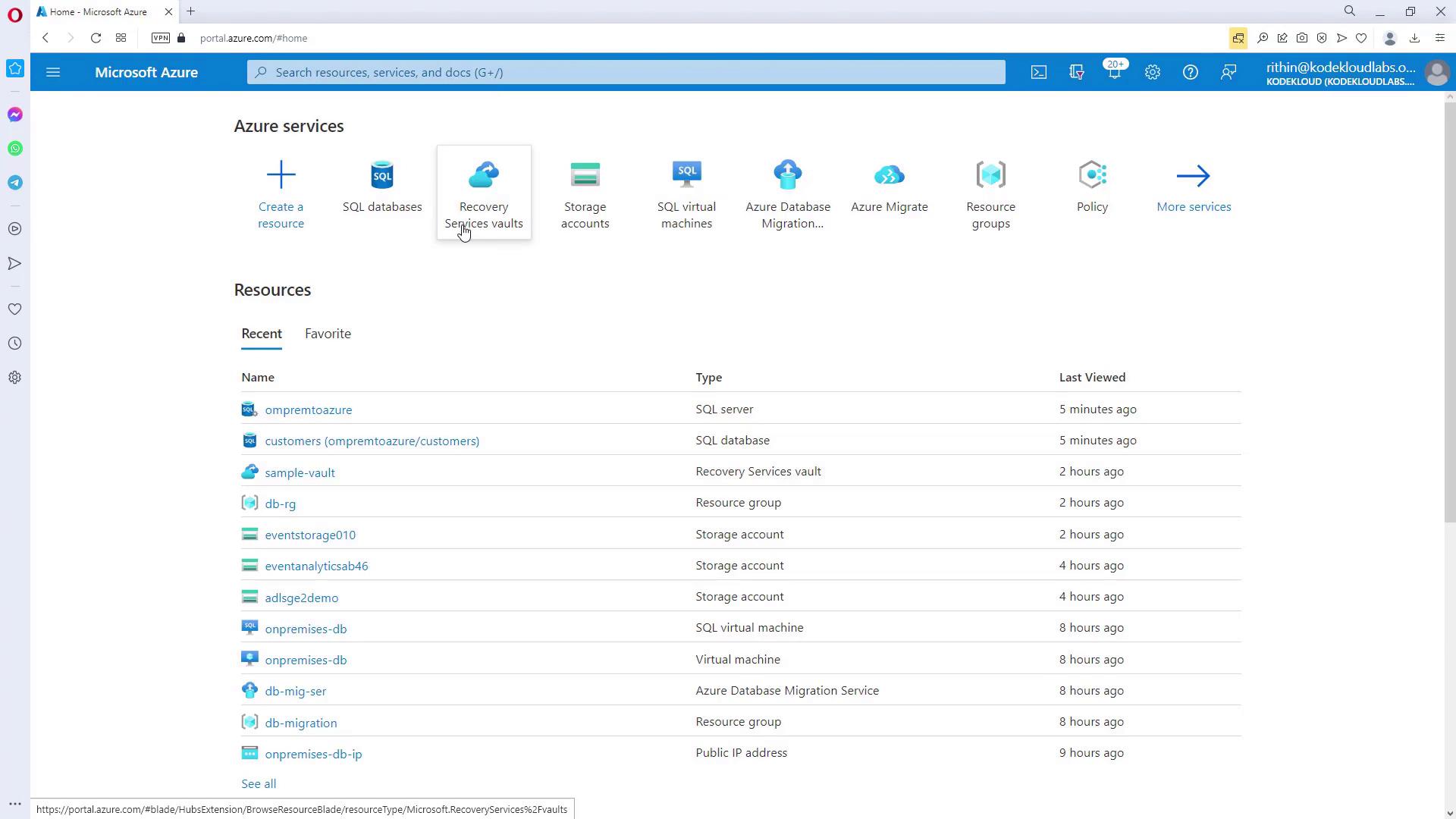
Steps to Enable Replication
-
Open the Recovery Services Vault
In the Azure Portal, locate and open a Recovery Services Vault. Ensure the vault is placed in the correct region—if your source VM is in East US, choose a vault in the secondary region (such as West US). -
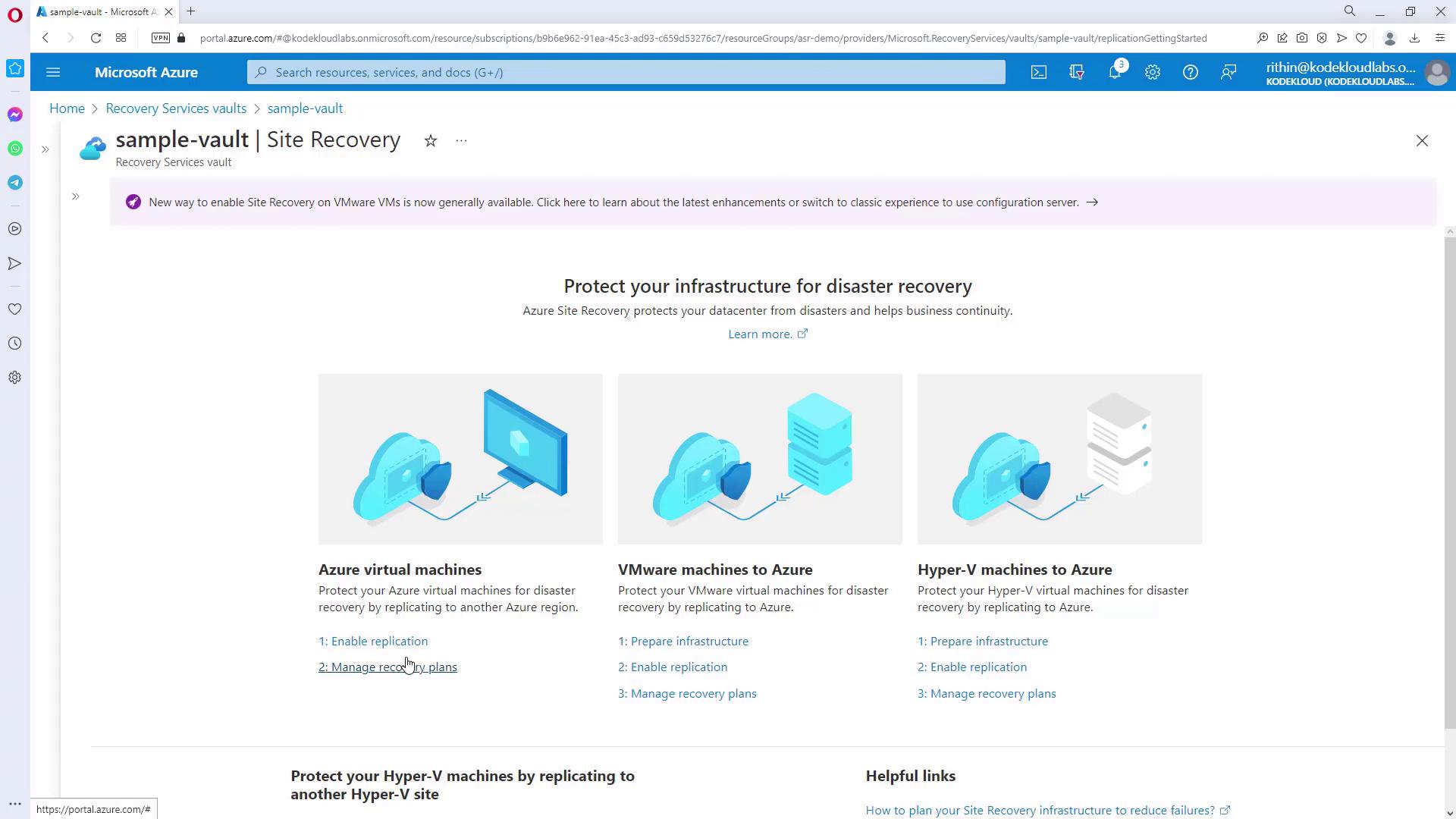
Select Enable Replication
Click on “Enable Replication” to start replicating your Azure Virtual Machine or other supported infrastructures (e.g., VMware, Hyper-V, AWS, or GCP environments).
-
Configure Source and Target Details
- Verify that the VM is located in East US.
- Choose the appropriate subscription and resource group.
- Indicate that disaster recovery between availability zones is not required (set to “No”).
- Select the target VM and click Next.
-
Set Replication Settings
Provide the necessary replication settings:- Target Location: West US
- Subscription & Resource Group: Choose the target subscription and resource group
- Failover Network: Specify the correct network for failover
- Failover Subnet: Choose or configure the subnet for the VM in the target region
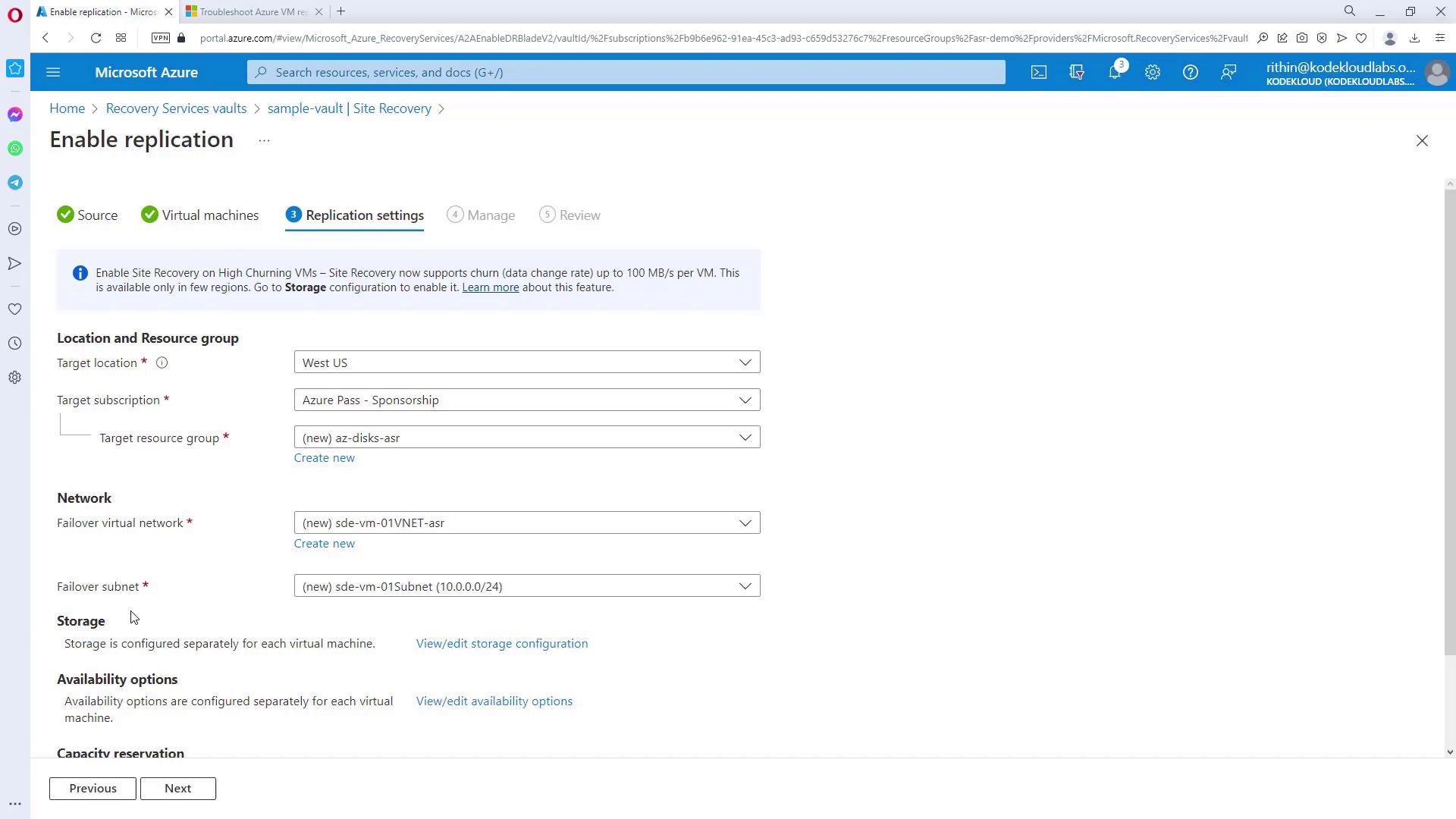
If you do not specify names for target resources, Azure will automatically append an “ASR” suffix to source resource names.
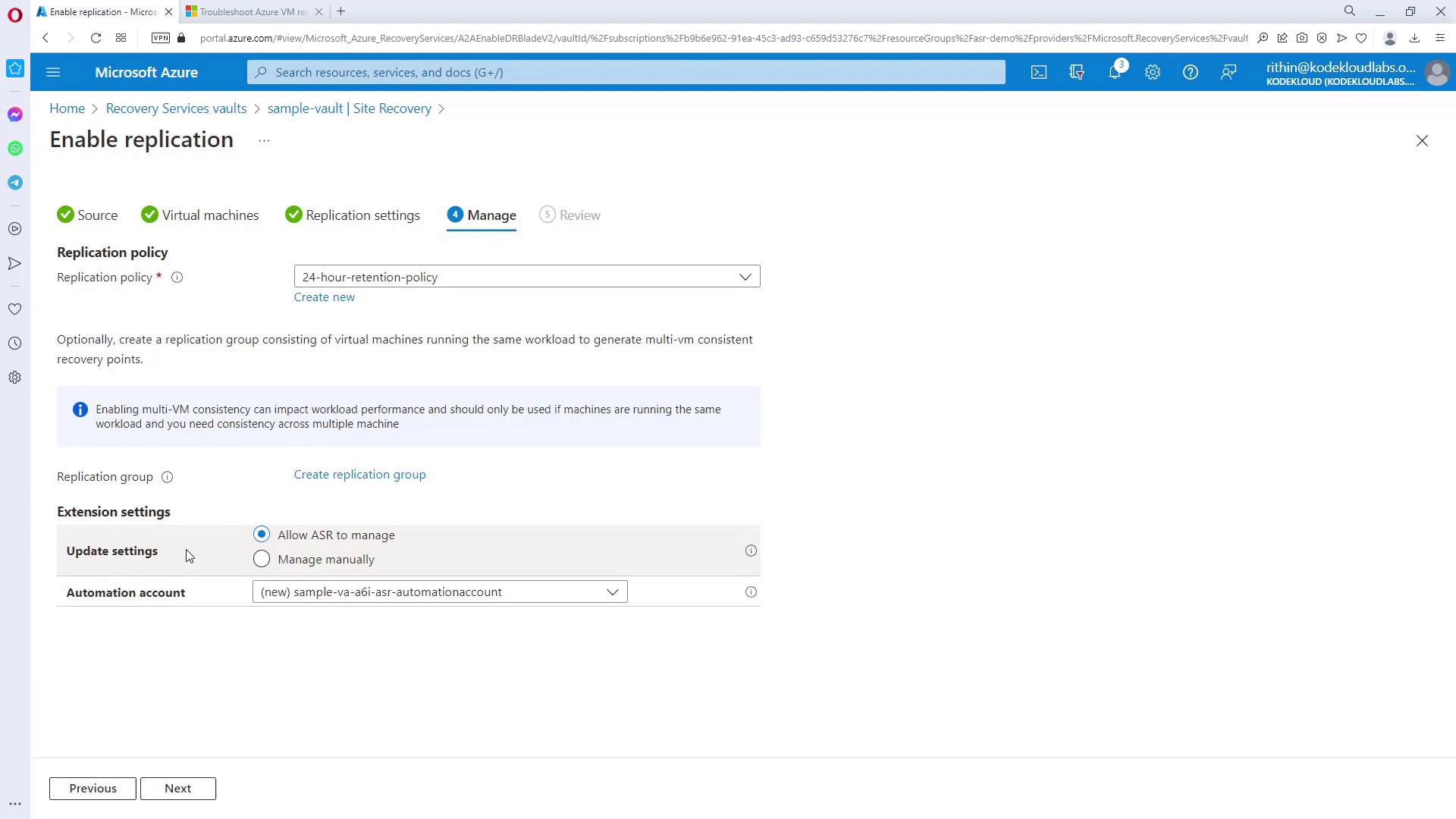
- Configure Retention Policies and Extensions
Before finalizing, set up the retention policies and any extension settings. By clicking “Enable Replication”, the process starts replicating your VM’s disks from East US to West US. Note that several background resources will be provisioned during this process, which may take some time.
- Monitor Replication Progress
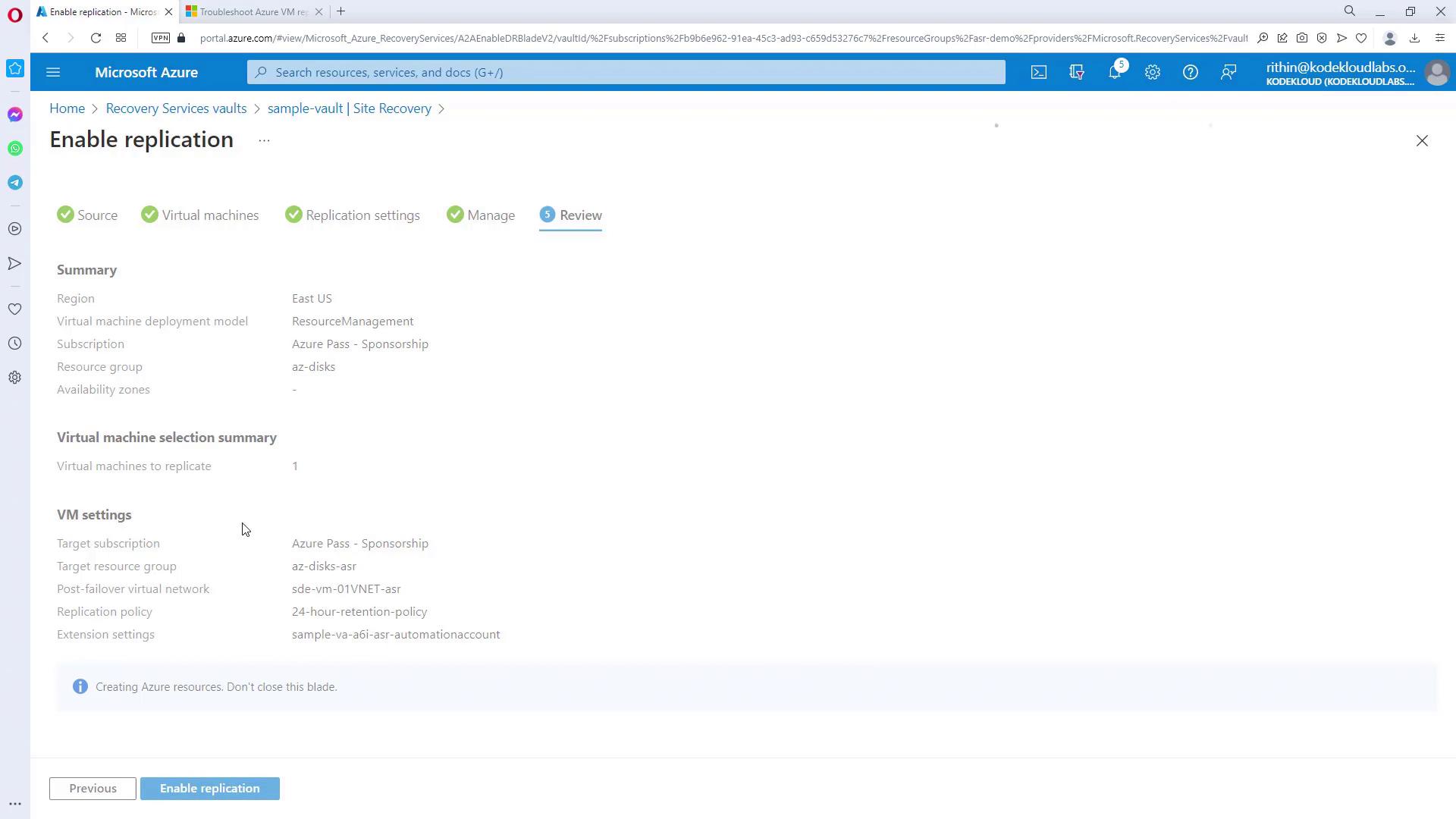
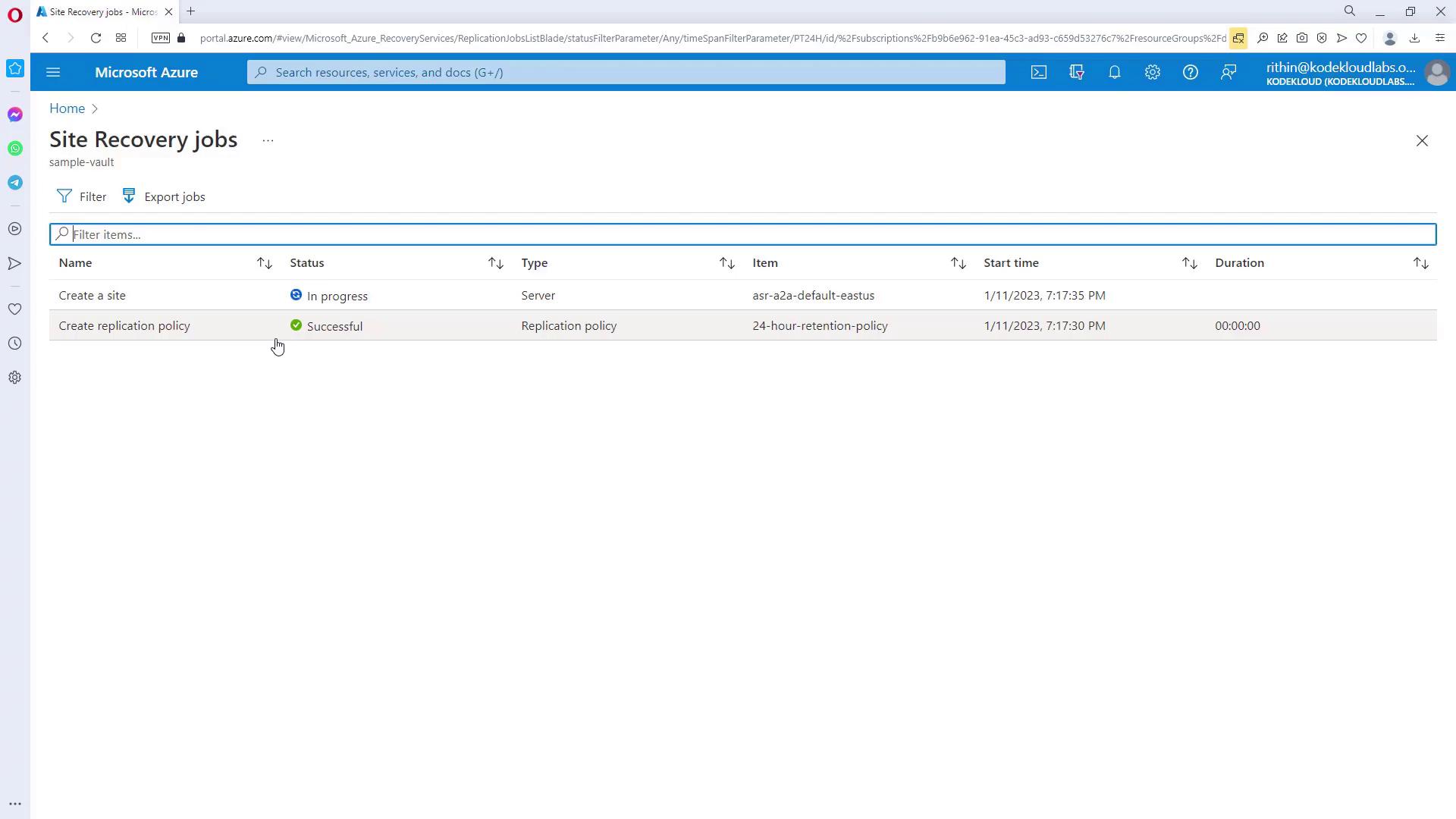
After initiating replication, monitor the process to track the creation of resources, restore points, and policy applications. Review the summary of replication settings and target resources:
Recovery Plans and Test Failover
ASR supports creating customized recovery plans, which is particularly beneficial for multi-tier applications. For instance, in a three-tier architecture (front-end, mid-tier, and database), a recovery plan allows you to specify the failover sequence. You might configure the database to power up first, followed by the mid-tier and then the front-end, ensuring proper application functionality. Test and manual failovers are initiated via the Recovery Services Vault. Keep in mind that synchronization and replication processes might require 20 minutes or more. The system also issues a warning if a test failover hasn’t been executed within the last 180 days. Once synchronization is complete and the status is displayed as “protected,” you can perform a failover, which creates a new VM in West US. The diagram below displays the replication status and monitoring details for a VM: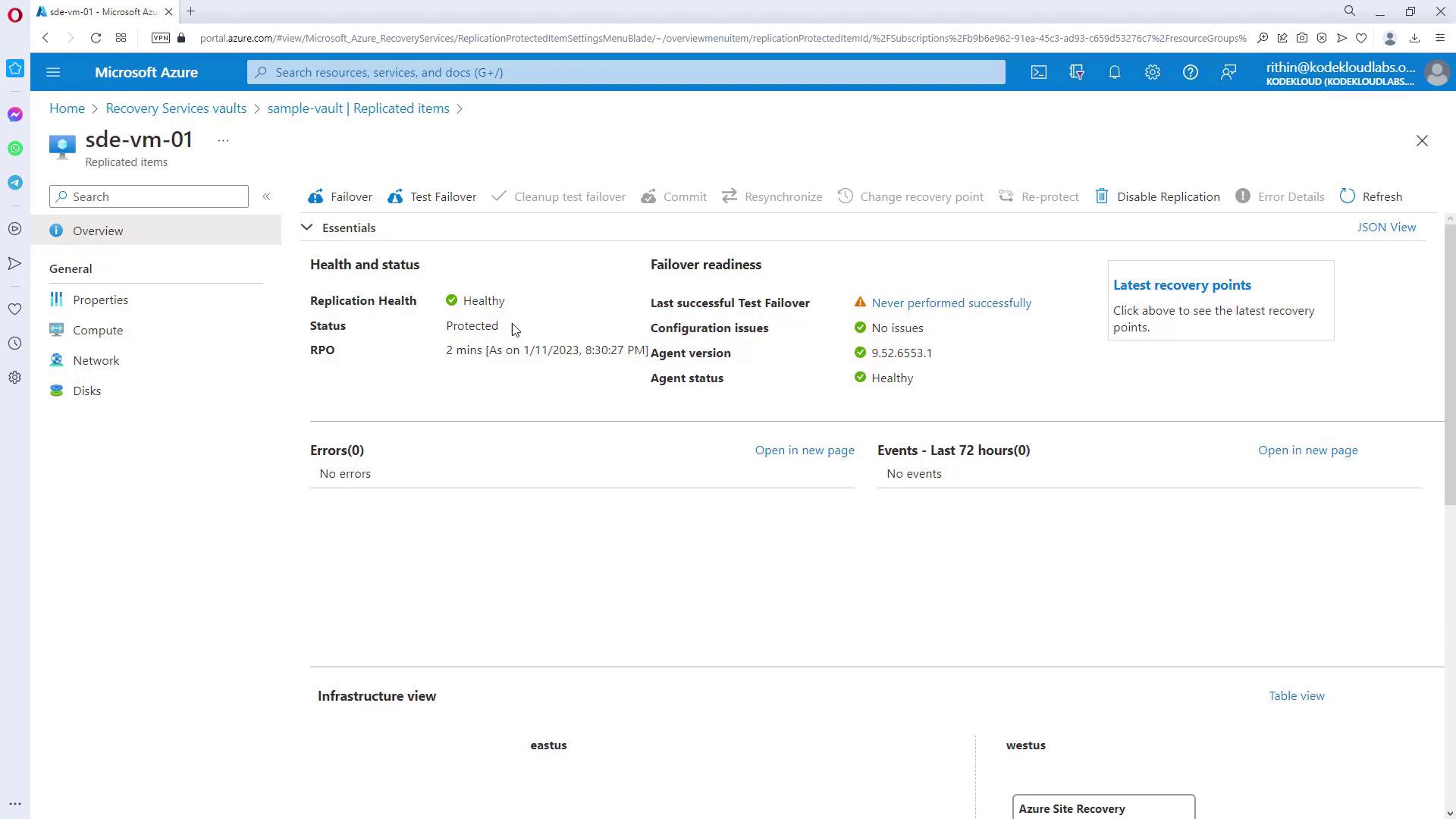
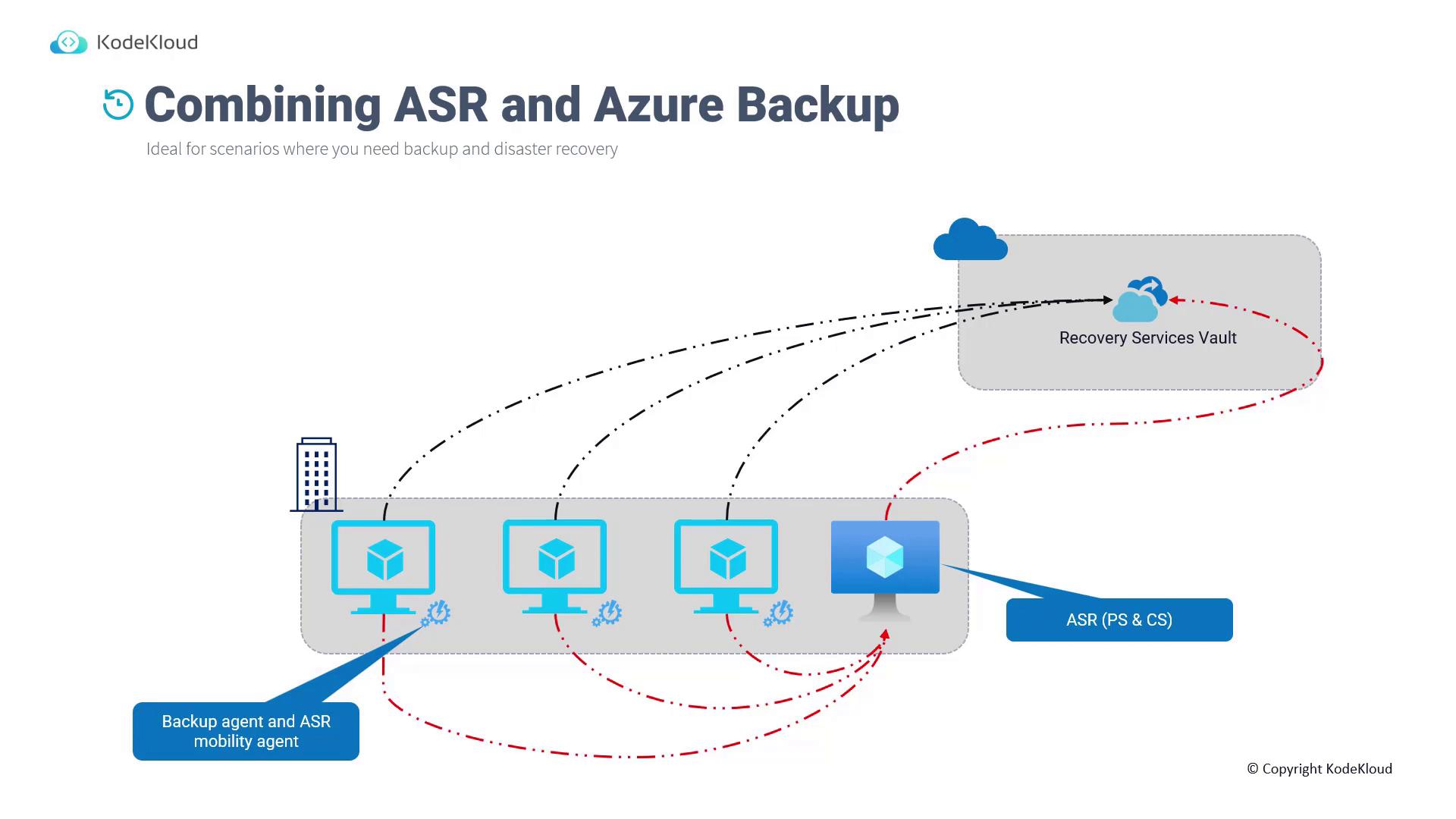
Combining ASR with Azure Backup
Integrating ASR with Azure Backup provides a comprehensive approach for both disaster recovery and data restoration. While backups are crucial for recovering from data corruption or catastrophic failures, disaster recovery focuses on reactivating instances in another region. For on-premises environments hosting multiple VMs, it is common to deploy two key agents:
The following diagram illustrates the integration of ASR with Azure Backup:
Conclusion
Azure Site Recovery offers a versatile solution for ensuring disaster recovery, seamless migration, and continuous replication. By following the detailed configuration steps in the Azure Portal and understanding recovery plans and synchronization processes, you can ensure high availability and robust business continuity across regions. Integrating ASR with Azure Backup further solidifies your disaster resilience strategy.Azure Site Recovery not only simplifies disaster recovery planning but also provides flexible options for multi-cloud and on-premises environments, ensuring minimal downtime and operational continuity.