

Cloning an Existing VM
Before cloning a VM, ensure that the VM is powered off. To clone a VM:- Right-click the VM and select the clone option.
-
Provide a new name (for example, “VM two”) and choose the appropriate clone type. There are two options:
- Full clone: Creates a complete copy of the existing disk. This option consumes the same amount of disk space as the original.
- Linked clone: References the original disk and only uses additional space for changes made.
Linked clones depend on the original VM’s disk. Moving or deleting the original VM can cause issues with the linked clone.
Configuring the Network Adapters
By default, VMs are configured with NAT, which isolates them from one another. The initial network configuration is depicted in the diagram below: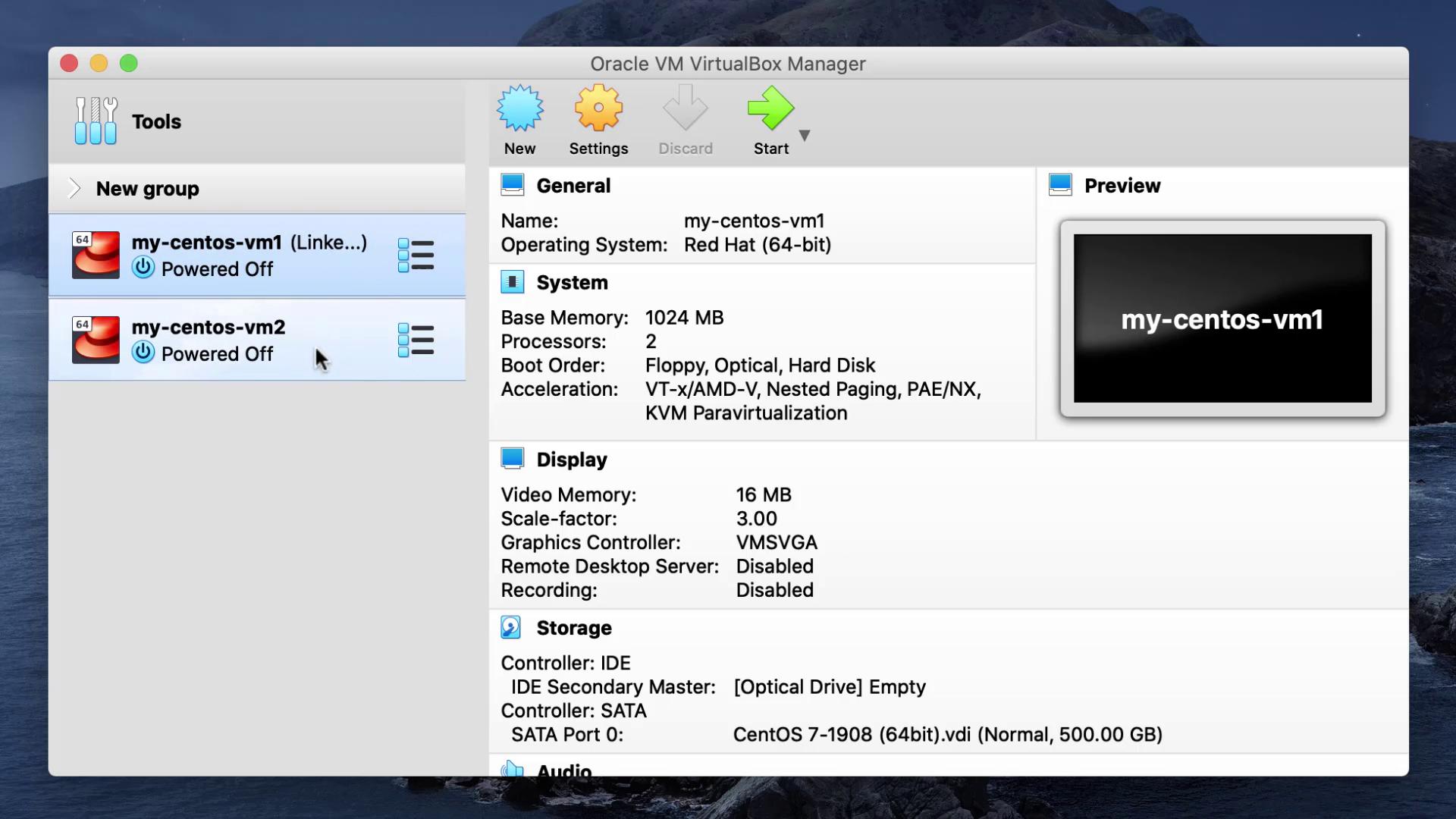
- Adapter 1 (NAT): Provides internet connectivity.
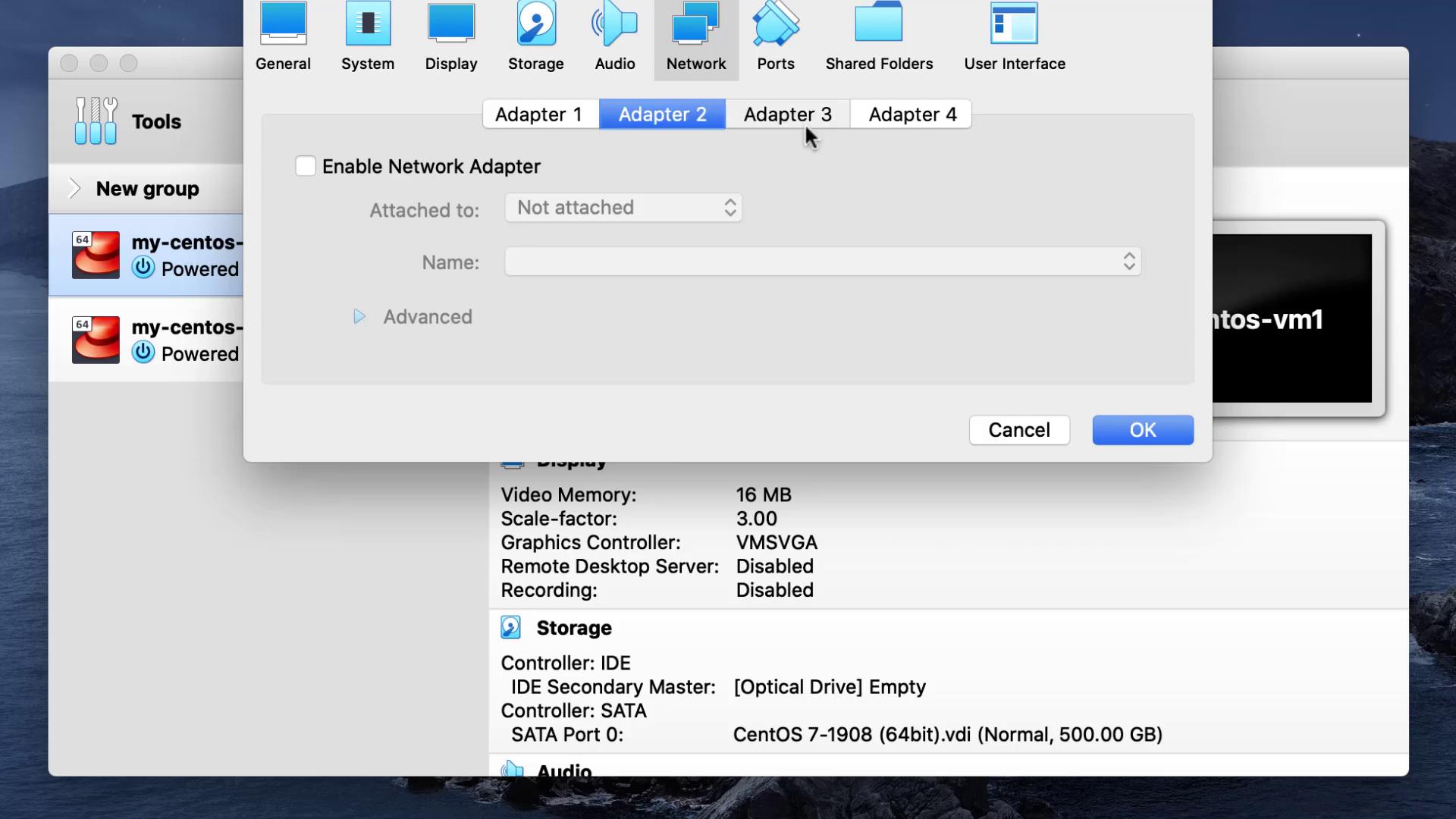
- Adapter 2 (Host-only): Enables direct communication between the VMs.
Setting Up the Host-Only Network
- Open VirtualBox and navigate to File → Host Network Manager.
- If no network exists, create a new one. In this lesson, a network named
Vboxnet1is created with the IP address range starting at 192.168.57.1. - Check the option to enable DHCP (to allow VMs to receive IP addresses automatically) and click Close.
- For each VM, go to the network settings and set the second adapter to Host-only Adapter, selecting the newly created network.
Booting and Inspecting the VMs
After configuring the network, power on both VMs. Log in using the OS account (for example, an account named “Matthew”). Since cloning copies the settings, the same account appears on both VMs. Open the terminal on one VM to check the IP addresses. A new interface, typically namedenp0s8, will be assigned an IP address (e.g., 192.168.57.3):
Testing Connectivity
With the new network settings, the VMs can communicate directly. For example, ping from one VM to another without port forwarding:Verifying Internet Connectivity
Since the first adapter remains configured with NAT, both VMs should have internet access. Test this by pinging an external site, such as Google:Networking Options Recap
In this demo, we used a dual-adapter configuration: one adapter with NAT for internet and another with host-only networking for direct VM communication.
Demonstrating the Snapshot Feature
Snapshots let you capture a VM’s state at a particular moment, allowing for easy restoration if changes or errors occur. In this demo, we use the first VM to show how snapshots work.-
Create a directory for your application and initialize a file with sample content:
-
With the file in a good state, take a snapshot:
- Open the snapshot window in VirtualBox.
- Click the take snapshot button.
- Name the snapshot (e.g., “good state”) and add a brief description.
-
Simulate a failure by overwriting the file with incorrect data:
-
To restore the original state:
- Open the snapshots window.
- Right-click the “good state” snapshot and select Restore. (Ensure the VM is shut down if necessary.)
- Restart the VM and verify that
/opt/app/example.txthas reverted to its previous content: