

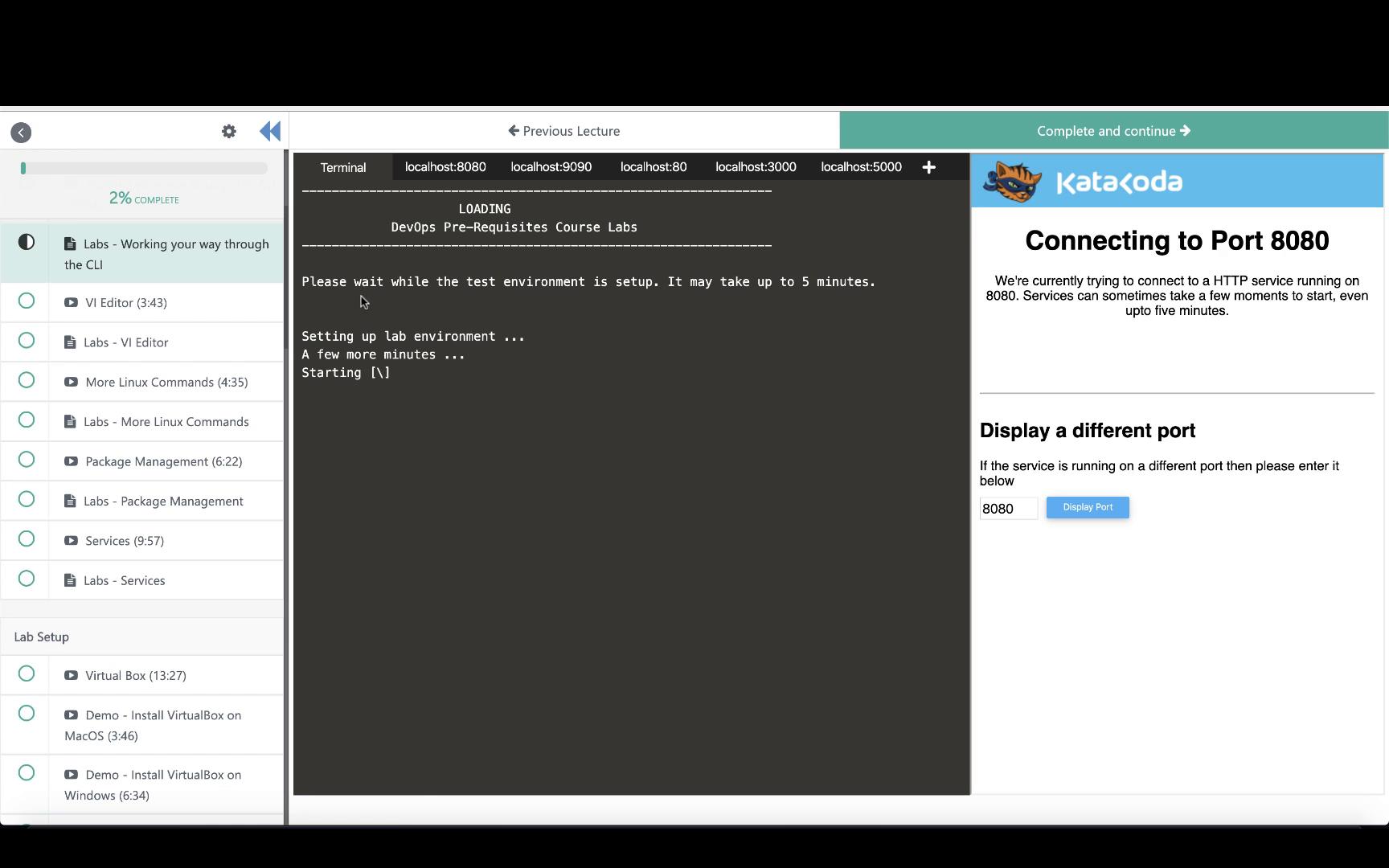
Please be aware that labs may take a few minutes to fully load. Patience is key!
Lab Interface Overview
Once launched, the lab interface is divided into two main sections:- Live Linux Terminal: Access a real-time Linux environment where you can execute commands.
- Quiz Portal: Complete a series of tasks divided into:
- Exploratory (Multiple-Choice) Questions
- Task-Based Questions, where you perform specific actions using the terminal.
Multiple-Choice Questions
When a multiple-choice question is presented, review the question and select the correct answer. If you’re uncertain about the solution, click the hint button to receive guidance or reveal the exact command required. An example of a multiple-choice question interface is shown below: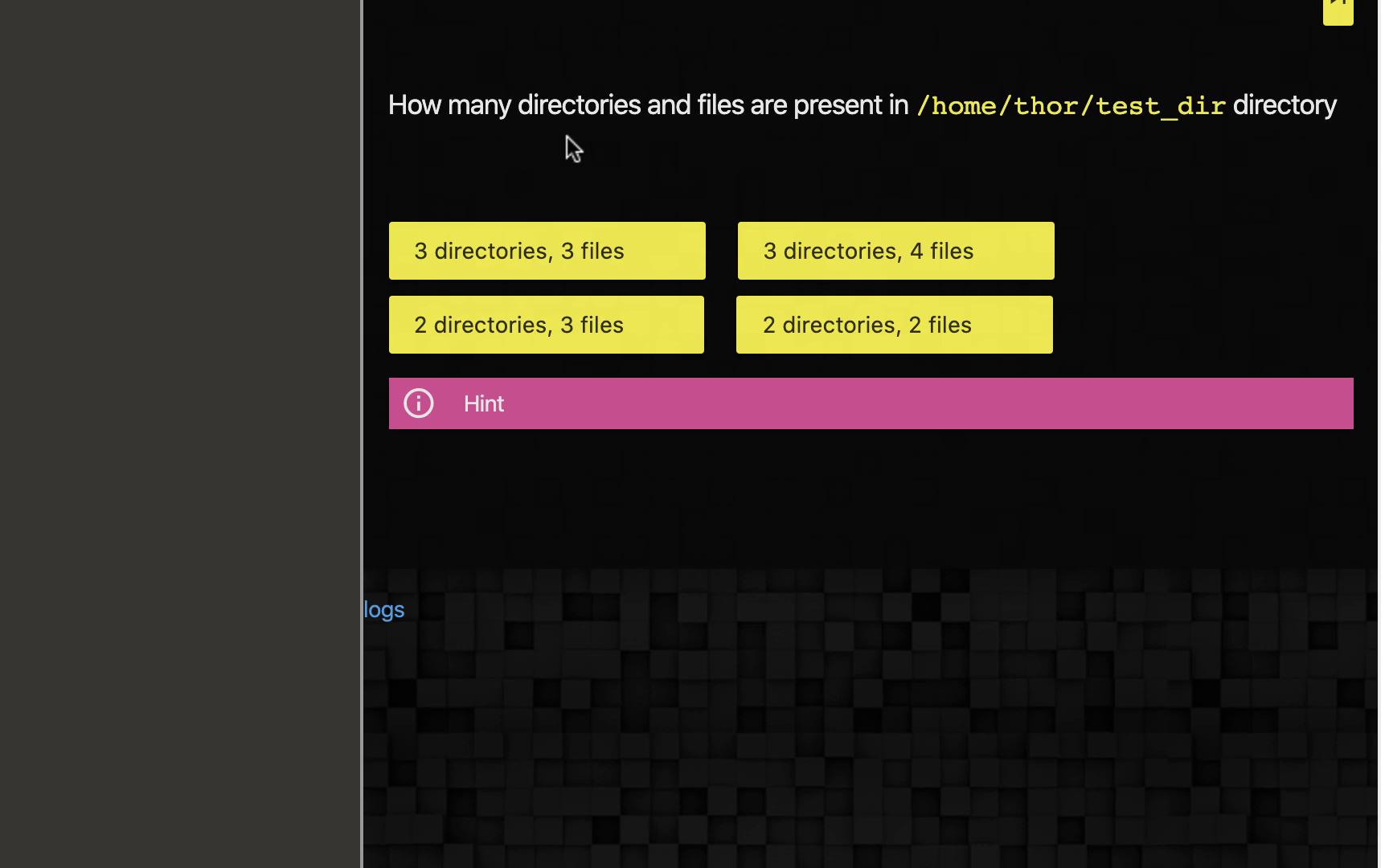
Task-Based Questions
Task-based questions require you to execute specific commands. For example, one task might ask you to list the structure of a directory. To complete such a task, use the following command: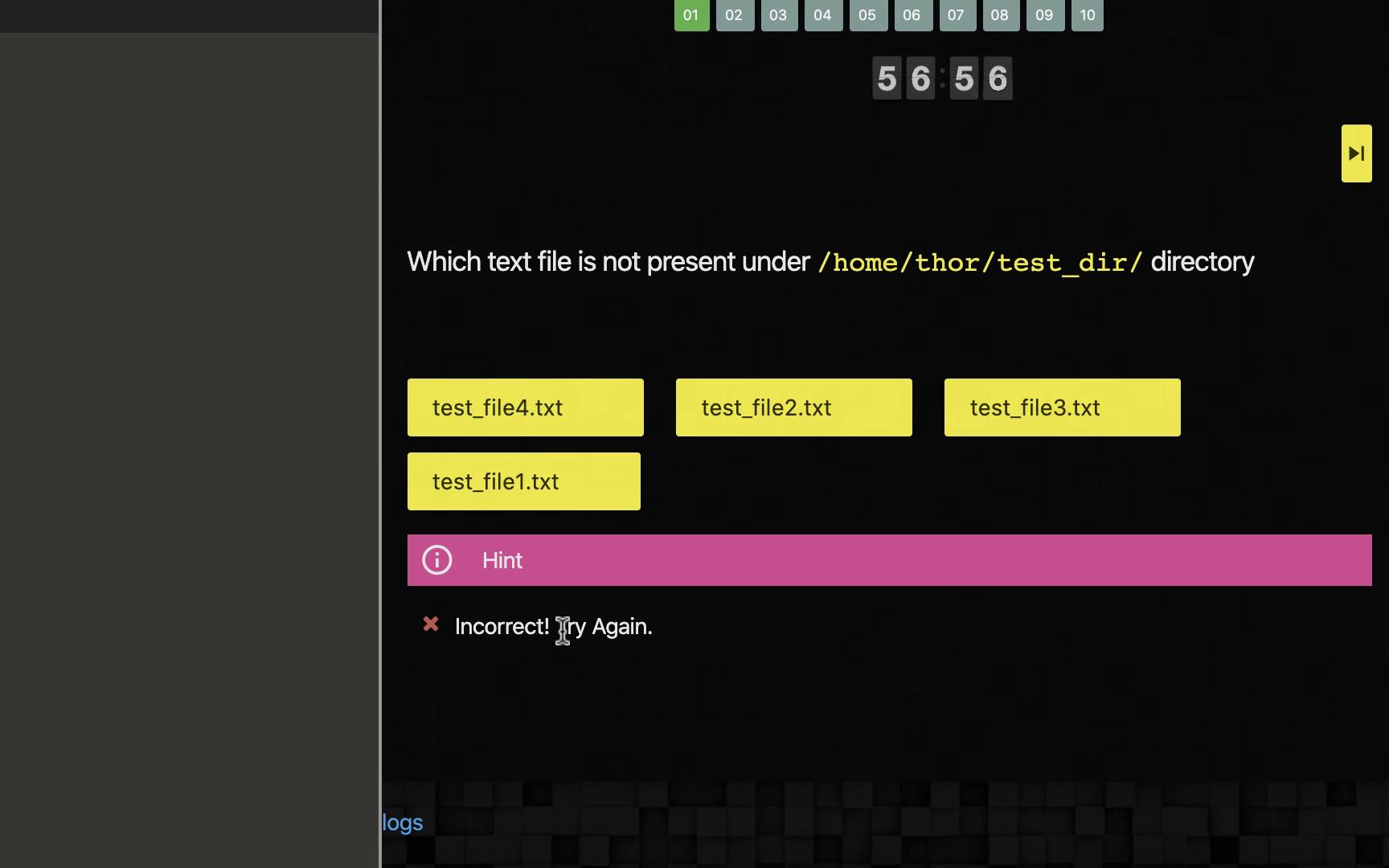
Example: Creating an Empty File
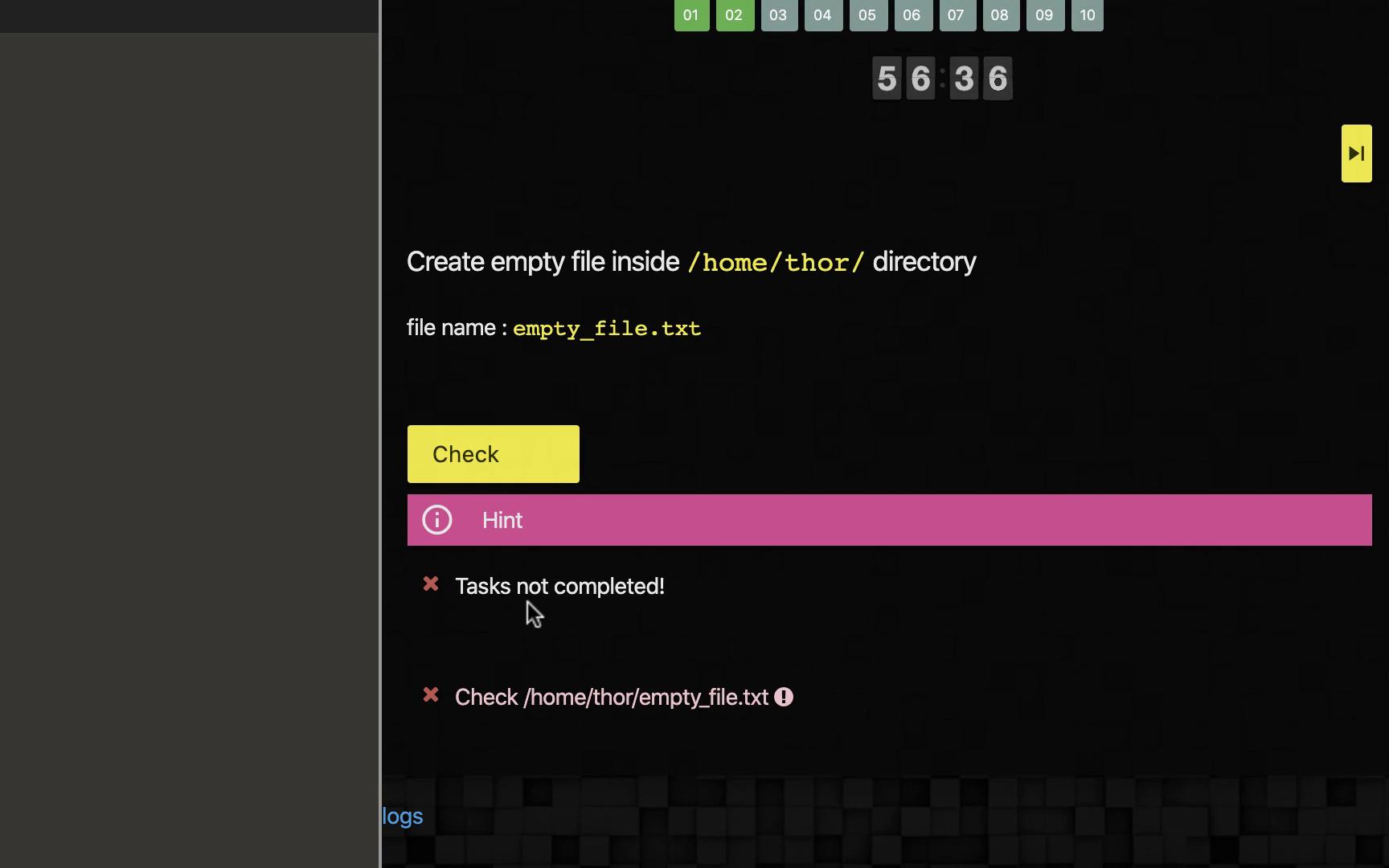
For a task-based question that requires creating an empty file, follow these steps:touch command, verify that the file has been created successfully. If not, the lab interface will alert you with an error message similar to the one below:
Session Duration and Navigation
Each lab session lasts one hour. While you can access labs multiple times, every session will always start at the first question. If you need to pause and restart—say after completing five questions—you can skip ahead on subsequent sessions. However, note that once you skip a question, it cannot be revisited.If your internet connection is lost, your lab session will expire. In this case, refresh the terminal or re-select the lab from the curriculum.
Additional Features and Troubleshooting
- Multiple Terminal Windows: You can open a new terminal window during your lab session by clicking the plus button. This is particularly useful when accessing hosted web servers. When clicking on a server URL, a new browser window will open, forwarding your request to the appropriate remote server.
- Browser Refresh: If the lab interface does not load consistently, try refreshing your browser. Should the issue persist, contact our support team at support@kodekloud.com with a screenshot or detailed error information.