

Step 1: Log into the CentOS VM
At the login prompt on your CentOS VM, select the default user “osboxes”. For images downloaded from osboxes.org, the login credentials are provided on the website’s Info section—with the username being “osboxes” and the password “osboxes.org”.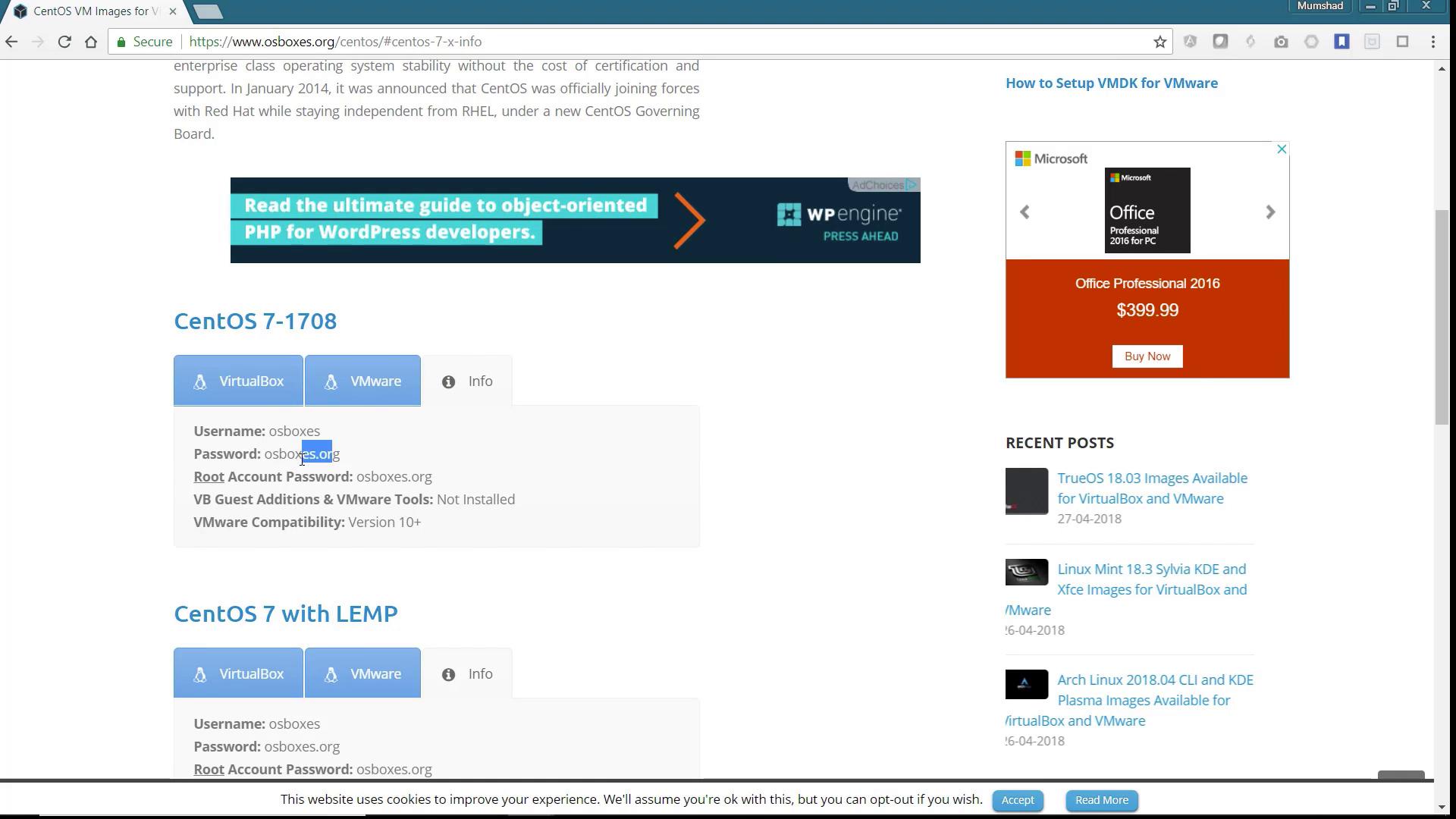
osboxes.org and click Sign In to access your CentOS system.
Step 2: Check the VM’s Network Configuration
Once logged in, open a terminal on the CentOS system and run the following command to display the network configuration: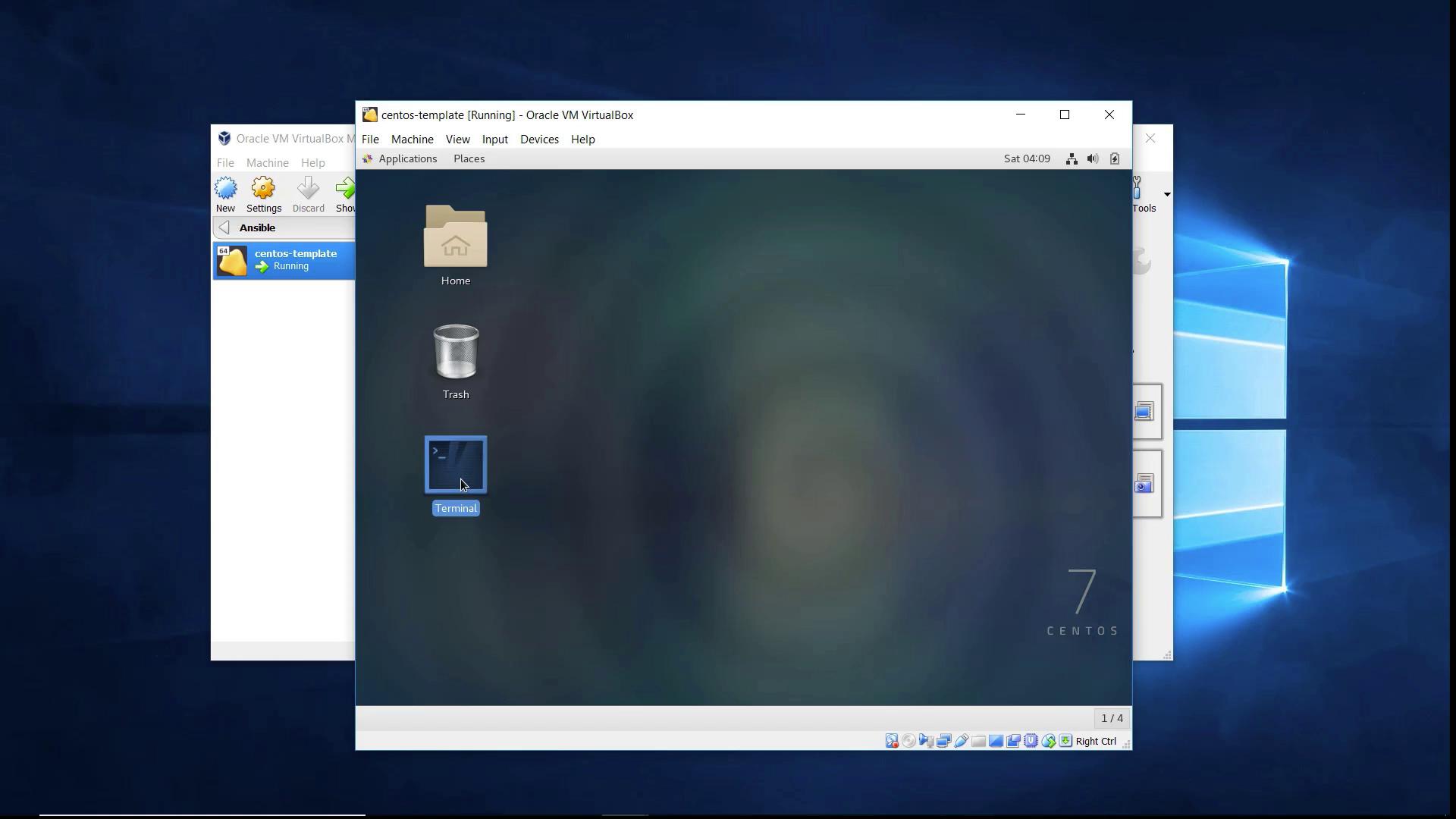
ifconfig command:
Ensure that you note the correct IP address from your
ifconfig output. You will require this IP address to establish the SSH connection.Step 3: Establish an SSH Connection
With your CentOS VM’s IP address at hand, you can now establish an SSH connection from your Windows system.Using MobaXterm
- Launch MobaXterm and create a new SSH session.
- Enter the following details:
- IP Address: 192.168.1.112
- Username: osboxes
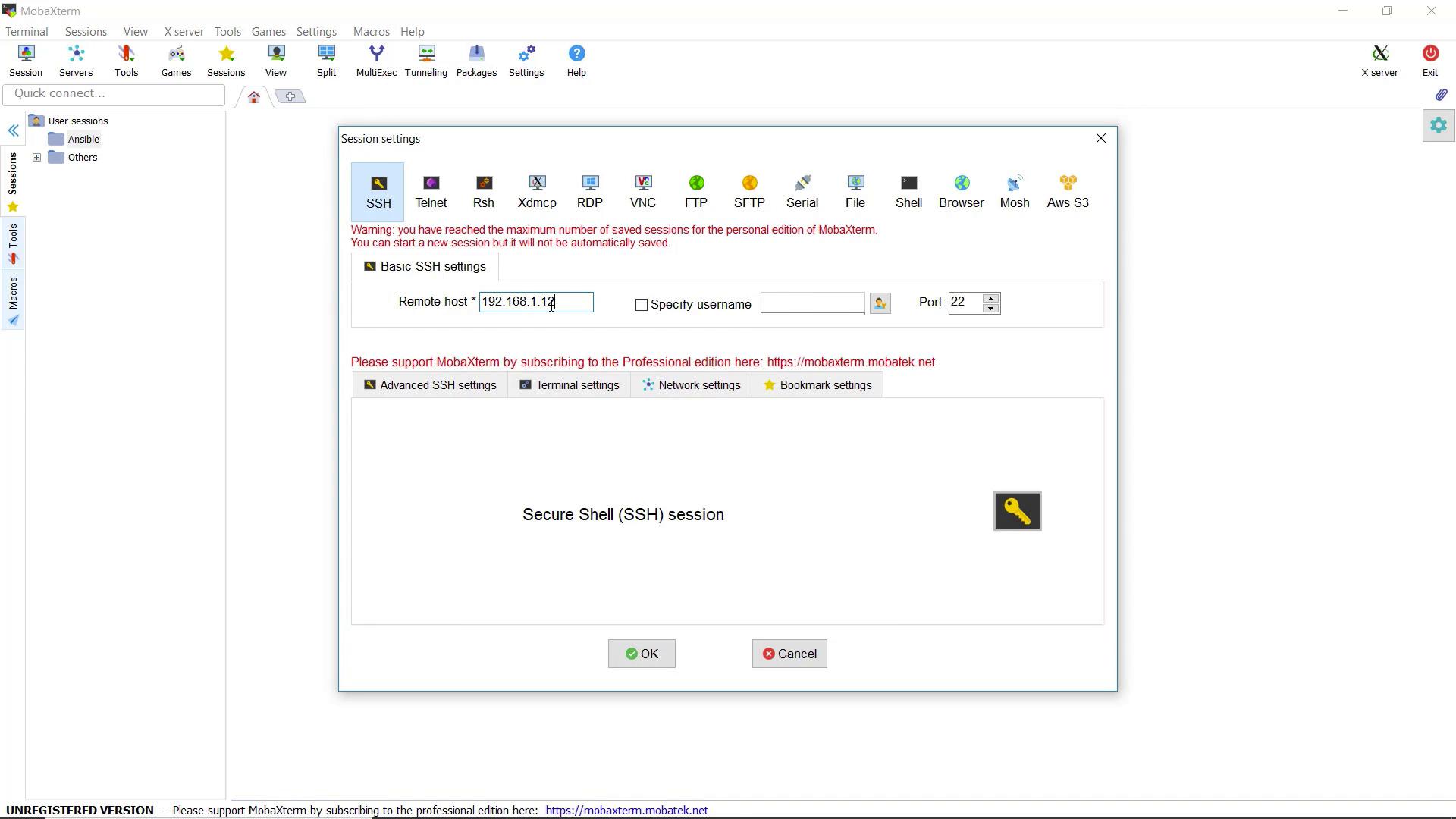
- Click OK to proceed.
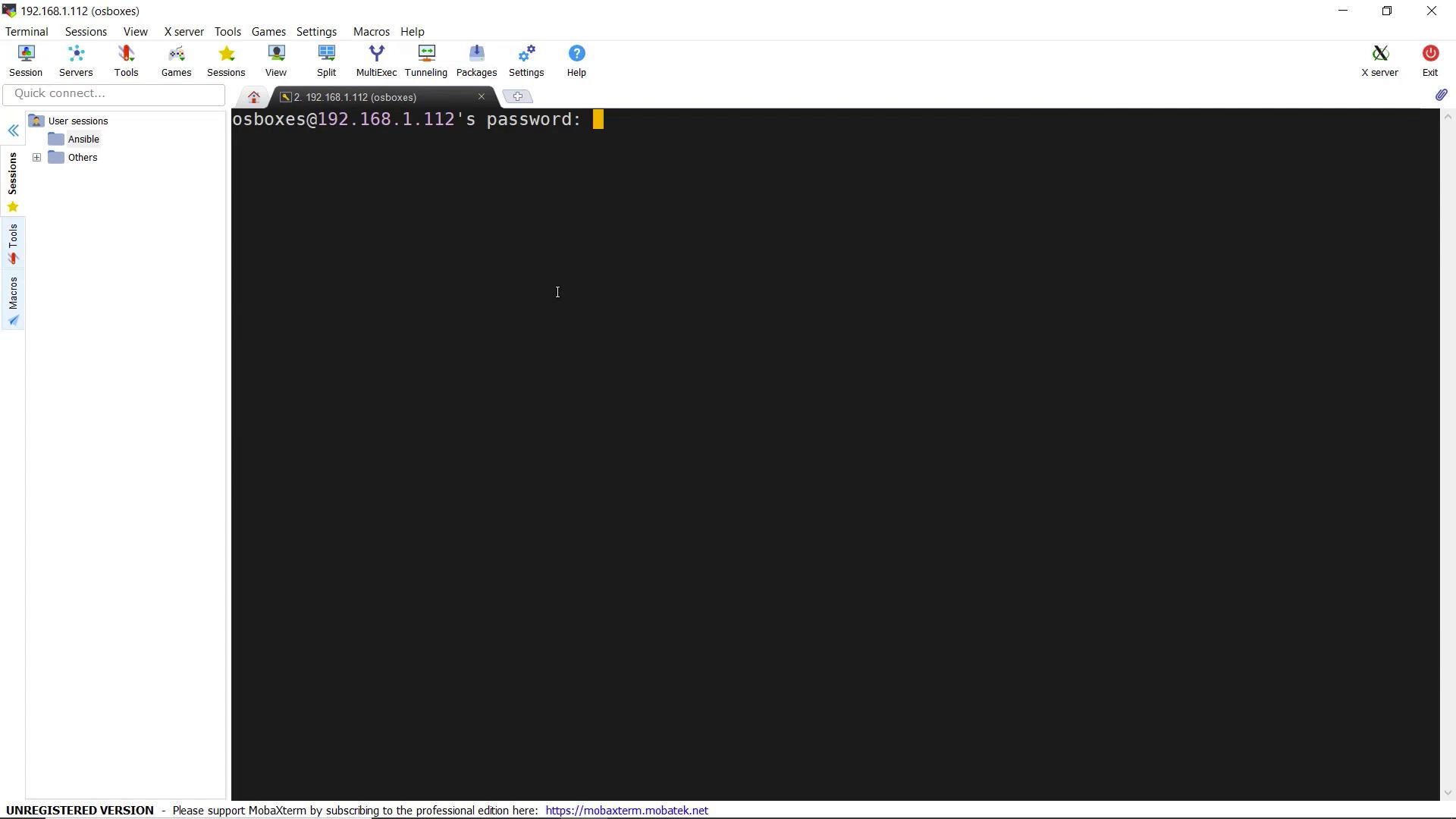
- When prompted, enter the password
osboxes.org.
For more information on managing SSH sessions on Windows, check out the MobaXterm documentation or explore PuTTY.