

Ensure that Java is installed on your system before proceeding with the Tomcat installation.
Installing Apache Tomcat on CentOS
Follow these steps to install Apache Tomcat on a CentOS machine. In a production environment, it’s recommended to create dedicated users for Tomcat and configure it as a service.-
Install Java:
-
Download the Tomcat package:
-
Extract the package:
-
Start Tomcat using the startup script in the bin directory:
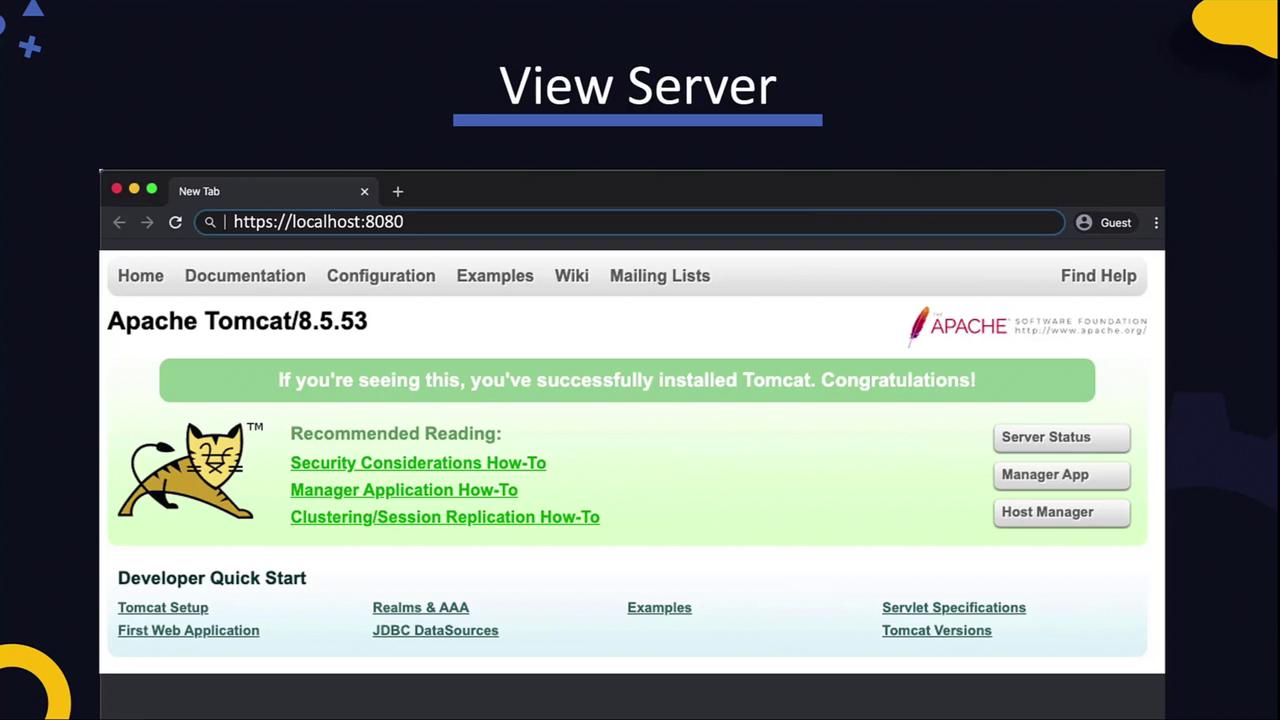
Exploring the Tomcat Directory Structure
After extracting the Tomcat package, examine its directory structure with the following command:Key Directories
- bin: Contains scripts for starting and stopping Tomcat. Windows users should use the
.batfiles, while Unix/Linux users should use the.shscripts. - conf: Contains essential configuration files such as
server.xmlandweb.xml. Theserver.xmlfile defines the “Connector” element that sets the port (default is 8080) on which Tomcat listens. Any changes require a restart of the service. - logs: Stores server logs.
- webapps: The default deployment directory for web applications. Placing a WAR file here triggers automatic extraction and deployment.
- lib, temp, and work: Manage libraries, temporary files, and work data respectively.
server.xml file demonstrating how connectors are configured:
Deploying a Web Application
Deploying a web application on Tomcat is straightforward. Follow these steps:1. Package Your Application
First, package your application’s source code into a WAR file. You can use thejar utility or build tools such as Maven or Gradle:
2. Deploy the WAR File
Copy the WAR file (e.g.,app.war) to the webapps directory of your Tomcat server. If Tomcat is running, it will automatically detect the new file, extract it, and deploy the application into a folder corresponding to the WAR file name (for example, /app).
3. Verify the Deployment
To confirm deployment, review the Tomcat logs located in the logs directory. Check the contents ofcatalina.out with:
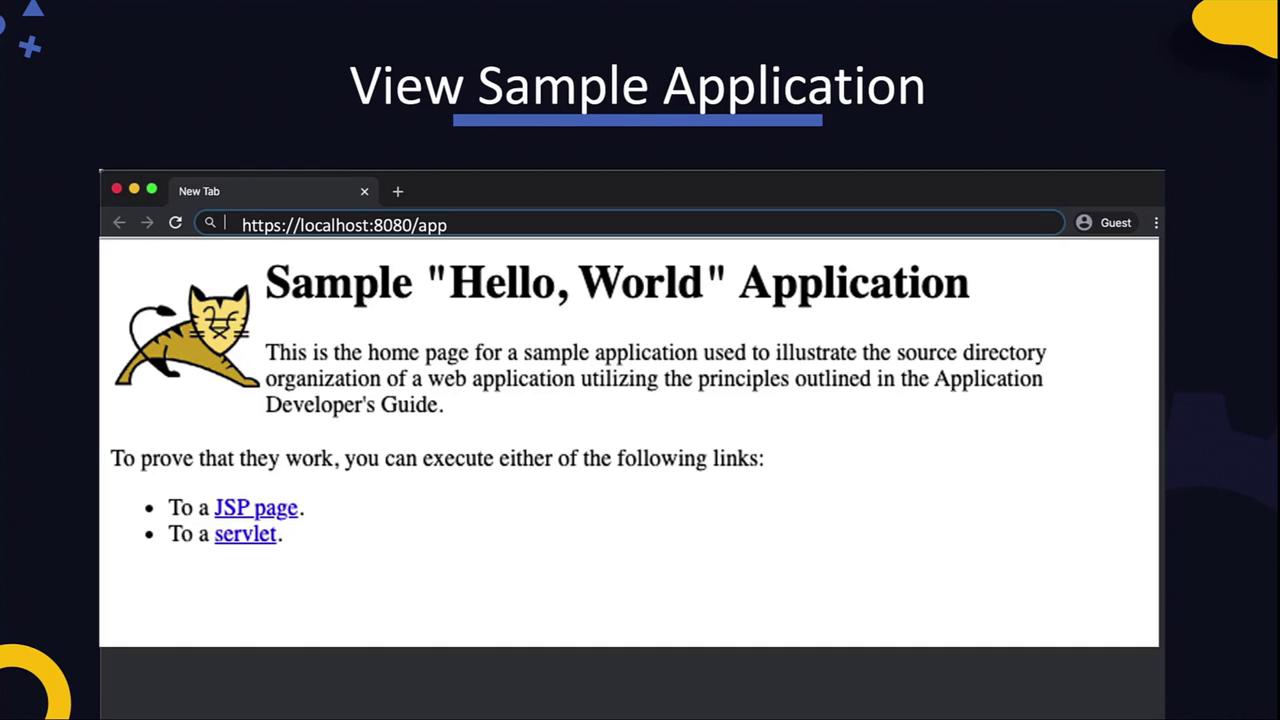
Conclusion
This guide provided an overview of installing Apache Tomcat, exploring its directory structure, and deploying a web application. Make sure to implement additional security measures, performance tuning, and service management configurations when deploying in production environments.In production, always review and apply best practices for security and performance optimization to ensure a robust deployment.