This lesson covers fundamental Linux CLI concepts essential for efficient command-line operations and system management in the Linux environment.
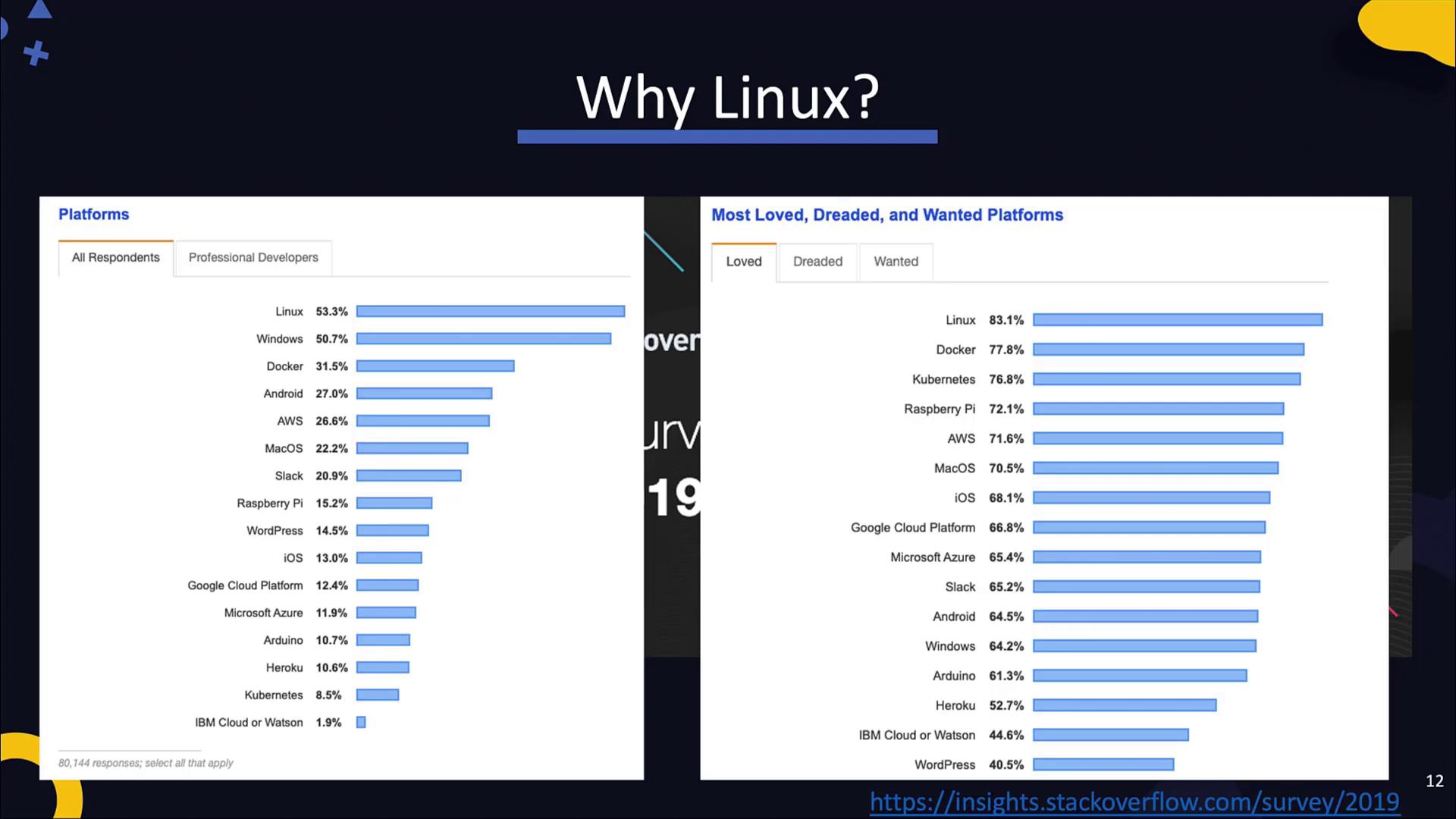
In this lesson, we explore fundamental Linux CLI concepts—an essential crash course for anyone looking to build proficiency in the Linux environment. Whether you’re an aspiring DevOps engineer or a seasoned developer transitioning from Windows, mastering these CLI skills will pave the way for efficient command-line operations and system management.While designing this course, we leveraged insights from Stack Overflow and student surveys to focus on the most in-demand technologies. According to community feedback, Linux remains the most widely used and highly favored platform among developers. If you’re new to Linux, it’s highly recommended to become familiar with its basic operations, as many modern DevOps tools—such as Docker, Ansible, and Kubernetes—are built around Linux. For example, Docker originally supported only Linux, and even though Ansible can manage Windows systems, it requires a Linux controller. Moreover, Kubernetes master nodes operate exclusively on Linux. A solid Linux foundation is critical if you plan to pursue certifications and proficiency in these areas.
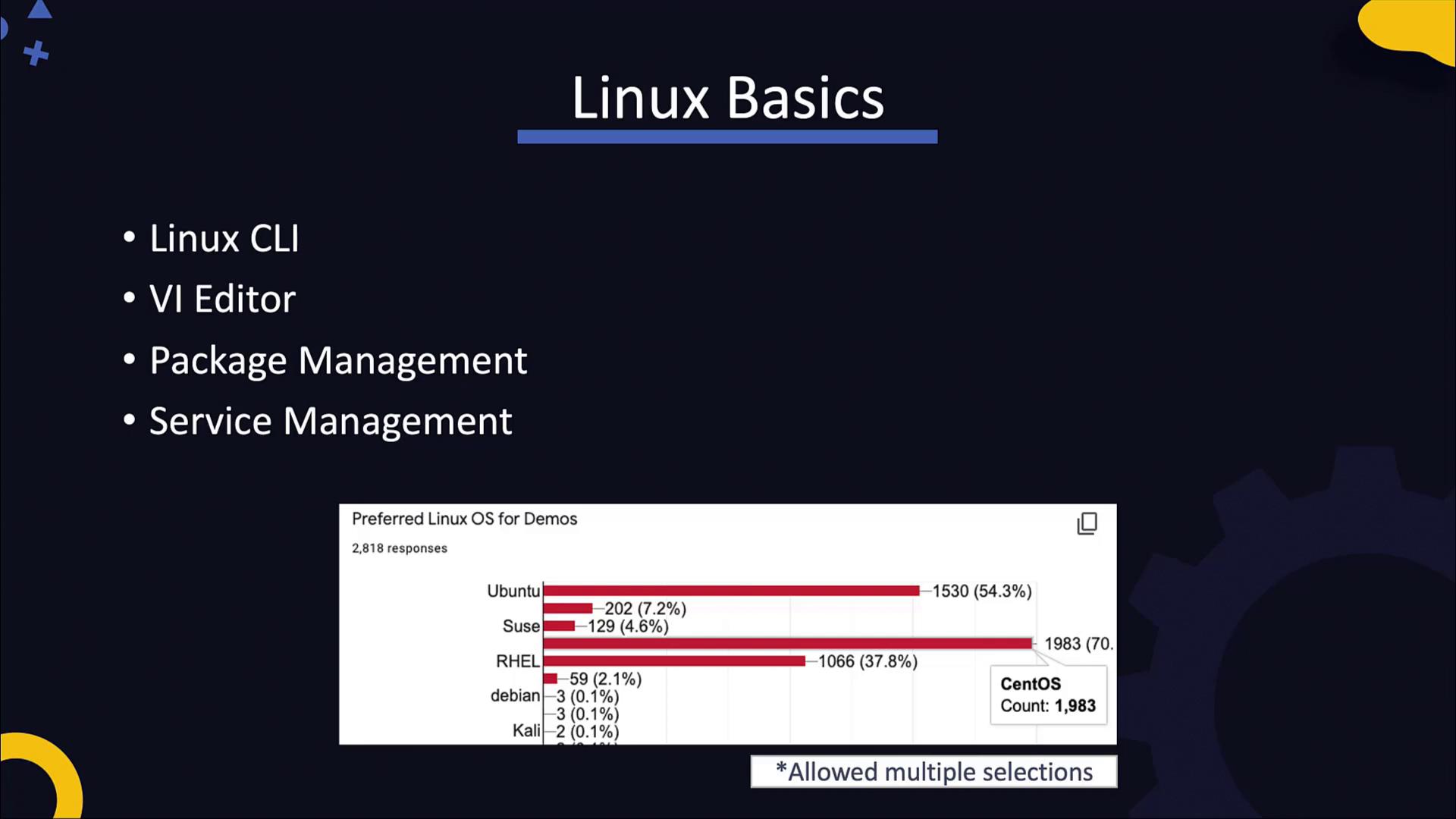
In this lesson, we cover Linux fundamentals, including the Command Line Interface (CLI), text editors like vi, package management, and service management. Our student survey demonstrated a strong preference for CentOS—making it an ideal starting point. CentOS, being the free community version of RHEL, provides experiences that are transferable to both Red Hat Enterprise Linux and certification tracks like Linux Essentials or the Linux Foundation Certified Systems Administrator exam.
For those interested in a deeper dive, consider enrolling in the Learning Linux Basics Course & Labs. This course employs a unique story/comic-style approach along with practical labs to enhance your understanding.Today, we begin our Linux crash course using lab environments. Working with a pre-provisioned Linux system will help you become comfortable with the CLI and core commands before you set up your own Linux system using tools like VirtualBox.
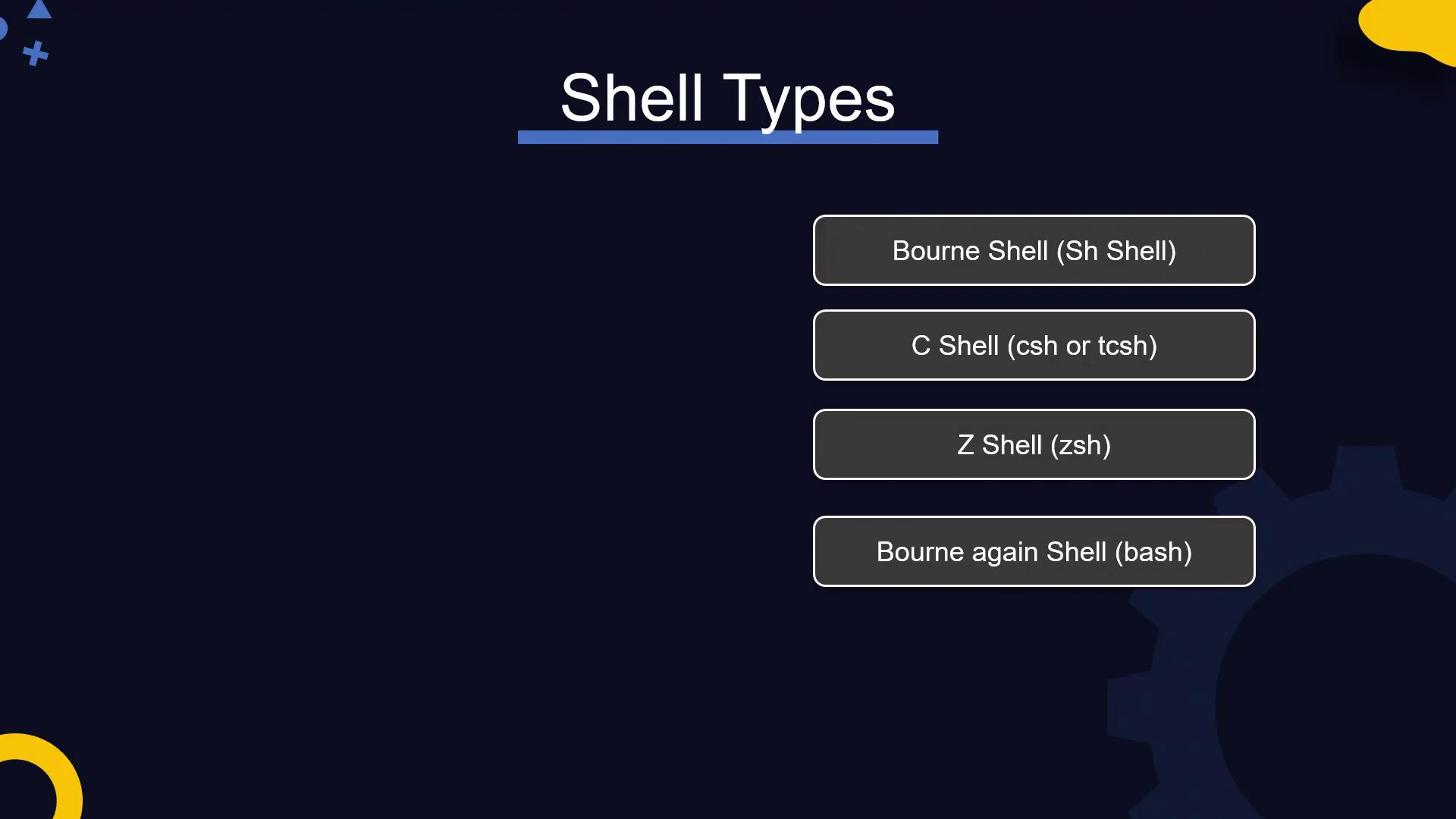
Linux systems offer both graphical user interfaces (GUIs) and command-line interfaces (CLIs), but the CLI (or shell) is indispensable in many IT environments—particularly on servers where a GUI is rarely available. Numerous shells exist:
Bourne shell (sh)
C shell (csh or tcsh)
Z shell (zsh)
Bourne Again Shell (bash)
While the older Bourne shell is limited, the modern bash shell offers advanced features such as arithmetic operations, conditionals, and arrays. To verify which shell you are using, run:
echo $SHELL
The echo command prints text or the value of an environment variable, as indicated by the dollar sign.
cd new_directory; mkdir www; pwd# Output (example):# /home/my_dir1/new_directory
The above example demonstrates executing multiple commands in sequence by separating them with semicolons. This method enables streamlined operations within the CLI.
To create an entire directory tree in a single command, use the following:
mkdir -p /tmp/asia/india/bangalore
The -p option ensures that the entire directory tree is created if it doesn’t already exist. Conversely, to remove a directory and its contents recursively, you can use:
File manipulation is a common Linux task. Here are some basic file operations:
Create an empty file:
touch new_file.txt
Add content to a file using redirection:
cat > new_file.txtThis is some sample content.# (Press CTRL+D to save)
Display the file contents:
cat new_file.txt# Output:# This is some sample content.
For editing files, text editors like vi or vim are essential tools and will be covered in more detail later in the course. Additionally, you can easily copy, move, and delete files:
cp new_file.txt copy_file.txtmv new_file.txt sample_file.txt # This renames the filerm sample_file.txt
These commands allow you to duplicate, rename/move, and remove files as required.
We encourage you to practice using these commands within a lab environment to build confidence and improve your command line proficiency.
As you progress through the labs, focus on mastering these CLI fundamentals. The next section will guide you through deploying a Linux system on your laptop using tools like VirtualBox, providing a solid foundation for deeper exploration in future lessons.Happy learning!