This lesson introduces DNS on Linux, covering basic concepts, essential commands, and hands-on lab challenges for beginners.
In this lesson, we introduce DNS on Linux for beginners. We cover basic DNS concepts and demonstrate the essential commands needed to configure and troubleshoot DNS on Linux hosts. By the end, you’ll have the opportunity to complete a hands-on lab with DNS challenges directly in your browser.Imagine you have two computers—A and B—on the same network, with IP addresses 192.168.1.10 and 192.168.1.11 respectively. You can verify connectivity by pinging computer B from computer A using its IP address:
Copy
Ask AI
ping 192.168.1.11
Sample output:
Copy
Ask AI
Reply from 192.168.1.11: bytes=32 time=4ms TTL=117Reply from 192.168.1.11: bytes=32 time=4ms TTL=117
Suppose system B provides database services and you want to refer to it by an easy-to-remember name like “db”. Attempting to ping “db” immediately, however, results in:
Copy
Ask AI
ping db
Copy
Ask AI
ping: unknown host db
To resolve this, add an entry to the /etc/hosts file on system A to map the IP address to the name “db”:
Copy
Ask AI
cat >> /etc/hosts192.168.1.11 db
Now, pinging “db” directs traffic to 192.168.1.11:
Copy
Ask AI
ping db
Copy
Ask AI
PING db (192.168.1.11) 56(84) bytes of data.64 bytes from db (192.168.1.11): icmp_seq=1 ttl=64 time=0.052 ms64 bytes from db (192.168.1.11): icmp_seq=2 ttl=64 time=0.079 ms
Keep in mind that system A relies entirely on the /etc/hosts entry for name resolution. It does not verify whether system B’s actual hostname (as reported by the hostname command) matches “db”.
You can also add multiple aliases for the same IP address. For instance, to associate system B with both “db” and “www.google.com”, update the /etc/hosts file as follows:
After this, both names will resolve to 192.168.1.11. Test it with:
Copy
Ask AI
ping db
Copy
Ask AI
PING db (192.168.1.11) 56(84) bytes of data.64 bytes from db (192.168.1.11): icmp_seq=1 ttl=64 time=0.052 ms64 bytes from db (192.168.1.11): icmp_seq=2 ttl=64 time=0.079 ms
Copy
Ask AI
ping www.google.com
Copy
Ask AI
PING www.google.com (192.168.1.11) 56(84) bytes of data.64 bytes from www.google.com (192.168.1.11): icmp_seq=1 ttl=64 time=0.052 ms64 bytes from www.google.com (192.168.1.11): icmp_seq=2 ttl=64 time=0.079 ms
Each time you reference a hostname—whether using ping, SSH, or curl—the system first checks the /etc/hosts file:
This translation of a hostname to an IP address is known as name resolution. While managing small networks via local /etc/hosts files works well, maintaining consistency becomes difficult as the number of hosts increases.
If a server’s IP address changes, updating the /etc/hosts file on every host can be a major headache. A centralized DNS server eliminates this problem.
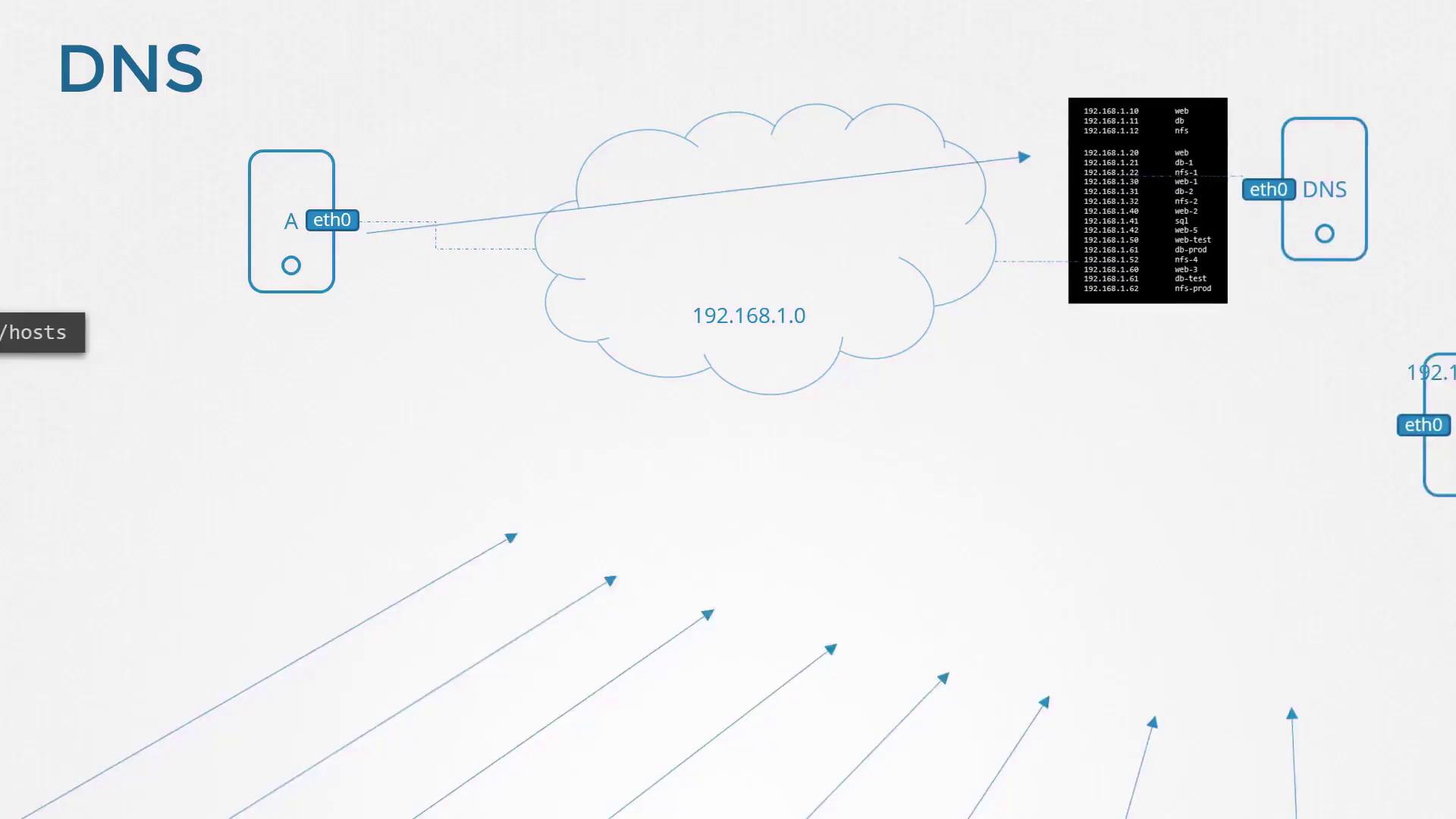
To simplify name resolution in larger networks, you store these mappings on a single DNS server. For example, consider these entries on your centralized DNS server:
Configure each host on your network to use this DNS server for name resolution by specifying its IP address in the /etc/resolv.conf file. For example, if your DNS server’s IP address is 192.168.1.100, add:
Copy
Ask AI
cat >> /etc/resolv.confnameserver 192.168.1.100
With this setup, if a hostname isn’t locally resolved via /etc/hosts, the system queries the DNS server. Updating the DNS server’s mappings automatically refreshes host resolution across the network.Local /etc/hosts entries remain useful for specific purposes. For instance, if you provision a test server that only you need to access, add an entry like this:
Copy
Ask AI
cat >> /etc/hosts192.168.1.115 testping test
Output:
Copy
Ask AI
PING test (192.168.1.115) 56(84) bytes of data.64 bytes from test (192.168.1.115): icmp_seq=1 ttl=64 time=0.052 ms64 bytes from test (192.168.1.115): icmp_seq=2 ttl=64 time=0.079 ms
The DNS resolution order is controlled by /etc/nsswitch.conf. By default, it is set to:
Copy
Ask AI
cat /etc/nsswitch.confhosts: files dns
This configuration instructs the system to check the local /etc/hosts file first (“files”) and then query the DNS server (“dns”).If a hostname isn’t found in either the local file or on the DNS server (for example, www.facebook.com when your DNS does not forward unresolved queries), the ping will fail. To resolve external domains, you can add a public DNS server (such as Google’s 8.8.8.8) to /etc/resolv.conf or set your internal DNS server to forward queries.Consider this scenario: Initially, pinging www.facebook.com fails.
PING star-mini.c10r.facebook.com (157.240.13.35) 56(84) bytes of data.64 bytes from edge-star-mini-shv-02-sin6.facebook.com (157.240.13.35): icmp_seq=1 ttl=50 time=5.70 ms
The “.com” indicates a top-level domain (TLD) that classifies the website under specific categories such as commercial or network-related.
Consider the hierarchical structure of Google’s domain. The primary domain is “google.com”, while “www” is one of its subdomains. Other subdomains like maps.google.com, drive.google.com, apps.google.com, and mail.google.com represent different Google services. When queried, your DNS server may need to forward the request up the hierarchy—which involves root DNS servers, TLD servers, and authoritative DNS servers—to resolve the domain to the correct IP address.
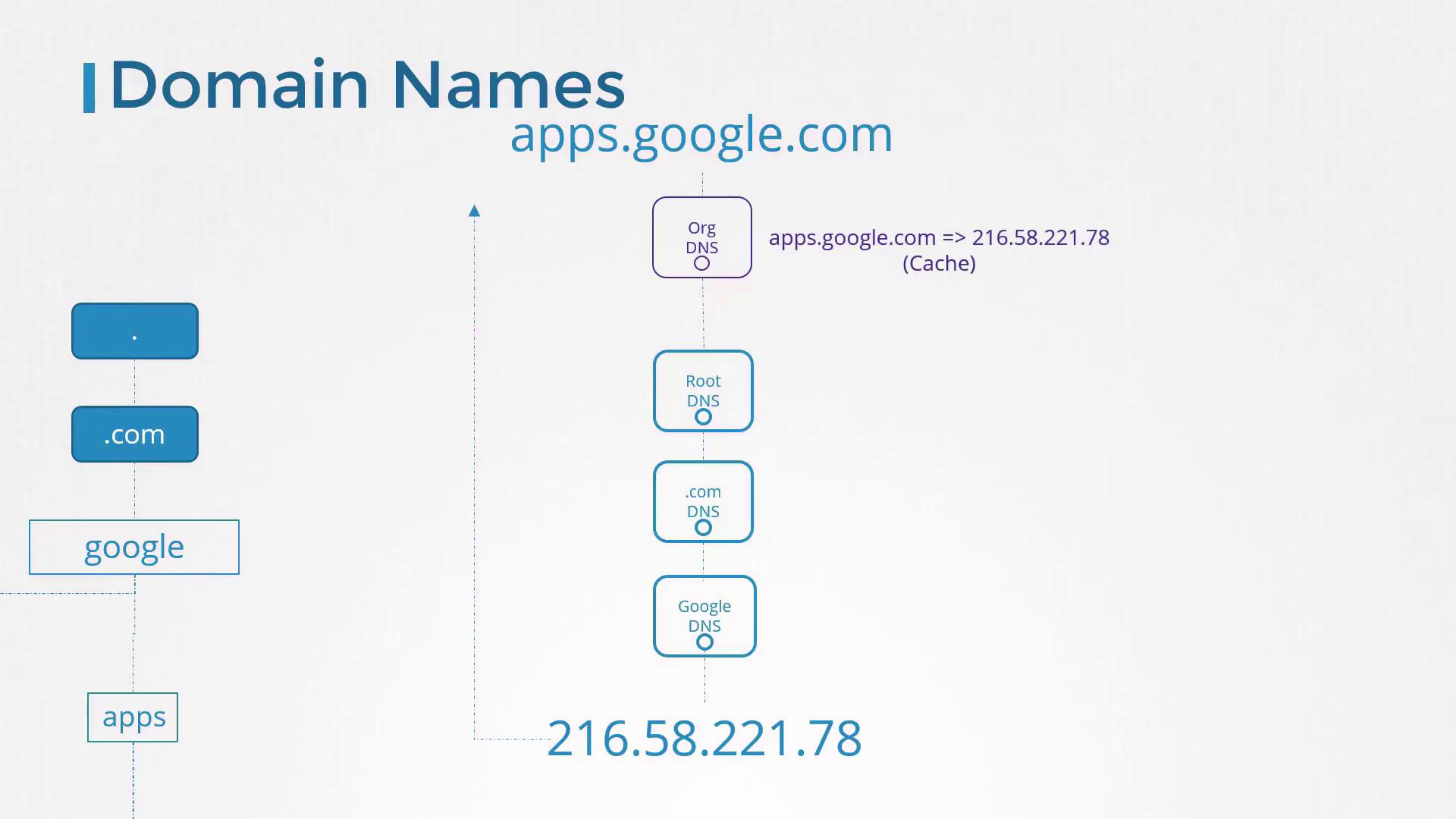
Similarly, an organization might use a domain such as mycompany.com with subdomains like www.mycompany.com for the public website, mail.mycompany.com for email, drive.mycompany.com for storage, payroll.mycompany.com for payroll services, and hr.mycompany.com for human resources. These DNS records are centrally managed by the internal DNS server.To simplify internal hostname resolution, you can configure a search domain in /etc/resolv.conf. This allows you to use short names instead of fully qualified domain names. For example:
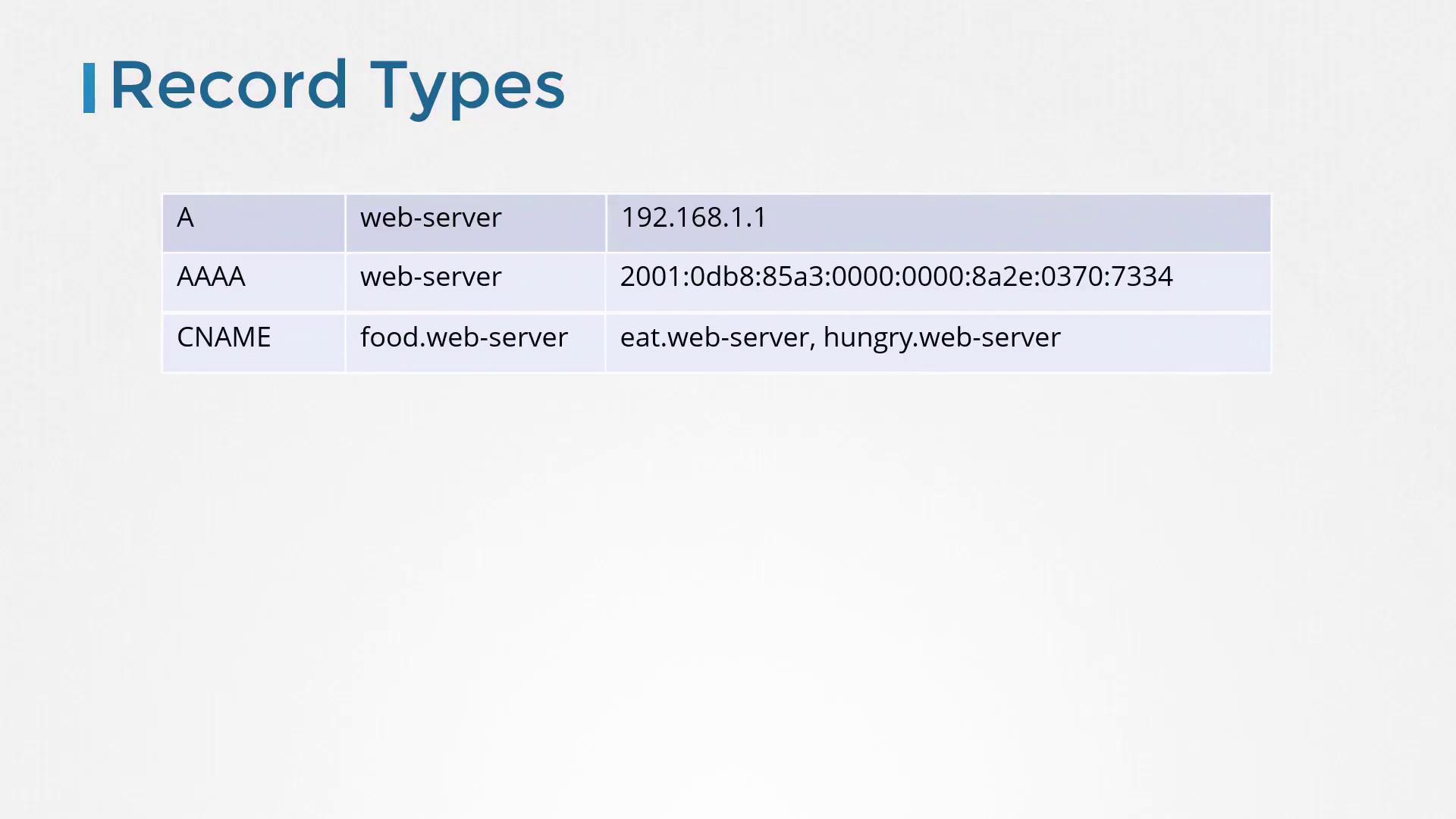
DNS servers store mappings between hostnames and IP addresses, and these mappings are defined by various record types. Below is a table summarizing common DNS record types:
Record Type
Example Hostname
Example Mapping
A
web-server
192.168.1.1
AAAA
web-server
2001:0db8:85a3:0000:0000:8a2e:0370:7334
CNAME
food.web-server
Points to eat.web-server, hungry.web-server
An A record maps a hostname to an IPv4 address, while an AAAA record maps a hostname to an IPv6 address. A CNAME (canonical name) record creates an alias for another domain name—useful for routing multiple names to the same application.
While ping is a standard tool for checking DNS resolution, utilities like NSLookup and DIG provide more detailed insights.For example, NSLookup directly queries a DNS server, bypassing local /etc/hosts entries:
Similarly, DIG provides comprehensive DNS information:
Copy
Ask AI
dig www.google.com
Sample output:
Copy
Ask AI
; <<>> DiG 9.10.3-P4-Ubuntu <<>> www.google.com;; global options: +cmd;; Got answer:;; ->>HEADER<<- opcode: QUERY, status: NOERROR, id: 28065;; flags: qr rd ra; QUERY: 1, ANSWER: 6, AUTHORITY: 0, ADDITIONAL: 1;; OPT PSEUDOSECTION:; EDNS: version: 0, flags:; udp: 512;; QUESTION SECTION:;www.google.com. IN A;; ANSWER SECTION:www.google.com. 245 IN A 64.233.177.103www.google.com. 245 IN A 64.233.177.105www.google.com. 245 IN A 64.233.177.147www.google.com. 245 IN A 64.233.177.106www.google.com. 245 IN A 64.233.177.104www.google.com. 245 IN A 64.233.177.99;; Query time: 5 msec;; SERVER: 8.8.8.8#53(8.8.8.8);; WHEN: Sun Mar 24 04:34:33 UTC 2019;; MSG SIZE rcvd: 139
As you work through practice exercises, you will configure, view, and troubleshoot DNS on actual systems using these tools.That concludes this lesson on DNS. Happy learning!