

- What Git does and why it matters.
- How to install Git and verify the installation.
- Creating and working with repositories (local and remote).
- How to stage, commit, and inspect changes.
- Common workflows and next steps (clone, push, pull) and the difference between Git and hosting services like GitHub.
- Track what changed, when, and who changed it.
- Let multiple developers work simultaneously without overwriting each other.
- Create named snapshots (versions) of the project at important milestones.
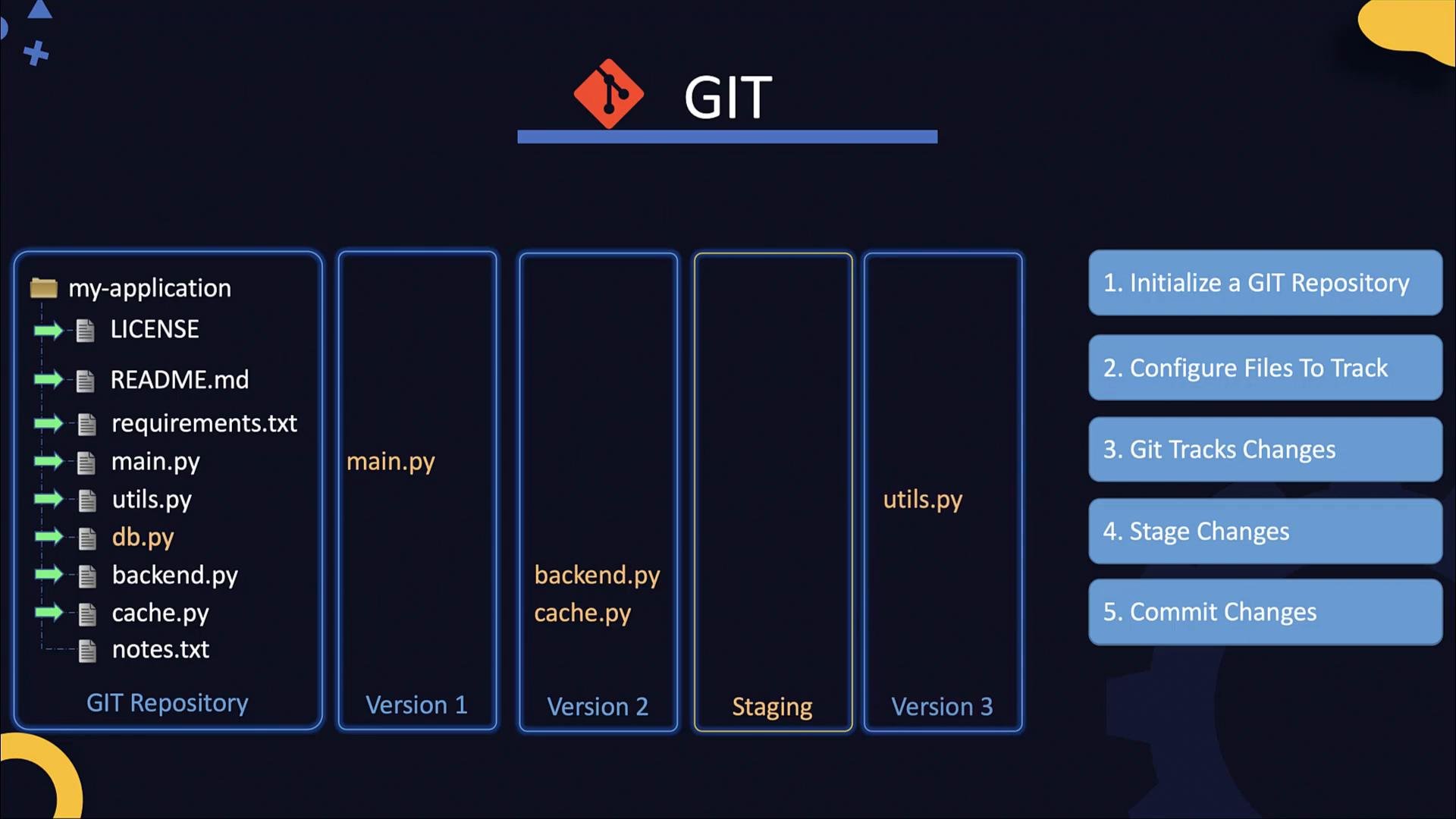
- Initialize a Git repository in your project directory (
git init) or clone an existing remote repository (git clone). - Choose which files Git should track (use
.gitignoreto exclude files). - Stage a coherent set of changes into the index using
git add. - Create a commit (
git commit) to record a snapshot. - Repeat: edit → stage → commit; push and pull to synchronize with remote repositories when collaborating.
- Git does not auto-version on save. You explicitly create versions with
git add+git commit. - Stage only the changes you intend to include in a commit to keep history focused.
- The working directory, staging area (index), and the commit history are the main Git states to understand.
- Working directory: your files.
.gitdirectory: repository metadata created bygit init.- Staging area (index):
git addselects what goes into the next commit. - Commit:
git commitrecords the staged snapshot as a new version.
- Install Git
- On CentOS/RHEL:
- For other operating systems, follow the official instructions: https://git-scm.com/downloads
- Initialize a repository To start tracking an existing project directory:
.git directory that contains all repository metadata and history.
- Check repository status Before adding files, check what Git sees:
- Decide which files to track You can add each file explicitly:
.gitignore to exclude personal or generated files such as notes.txt. .gitignore is the standard way to exclude files from being tracked.
After staging, verify:
- Modify files and stage specific changes
When you edit a tracked file (e.g.,
main.py) Git marks it as modified:
git add -p) when you want finer-grained commits.
- Commit changes Create a commit from staged changes and include a descriptive message:
Write commit messages that clearly describe what changed and why. Small, focused commits with meaningful messages make history easier to read, review, and revert if needed.
git add behaves
- Untracked files:
git add <file>both starts tracking and stages the file. - Tracked and modified files:
git add <file>stages the current changes for the next commit. - Partial staging: use
git add -pto interactively choose hunks to stage.
Summary and next steps
- Core local workflow:
git init→git add→git commit. - Use
git statusoften to understand repository state. - Practice creating commits, making targeted changes, and using
.gitignoreto exclude local files. - Next topics to learn: cloning remote repositories (
git clone), connecting to remotes (git remote add), pushing and pulling (git push,git pull), branching and merging, and collaboration workflows (forks, pull requests).
- Official Git downloads and documentation: https://git-scm.com/
- Learn Git basics with interactive tutorials: https://try.github.io/ or https://learngitbranching.js.org/