Using an access token when accessing GitHub repositories via a public URL ensures that you avoid accidental rate limiting.
Generating a GitHub Access Token
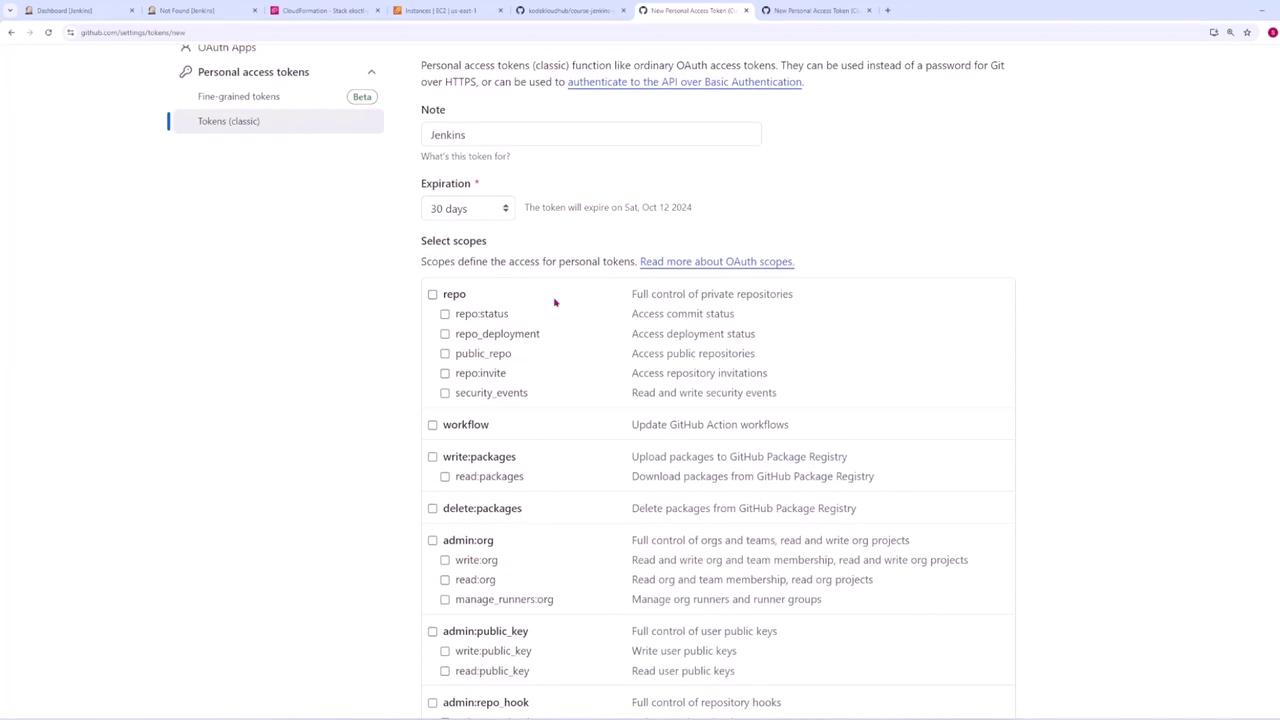
To generate an access token:- Click on your user icon in GitHub.
- Go to Settings and then open Developer settings in a new tab.
- Under the Personal Access Tokens section, select Token (classic) and click Generate new token.
- Provide a name (e.g., “Jenkins”) and select the required scopes (for instance, the “repo” scope for full control over private repositories).
- Generate the token and copy it.
Adding GitHub Credentials in Jenkins
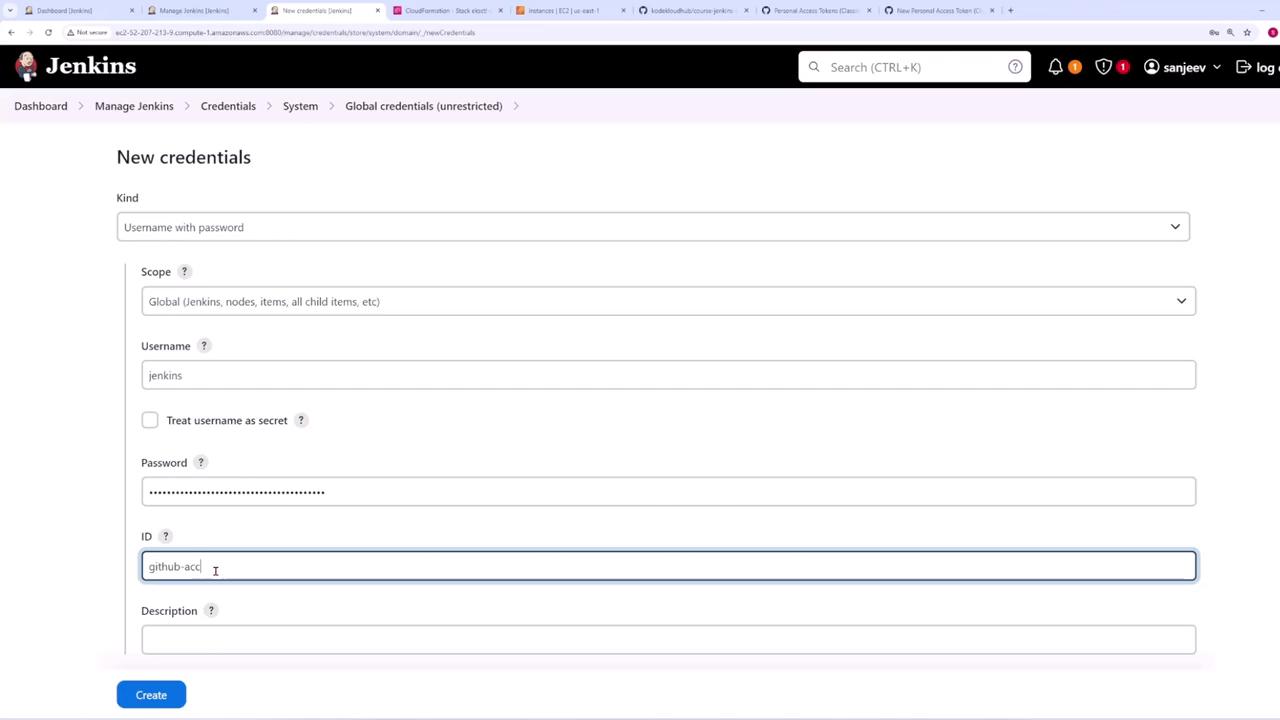
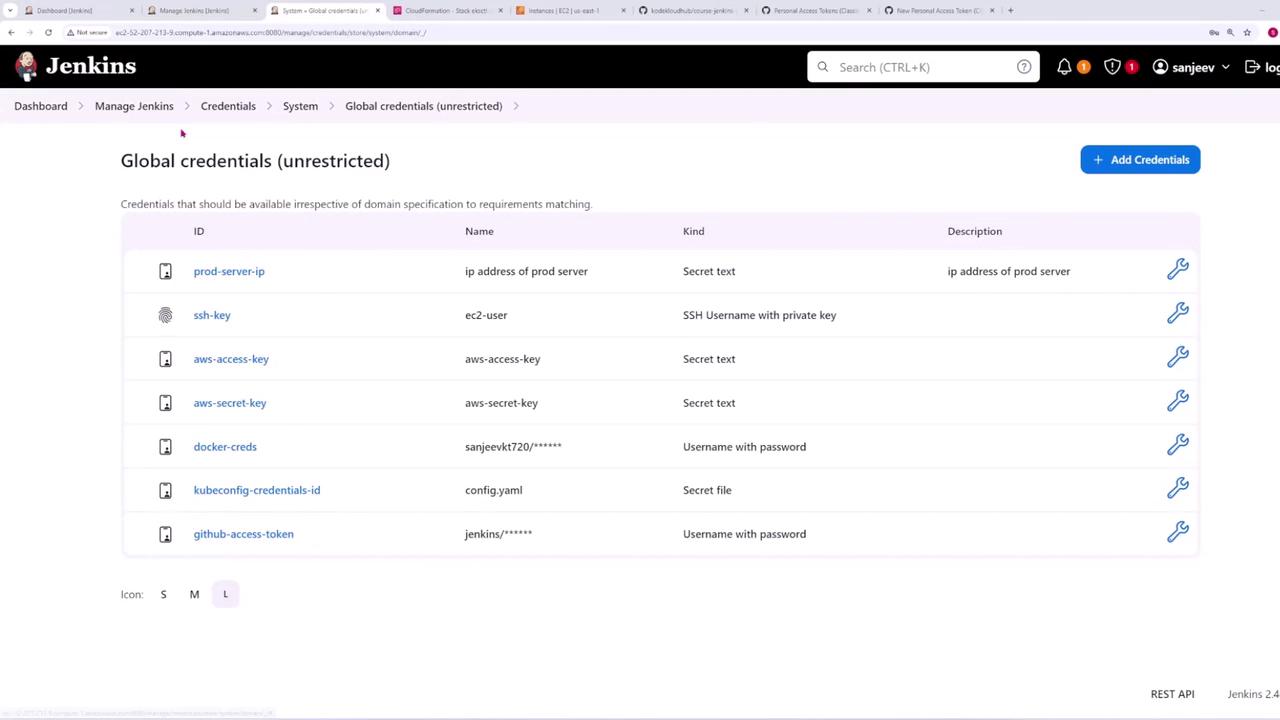
After copying your token, switch to Jenkins and perform the following steps:- Navigate to Credentials > System > Global credentials (unrestricted).
- Add a new credential of type Username with password.
- Use a placeholder username (e.g., “Jenkins”) and paste your access token as the password.
- Assign an ID, such as “GitHub-access-token,” then save the credential.
Organizing Your Pipelines
To keep your pipelines organized:- Create a new folder by selecting New Item.
- Name it “Final Project” and choose the Folder type.
- Optionally assign a display name, then click Save.
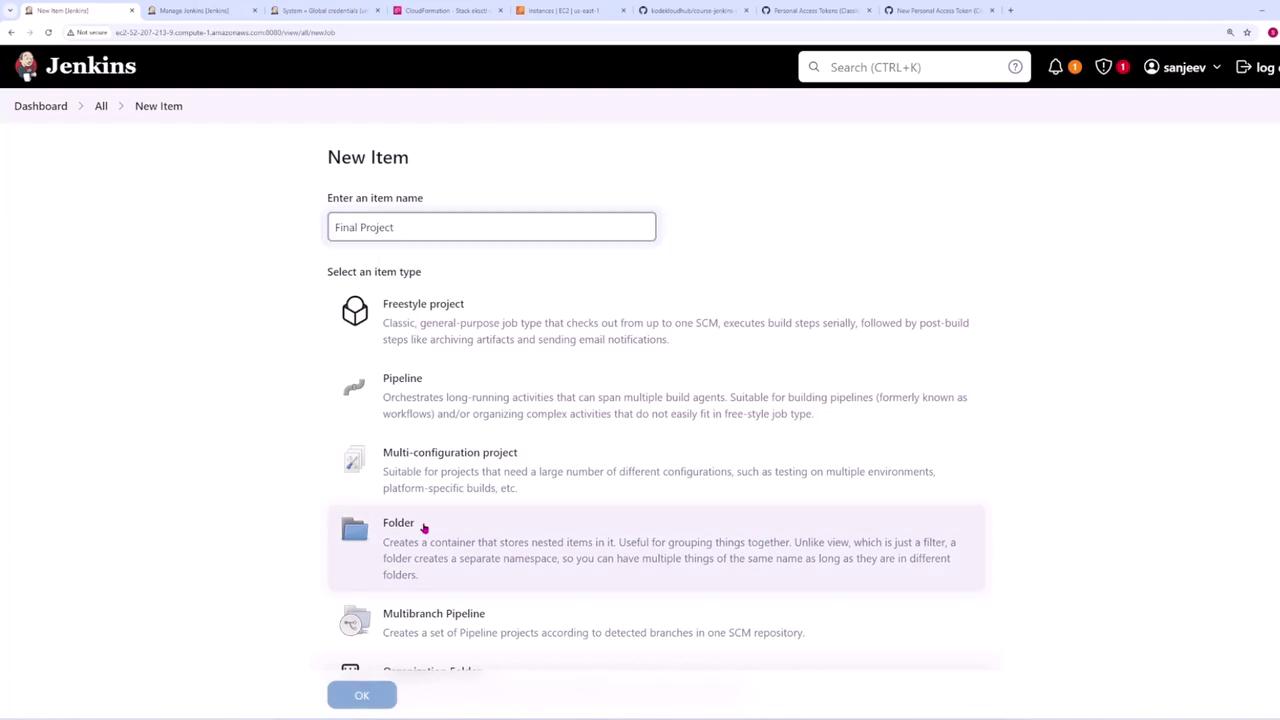
- Name it “pipeline code-quality”.
- Select Multibranch Pipeline as the project type. This option provides features such as running the pipeline on multiple branches and triggering builds for pull requests.
Configuring Branch Sources in Jenkins
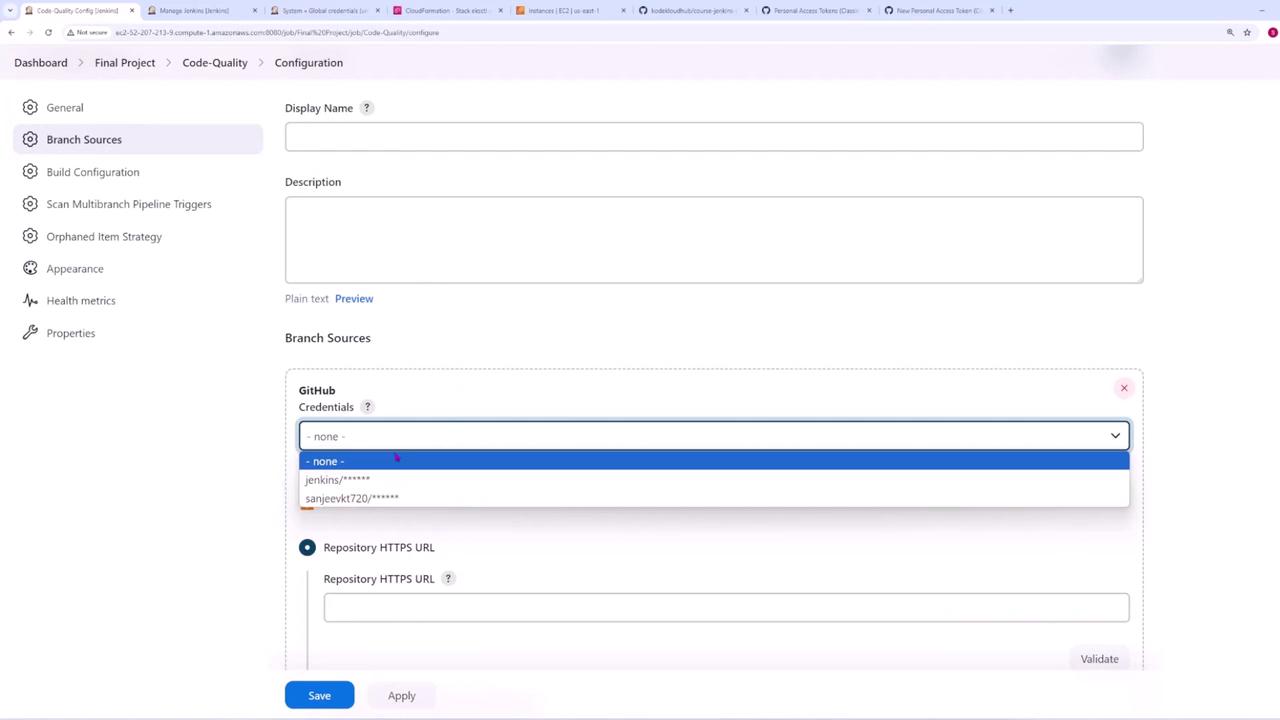
In the Branch Sources configuration:- Select GitHub.
- Choose the previously created credentials (GitHub-access-token). Even for public repositories, these credentials help avoid rate limits.
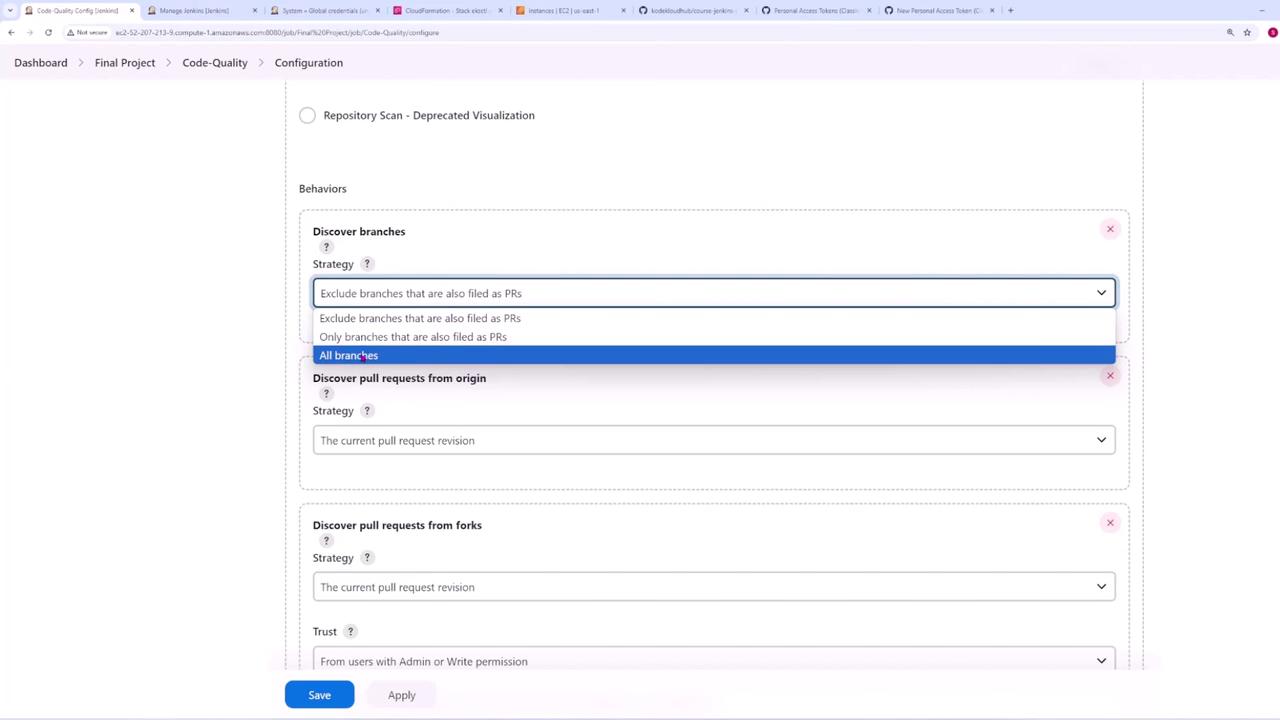
- Paste the repository URL and adjust branch discovery settings. Here, exclude branches filed as pull requests.
- For pull requests from the origin, select the option to merge the pull request with the target branch’s current revision. This ensures the pipeline tests the final merged code.
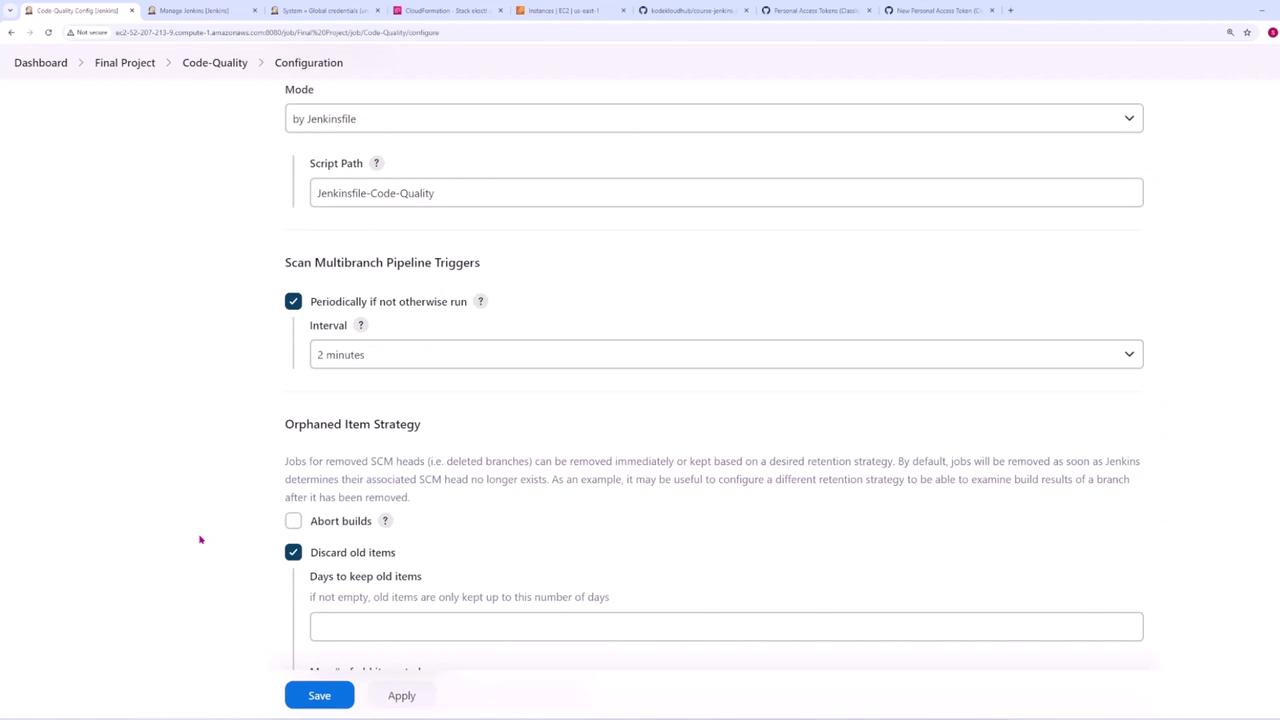
- Set the script path to “Jenkinsfile - code quality”.
- Choose a periodic scan interval (e.g., every two minutes for demonstration purposes) and save your configuration.
Understanding the Jenkinsfile for Code Quality Pipeline
The Jenkinsfile for the code quality pipeline comprises multiple stages:- In the Pull Request Number stage, a conditional block prints the pull request number using the environment variable
CHANGE_IDif the build is triggered by a pull request. - The Environment Variables stage prints all Jenkins-provided environment details such as commit hash, branch name, and build URLs.
Excluding the Main Branch from the Code Quality Pipeline
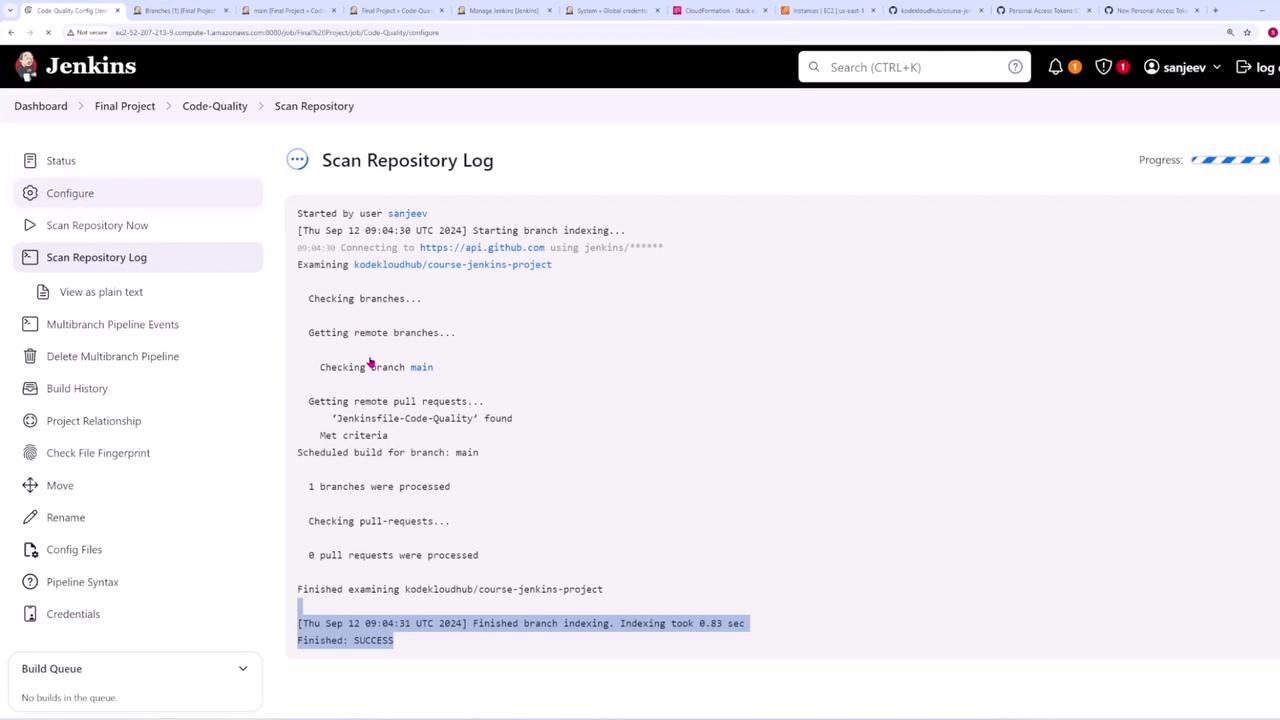
To ensure that the code quality pipeline does not run on pushes to the main branch (allowing the release pipeline to handle these events):- Modify the branch source configuration to include a name filter with wildcards.
- Add an exclude filter for the main branch, then save the configuration.
Triggering the Code Quality Pipeline with Pull Requests
To demonstrate how pull requests trigger the pipeline:- Ensure your local repository is up-to-date:
- Create a new feature branch:
- Make changes (e.g., updating version identifiers or modifying code) and commit your changes.
- Push the feature branch:
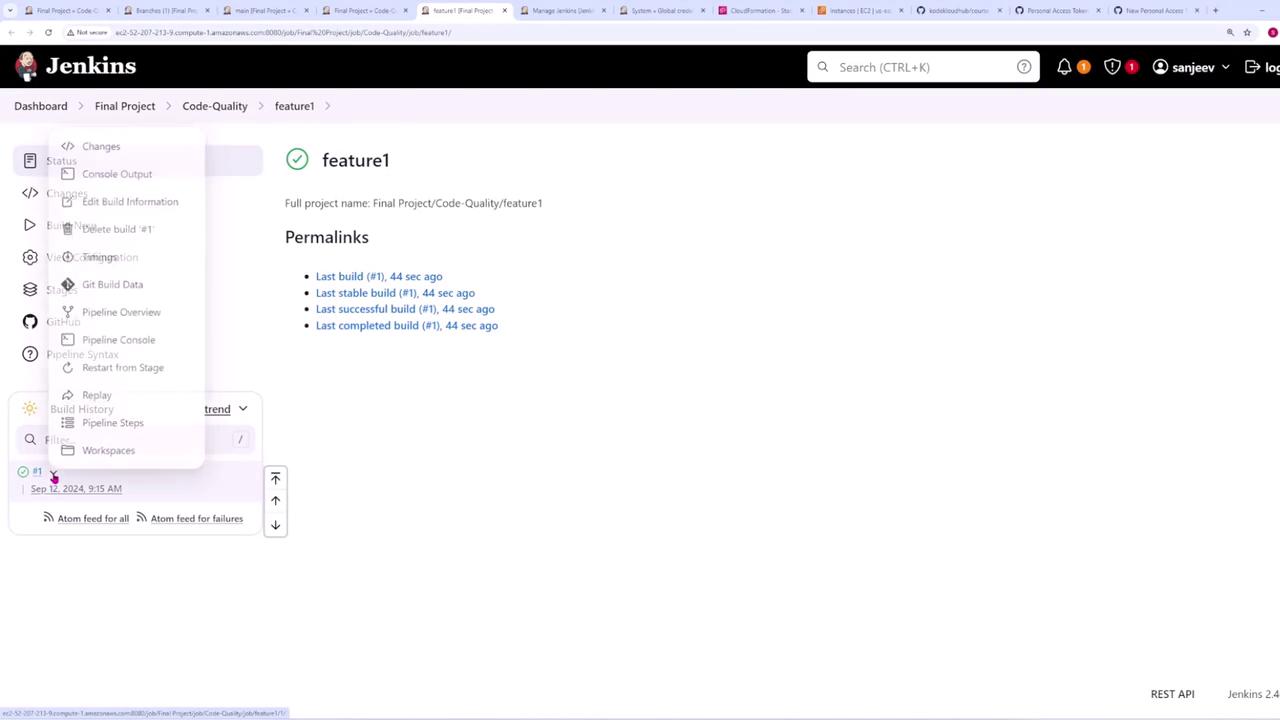
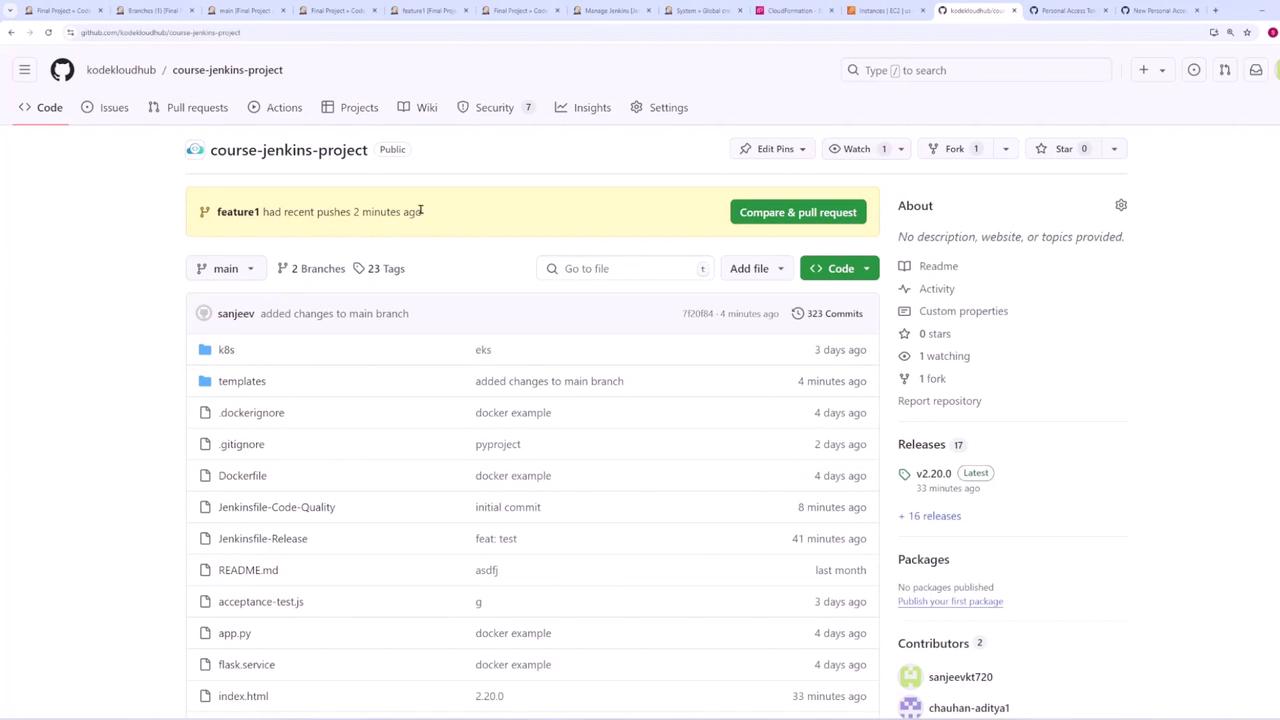
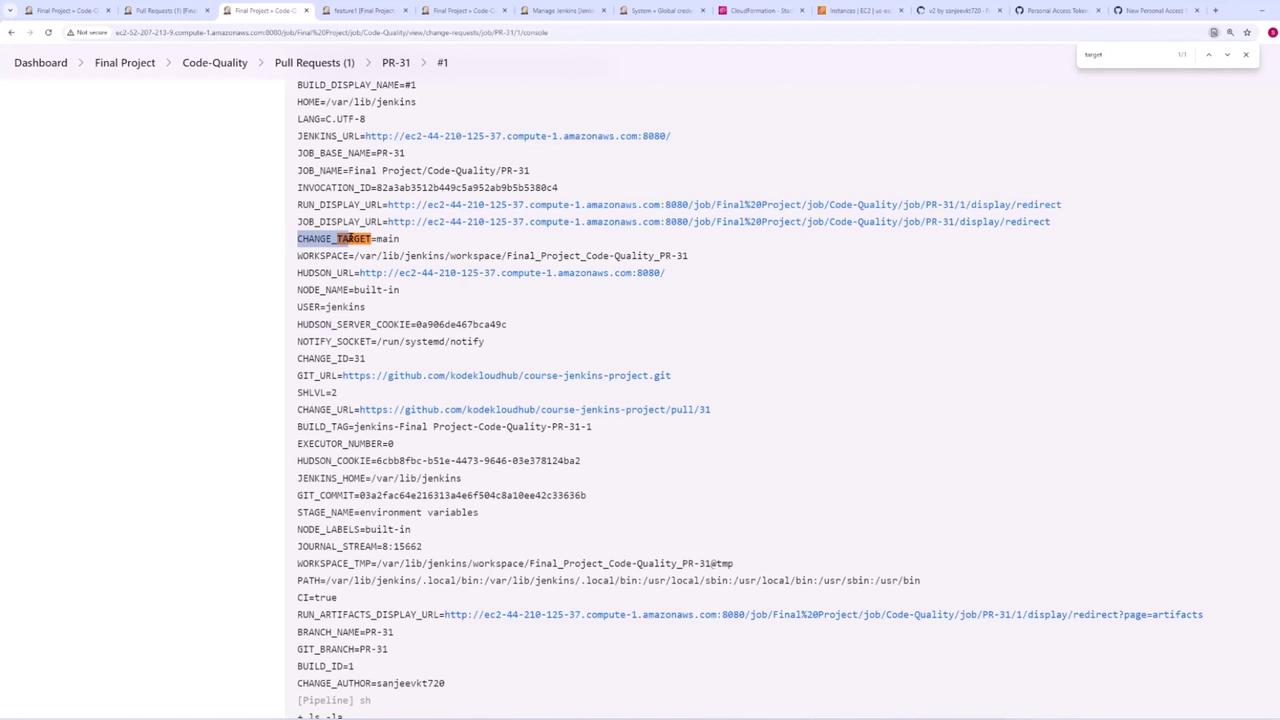
CHANGE_BRANCH (indicating the feature branch), CHANGE_TARGET (showing “main”), and CHANGE_ID (the pull request number):