

Step 1. Start with Your Flask Application
Begin with a Flask application hosted in a Git repository.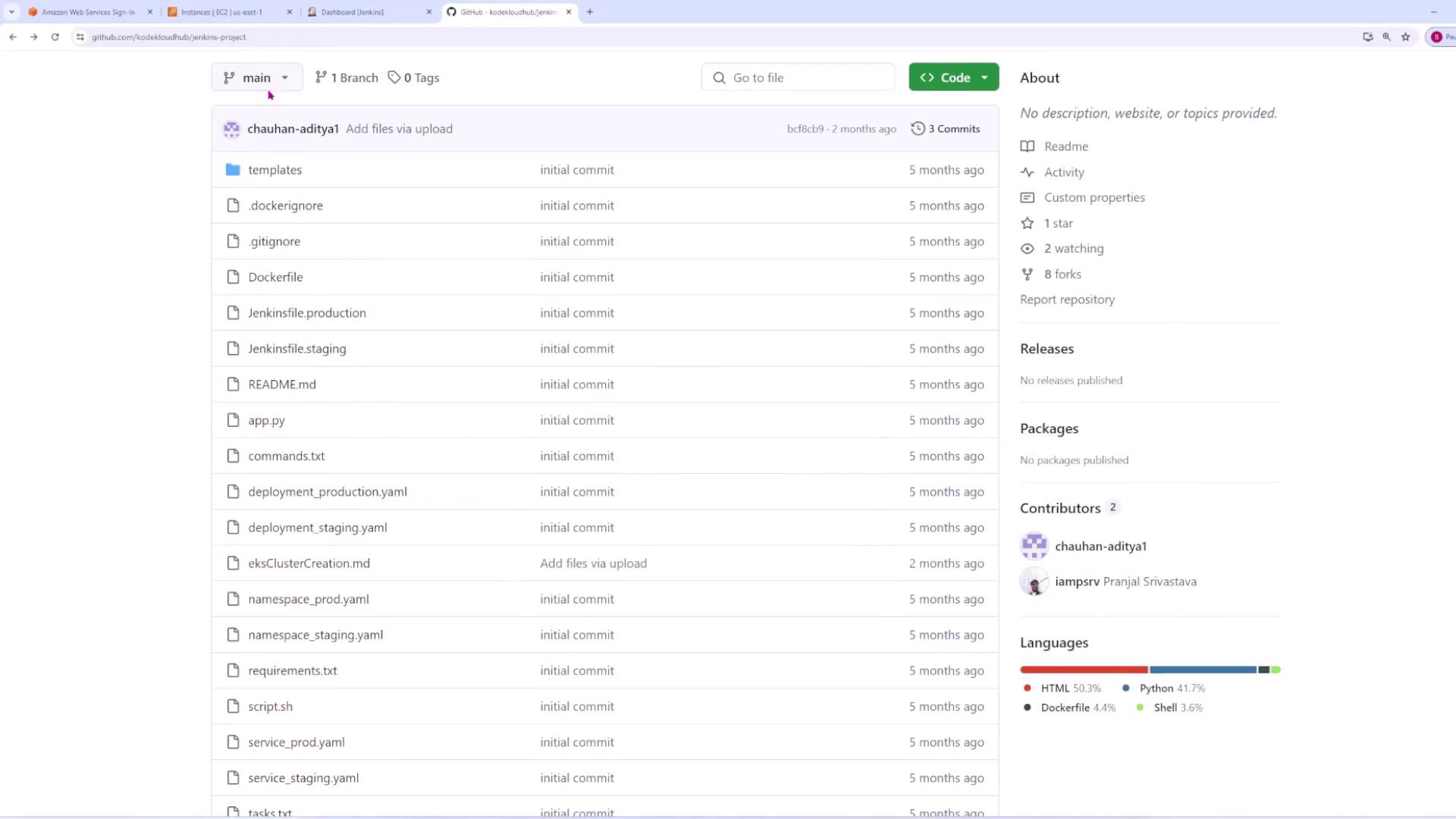
Step 2. Configure Jenkins to Trigger Builds
Create a New Jenkins Job
- From the Jenkins dashboard, click on “New Item” and name the job “Flask pipeline.”
- Select the Freestyle project option to build a basic pipeline and click OK.

Configure Job Details
- You can add an optional project description on the next screen to provide context for your team.
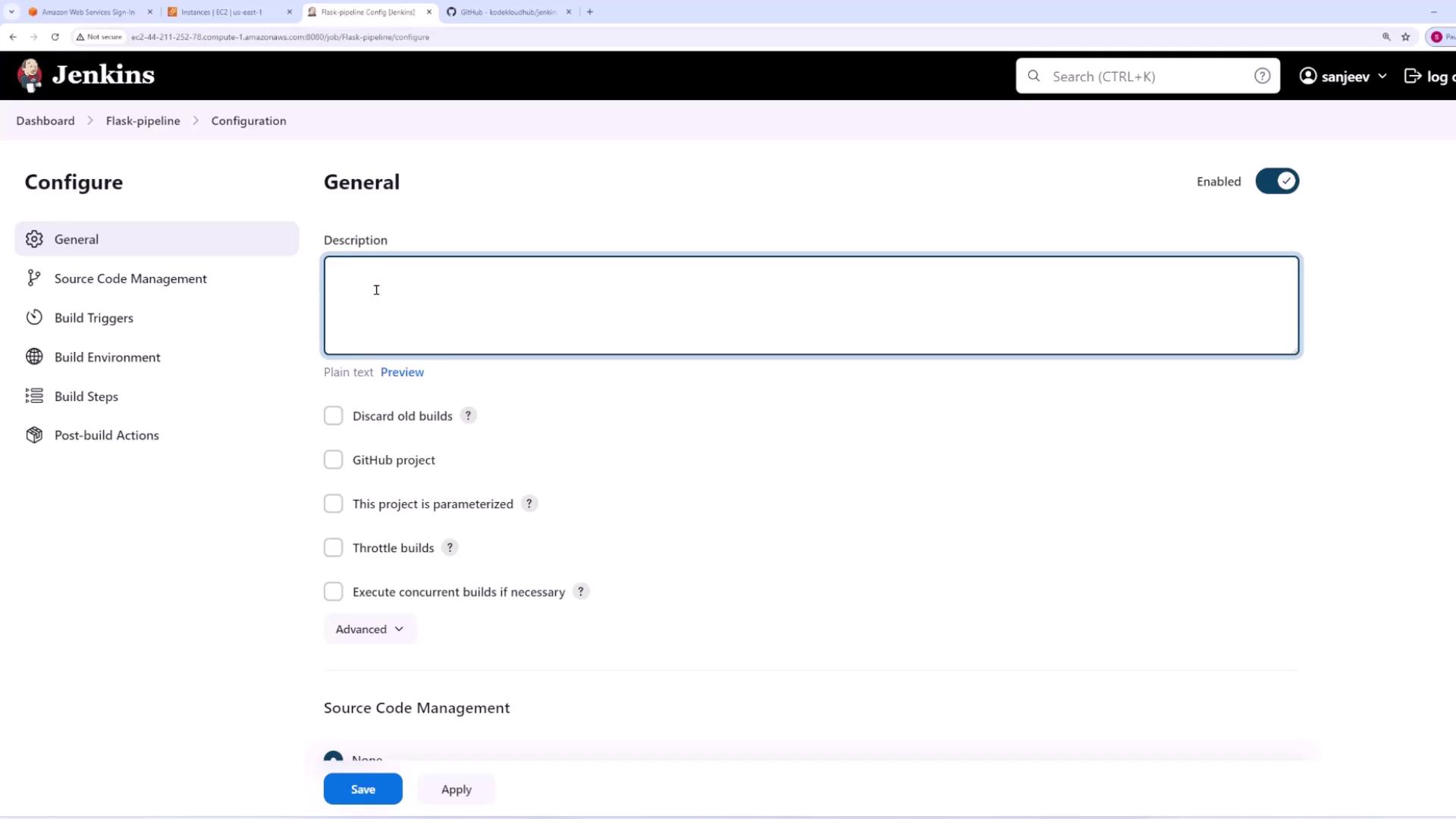
Set Up Source Code Management
- In the Source Code Management section, change the default “None” option to Git.
- Enter the Git repository URL. For public repositories, credentials are not necessary; for private repositories, configure the appropriate credentials.
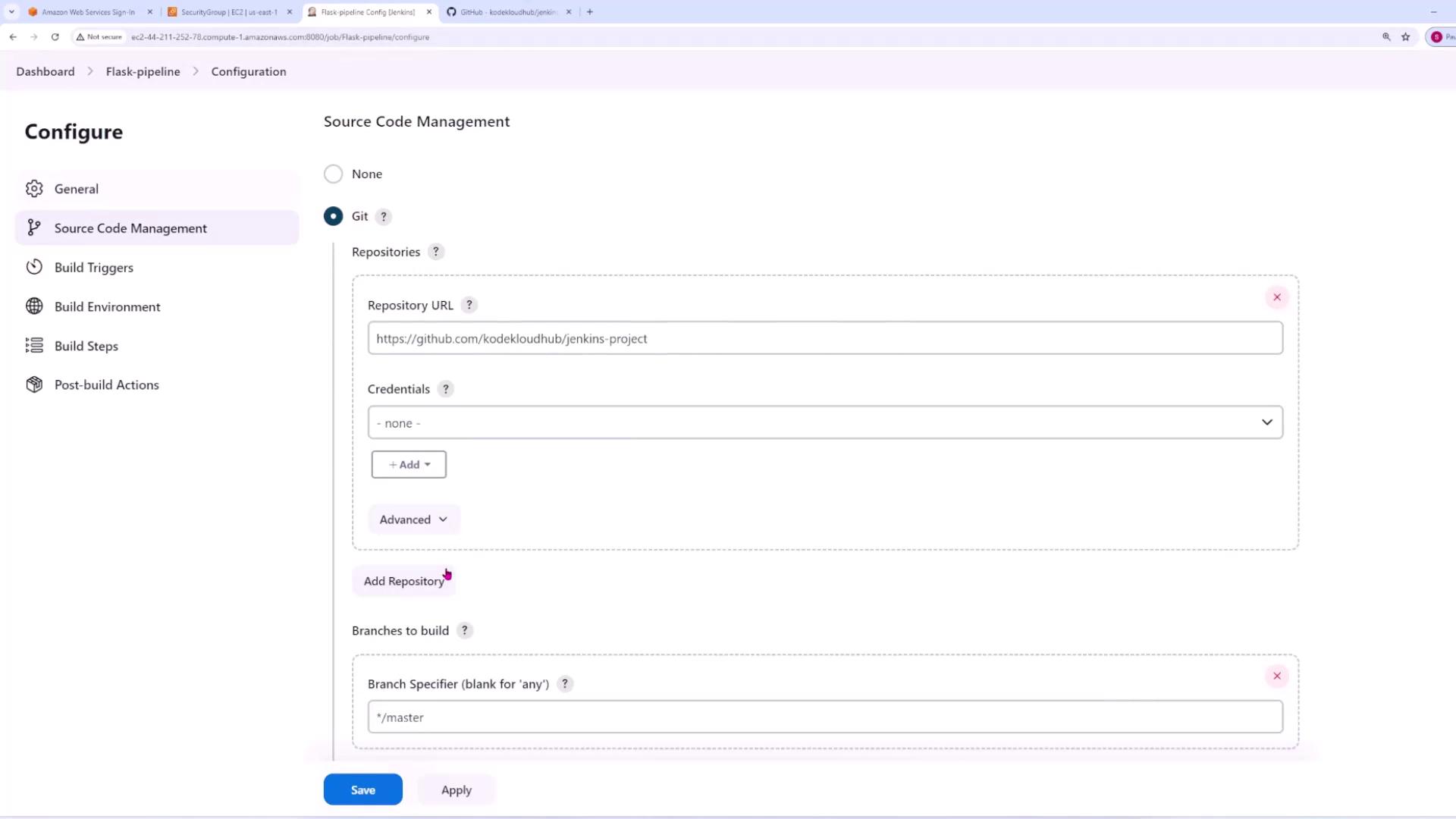
Specify the Branch to Build
- By default, Jenkins may reference the
/masterbranch. If your repository uses a branch namedmain, update the branch information accordingly. - Leaving the branch field blank triggers builds for any branch; however, the focus here is on the
mainbranch.
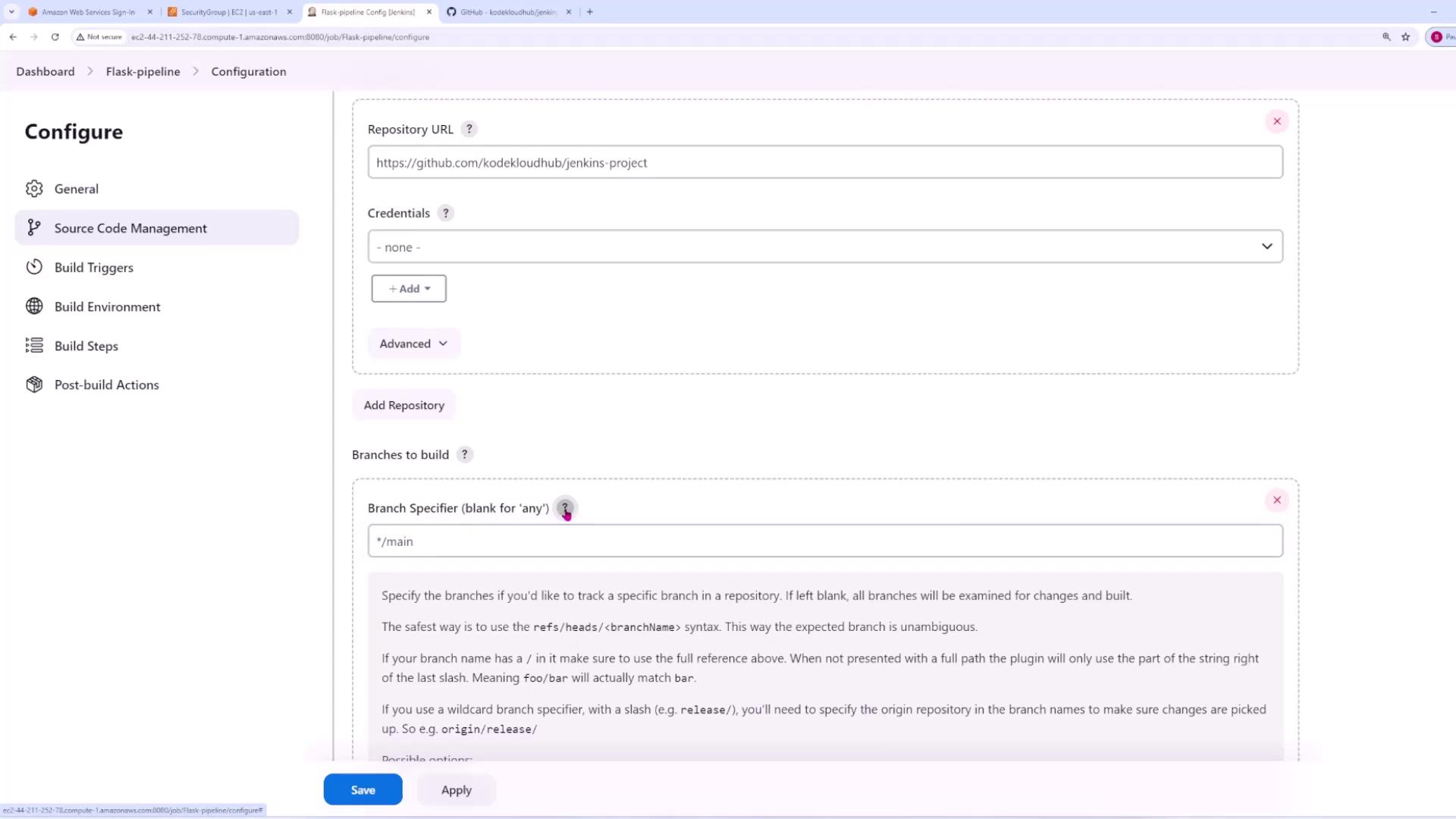
Configure Build Triggers
- Scroll down to the Build Triggers section and select GitHub hook trigger for Git SCM polling. This enables GitHub to send a webhook notification to the Jenkins server whenever changes are pushed.
Add Build Steps
- Add a build step by selecting Execute Shell.
-
In the command text box, include the following command to output a test message during the build process:
Step 3. Set Up GitHub Webhook
Configure GitHub to notify Jenkins when changes occur:- Navigate to your GitHub repository’s Settings, then access the Webhooks section.
- Click Add webhook and complete the following:
- Set the Payload URL to your Jenkins server’s URL (for example, using your EC2 instance’s public DNS or IP address). Append
/GitHub-webhooksif required. - Choose
application/jsonas the Content Type. - Select Push events to trigger the webhook on code commits.
- Set the Payload URL to your Jenkins server’s URL (for example, using your EC2 instance’s public DNS or IP address). Append

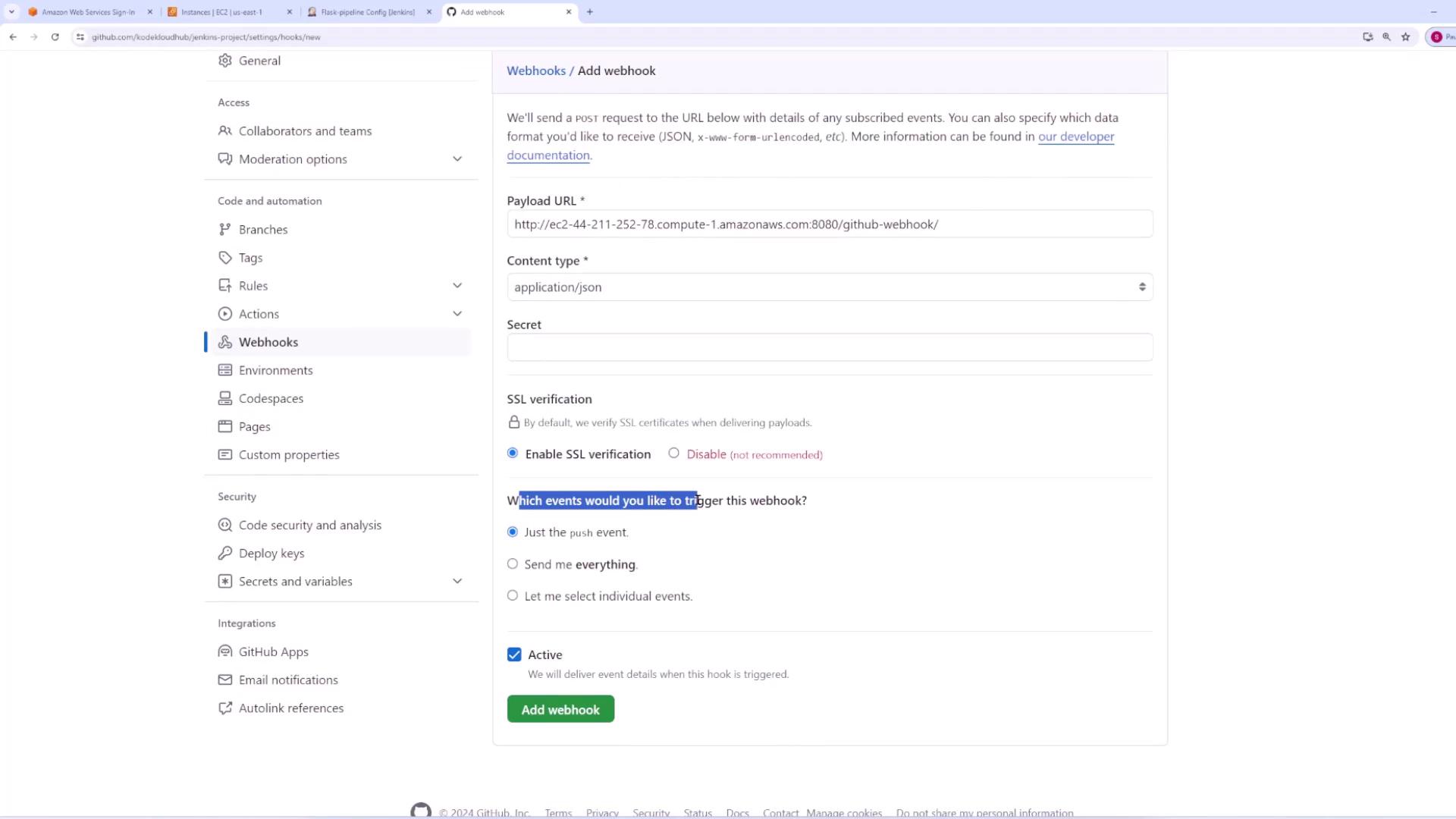
After configuring, verify that GitHub shows a green checkmark next to your webhook. This confirms that notifications are delivered successfully.
Step 4. Run a Manual Build
Perform a manual build in Jenkins to establish the job configuration. During the first build, Jenkins will clone the repository and execute the shell command.Sample Console Output
Step 5. Test Auto-Trigger by Pushing Changes
Modify your Flask application (for example, updateindex.html):
Sample Console Output for the Auto-Triggered Build
After each build (manual or auto-triggered), review the console output in Jenkins. This ensures that the repository is cloned correctly and the build steps, including the execution of the shell command, are completed successfully.
main branch of your repository, Jenkins will automatically trigger a build using the GitHub webhook integration. For more information on Git and Jenkins integration, check out the Jenkins Documentation and GitHub Docs.