In this guide, you’ll install FluxCD on a single-node Kubernetes cluster running in Docker Desktop (WSL2) using Visual Studio Code. We’ll cover:
  • Installing the Flux CLI
  • Bootstrapping Flux with GitHub
  • Verifying in-cluster components
Ensure you have the following set up:
  • Docker Desktop with Kubernetes enabled (Docker Desktop Docs)
  • kubectl configured
  • A GitHub account
  • Visual Studio Code (or your preferred editor/terminal)

1. Environment Overview

You should see something like this when you open VS Code in WSL2:
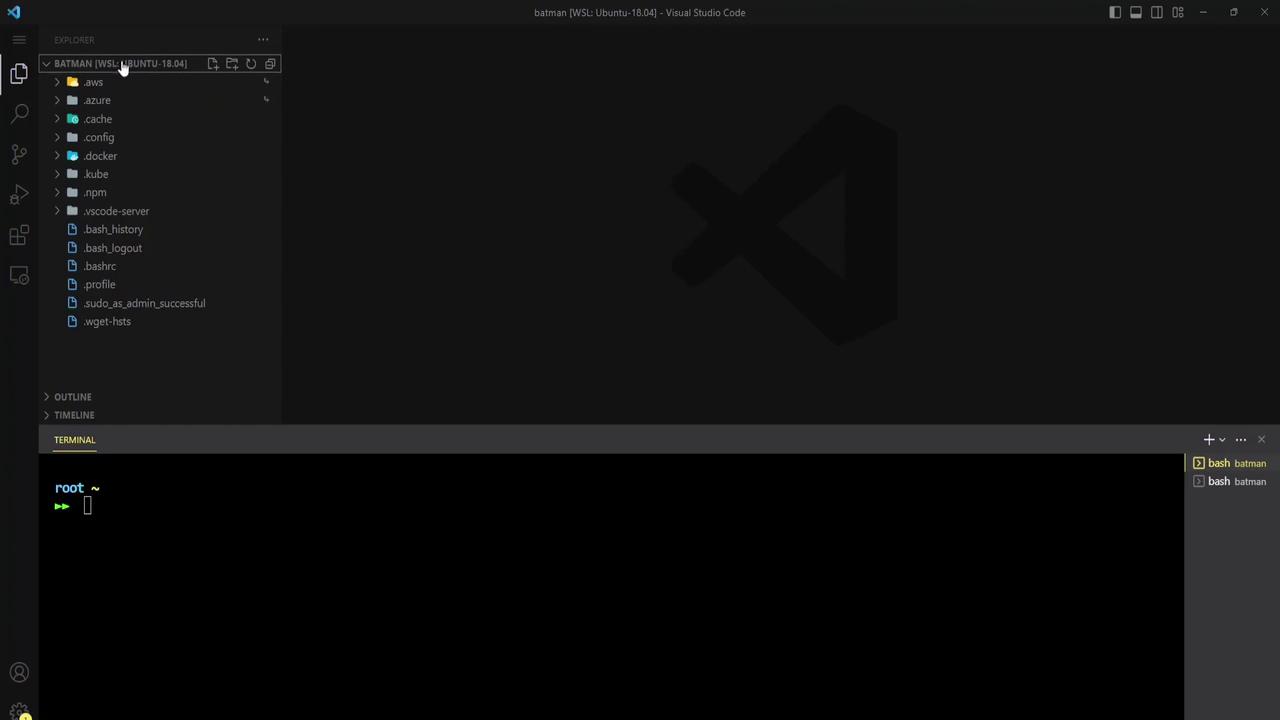
The image shows a Visual Studio Code interface with a file explorer on the left and a terminal at the bottom. The terminal is open with a command prompt ready for input.

2. Start a Sample Container

First, launch a test container to ensure Docker is running:
docker run -d -p 80:80 docker/getting-started

3. Enable Kubernetes in Docker Desktop

Open Docker Desktop settings, navigate to Kubernetes, and enable it:
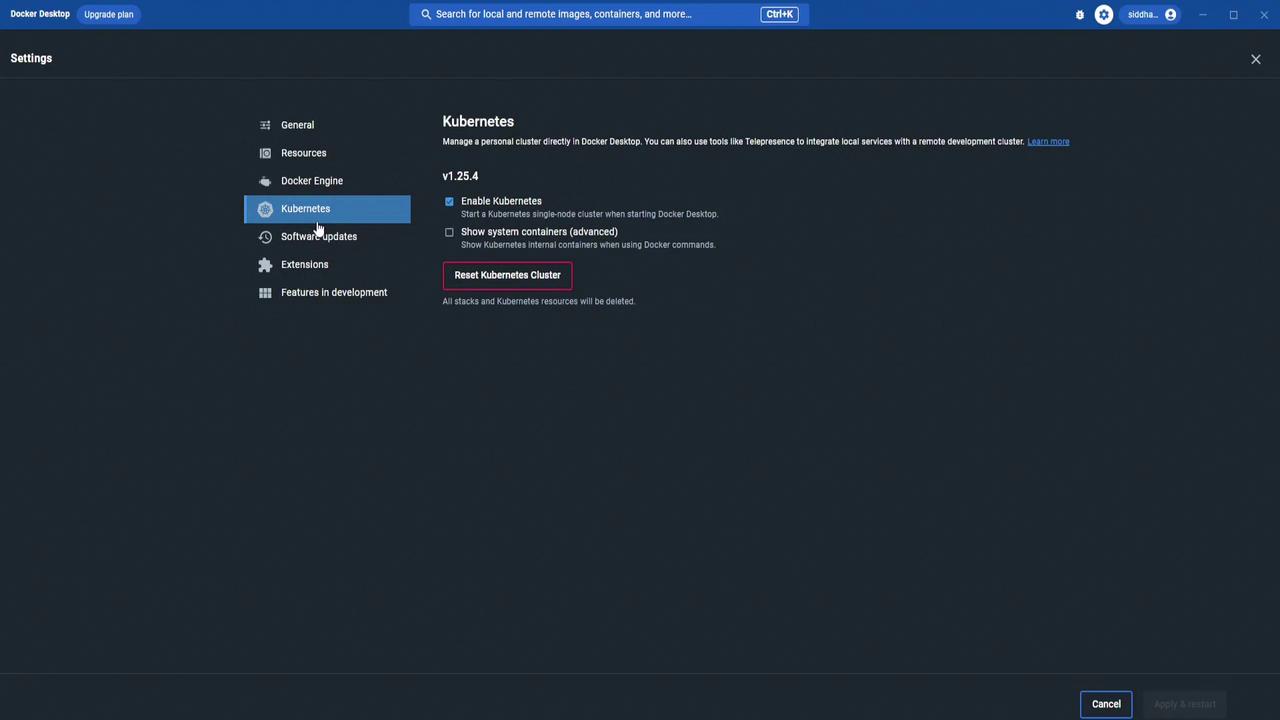
The image shows the Kubernetes settings page in Docker Desktop, where options to enable Kubernetes, show system containers, and reset the Kubernetes cluster are available.
Verify the single-node cluster is Ready:
kubectl get nodes
# NAME              STATUS   ROLES           AGE     VERSION
# docker-desktop    Ready    control-plane   3d22h   v1.25.4

4. Install the Flux CLI

Check if Flux is already installed:
flux --version
# Command 'flux' not found
Install using the official script:
curl -s https://fluxcd.io/install.sh | sudo bash
Expected output:
[INFO]  Downloading metadata https://api.github.com/repos/fluxcd/flux2/releases/latest
[INFO]  Using 0.41.2 as release
[INFO]  Installing flux to /usr/local/bin/flux
Confirm the CLI is available:
flux --version
# flux version 0.41.2
No server components exist yet:
flux version
# ✗ no deployments found in flux-system namespace
List current namespaces:
kubectl get namespace
# NAME              STATUS   AGE
# default           Active   3d22h
# kube-node-lease   Active   3d22h
# kube-public       Active   3d22h
# kube-system       Active   3d22h

5. Bootstrap Flux on Kubernetes

Flux uses flux bootstrap to install controllers and generate GitOps manifests. The installation docs list several Git providers:
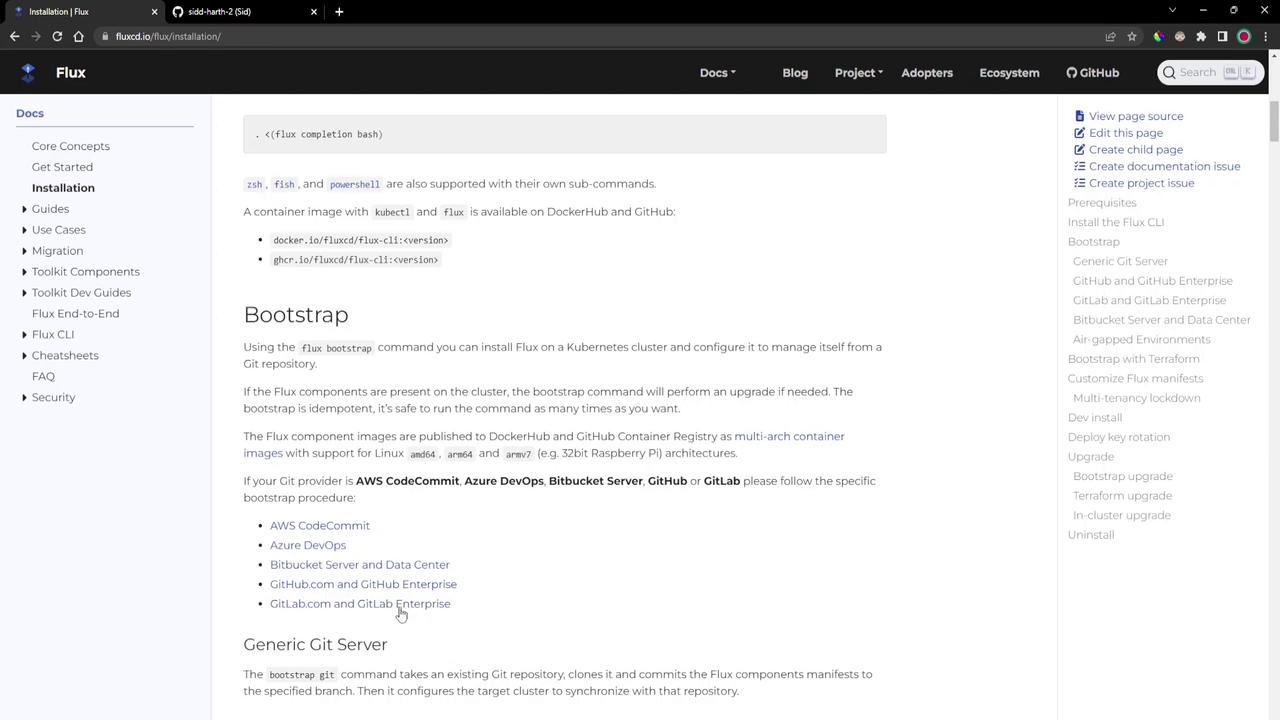
The image shows a webpage from the Flux documentation, specifically the installation section, detailing the bootstrap process for setting up Flux on a Kubernetes cluster. It includes links and instructions for using various Git providers.
In this demo, we’ll use GitHub.

5.1 Create a GitHub Personal Access Token

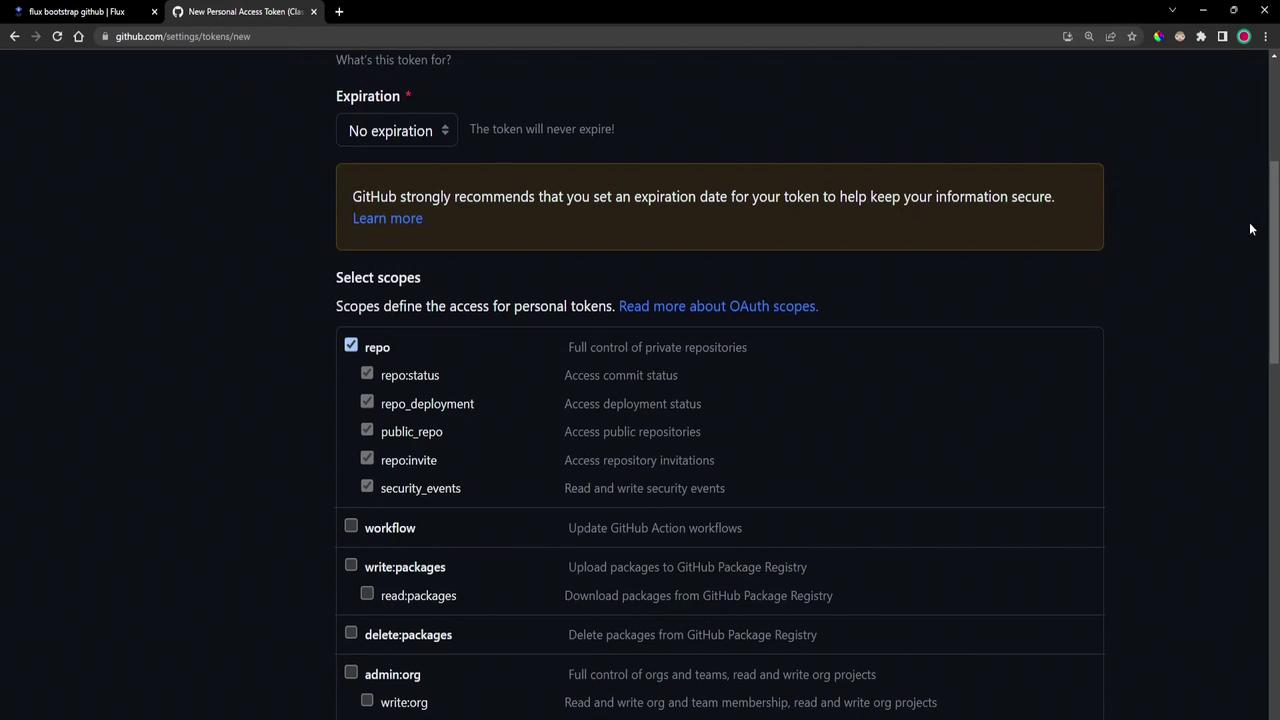
  1. Go to Developer settingsPersonal access tokensTokens (classic).
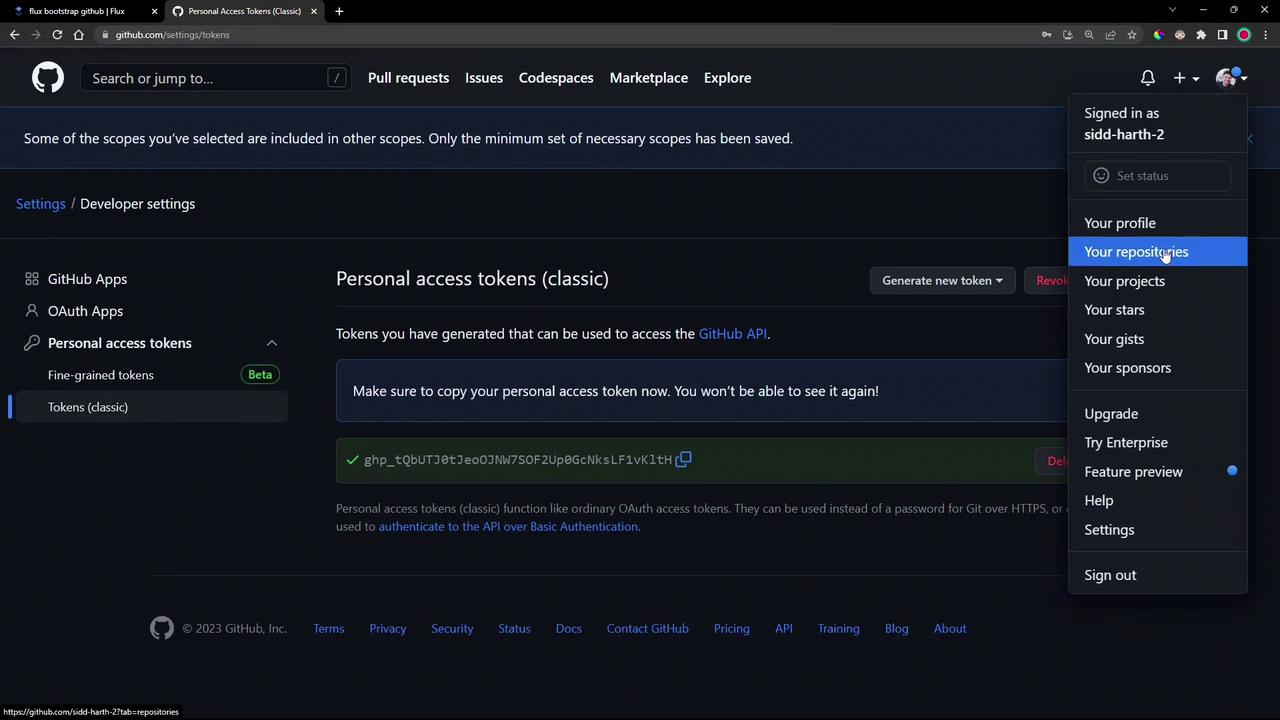
  2. Click Generate new token, select repo scope, and create it:
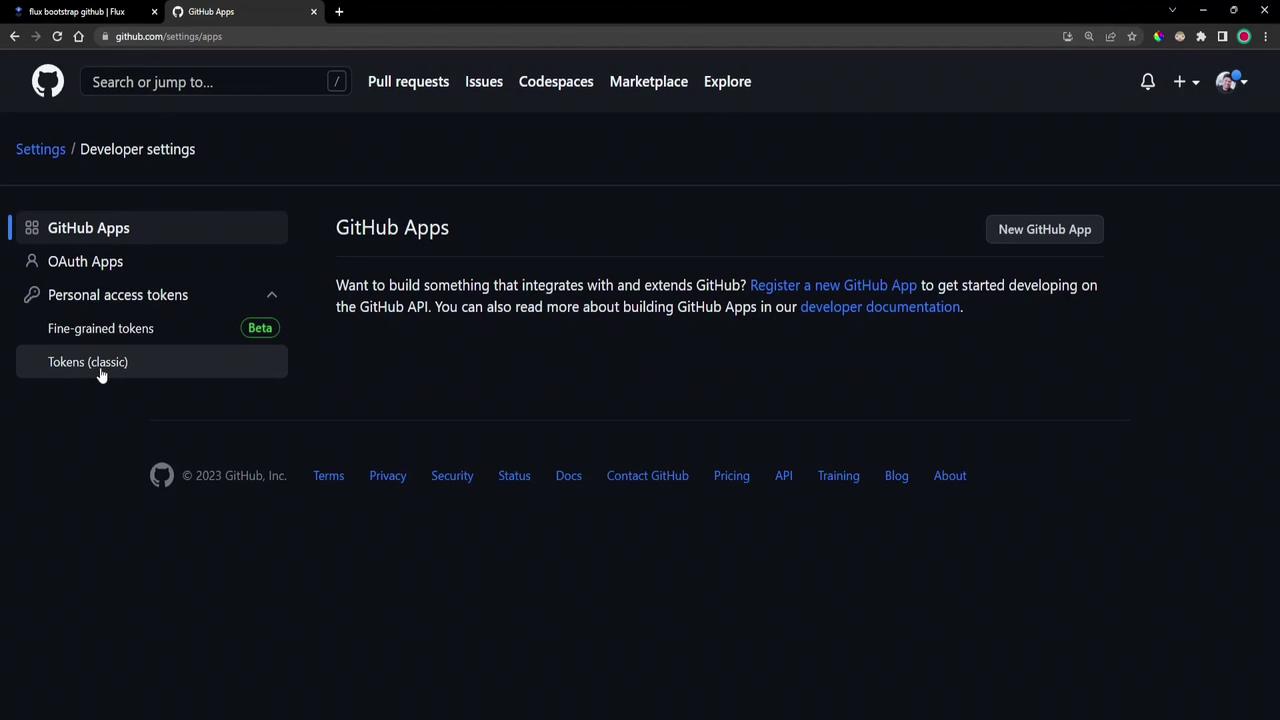
The image shows a GitHub settings page for developer settings, specifically focusing on GitHub Apps and personal access tokens.
The image shows a GitHub settings page for creating a new personal access token, with options to set expiration and select scopes for access permissions.
Store your GitHub token safely. Never commit it to a public repo or share it in plaintext.

5.2 Run flux bootstrap

Export the token and bootstrap Flux to your GitHub repo:
export GITHUB_TOKEN=<your-token>
flux bootstrap github \
  --owner=sidd-harth-2 \
  --repository=block-buster \
  --path=flux-clusters/dev-cluster \
  --personal=true \
  --private=false
What happens during bootstrap:
  • Flux connects to GitHub and creates (or clones) the repo
  • Component manifests install into the flux-system namespace
  • A deploy key and Kubernetes Secret are created
  • Sync manifests are committed to GitHub
  • Flux controllers reconcile their configuration
On success, you’ll see:
✔ cloned repository
✔ generating component manifests
✔ installing components in "flux-system" namespace
✔ reconciled sync configuration
✔ confirming components are healthy
all components are healthy
Check your GitHub account for the new repository and the token list:
The image shows a GitHub settings page for personal access tokens, with a token displayed and a dropdown menu open on the right side.

6. Clone and Inspect the Bootstrap Repository

View the GitOps manifests Flux created:
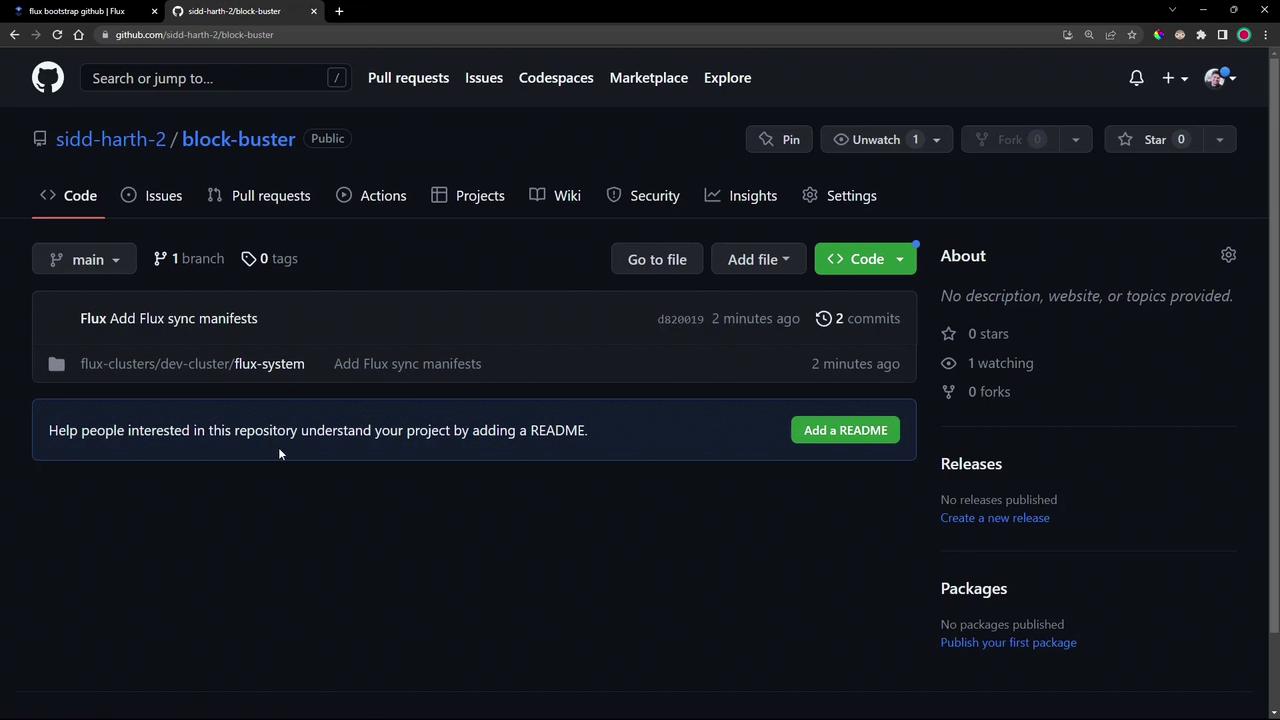
The image shows a GitHub repository page named "block-buster" by user "sidd-harth-2," with options to view code, add files, and a prompt to add a README.
git clone https://github.com/sidd-harth-2/block-buster.git
cd block-buster
Inside flux-clusters/dev-cluster/flux-system, the gotk-components.yaml contains definitions for the flux-system namespace, CRDs, and controller deployments:
apiVersion: v1
kind: Namespace
metadata:
  name: flux-system
  labels:
    app.kubernetes.io/part-of: flux
    app.kubernetes.io/version: v0.41.2
---
apiVersion: apiextensions.k8s.io/v1
kind: CustomResourceDefinition
metadata:
  name: alerts.notification.toolkit.fluxcd.io
...

7. Verify In-Cluster Components

Ensure everything is running properly:
kubectl get namespace flux-system
kubectl -n flux-system get all
# Lists pods, deployments, services for source-, helm-, kustomize-, notification-controllers
kubectl -n flux-system get secret flux-system
# Contains deploy key data
kubectl get crds | grep -i flux
# alerts.notification.toolkit.fluxcd.io        2023-04-05T19:16:44Z
# gitrepositories.source.toolkit.fluxcd.io     2023-04-05T19:16:44Z
# ...
Finally, check the versions of the CLI and controllers:
flux version
# flux version 0.41.2
# helm-controller: v0.31.2
# kustomize-controller: v0.35.1
# notification-controller: v0.33.0
# source-controller: v0.36.1
ControllerVersion
Flux CLI0.41.2
Helm Controllerv0.31.2
Kustomize Controllerv0.35.1
Notification Controllerv0.33.0
Source Controllerv0.36.1

Next Steps

You now have Flux installed and bootstrapped with GitHub. In a future post, we’ll explore how to configure and manage GitOps sync manifests for your applications.