

.tgz artifact, host it in a Helm repository (via GitHub Pages and Artifact Hub), then use Flux’s Source Controller and Helm Controller to automate its deployment.
1. Helm Chart Package on GitHub Releases
We’ve bundled our application intoblock-buster-helm-app-7.6.0.tgz and published it on the GitHub Releases page. Below is an example of the default values.yaml included in the chart:

2. Chart Listing on Artifact Hub
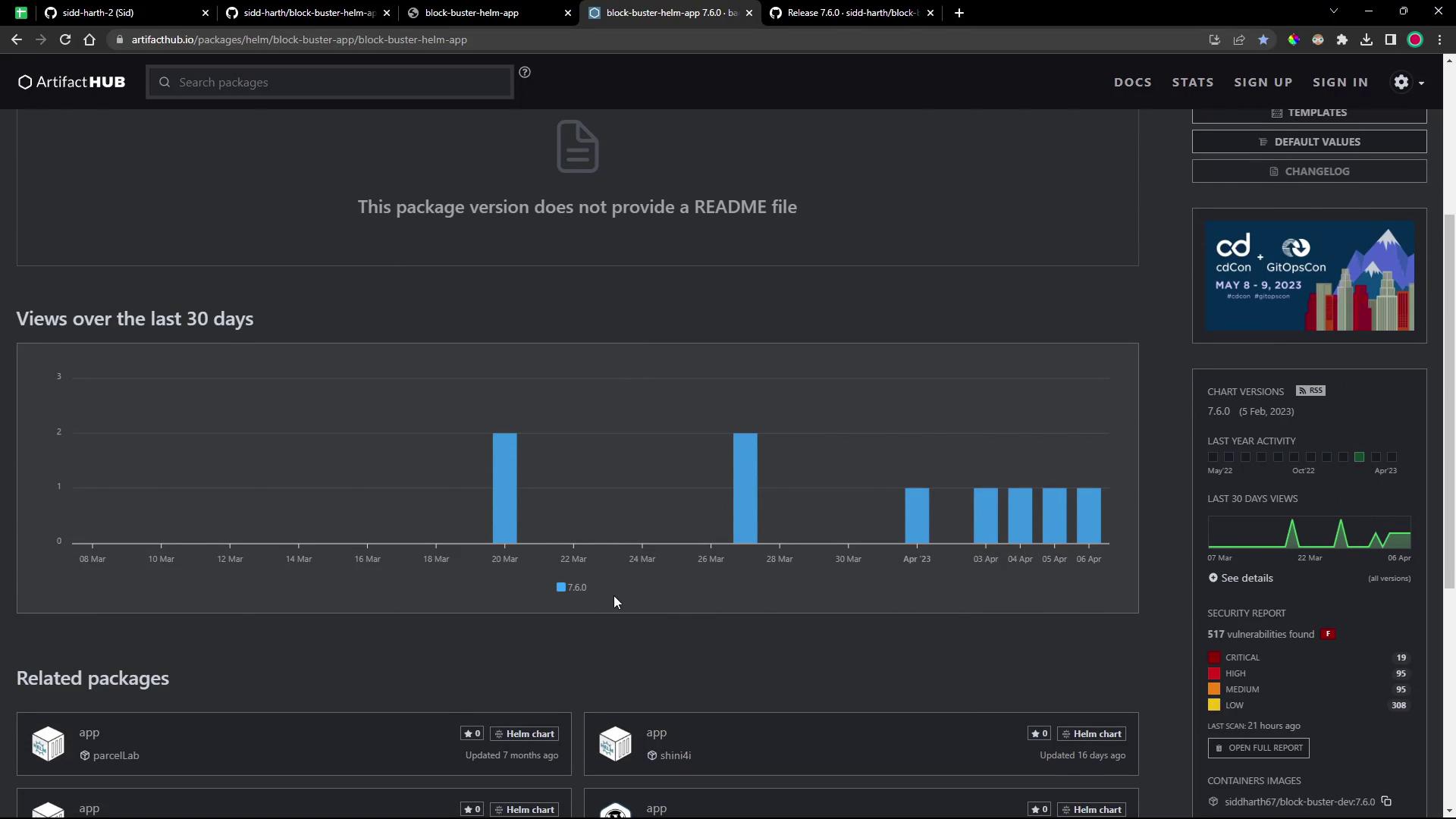
Our chart is also discoverable on Artifact Hub. Artifact Hub provides metadata, download statistics, and security reports for Helm charts.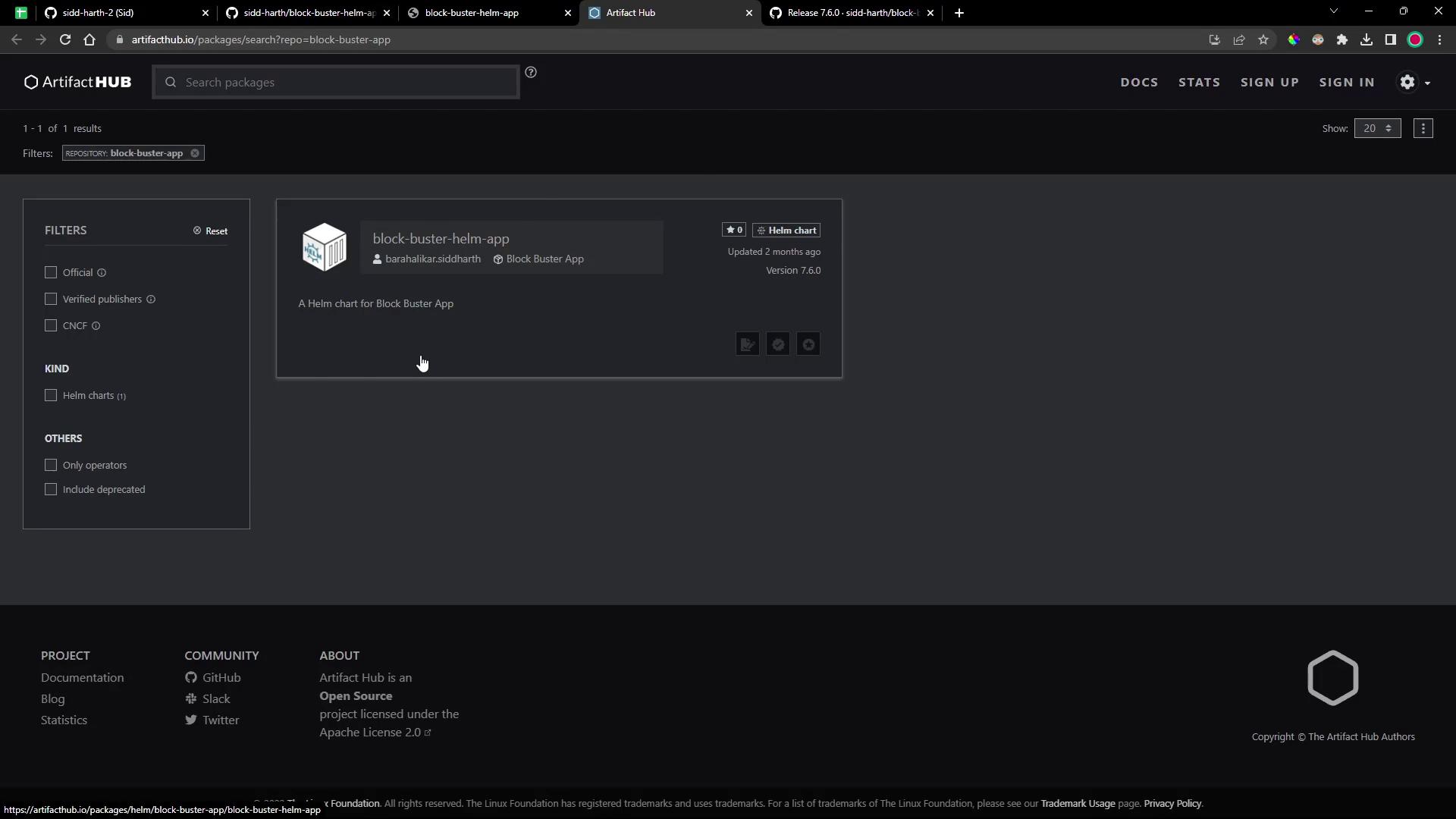
3. Defining a HelmRepository in Flux
To automate updates, Flux’s Source Controller can track the Helm repository for new chart versions.Adjust
--interval and --timeout to suit your release cadence and network conditions.4. Customizing Chart Values
Create a file named6-demo-values.yaml to override default settings:
5. Creating a HelmRelease with Flux
Now define aHelmRelease to instruct Flux’s Helm Controller to deploy the chart:
6. Committing to Git and Triggering Flux
7. Verifying Flux Resources
Check the status of yourHelmRepository:
HelmRelease:
8. Exploring Source Controller Data
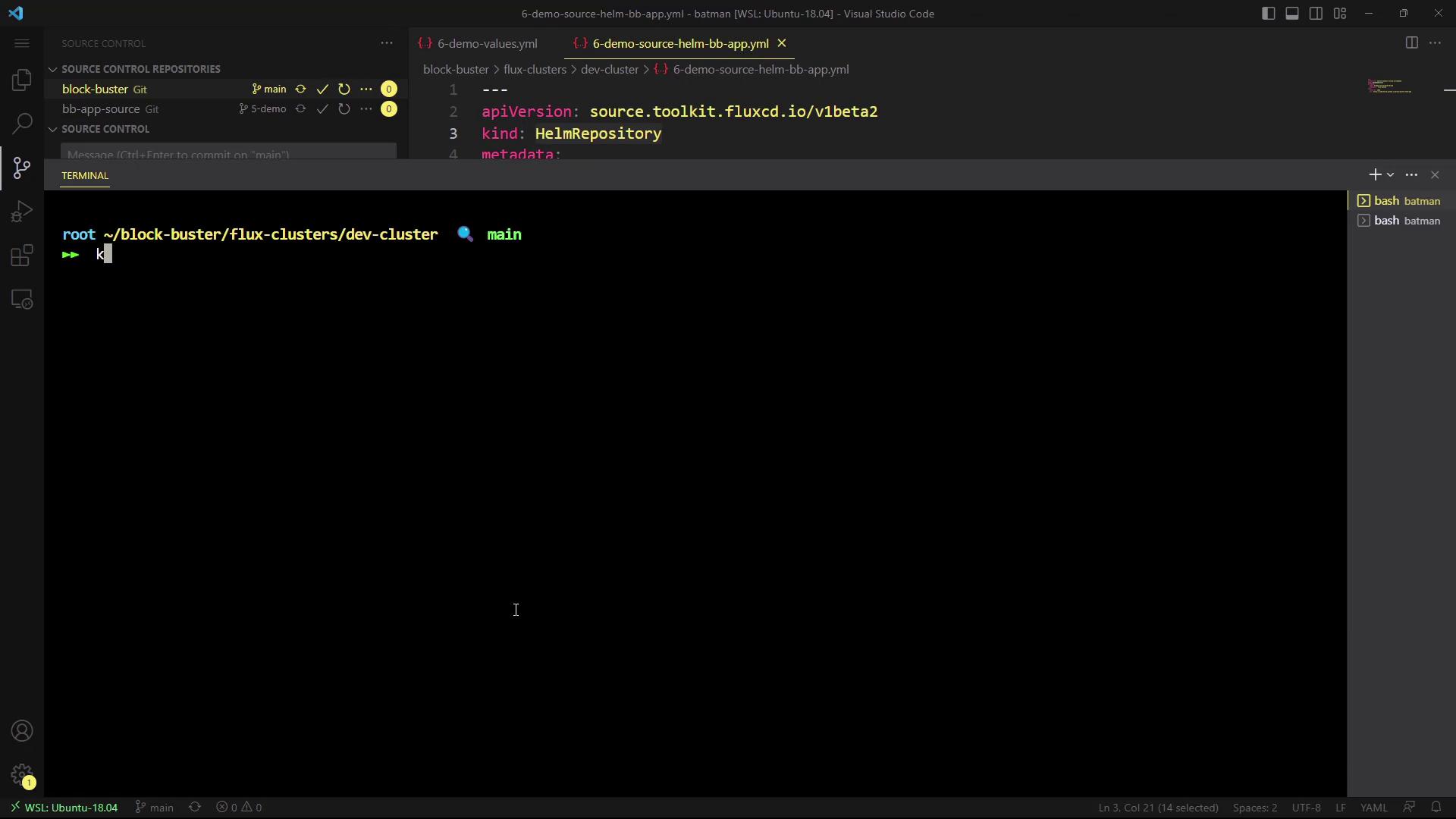
Enter thesource-controller pod to view how Flux stores chart artifacts:
9. Validating the Deployment
Once reconciled, Flux will create the target namespace (6-demo) and deploy your app:
- 2 Pods (as per
replicaCount) - A Deployment
- A NodePort Service on port 30006
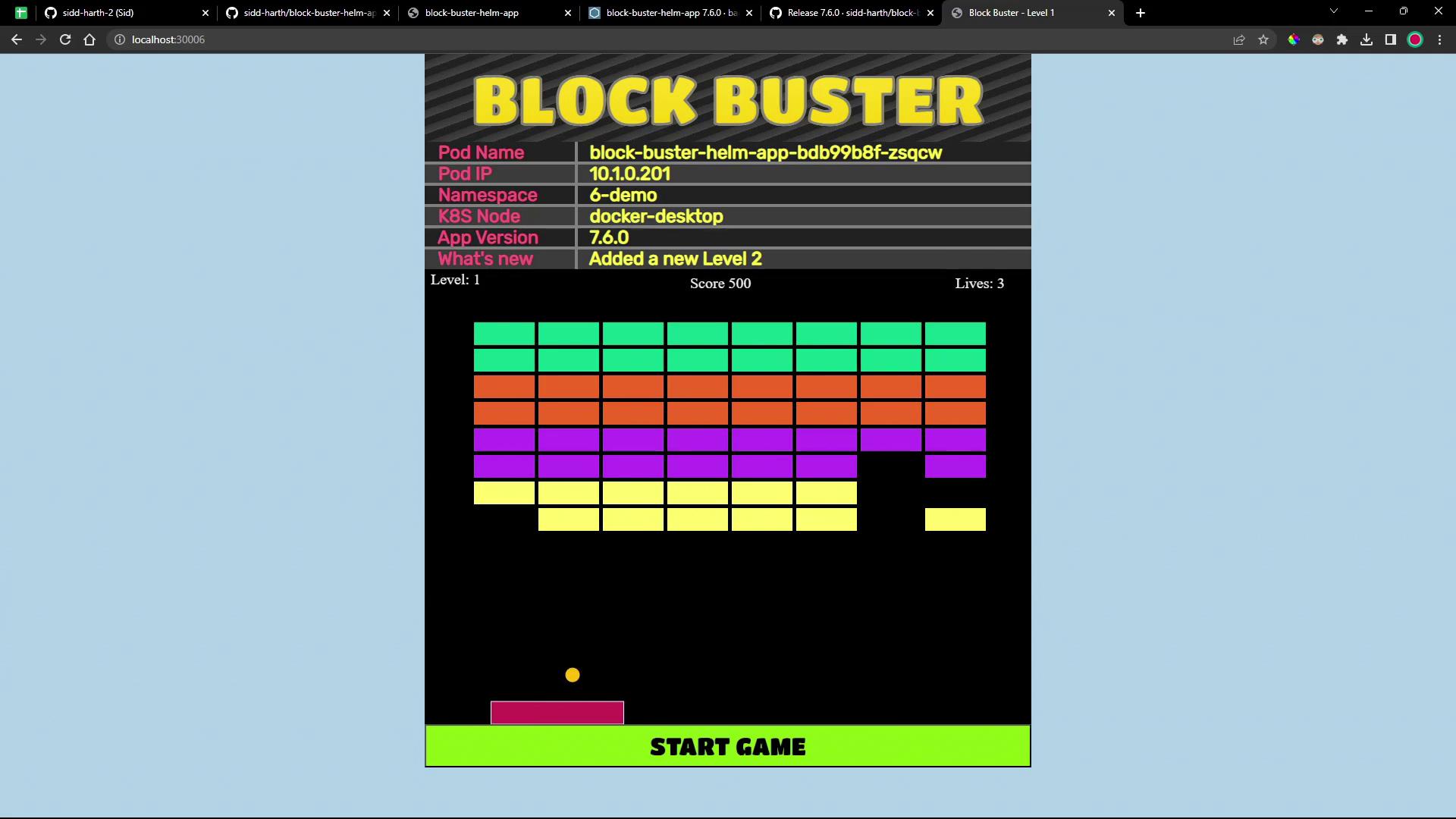
Starting with version 7.6.0, Block Buster introduces multiple levels. Complete Level One to unlock Level Two!
Links and References
Congratulations—you’ve automated the deployment of a Helm chart.tgz artifact using Flux’s Helm Controller and Source Controller!