

Inspect the Project Structure
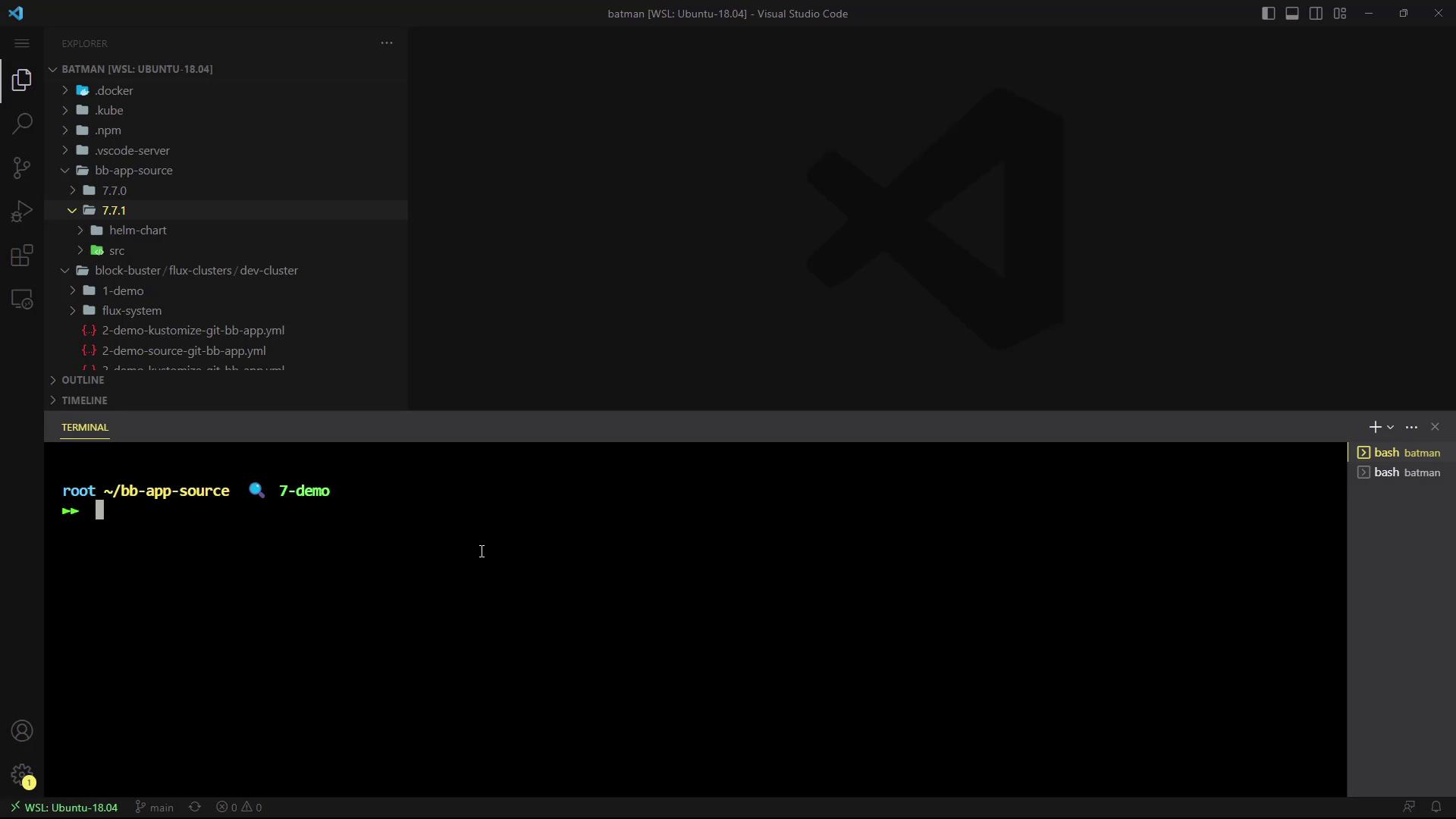
Open your project in Visual Studio Code on the7-demo branch. In the Explorer pane, you’ll find a 7.7.1 directory containing your Helm chart sources alongside your application code:
Prerequisite: Install Helm v3.11.2+
Make sure you have Helm version 3.11.2 or later:If you see warnings about your kubeconfig file being group- or world-readable, consider tightening permissions:
Step 1: Package the Helm Chart
Run the following command in your project root. This generates a compressed chart archive (.tgz):
Step 2: Authenticate to GHCR
Log in to the GitHub Container Registry using your GitHub username and a Personal Access Token:Your token should have the
read:packages and write:packages scopes to push and pull images.Step 3: Push the Chart to the OCI Repository
Push the packaged chart to your GHCR repository under your namespace:Step 4: Verify the Package in GitHub
- Go to your GitHub repository.
- Click on Packages in the sidebar.
- You should see block-buster-helm-app with version 7.7.1 listed.