1. Create an EC2 Launch Template
- Go to the Amazon EC2 dashboard in the Tokyo region.
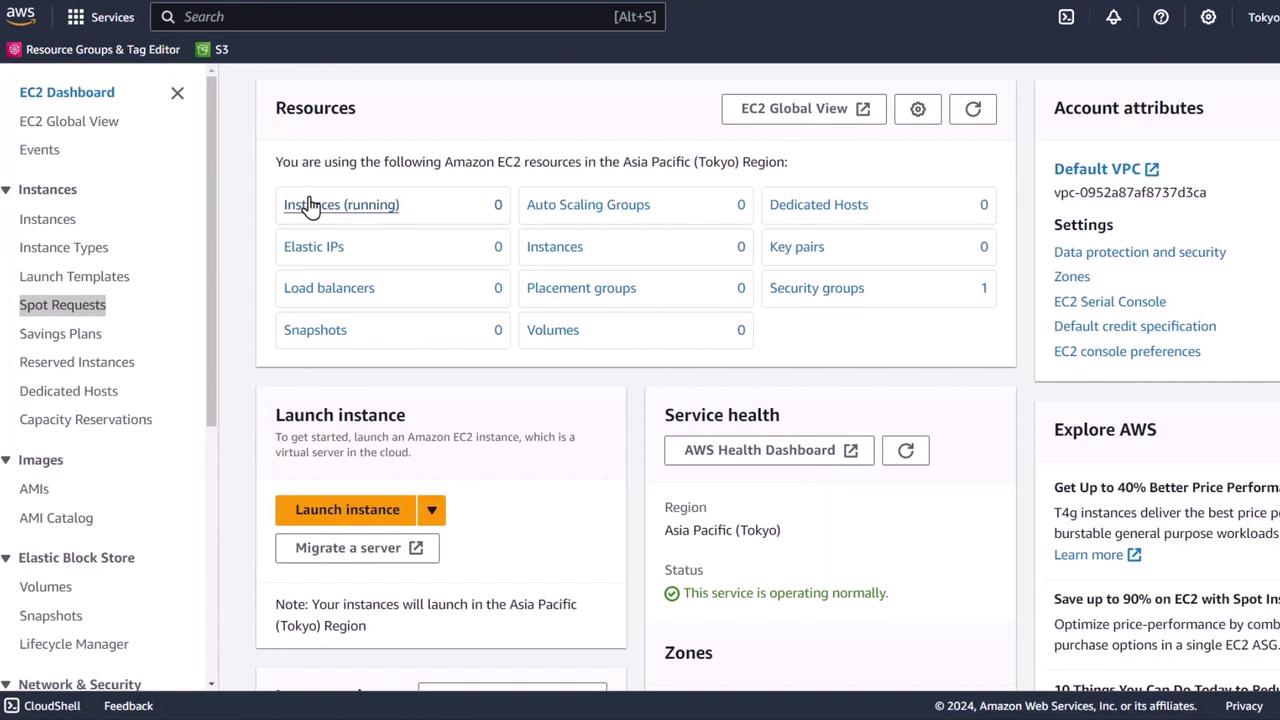
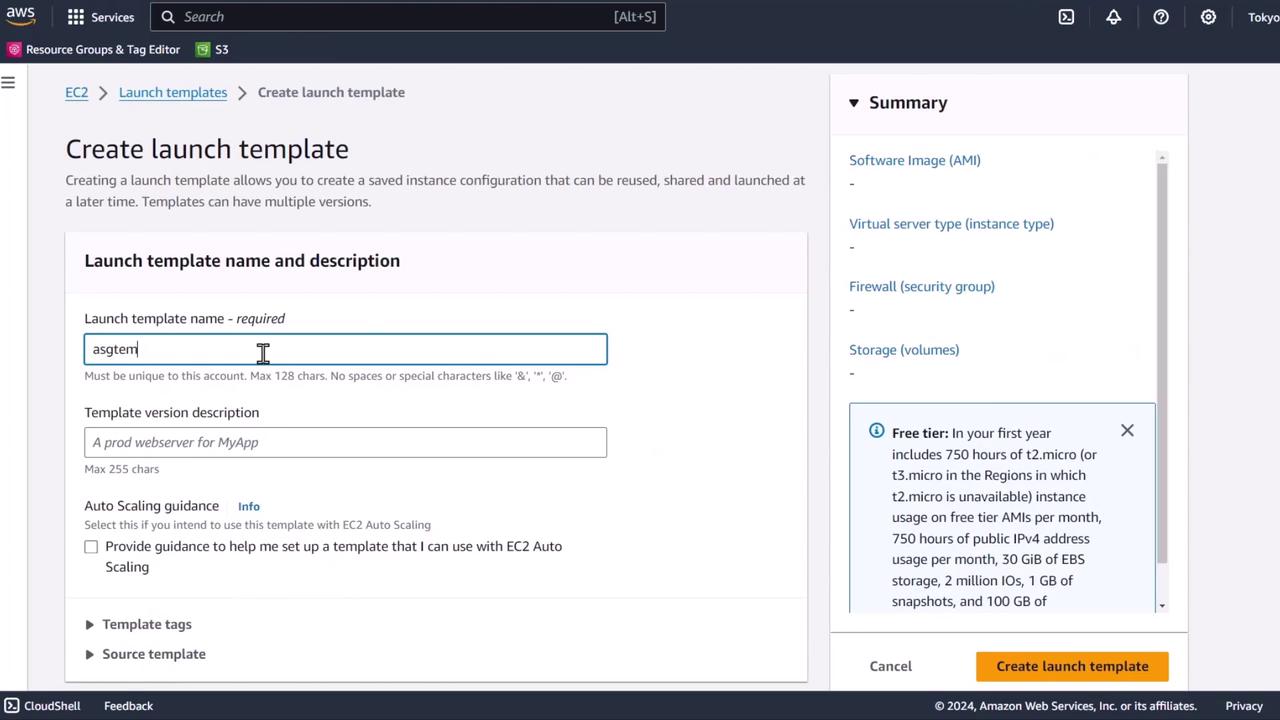
- Click Launch Templates → Create launch template.
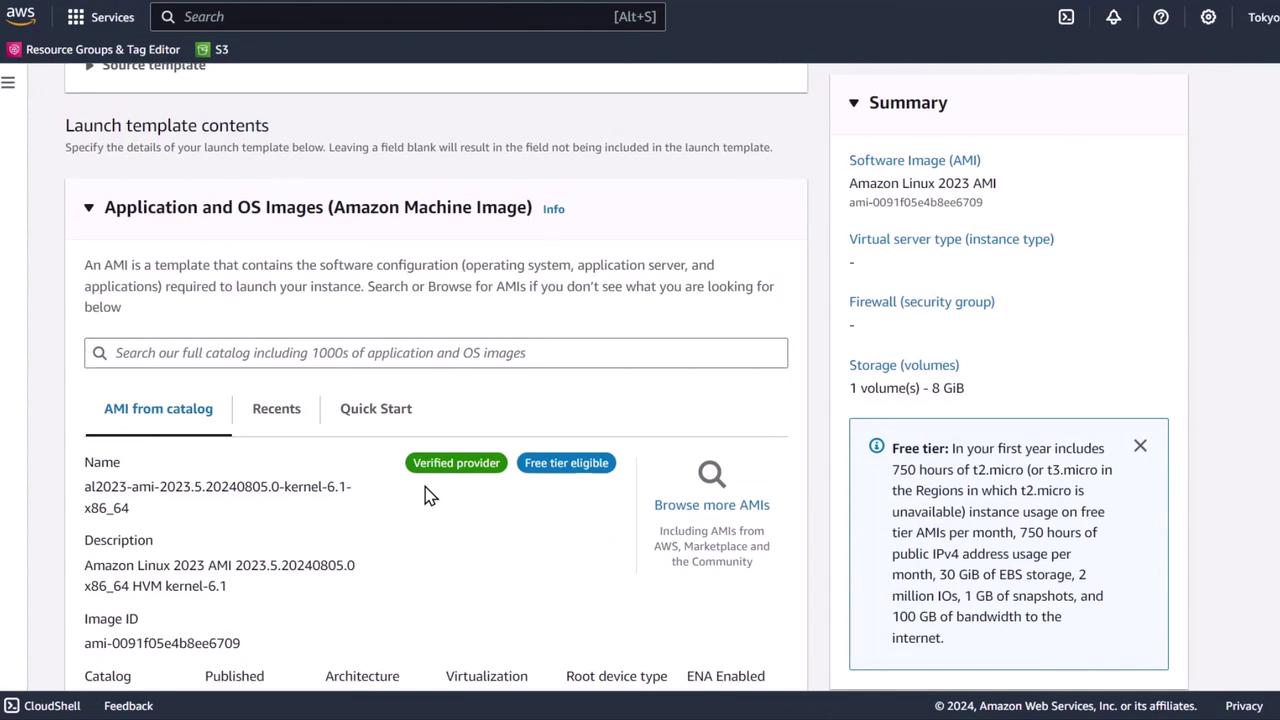
- Choose an Amazon Linux 2023 AMI (free tier eligible) and select the t3.micro instance type.
- Under Advanced details, add resource tags:
- Key:
experiment - Value:
ready
- Key:
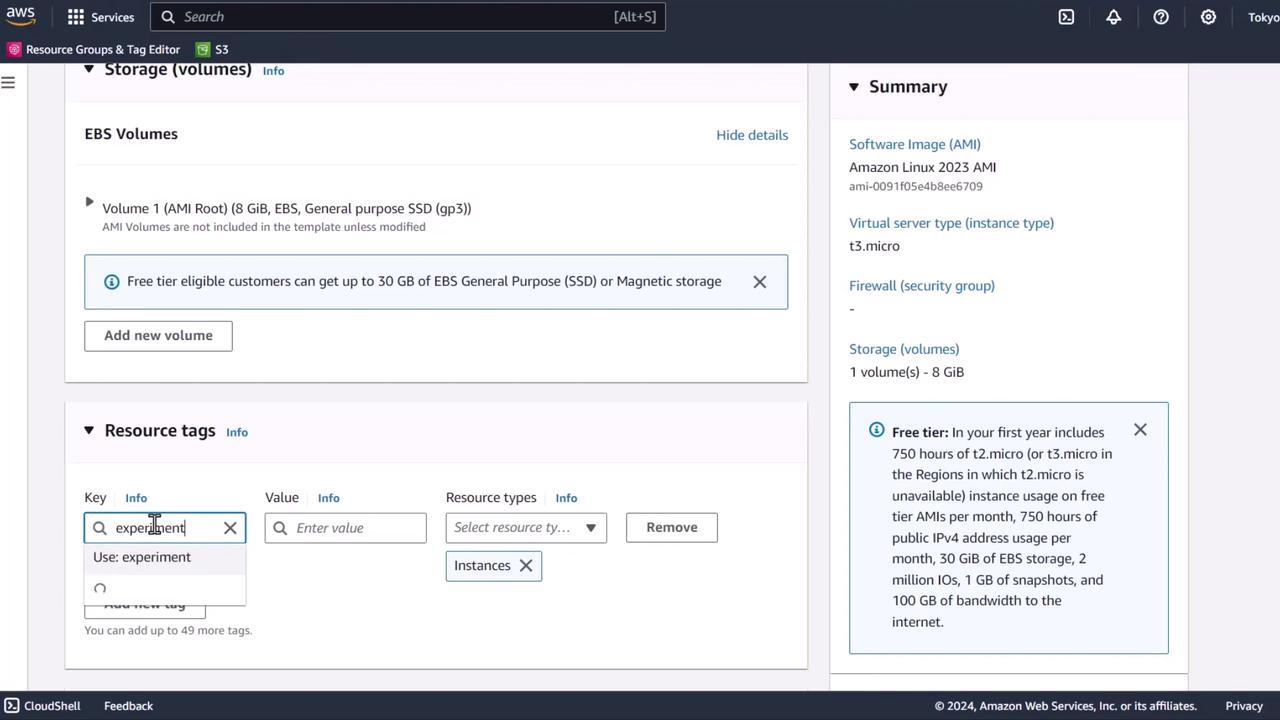
All instances launched from this template will inherit the tags—useful for identifying resources in your FIS experiment.
- Review settings and click Create launch template.
2. Configure the Auto Scaling Group
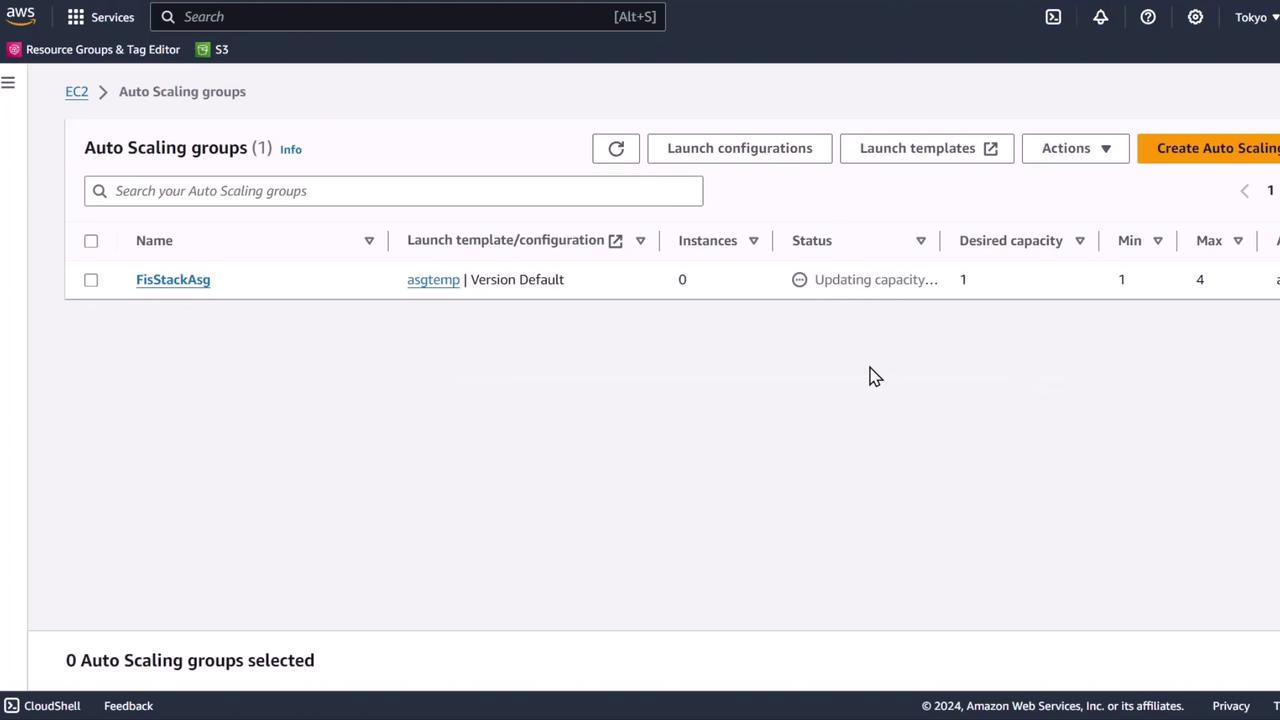
- Navigate to Auto Scaling Groups → Create Auto Scaling group.
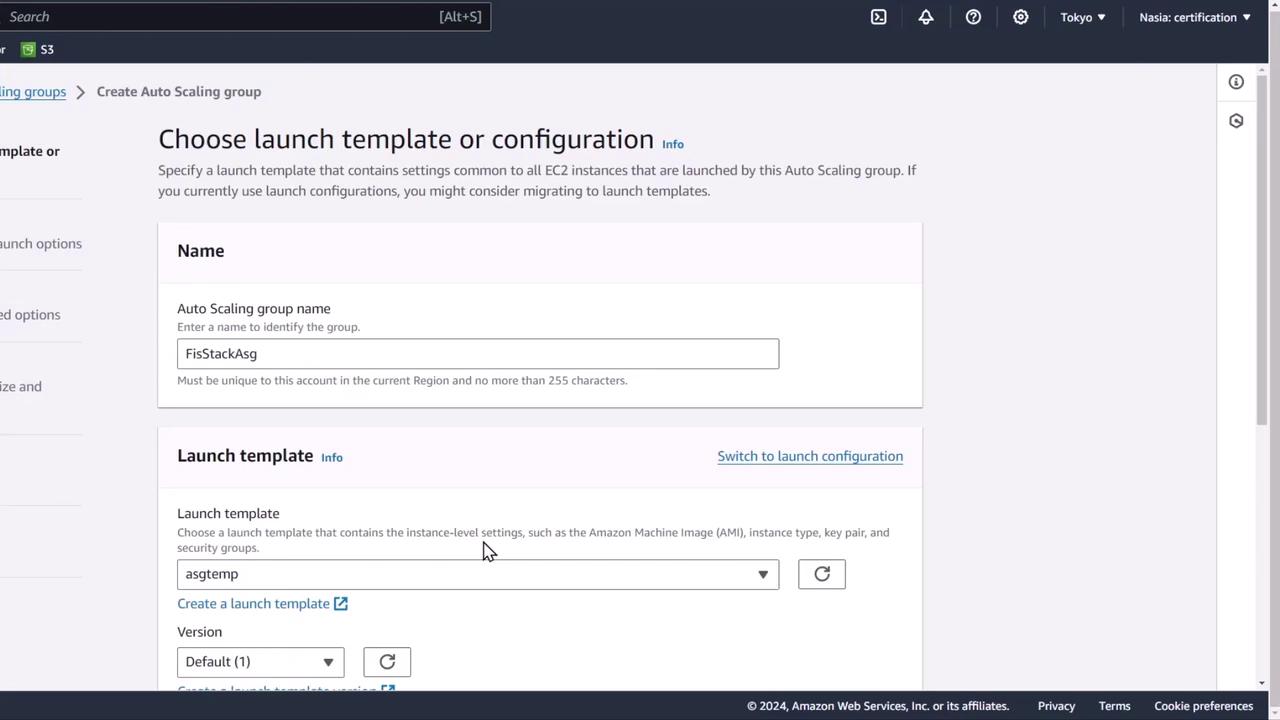
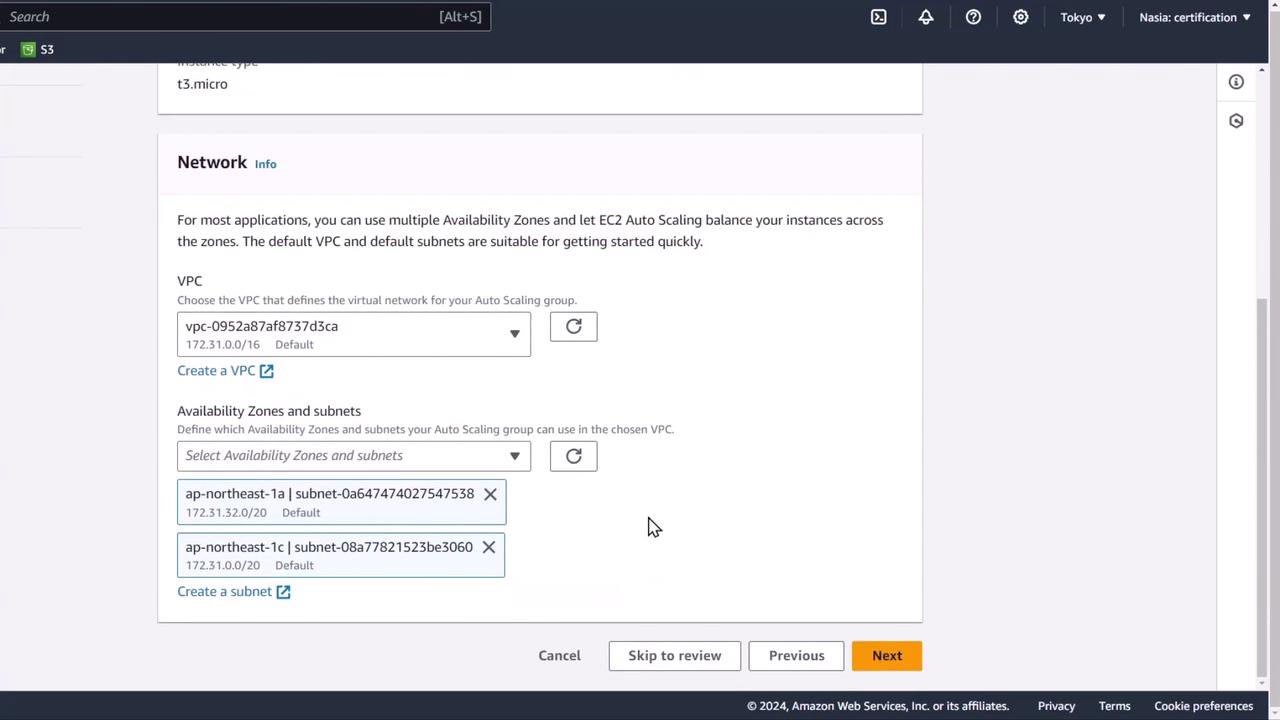
- Select the Launch Template you just created, then choose your default VPC and two subnets across separate Availability Zones.
-
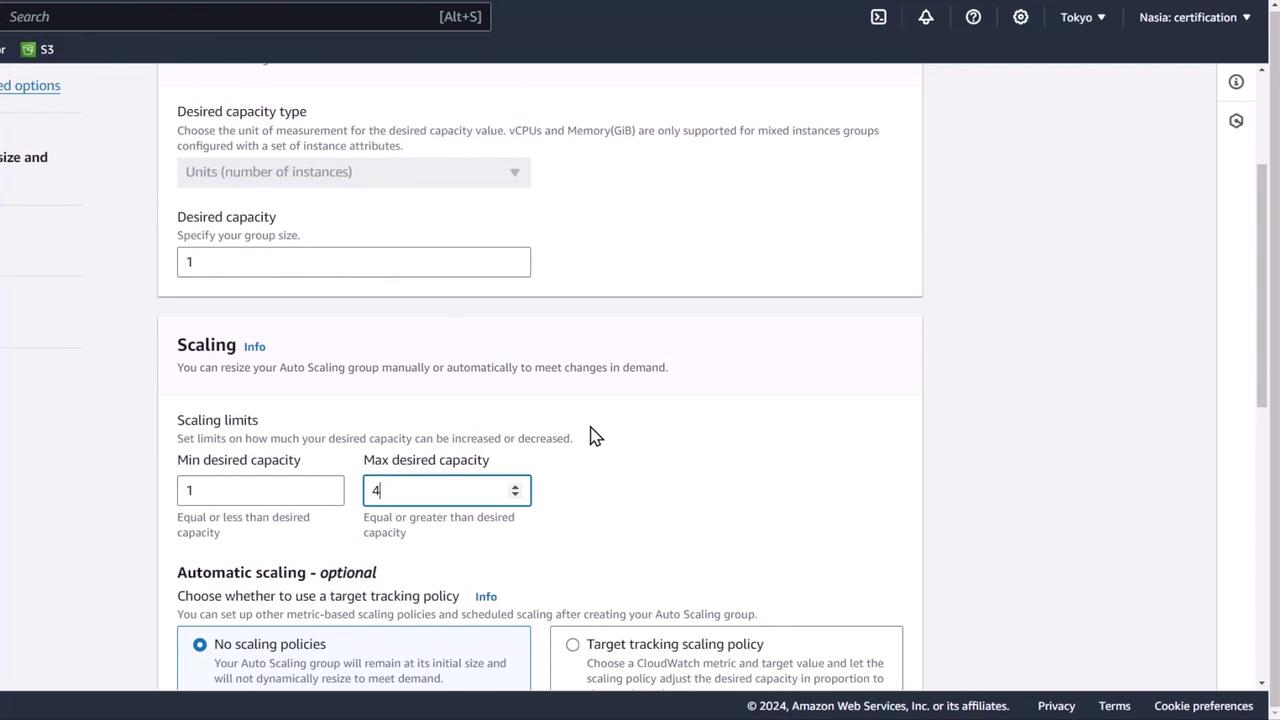
Set the group capacity:
This configuration ensures one instance under normal load and scales out to four if needed.
Distributing instances across AZs is critical for high availability—ensure you select at least two subnets in different zones.
- Leave remaining options at default and click Create Auto Scaling group.
3. Create a CloudWatch Logs Group
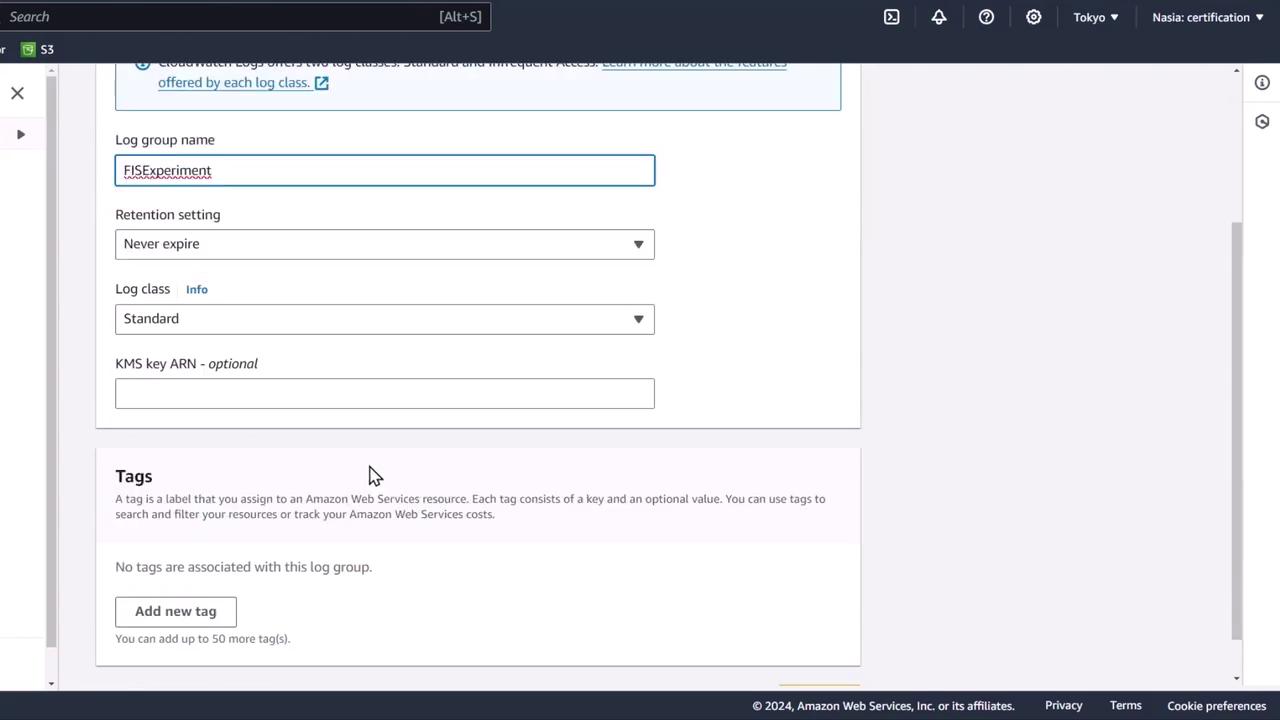
- Open the CloudWatch Logs console and click Create log group.
- Enter fis-experiment as the log group name and accept default settings.
4. Verify the Architecture
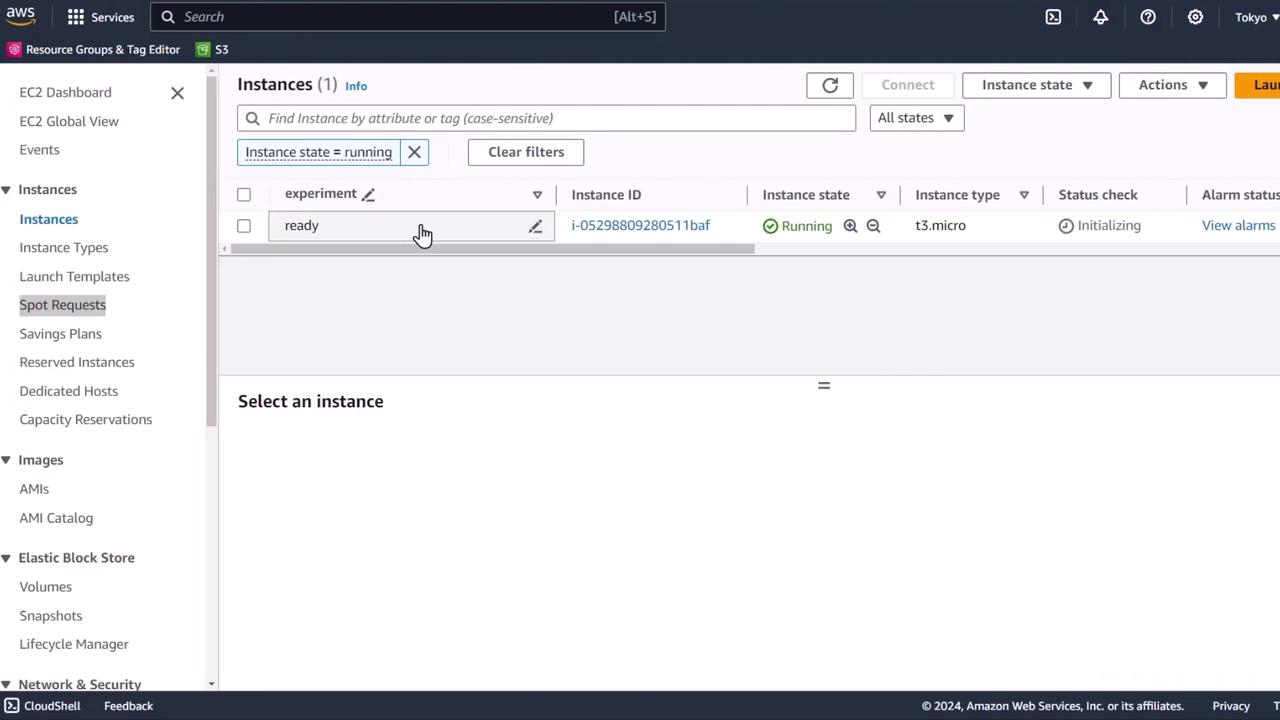
Return to the EC2 console. Your Auto Scaling group should have launched onet3.micro instance with the tag experiment=ready.