

Establishing a steady-state baseline is crucial before running any chaos experiment. It helps you distinguish normal behavior from fault-induced anomalies.
Observability Tools and Key Metrics
1. CloudWatch Container Insights
To begin, navigate to the CloudWatch Container Insights dashboard and select your EKS cluster. Here you can view overall CPU and memory utilization, cluster state summaries, and alarm statuses.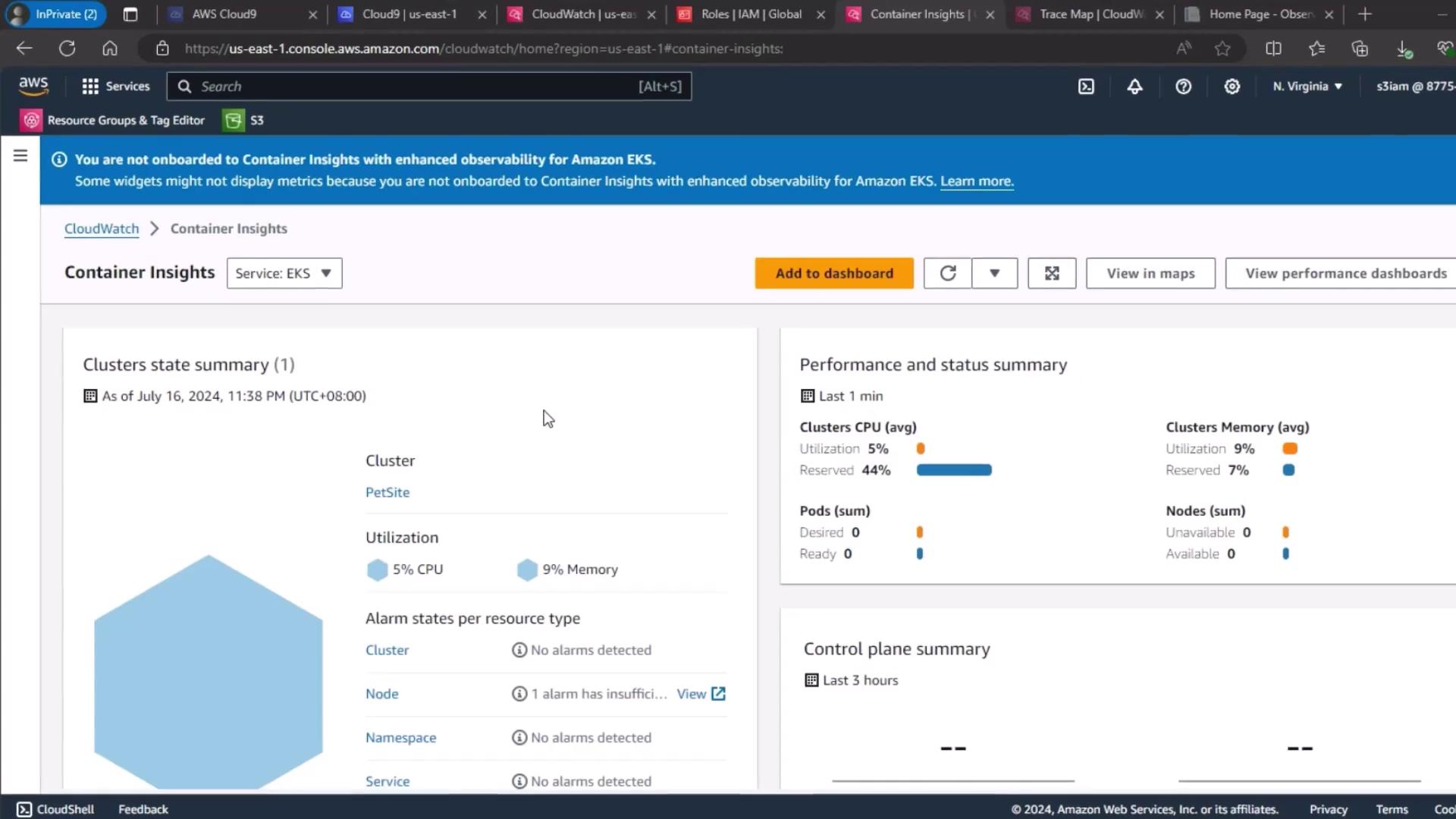
2. Service-Level Performance Dashboard
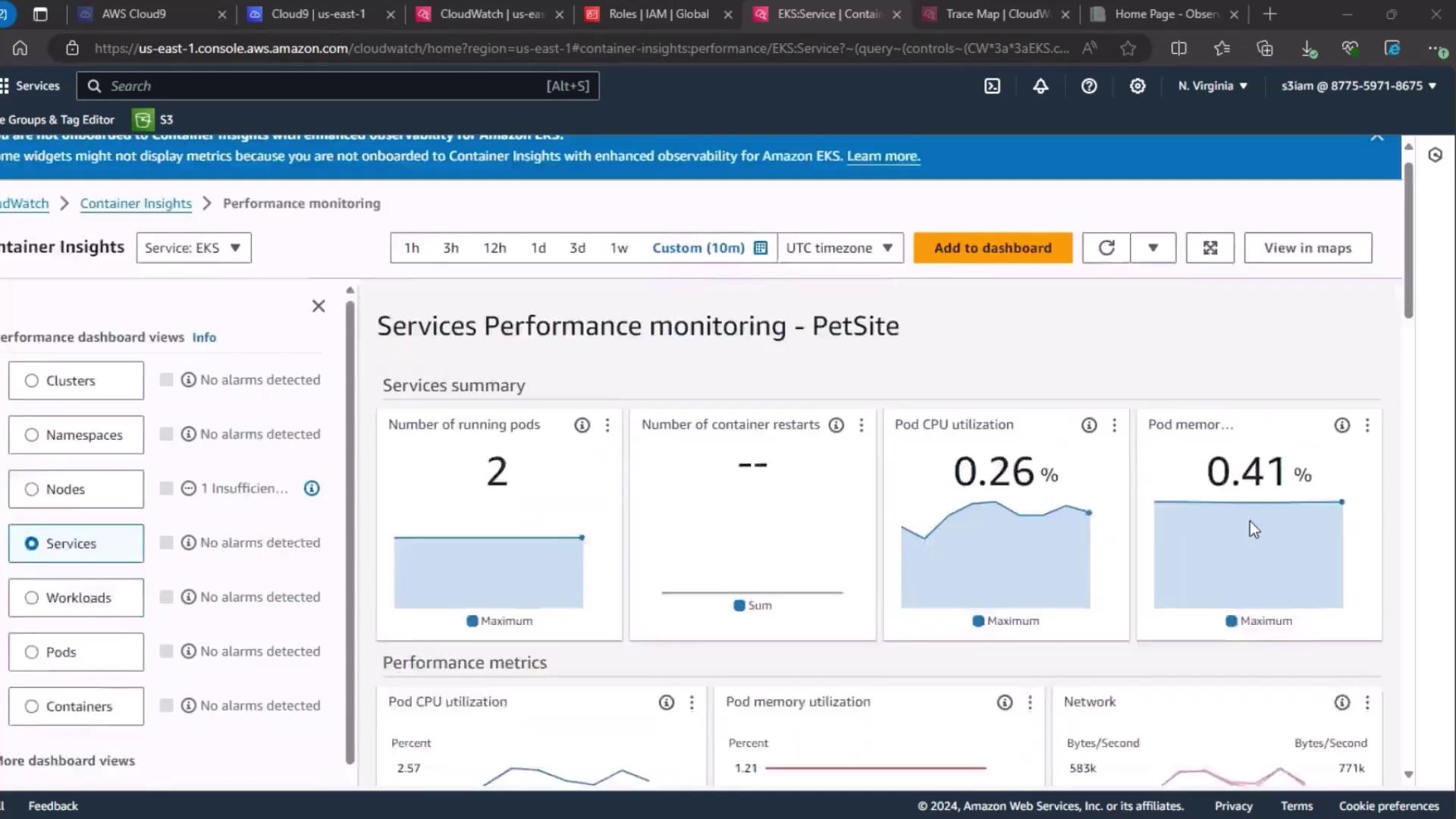
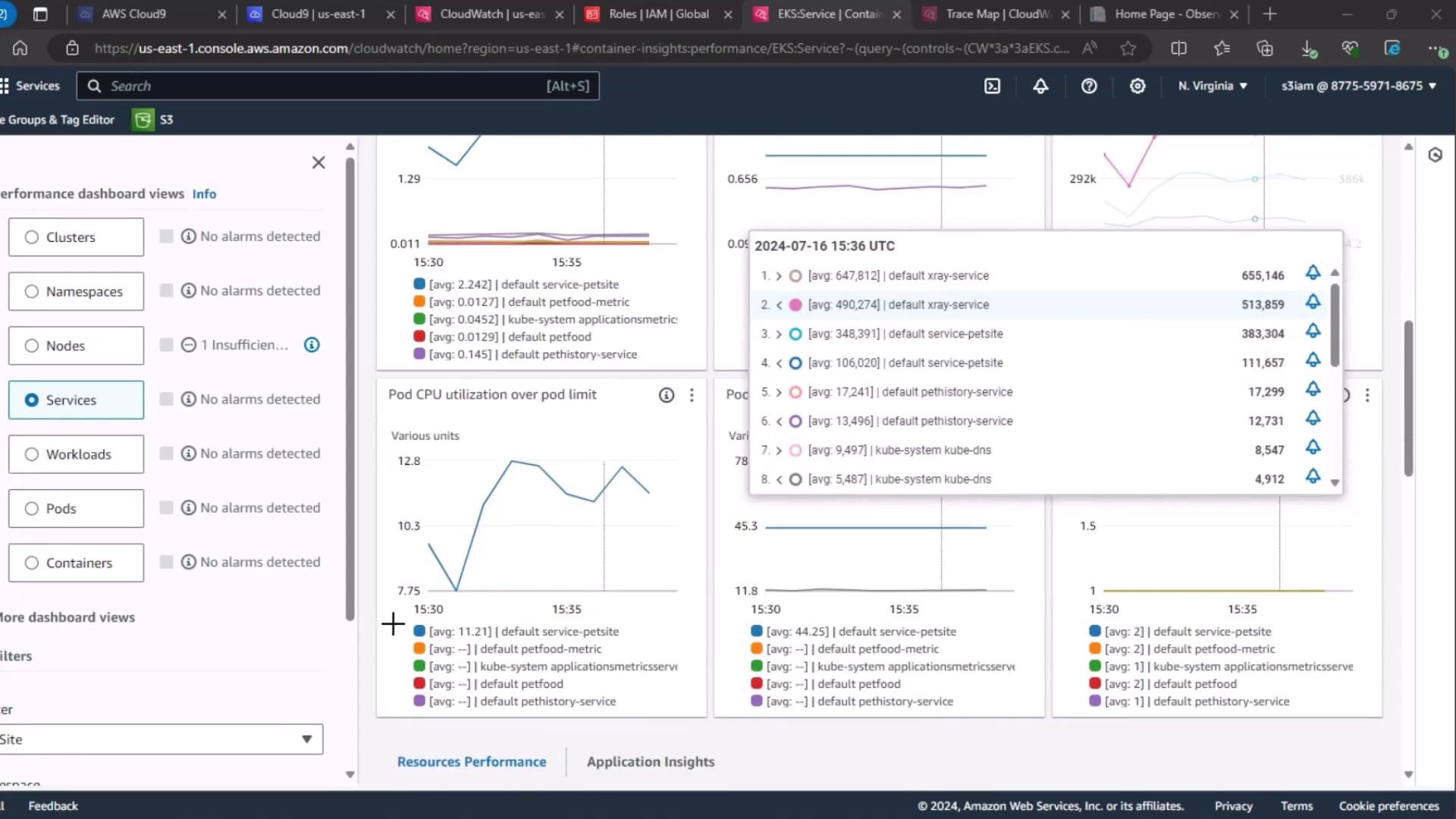
Next, go to the Services section under CloudWatch performance dashboards. Wait for the metrics to load, then review:- Number of running pods
- Pod CPU utilization
- Pod memory utilization
3. Real User Monitoring (RUM)
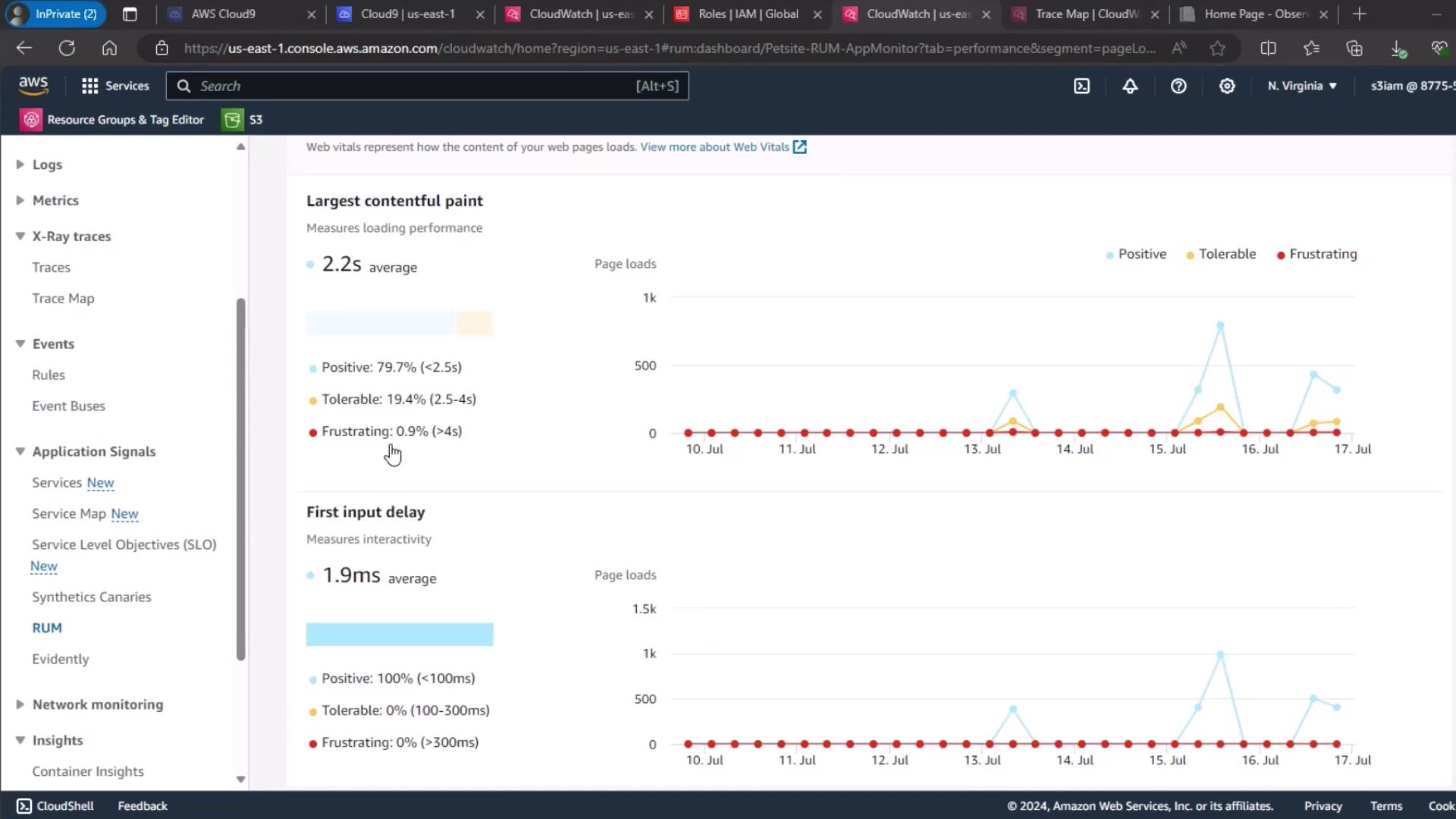
For end-user experience, use CloudWatch RUM. Select your PetSite RUM app monitor to view session quality:- Positive
- Tolerable
- Frustrating
4. Page Load Metrics Overview
Finally, review the page load times and Cumulative Layout Shift (CLS) trends to understand the front-end impact before fault injection.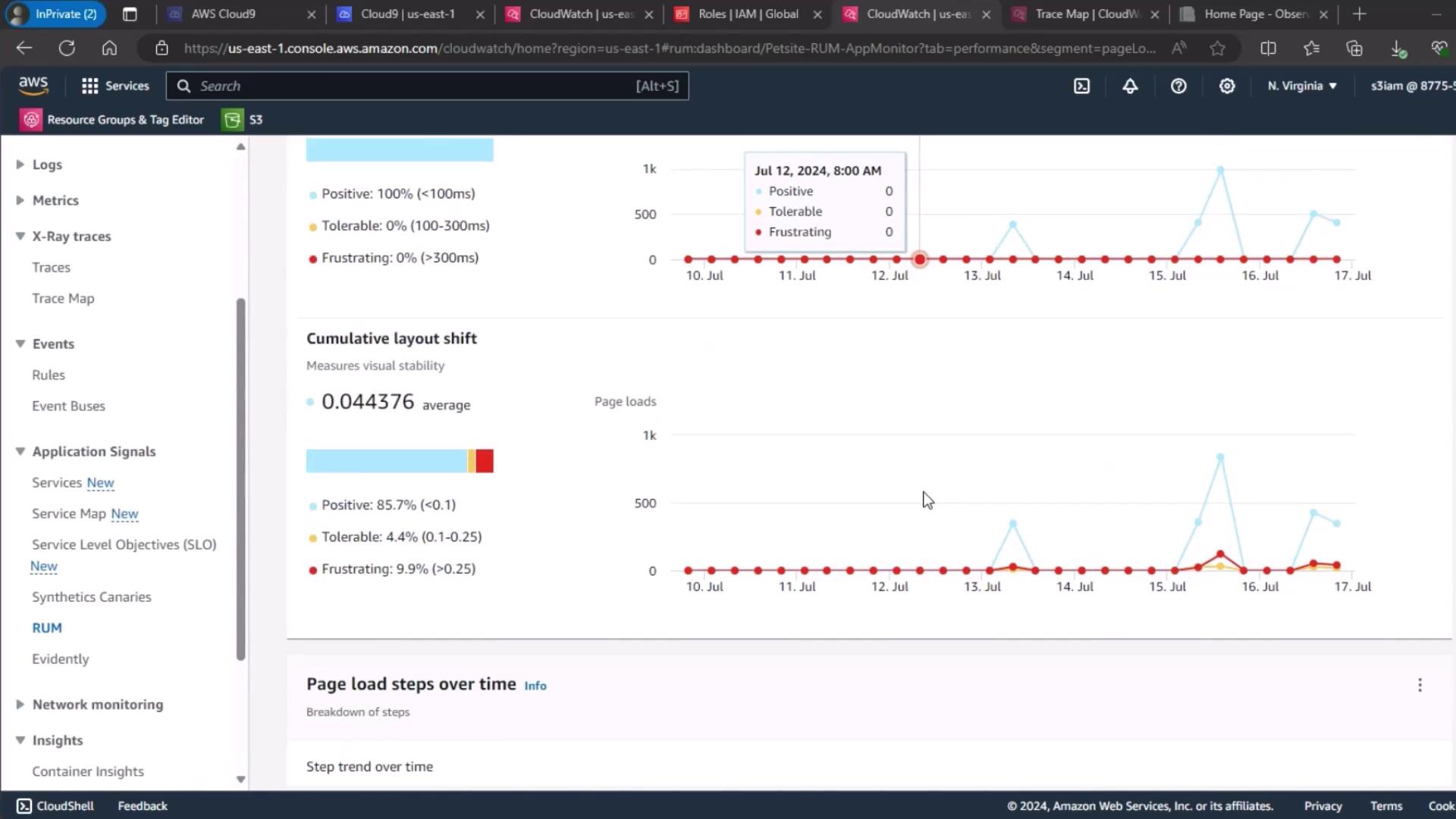
Next Steps
In the next demo, we’ll execute our FIS memory‐stress experiment and revisit these dashboards to observe how injected faults affect cluster health, service performance, and user experience.Links and References
- AWS CloudWatch Container Insights Documentation
- AWS CloudWatch RUM Documentation
- AWS Fault Injection Simulator (FIS)
- Amazon EKS User Guide