1. Configure the Auto Scaling Group
We’ve updated our Auto Scaling group to maintain a desired capacity of 2 and a minimum capacity of 2.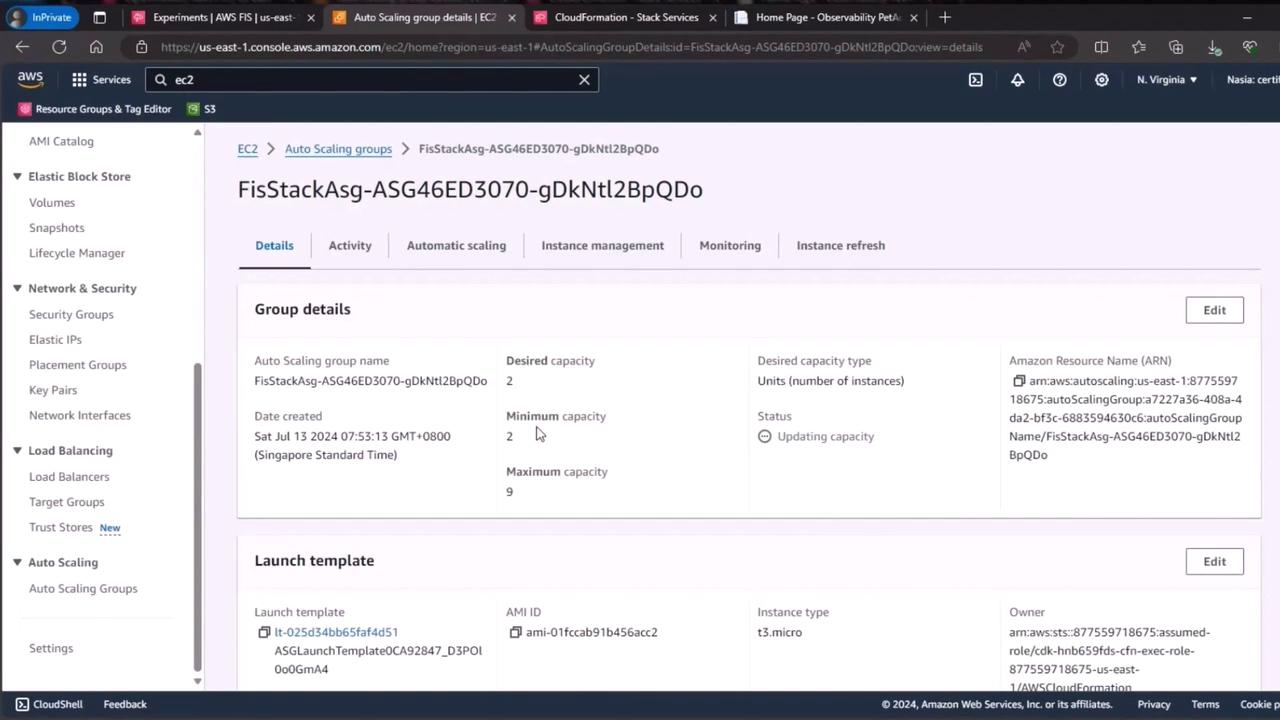
Ensure your Auto Scaling group spans multiple Availability Zones for greater fault tolerance.
2. Verify Running Instances
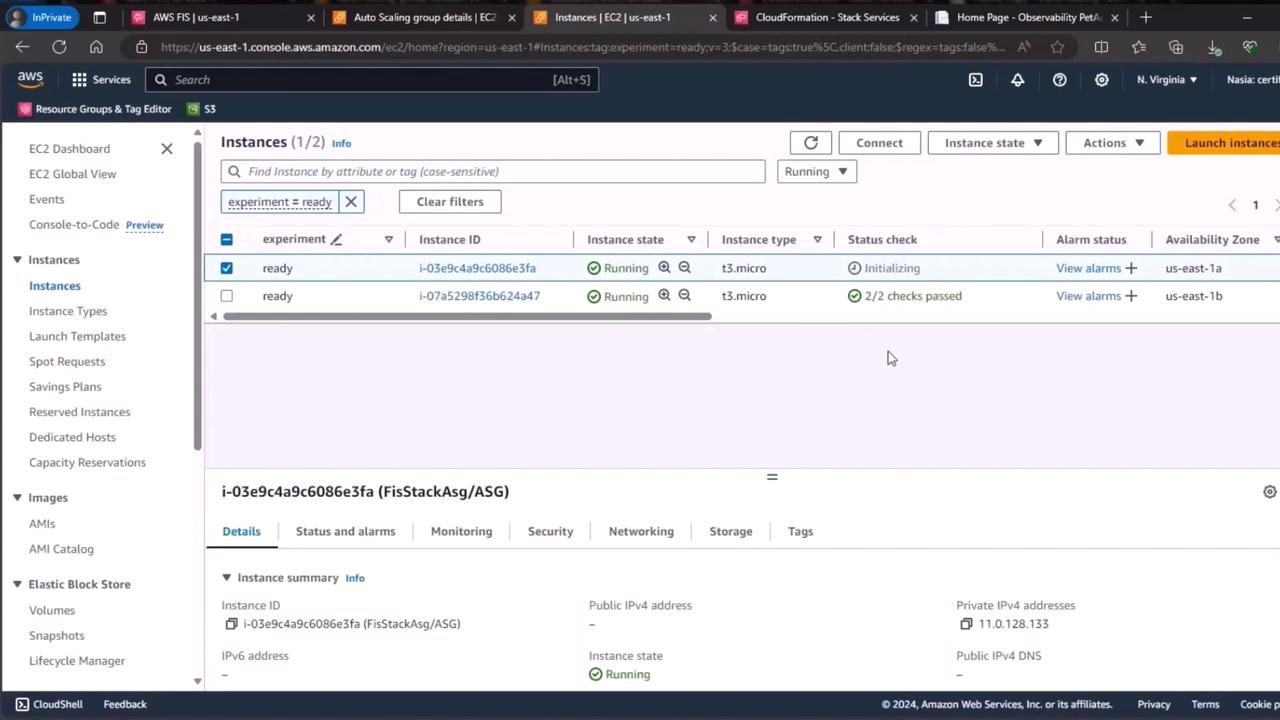
- Open the EC2 console.
- Filter instances by the tag
Experiment=ready. - Confirm that two EC2 instances are in the running state.
3. Rerun the FIS Experiment
Next, launch your Fault Injection Service experiment using the template you created:- Wait for the experiment to reach Running status.
- FIS will select a target instance (e.g., ending in 9456) and terminate it.
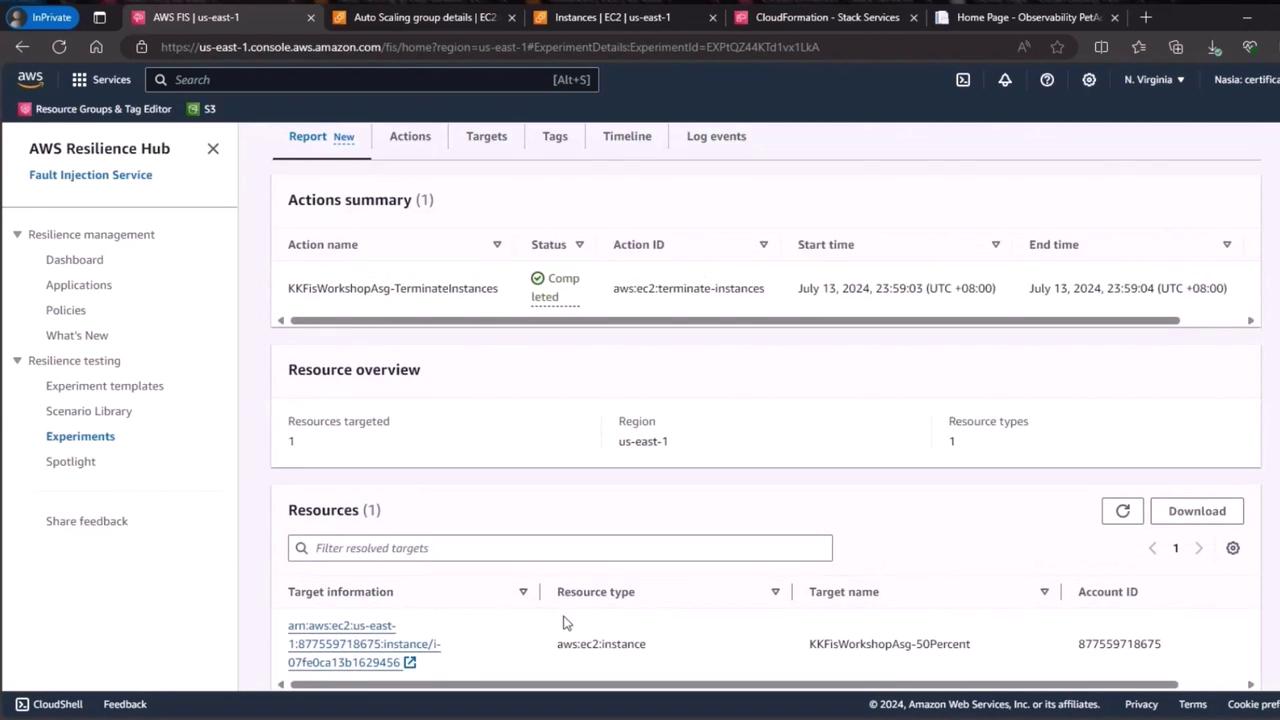
4. Validate Instance Termination
- Return to the EC2 console.
- Refresh the instance list.
- Verify that the instance ending in 9456 is no longer running.
- Clear the “running” filter to see that the instance is now in the terminated state.
5. Check Auto Scaling Activity
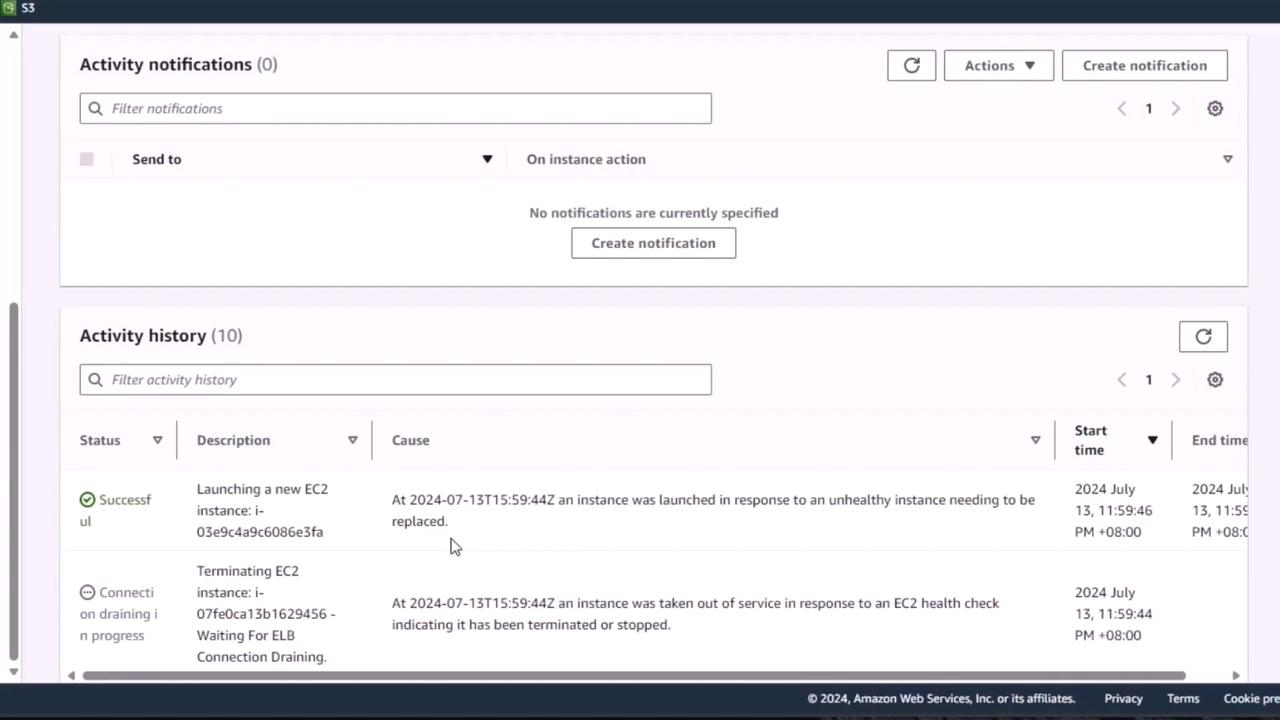
Navigate to your Auto Scaling group’s Activity tab. You should see entries indicating:- The instance ending in 9456 was taken out of service.
- A new replacement instance was launched to restore the group back to 2.
6. Confirm Application Availability
Finally, verify on the EC2 dashboard that two t3.micro instances are running and have passed status checks (either initializing or 2/2 checks passed). This confirms that our application remains available despite the induced failure.