In this lesson we’ll walk through installing Ollama and using it to run large language models (LLMs) locally. Ollama lets you download open-source models and run them on your machine instead of relying on cloud-hosted LLMs. These models behave similarly to GPT-family models: you can send prompts interactively, run them as a server with an HTTP API, or call them from scripts and applications. Key benefits:
  • Run models locally for lower latency and data privacy.
  • Use CLI or GUI workflows to pull, run, and manage models.
  • Integrate local models into apps via a local API (default: 127.0.0.1:11434).
Supported platforms: macOS, Linux (including WSL), and Windows. Installers: DMG for macOS, EXE for Windows, and a curl-based shell installer for Linux.

Install (Linux / WSL)

On Linux or Windows Subsystem for Linux, install with the curl installer:
curl -fsSL https://ollama.com/install.sh | sh
The installer will prompt for sudo when needed and installs Ollama under /usr/local by default. Running this command inside WSL is the fastest way to get set up on Windows using the Windows Subsystem for Linux environment.
A typical install run looks like this:
$ curl -fsSL https://ollama.com/install.sh | sh
>>> Installing ollama to /usr/local
[sudo] password for jeremy:
>>> Downloading Linux amd64 bundle
######################################################################## 100.0%
>>> Creating ollama user...
>>> Adding ollama user to render group...
>>> Adding ollama user to video group...
>>> Adding current user to ollama group...
>>> Creating ollama systemd service...
>>> Enabling and starting ollama service...
Created symlink /etc/systemd/system/default.target.wants/ollama.service /etc/systemd/system/ollama.service.
Nvidia GPU detected.
>>> The Ollama API is now available at 127.0.0.1:11434.
>>> Install complete. Run "ollama" from the command line.
After installation, run ollama to view the top-level help and available subcommands.

Command-line overview

Running the ollama command with no arguments prints the high-level help and available commands:
$ ollama
Usage:
  ollama [flags]
  ollama [command]

Available Commands:
  serve       Start ollama
  create      Create a model
  show        Show information for a model
  run         Run a model
  stop        Stop a running model
  pull        Pull a model from a registry
  push        Push a model to a registry
  signin      Sign in to ollama.com
  signout     Sign out from ollama.com
  list        List models
  ps          List running models
  cp          Copy a model
  rm          Remove a model
  help        Help about any command

Flags:
  -h, --help      help for ollama
  -v, --version   Show version information

Use "ollama [command] --help" for more information about a command.

Windows / GUI installer

The macOS and Windows installers include an optional GUI. The GUI lets you browse models, view metadata, and download models with a few clicks. The installer keeps your models if you upgrade an existing install.
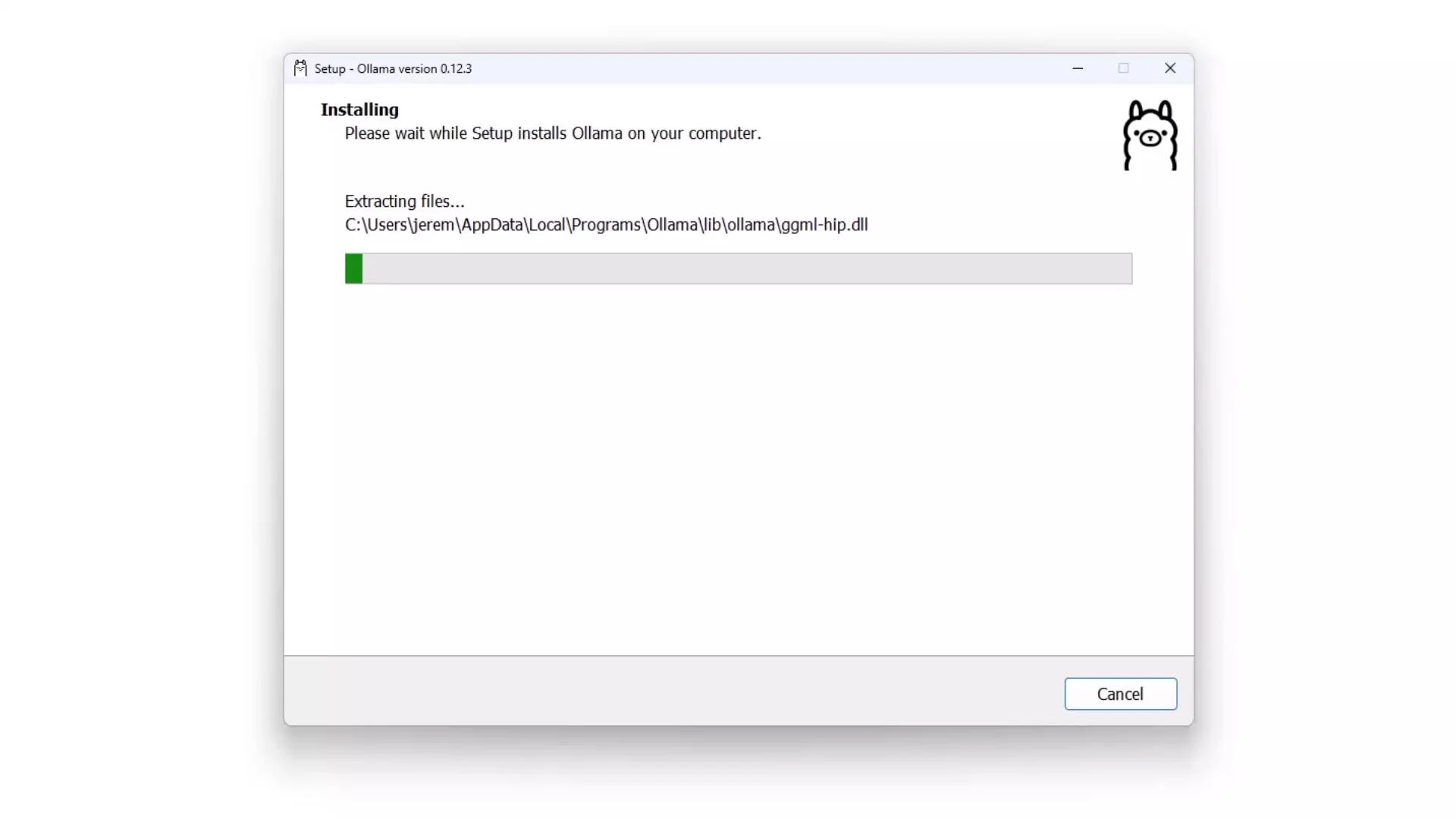
The image shows the installation progress of "Ollama" on a computer, with a progress bar and file extraction details. A cartoon llama graphic is displayed in the top right corner.

Model selection (GUI)

If you prefer a graphical workflow, the GUI lets you preview model descriptions, inspect sizes and parameters, and download models directly.
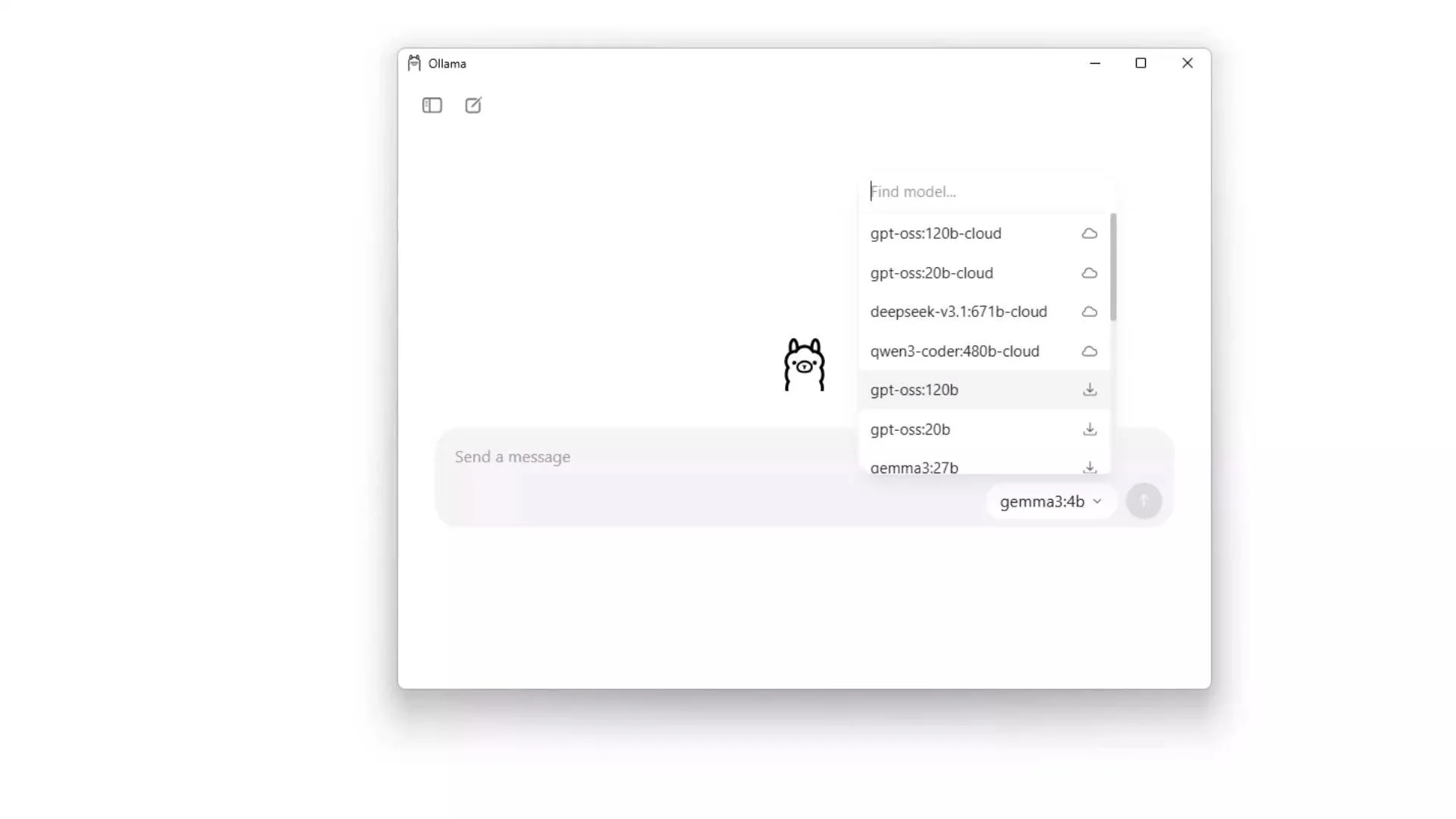
The image displays a software interface with a selection menu for AI models, accompanied by a simple cartoon doodle resembling a llama.

Common commands

Use the table below as a quick reference for common Ollama commands and their use cases.
CommandPurposeExample
ollama listList models downloaded to your machineollama list
ollama psShow running models and resource usageollama ps
ollama pullDownload a model without running itollama pull qwen3:0.6b
ollama runDownload (if needed) and start a model interactivelyollama run qwen3:0.6b
ollama show <model>Inspect model metadata and runtime parametersollama show deepseek-r1:latest
ollama stop <name>Stop a running modelollama stop qwen3:0.6b

Listing installed models

From the CLI, ollama list shows models you have already downloaded:
C:\Users\jerem>ollama list
NAME                ID              SIZE     MODIFIED
deepseek-r1:latest  6995872bfe4c    5.2 GB   22 hours ago
gemma3:4b           a2af6cc3eb7f    3.3 GB   22 hours ago

Inspecting a model

Use ollama show <model> to view architecture, parameter counts, context length, quantization, and default runtime parameters. Note: some models include special stop tokens that look like angle-bracket tokens — always display or reference those tokens inside code formatting to avoid MDX parsing issues.
C:\Users\jerem>ollama show deepseek-r1:latest
Model
  architecture          qwen3
  parameters            8.2B
  context length        131072
  embedding length      4096
  quantization          Q4_K_M

Capabilities
  completion
  thinking

Parameters
  stop                  "<| begin_of_sentence |> "
  stop                  "<| end_of_sentence |> "
  stop                  "<| User |> "
  stop                  "<| Assistant |> "
  temperature           0.6
  top_p                 0.95

License
  MIT License
  Copyright (c) 2023 DeepSeek

Downloading and running models

You can either pull a model to download it only, or run a model to download (if necessary) and start an interactive session:
C:\Users\jerem>ollama pull qwen3:0.6b
# downloads the model but does not start it
C:\Users\jerem>ollama run qwen3:0.6b
pulling manifest
pulling 7f4030143c1c: 96%                     ...
# when download completes, you'll be placed into the model prompt
Once the run command finishes downloading, you’ll be dropped into the model prompt and can start sending input (for example, “Tell me a funny joke about Python”).

Model catalog (web)

Browse available models, sizes, and suggested CLI commands at ollama.com/models. The web catalog is a good place to discover model details and recommended usage examples.
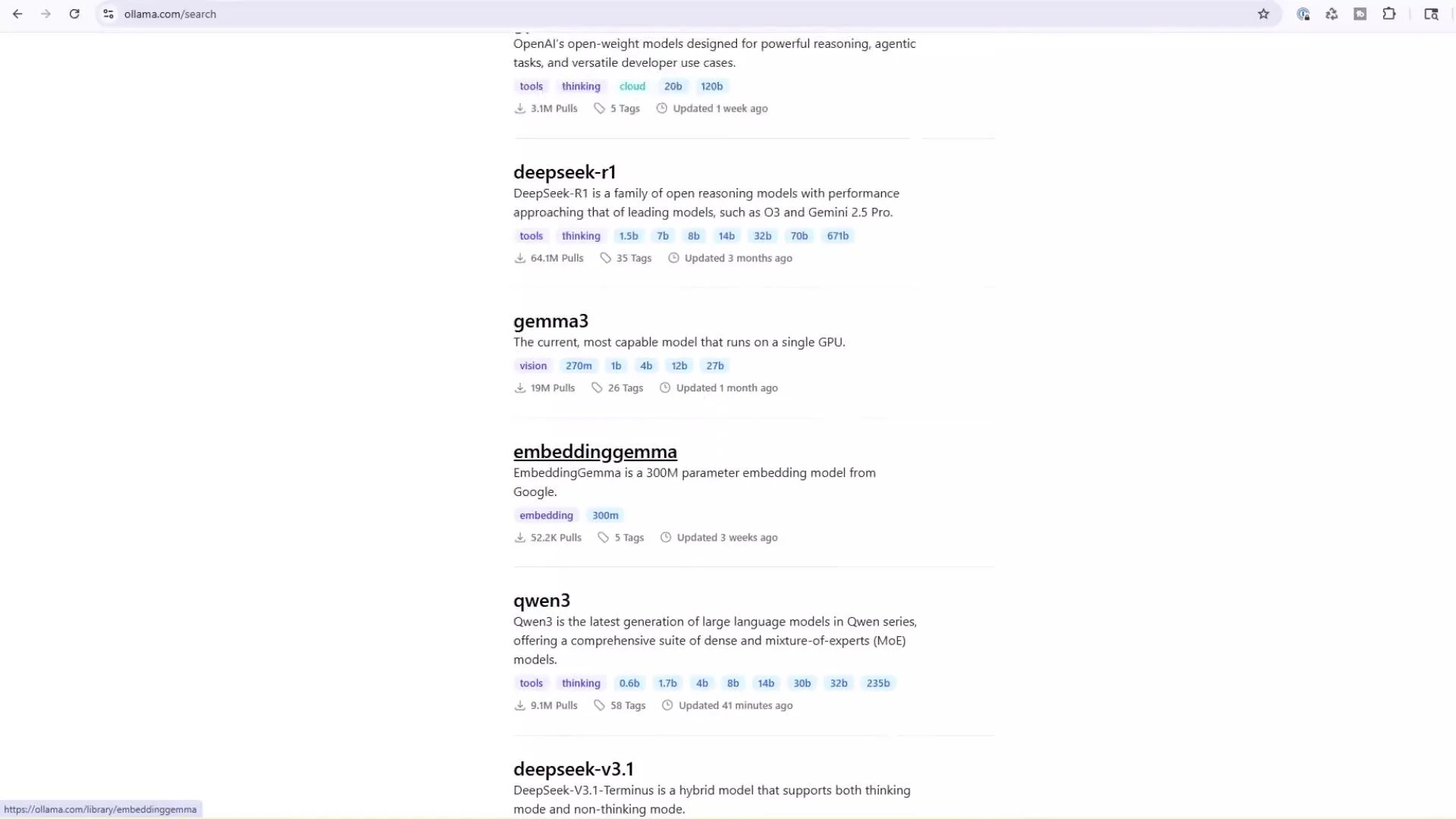
The image shows a webpage from ollama.com listing several AI models, each with descriptions, update information, and details on their characteristics and performance metrics.

Example model detail page (qwen3:0.6b)

Model detail pages show specifications and provide a copyable “Run” or “Pull” command for convenience.
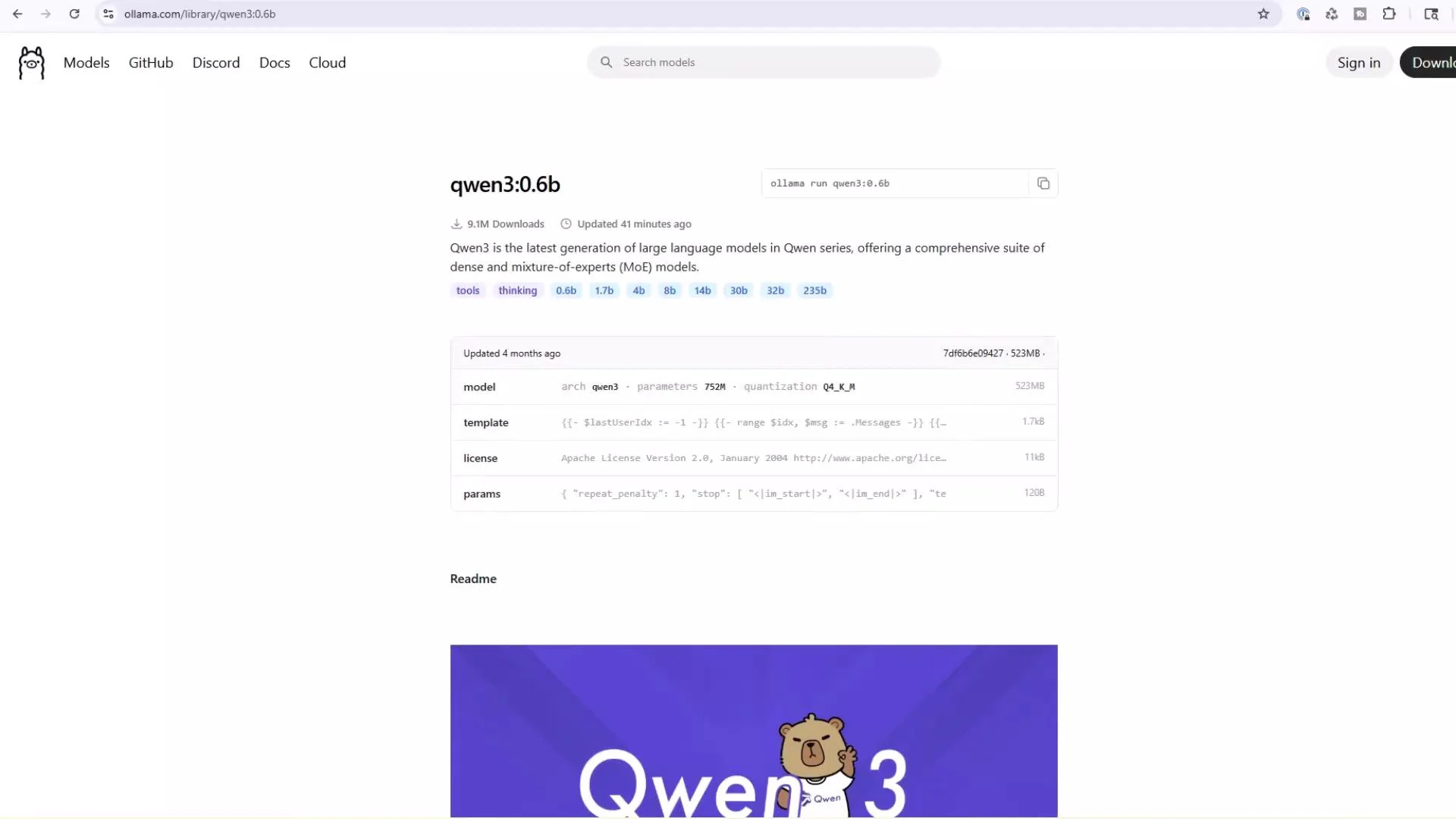
The image shows a webpage for a language model called "qwen3:0.6b" on the Ollama platform, including details about downloads, model specifications, and parameters. There's also a visual with a cartoon bear labeled "Qwen3."

Monitoring and stopping models

  • ollama list — models downloaded to your machine.
  • ollama ps — currently running models and resource usage.
  • ollama stop <name> — stop a running model.
Example outputs:
C:\Users\jerem>ollama list
NAME               ID                SIZE    MODIFIED
qwen3:0.6b         7df6b6e09427      522 MB  43 seconds ago
deepseek-r1:latest 6995872bfe4c      5.2 GB  22 hours ago
gemma3:4b          a2af6cc3eb7f      3.3 GB  22 hours ago
C:\Users\jerem>ollama ps
NAME         ID                SIZE     PROCESSOR  CONTEXT  UNTIL
qwen3:0.6b   7df6b6e09427      5.4 GB   100% GPU   32768    4 minutes from now
To stop a running model:
C:\Users\jerem>ollama stop qwen3:0.6b
Stopping qwen3:0.6b...
C:\Users\jerem>ollama ps
# (no running models shown)
Locally running models can be resource intensive. If a model uses GPU resources, ensure your drivers and CUDA runtime are compatible. Also note the Ollama API defaults to 127.0.0.1:11434 (local only) — exposing this port to untrusted networks can be a security risk.

Notes on model behavior and tuning

  • Repetitive or very long outputs can usually be controlled by adjusting temperature, top_p, and stop tokens.
  • Use clear prompts and explicit stop tokens to avoid unbounded generation.
  • For deterministic or concise replies, lower temperature (e.g., 0.0–0.3) and specify stop tokens.
  • For more creative output, raise temperature and increase top_p.

Next steps

  • Programmatic usage: call the local Ollama HTTP API at 127.0.0.1:11434 from your application.
  • Integrations: embed local models in microservices, chat UIs, or data pipelines.
  • Explore the model catalog: https://ollama.com/models for more models, sizes, and recommended CLI commands.
Further reading and references:

Watch Video