

block-buster-helm-app-7.6.0.tgz and a sample values.yaml.
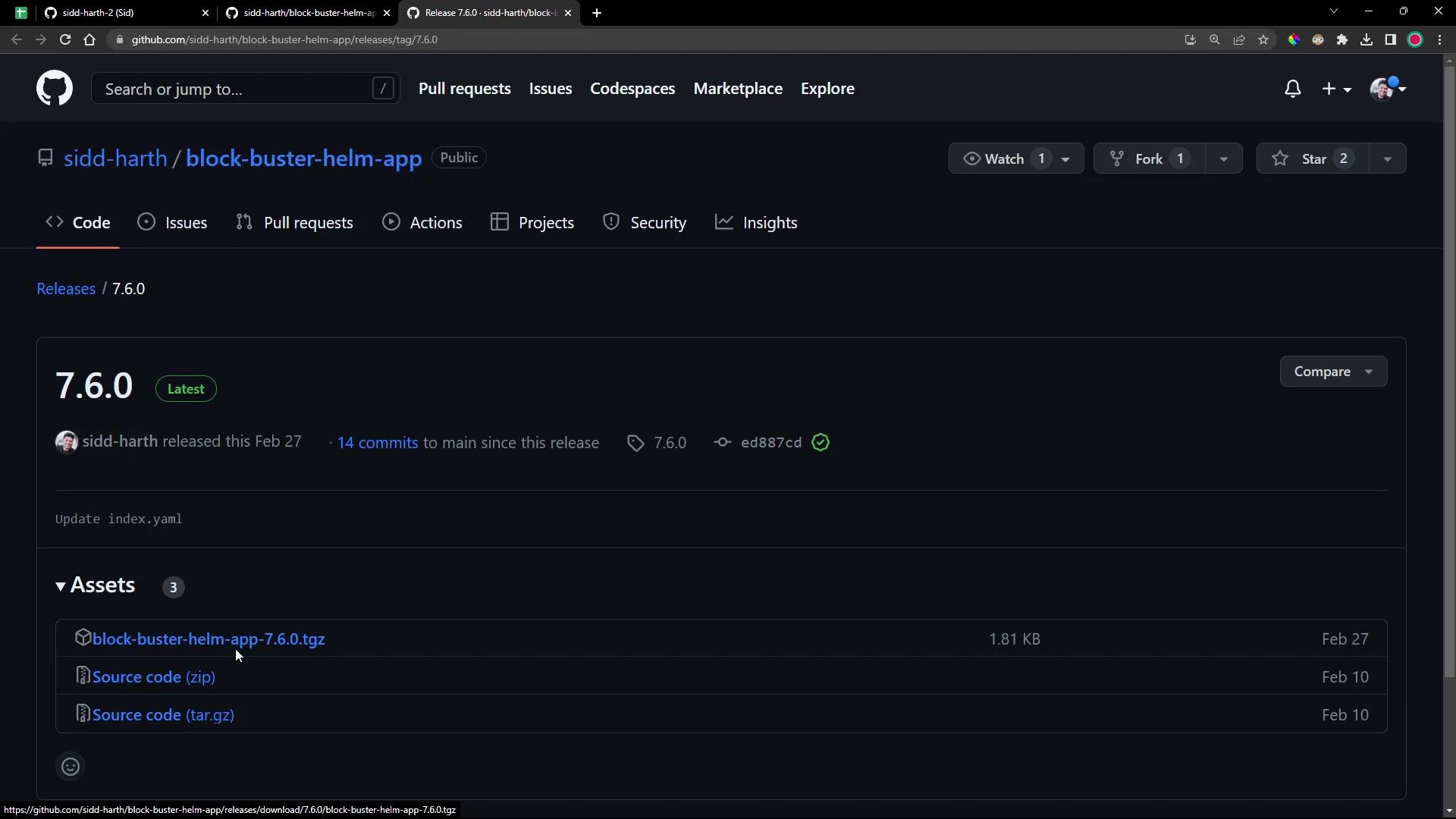
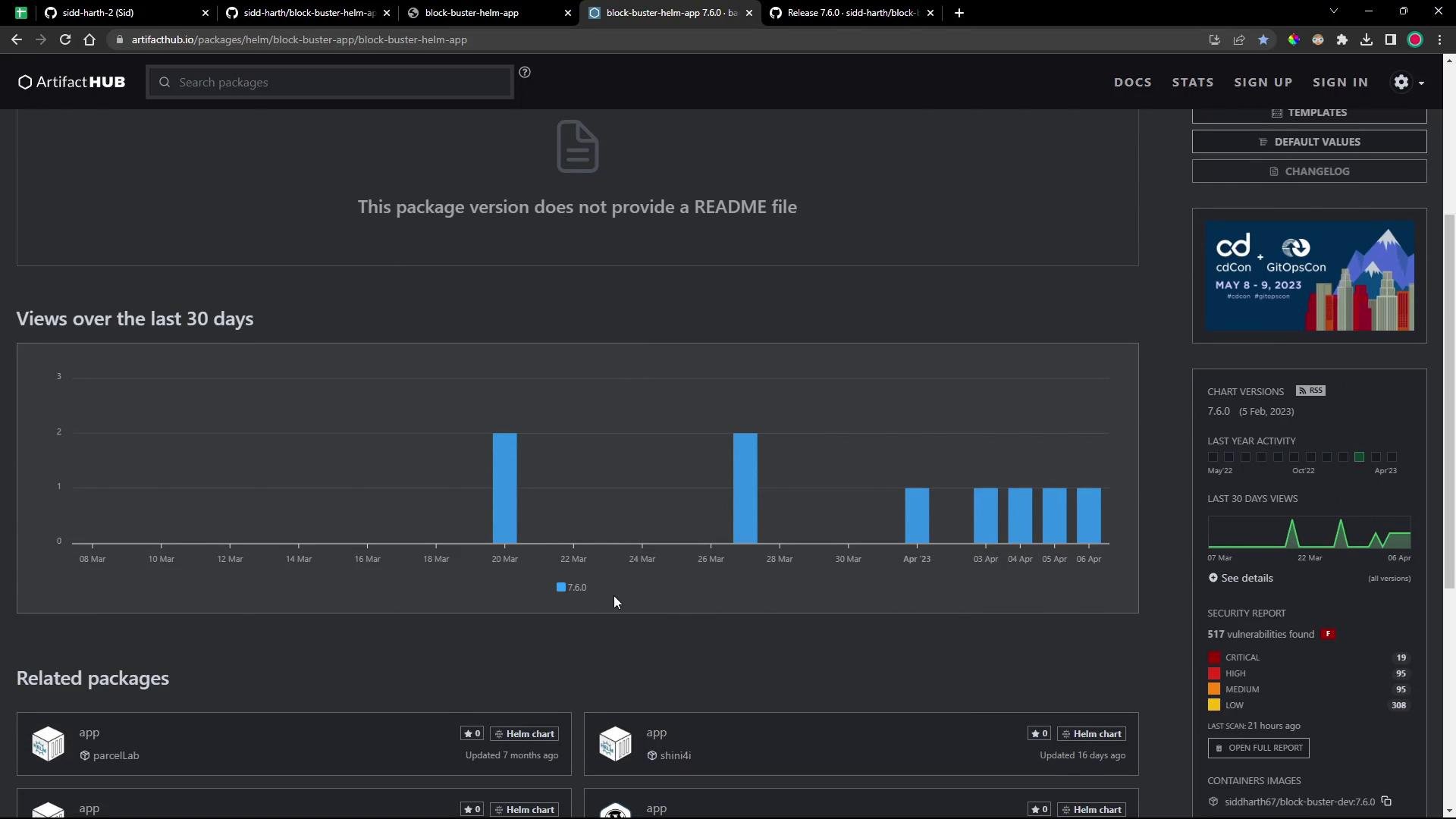
Overview of the steps
- Create a
HelmRepositorysource in Flux. - Prepare a
values.yaml(optional customization). - Create a
HelmReleasethat references theHelmRepository. - Inspect how Flux source-controller stores index and chart artifacts.
- Verify the HelmRelease and the deployed resources.
1) Create a HelmRepository source in Flux
Register the Helm repository URL (the GitHub Pages URL shown on Artifact Hub) using aHelmRepository resource. You can either write the manifest directly or use the flux CLI to create/export it.
Example HelmRepository manifest:
index.yaml and store a local artifact.
2) Prepare a values file for the release
Create a values file (for example6-demo-values.yml) to override chart defaults. This demo sets two replicas, uses NodePort service on port 30006, and injects labels and namespace configuration.
Example 6-demo-values.yml:
Remember to save the values file before running the
flux create helmrelease command that references it — otherwise the CLI export won’t include the values.3) Create a HelmRelease that uses the HelmRepository source
Declare which chart and version to install, the target namespace, and the values file with aHelmRelease. You can create/export it with the flux CLI:
HelmRelease manifest:
HelmRepository and HelmRelease manifests to your cluster (commit to the Git repo Flux watches or apply directly with kubectl).
4) How Flux source-controller fetches Helm artifacts (explanation)
- The
HelmRepositoryresource tells source-controller to fetch the repositoryindex.yamlfrom the Helm repo URL. Theindex.yamlmaps chart names and versions to artifact URLs (for example, a GitHub Releases tarball URL). - The
HelmRepositoryartifact stored by source-controller contains index metadata and the URLs, but not the expanded chart contents. - When a
HelmReleasereferences a chart from thatHelmRepository, the Helm controller creates aHelmChartreference and source-controller fetches the chart tarball (.tgz) and stores it as a HelmChart artifact. That tarball containsChart.yaml,values.yaml,templates/, README, etc. — the actual chart contents that Helm will render.
- Check the registered Flux Helm sources and readiness:
- Exec into the source-controller pod to inspect on-disk artifacts:
index.yaml entry (shows the tarball URL):
- When the chart is fetched for the
HelmRelease, the helmchart directory contains the downloaded artifact. You can list and inspect the tarball:
5) Verify the HelmRelease and deployed resources
After committing/applying the manifests, Flux will reconcile and install the release. Check HelmReleases:HelmRelease targeted targetNamespace: 6-demo, replicaCount=2, and nodePort=30006:
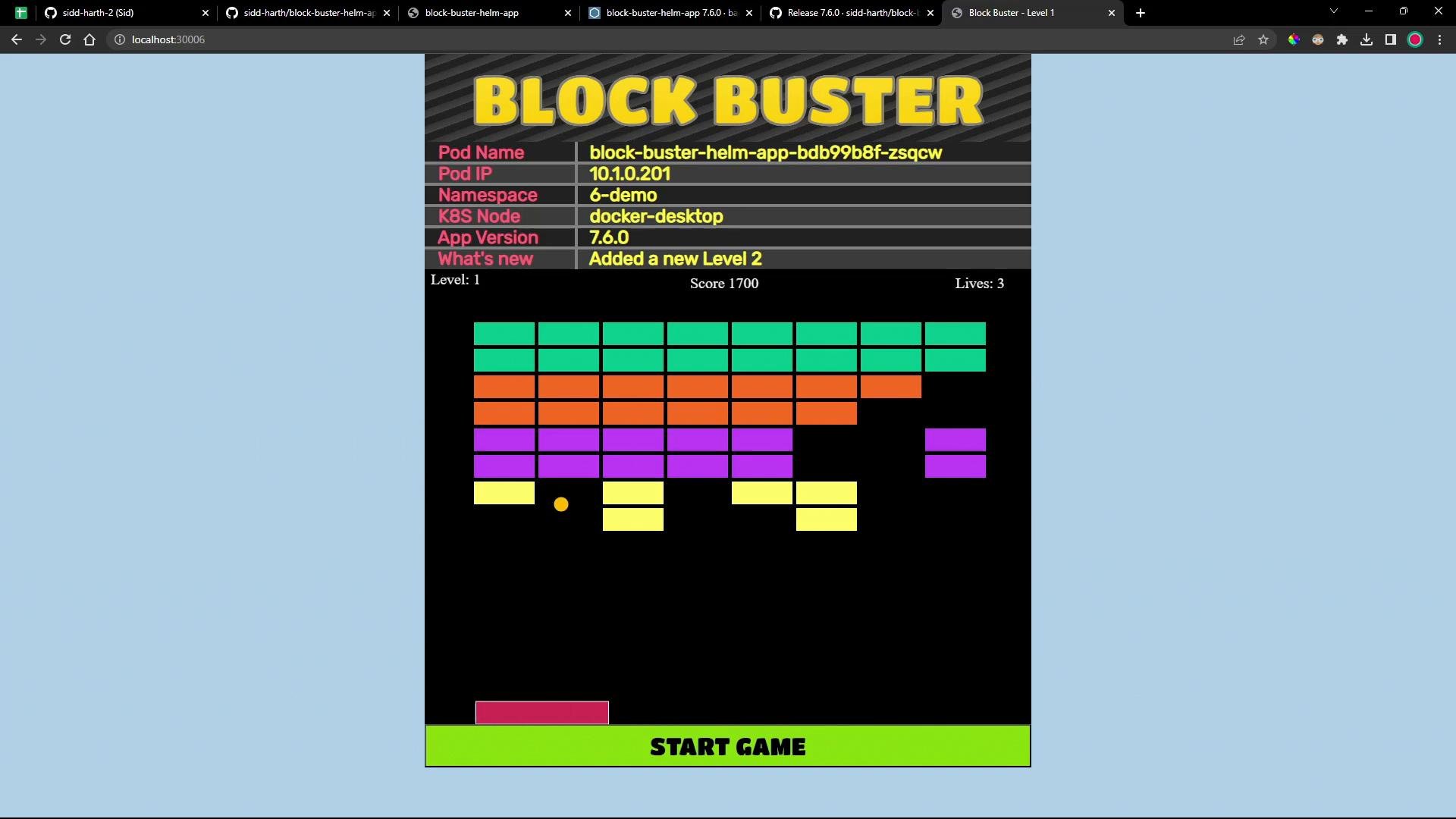
http://localhost:30006 (or the appropriate node IP and nodePort) to confirm the running app and version.
The application UI (Block Buster demo) is accessible and interactive:
Using
NodePort exposes the application on cluster nodes — ensure this is acceptable for your environment. For production, consider LoadBalancer services or an Ingress controller with authentication and TLS.Summary
- Registered a Helm repository in Flux using a
HelmRepositorysource. - Prepared a
valuesfile and created aHelmReleasethat points to theHelmRepository. - The source-controller fetched the repository
index.yaml(which contains chart URLs). When theHelmReleasereconciled, Flux fetched the.tgzchart package and installed it into the cluster. - Deployed application version
7.6.0is running in namespace6-demowith two replicas and NodePort30006.
Links and references
- Flux CLI and docs: https://fluxcd.io/docs/flux-cli/
- Flux source-controller: https://fluxcd.io/docs/components/source/
- Flux Helm controller (HelmRelease): https://fluxcd.io/docs/components/helm/helmrelease/
- Artifact Hub: https://artifacthub.io/
- GitHub Releases: https://docs.github.com/en/repositories/releasing-projects-on-github/about-releases