In this lesson you’ll configure the Flux Notification controller to send alerts to a Slack channel. This guide walks through creating the Slack app, granting permissions, storing the bot token in Kubernetes, creating a Flux Provider and Alert, and triggering notifications by making a change Flux reconciles. High-level steps
  • Create a Slack workspace and channel (or pick an existing one).
  • Create a Slack App and add the correct OAuth bot scopes.
  • If the channel is private, invite the bot to the channel.
  • Store the Slack bot token as a Kubernetes Secret in the flux-system namespace.
  • Create a Flux Provider and an Alert to route Flux events to Slack.
  • Trigger a change and observe notifications in Slack.
Prerequisites
  • Administrative access to a Slack workspace (to create apps & install them).
  • kubectl configured against the cluster where Flux is installed.
  • Flux Notification controller installed (part of Flux toolkit).
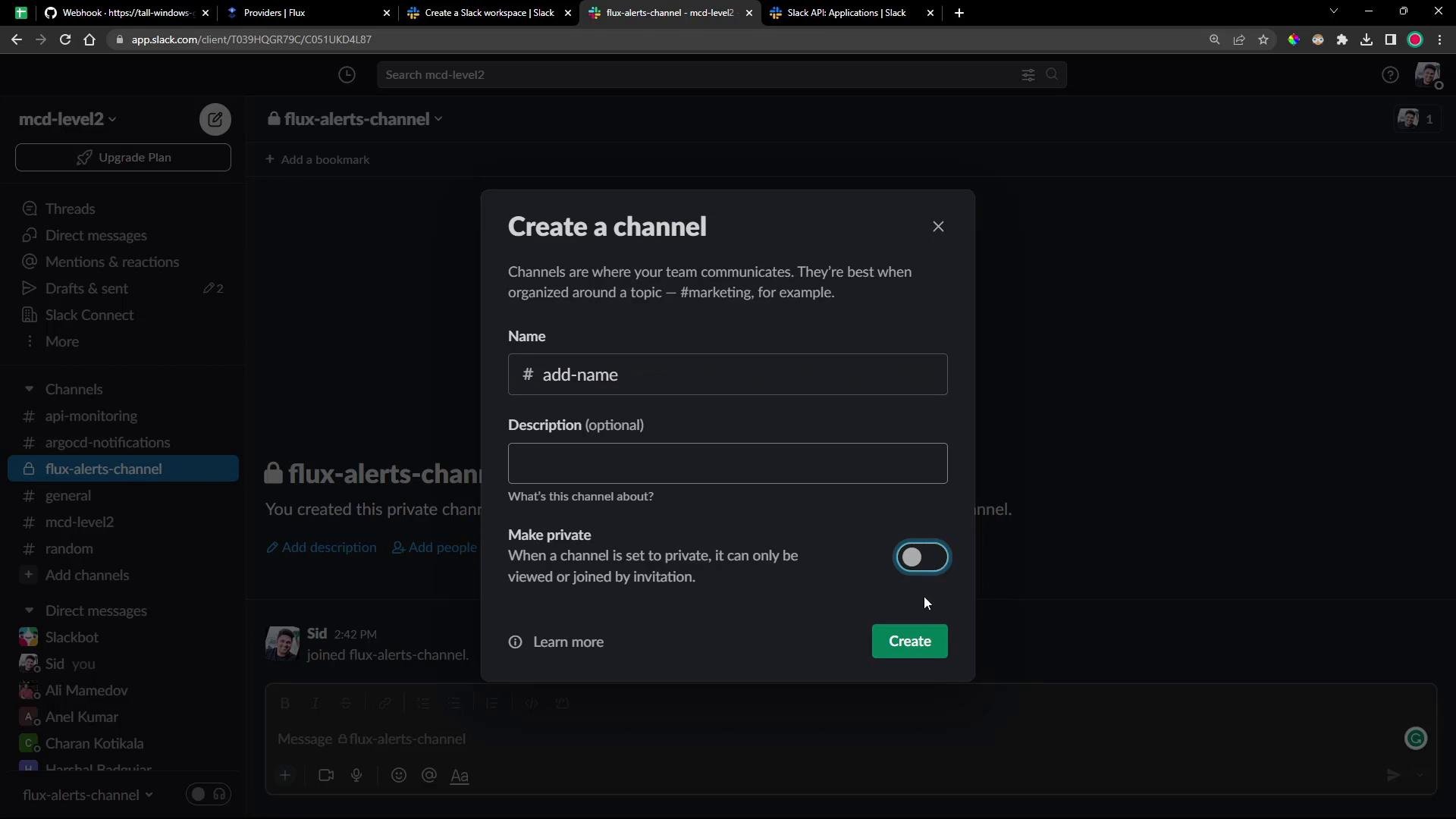
Create the Slack channel Create a public or private channel for Flux alerts. In this demo the channel is named FluxAlertsChannel (flux-alerts-channel).
A dark-themed Slack workspace screenshot with the "Create a channel" dialog open in the center, showing fields for channel name, description, a private toggle, and a Create button while the "flux-alerts-channel" is selected in the sidebar.
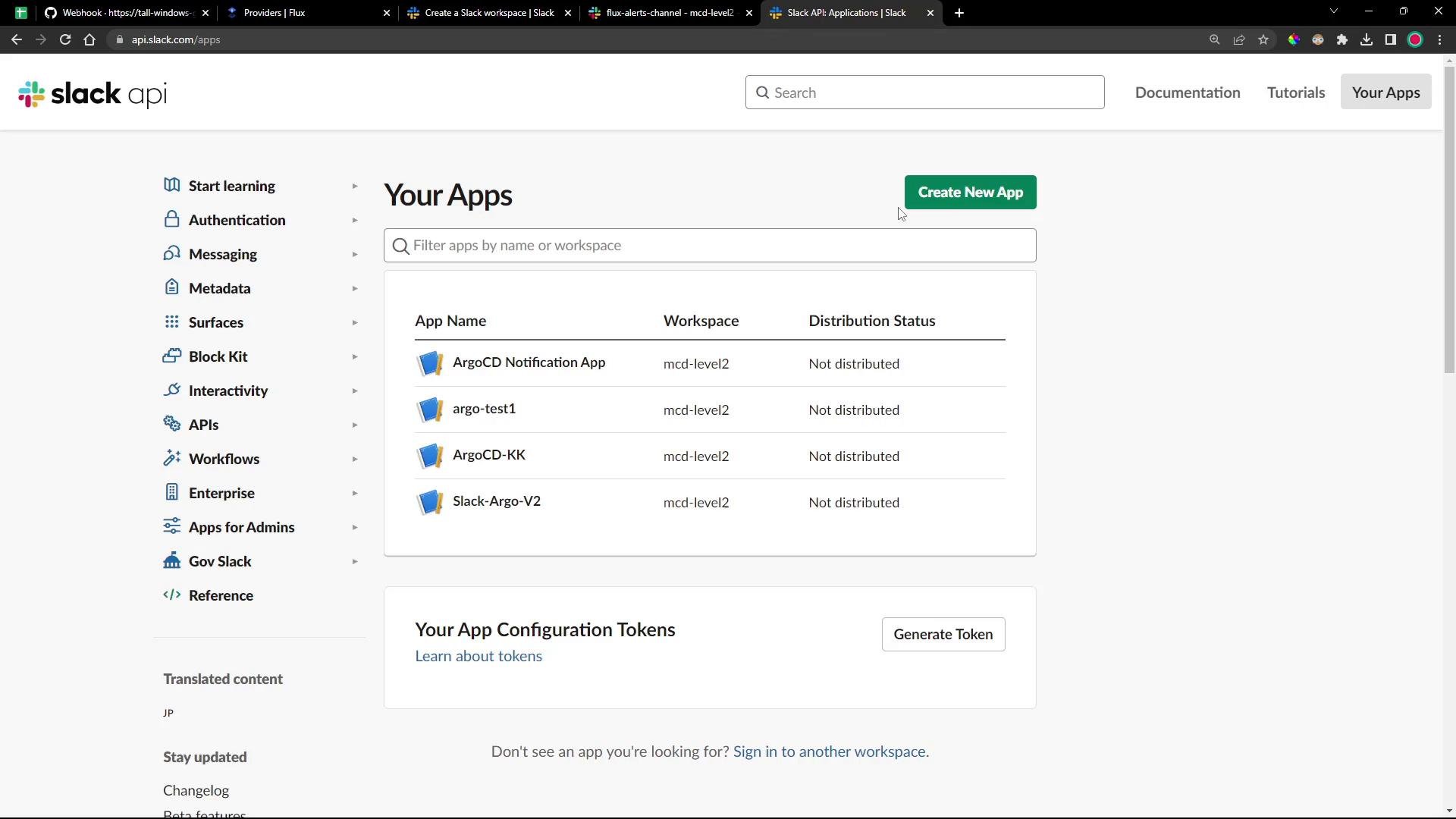
Create a Slack App Create a Slack application for the workspace using the Slack API dashboard. Slack Apps with bot tokens are the recommended approach for posting messages from external systems (instead of legacy incoming webhooks).
A screenshot of the Slack API "Your Apps" dashboard showing a list of Slack apps and a prominent "Create New App" button. The app list includes entries like "ArgoCD Notification App," "argo-test1," "ArgoCD-KK," and "Slack-Argo-V2" for the mcd-level2 workspace.
OAuth scopes to add Under Features → OAuth & Permissions add the bot scopes you need. At minimum: After adding scopes, click Install to Workspace (or Reinstall) to obtain the Bot User OAuth Token (xoxb-...). Flux uses this bot token to authenticate to Slack.
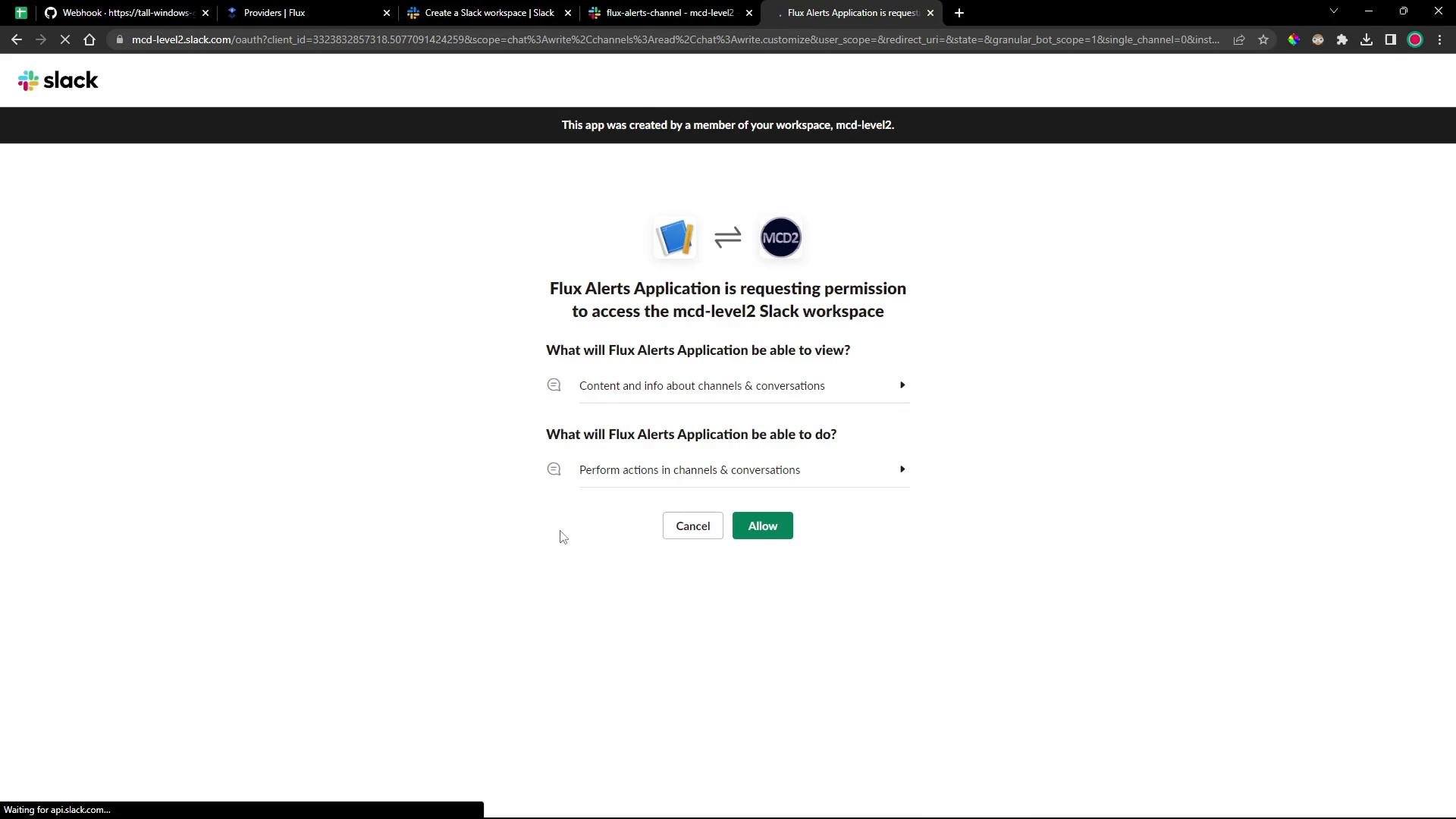
A Slack authorization screen showing the "Flux Alerts Application" requesting permission to access the mcd-level2 workspace. It lists what the app can view and do and shows "Cancel" and "Allow" buttons.
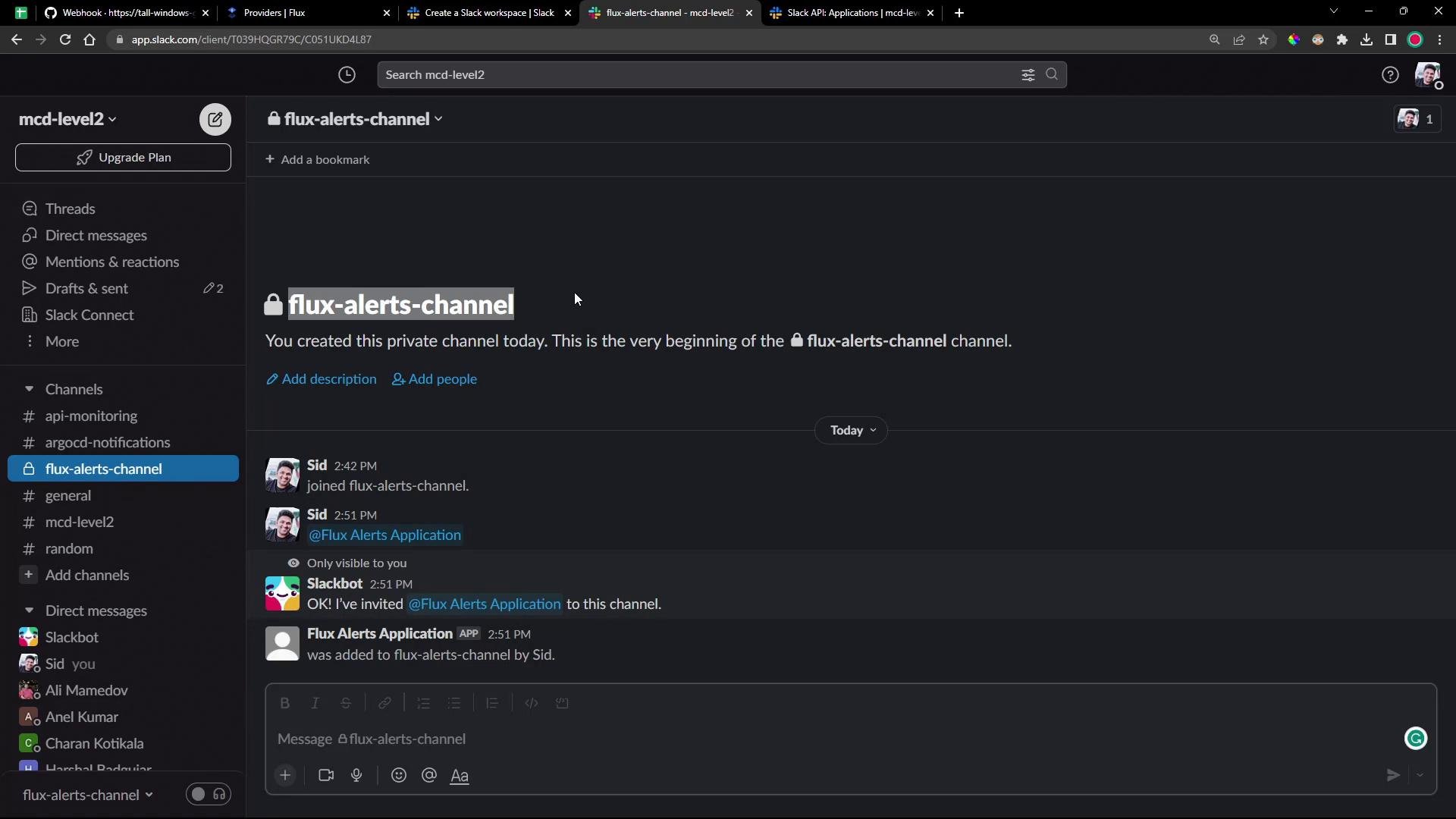
Invite the bot to private channels If your target channel is private, invite the bot user into that channel so it has permission to post messages.
A screenshot of a Slack workspace in dark mode open to a private channel named "flux-alerts-channel," showing the left channel list and recent message activity in the main pane. The message composer is visible at the bottom.
Store the bot token in Kubernetes Switch to your cluster and store the Slack bot token as a Kubernetes Secret in the flux-system namespace. Replace the token value with your Bot User OAuth Token:
Expected output:
Keep bot tokens secret. Consider storing them in a sealed secret or using the cluster’s secret-store integration where appropriate. Never commit tokens to Git.
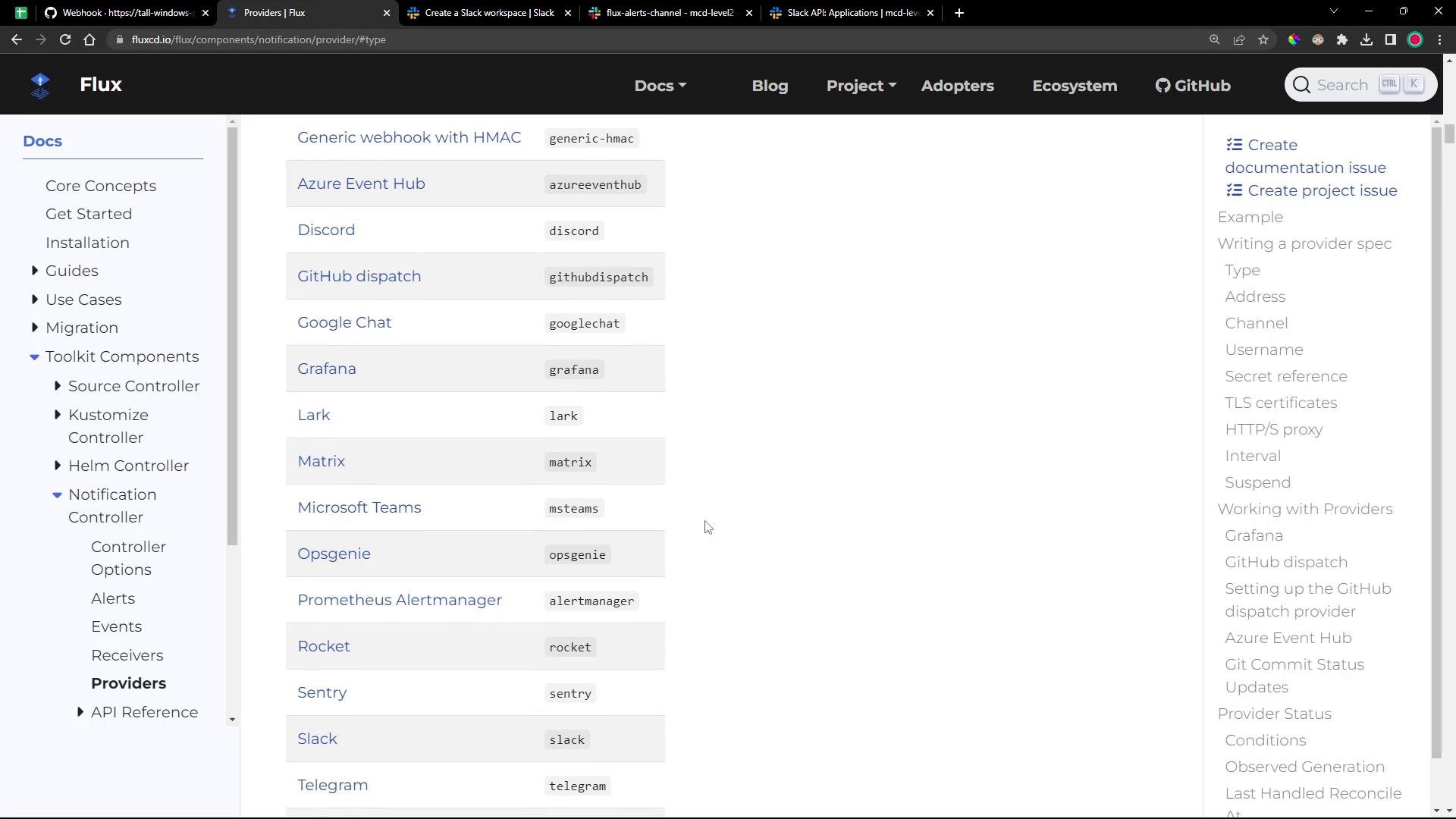
Create a Flux Provider for Slack Define a Provider that instructs the Flux Notification controller how to send messages to Slack. You can use the Flux CLI to create and export a Provider manifest:
Example generated Provider manifest (notification-provider-slack.yml):
Apply the Provider to the cluster (or commit it to the Git repo Flux reconciles):
Create an Alert to route events Create an Alert resource that filters Flux events by severity and source kinds, and forwards matching events to the Slack Provider. The following example creates an alert that captures common Flux sources at info severity:
Example Alert manifest (notification-alert-slack.yml):
Apply the Alert resource:
Verify Provider and Alert readiness After applying the Provider and Alert, make Flux reconcile your Git source and verify the resources are initialized.
Example expected output:
Check the Alert and Provider status:
Once the Provider and Alert are Ready and Flux has reconciled the Git source, the Notification controller will start sending matching events to Slack.
A screenshot of the Flux documentation page showing a list of notification providers (e.g., Azure Event Hub, Discord, GitHub dispatch, Google Chat, Grafana, Microsoft Teams, Slack, Telegram) with a left-hand navigation menu. The top black header shows the Flux logo and site navigation.
Triggering and observing alerts
  • Commit a change to a repository Flux reconciles (for example, update a Kustomization or change a Deployment replica count).
  • Flux will fetch the commit, reconcile the resources, and the Notification controller will emit events.
  • The Alert you configured will match those events and the Provider will dispatch messages to your Slack channel.
Example workflow
  1. Update a kustomized application (for example, bb-app-source) to change replicas from 4 → 1.
  2. Commit and push the change to the Git repository that Flux monitors.
  3. Flux detects the commit, applies the Kustomization, and you will receive Slack notifications for the GitRepository artifact and the Kustomization/Deployment reconciliation.
Example Slack notifications (summarized)
  • GitRepository event:
    • gitrepository/2-demo-source-git-bb-app.flux-system
    • stored artifact for commit ‘changed replica’
    • revision 2-demo@sha1:310e0beacc0dea3b67239f3f92989717cdb6c635
  • Kustomization event:
    • kustomization/2-demo-kustomize-git-bb-app.flux-system
    • Deployment/2-demo/block-buster configured
    • revision 2-demo@sha1:310e0beacc0dea3b67239f3f92989717cdb6c635
Validate cluster state After reconciliation completes, verify resources were updated in the target namespace:
You should see the pod count reflect the changed replica value.
If notifications do not appear in Slack:
  • Confirm the bot token is correct and stored in flux-system.
  • Ensure the bot is a member of the target channel (for private channels).
  • Check Flux Notification controller logs for errors: kubectl -n flux-system logs deploy/notification-controller.
Closing You now have Flux alerts wired to Slack. Customize Providers (channels, username, address) and Alerts (event sources and severities) to fine-tune notifications for your environment. Links and references

Watch Video