In this lesson you’ll sign and verify an OCI artifact with Cosign, then configure Flux to validate signatures when pulling artifacts from an OCI registry (GHCR). This demonstrates end-to-end GitOps delivery with signed OCI packages using Flux’s source verification. Repository context
  • Repository: bb-app-source
  • Branch: 10-demo
  • Manifests folder: manifests/ (contains namespace, service, deployment YAMLs)
  • Deployment image version used in the demo: 7.10.0
Prerequisites Step-by-step
  1. Log in to GitHub Container Registry (GHCR) via Docker
  1. Create and push an OCI artifact with Flux
From the repository root, push the manifests/ folder as an OCI artifact. The example below uses a git-substituted short commit hash to create a unique tag:
Example successful output (summarized):
You can pull the pushed tag locally for verification:
For signing and verification, reference the artifact by its digest (sha256). Example digest: sha256: ed0a1401413573b743014d2fdc27953111e33bf8cd51739185ca11baaa0ada81
  1. Sign the pushed artifact with Cosign
Sign the pushed artifact using your Cosign private key (e.g. ../cosign.key):
Cosign will prompt for the private key password. For private repositories, Cosign also asks to confirm uploading a transparency log entry to Rekor:
Example successful output (summarized):
After signing, the signature is stored with the registry as a .sig artifact and/or visible in the registry UI.
  1. Inspect the pushed signature (optional)
If your registry supports it, you can pull or view the signature blob:
Signature metadata and annotations will identify Cosign as the signer and include any OCI labels/annotations present in the image manifest.
  1. Verify the artifact locally with the public key
Use the Cosign public key to verify the signature locally:
Example successful verification output (summarized):
Note: Cosign supports adding custom claims to signatures. During verification you can validate those claims as part of your policy.
Cosign uploads entries to a public transparency log (Rekor). For private repositories, Cosign will prompt you to consent to uploading the entry. Rekor entries are public and immutable; they contain metadata about the signature and the signing identity or key material (for example, certificate claims when signing with a certificate).
  1. Configure Flux to fetch and verify the OCI artifact
Create an OCIRepository resource that points to the OCI package and references a Cosign public key stored as a Kubernetes Secret. Flux will fetch the artifact and verify signatures using the configured public key. Example OCIRepository:
Create and export the resource with the flux CLI:
Ensure the ghcr-auth secret (Docker config JSON) and the Cosign public key secret (cosign-pub) exist in the flux-system namespace:
  1. Create a Kustomization to deploy the pulled manifests
Create a Kustomization that references the OCIRepository source so Flux applies the manifests after the artifact is pulled and verified. Example Kustomization:
Generate it with the flux CLI:
  1. Reconcile and verify Flux source and Kustomization status
After committing and pushing the Flux manifests (or applying them directly), reconcile and inspect status:
Check the OCI source and Kustomization status:
Inspect the OCIRepository resource to confirm verification details and conditions:
In the resource status you should see a SourceVerified condition like:
If signature verification fails, SourceVerified will be false and Flux will not apply the unverified artifact.
  1. Confirm application deployment
List resources in the target namespace (10-demo) and verify the application is running:
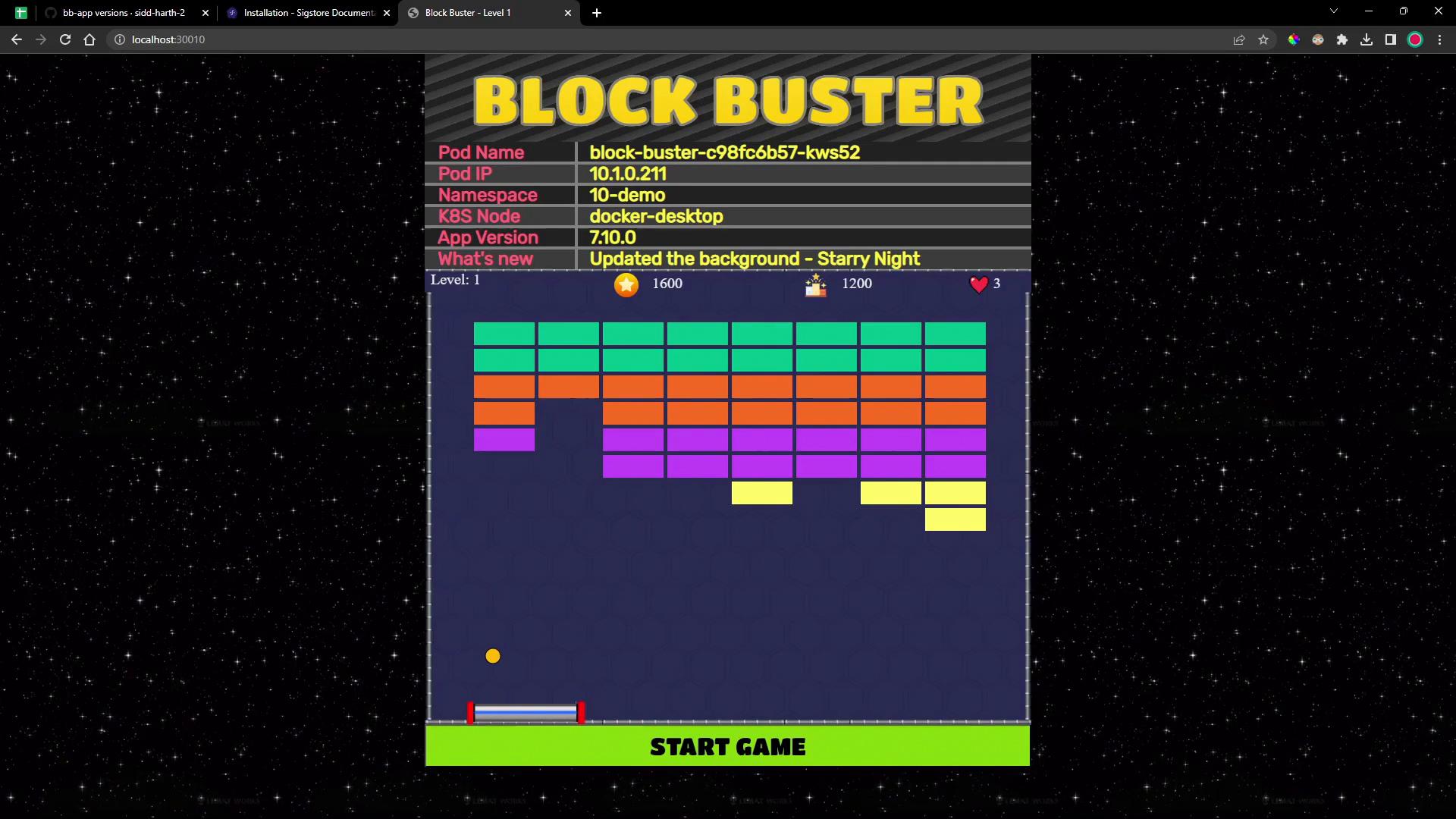
Confirm the demo application (Block Buster) is serving and running the published version (7.10.0).
A browser screenshot of a "BLOCK BUSTER" brick‑breaker game showing colored rows of bricks, a paddle and ball, and a header panel with pod/app info. The game area sits on a starry night background with a green "START GAME" button at the bottom.
Try playing through the levels — a working gameplay confirms that Flux pulled, verified (via Cosign), and applied the signed OCI artifact successfully. References and further reading That’s all for this lesson.

Watch Video

Practice Lab