

Flux example commands
The Flux documentation provides example commands to create a Git source and a Kustomization that points to a monitoring path in a Git repository. Use these as a starting point for a GitOps deployment:These example commands create a Git source and Kustomization in your cluster. Replace the URL, branch, and path with your repository and manifest locations. For more Flux examples and options, see the Flux docs: https://fluxcd.io/docs/.
Helm repository and HelmRelease (chart configuration)
The Flux examples typically include a HelmRepository that points to the Prometheus Community Helm charts. Example:Create Flux Git source and Kustomization
On your workstation (with Flux CLI configured for the target cluster) create the Git source pointing to the repository that contains the kube-prometheus-stack manifests. The following example uses the Flux project’s repo for kube-prometheus-stack:What Flux creates (quick summary)
Once Flux reconciles the Kustomization themonitoring namespace is created and the chart manifests are applied. Typical components created by the kube-prometheus-stack include:
Inspect what was created in the monitoring namespace
A samplekubectl -n monitoring get all output soon after install (trimmed for clarity):
Expose Prometheus and Grafana (NodePort for local access)
By default services are created asClusterIP. For a local demo you can temporarily change Grafana and Prometheus to NodePort so they are accessible from your workstation browser.
Warning: exposing monitoring services with NodePort is convenient for demos but not recommended for production. Use Ingress, LoadBalancer, or proper authentication in production.
Exposing Prometheus and Grafana via NodePort is suitable for local testing only. For production, secure these endpoints via ingress/load balancer and enable authentication.
type: ClusterIP to type: NodePort and save. Verify the services:
http://localhost:<PROMETHEUS_NODEPORT> (e.g., http://localhost:30753) and Grafana at http://localhost:<GRAFANA_NODEPORT> (e.g., http://localhost:31921) — replace ports with the NodePort values shown on your node.
Grafana credentials
Grafana’s admin password is stored in a Kubernetes Secret. Retrieve and decode it:- Username:
admin - Password:
prom-operator
Prometheus UI — Targets for scraping
Prometheus will be running after the chart install, but you may not immediately see Flux-related targets. Open the Prometheus “Targets” page to view discovered targets and scraping status. If Flux components are not listed, add PodMonitor or ServiceMonitor resources that match Flux component labels so Prometheus can scrape them.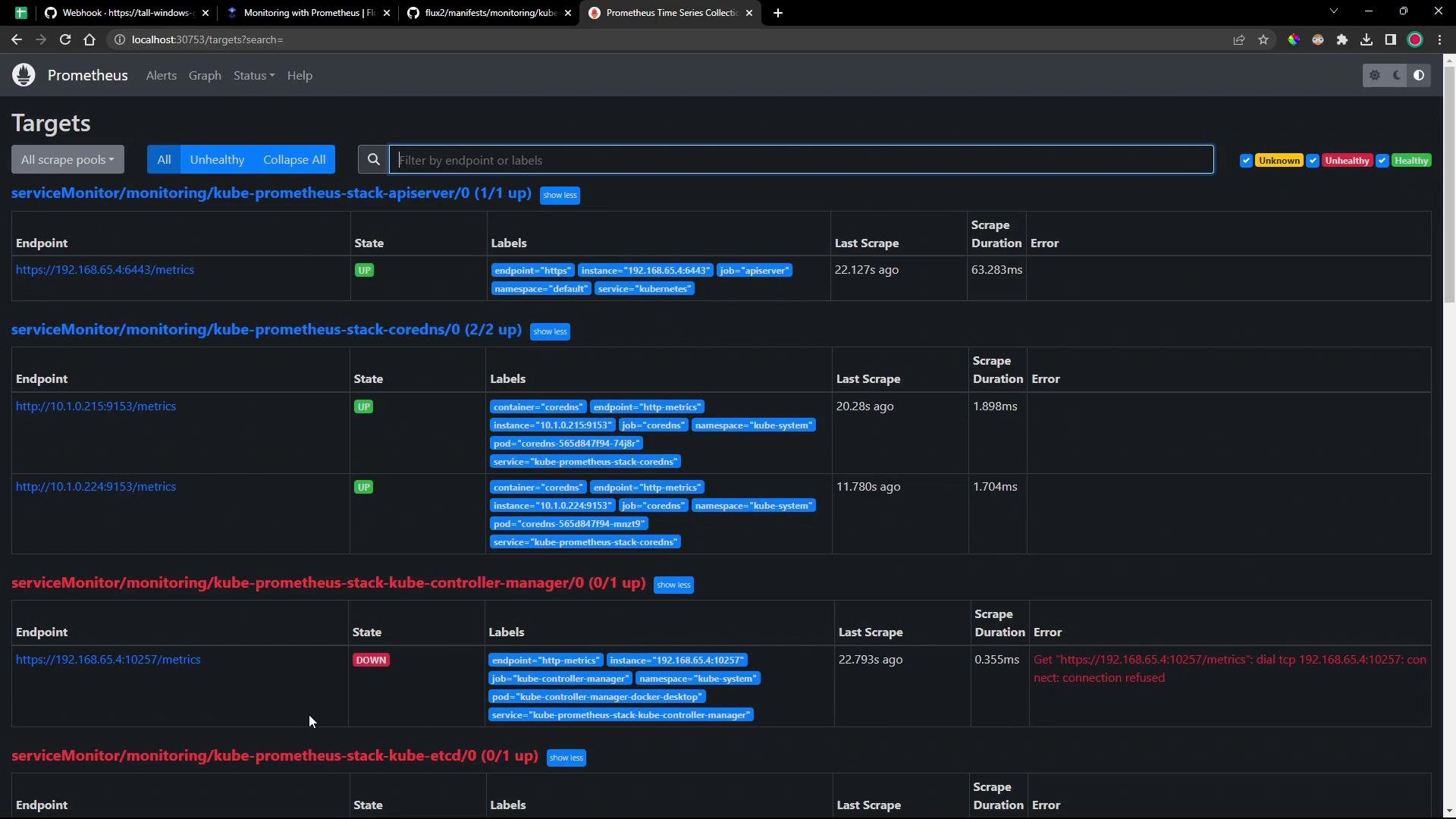
Grafana dashboards — add Flux dashboards
Grafana displays dashboards installed by the chart. To visualize Flux metrics you must import or provision dashboards that target Flux metrics and the service/PodMonitor labels used for scraping.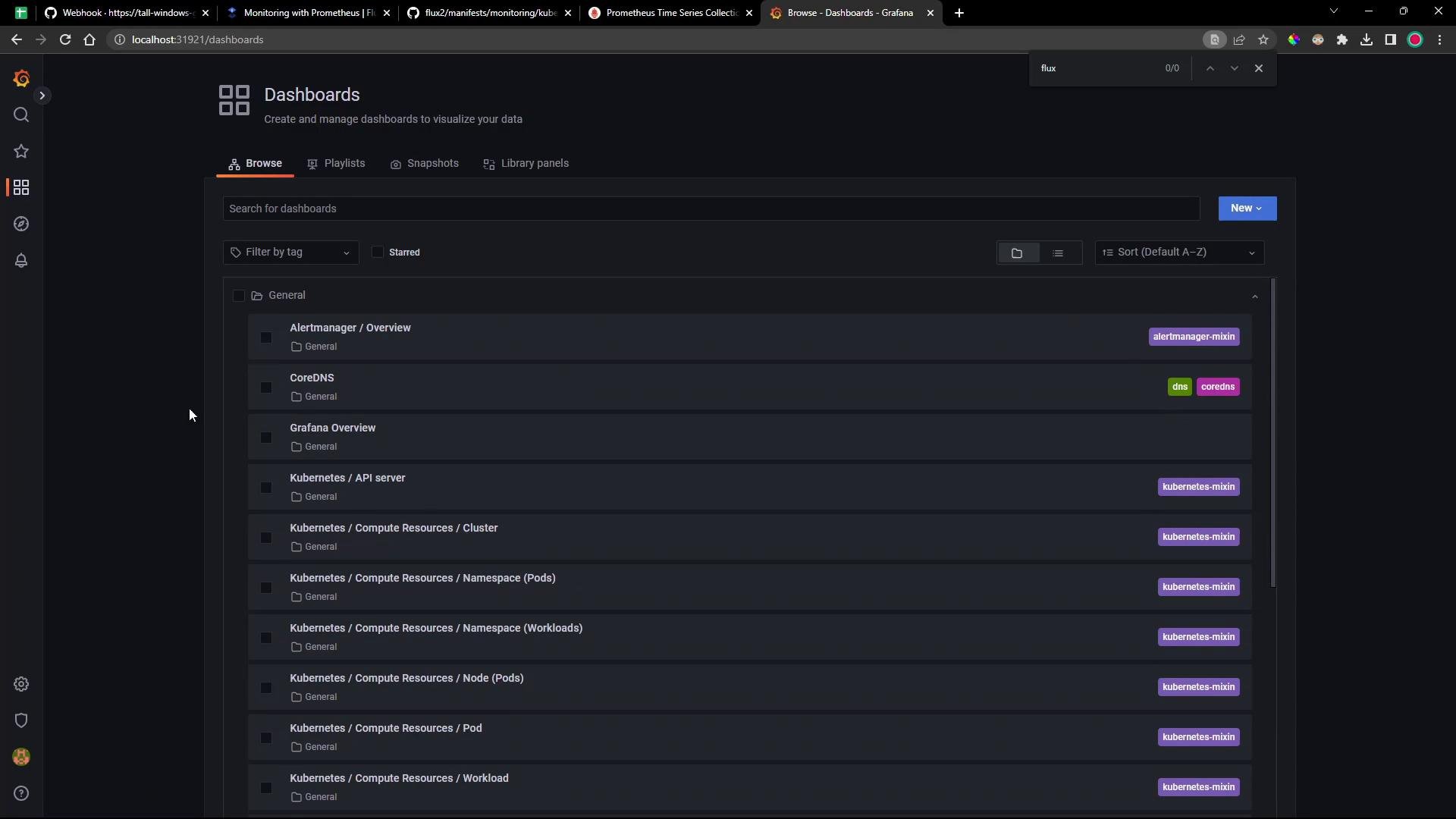
- Add a PodMonitor or ServiceMonitor to enable scraping of Flux components.
- Provision or import Grafana dashboards for Flux metrics.
- For production exposure, switch from NodePort to Ingress/LoadBalancer and secure access with authentication.
References
- Flux documentation: https://fluxcd.io/docs/
- Prometheus Community Helm charts: https://prometheus-community.github.io/helm-charts
- kube-prometheus-stack chart values and dashboards: https://github.com/prometheus-community/helm-charts/tree/main/charts/kube-prometheus-stack