Explains process IDs in shell scripting including parent and child processes, TTYs, background jobs, builtins versus external commands, inspecting processes, signals and detaching with nohup
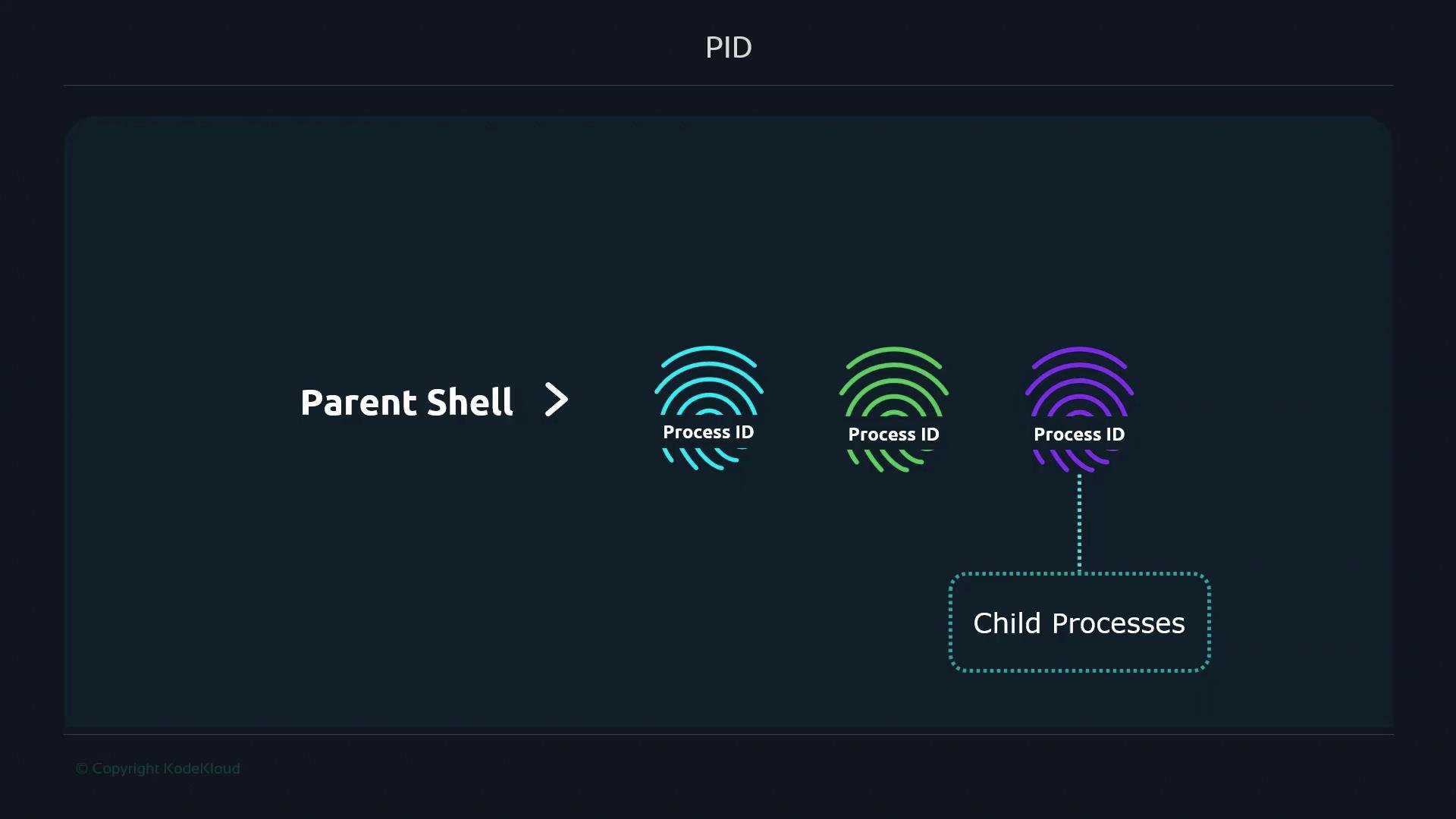
A shell script is a file containing shell commands and programming constructs that automate tasks. When a new process starts, the kernel assigns a unique process ID (PID) that you can use to inspect, control, or terminate that process.How many PIDs are created while a shell script runs? Think of the parent shell as a chef in a kitchen; each command the chef issues is a worker (a process) with its own unique identifier (PID). The parent shell spawns child processes for the commands it runs, and those children can in turn spawn their own children.In an interactive terminal session the parent shell is the session’s shell process. Commands you type spawn child processes; each child has its own PID and a PPID (parent PID) pointing back to the shell that launched it.
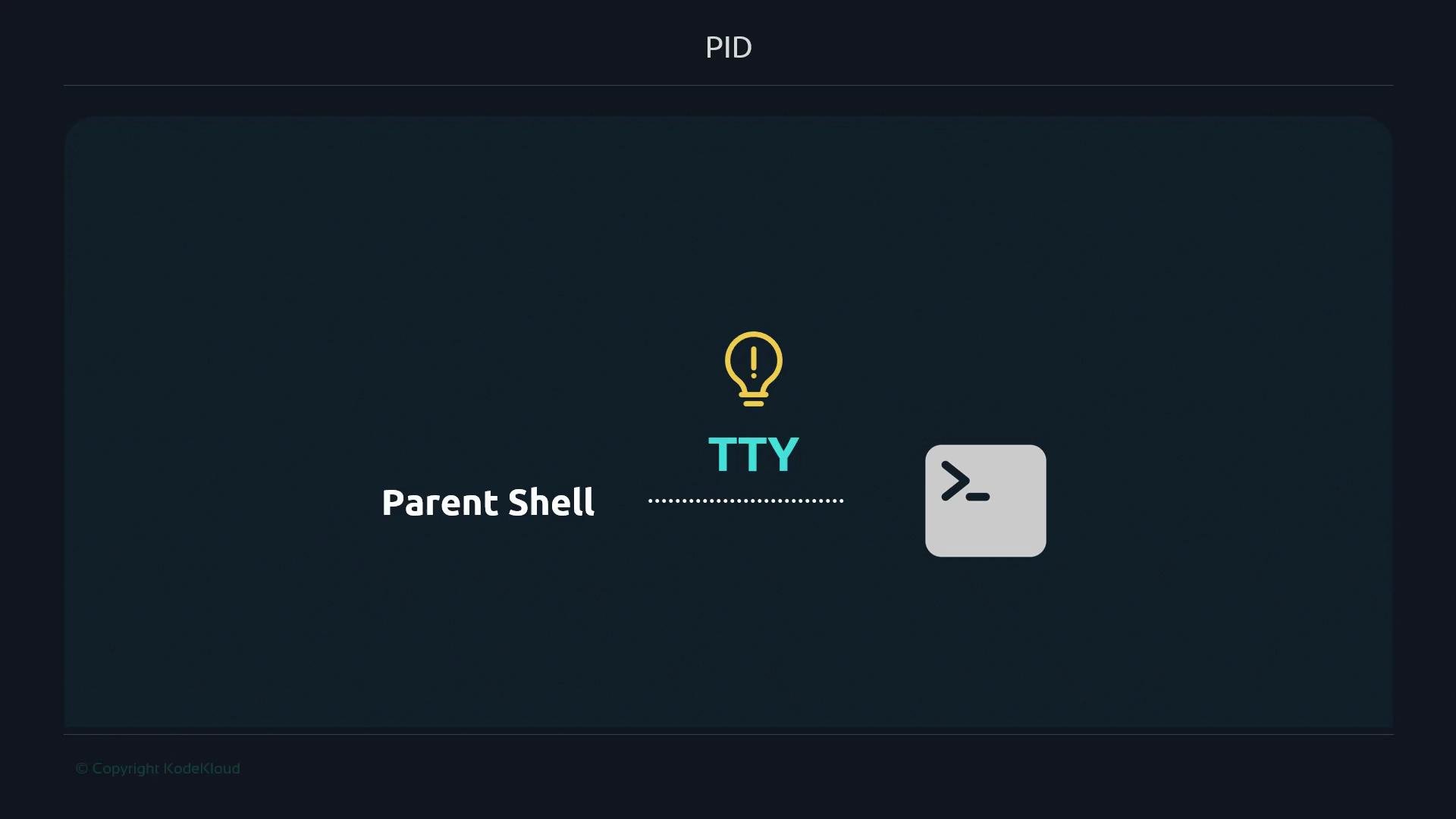
Each instruction the chef gives consumes a worker (a process). Each worker receives a unique identifier—just like each process gets a PID. The chef (the parent shell) can check, stop, or restart any worker; likewise, you can inspect and control processes from the command line.Terminal sessions are attached to a TTY (teletypewriter). The session leader (the parent shell process) manages that TTY. Child processes spawned by the shell normally remain associated with the same TTY and appear in process listings with that TTY name.
Quick commands to inspect your terminal and shell processes:
# list processes and search for bash$ ps -ef | grep bash501 29898 27796 0 11:00PM ttys007 0:00.01 bash501 29928 29898 0 11:00PM ttys007 0:00.00 grep bash# show the TTY for your current terminal$ tty/dev/ttys007
Each terminal tab or window typically has a different TTY. For example, open a second tab and you’ll likely see a different TTY and another bash process:
Observe PID chains with a simple script that sleeps so we can watch spawned processes:
# script.sh#!/bin/bashsleep 180
Make it executable and run in the foreground:
$ chmod +x script.sh$ ./script.sh
While the script runs in the foreground, the launching shell is occupied. Inspecting processes shows the script has its own PID, and the PPID points back to the shell that started it:
To run the script without blocking the terminal, send it to the background with &:
$ ./script.sh &[1] 8862
A background job has a PID and remains associated with the launching shell’s TTY. If you close the terminal, the background job will typically receive SIGHUP and terminate. To keep a process running after the terminal closes, detach it from the session using nohup (or alternatives like setsid or disown). nohup prevents SIGHUP from terminating the process and redirects output to nohup.out by default:
Notice the PPID may change (commonly to 1) and the TTY can become ”??”, indicating the process is no longer attached to the terminal.
Use nohup to detach a process from its terminal so it survives when the terminal closes. Alternatives include setsid (start a new session) or using job control (run, then disown) for interactive shells.
Not all commands create new processes. Shell builtins (for example, cd, export, read) execute inside the current shell and do not create separate PIDs when invoked directly. Many builtins also exist as external binaries; invoking the external binary (for example /usr/bin/command) will create a new process.
Process execution methods at a glance:
Execution method
When it creates a new PID
Example
Run by name (PATH)
Creates a new process for the external binary found in PATH
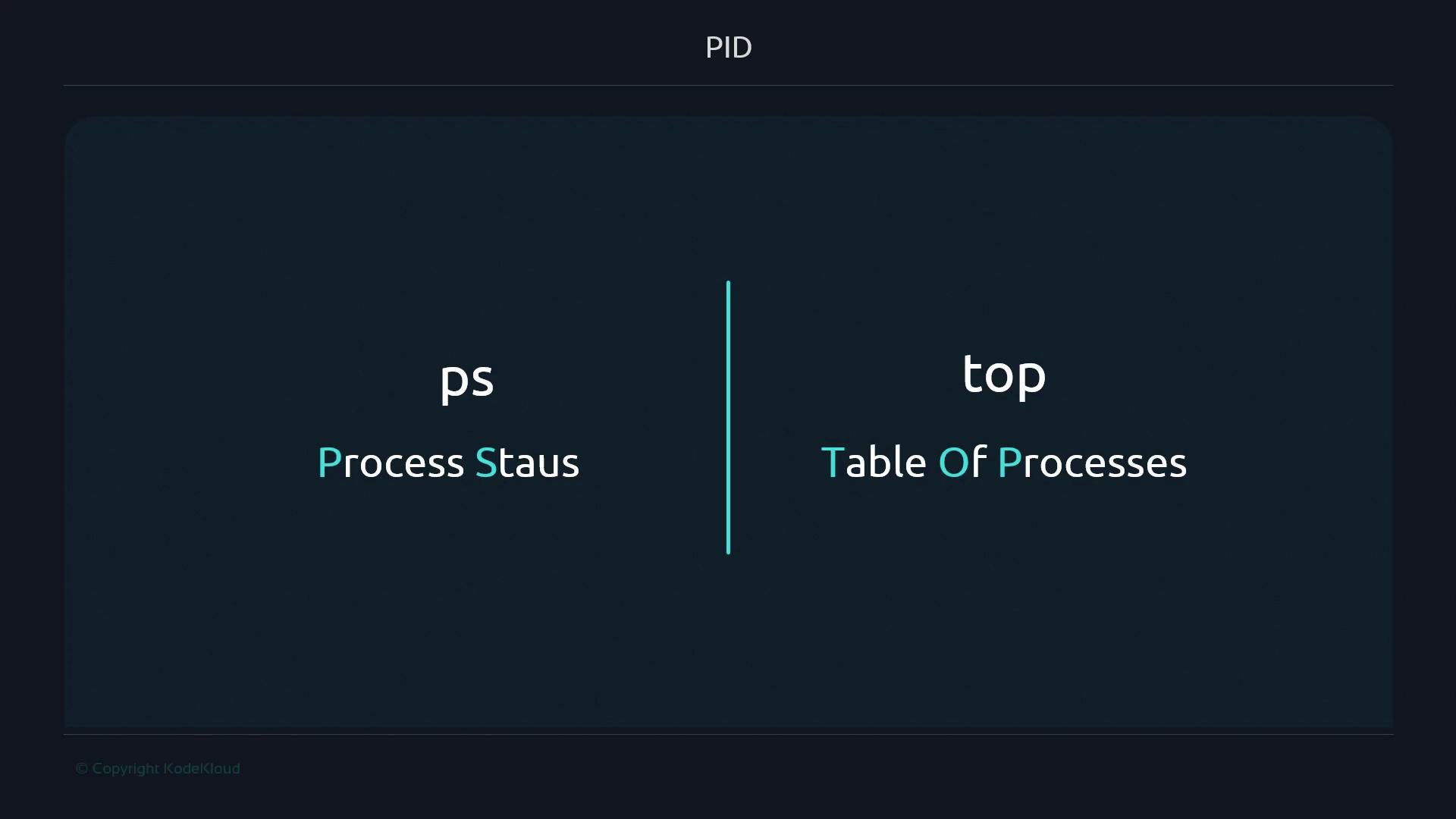
To inspect running processes, use ps and top (or htop). ps -ef gives full details (user, PID, PPID, TTY, time, and command). Note that ps output and options differ across Unix-like systems (Linux, macOS, BSD).
Terminate processes using kill, which sends a signal to a PID. The default is SIGTERM (15) — a polite request to terminate. If the process won’t exit, SIGKILL (9) forces immediate termination.
For tracing system calls on Linux use strace. Useful flags:
-T : show time spent in each syscall
-f : follow child processes
-p <pid> : attach to an existing process
Example:
$ strace -T -f -p 99838
On macOS and other Unix-like systems, strace may not be available; alternatives include dtruss, truss, or ktrace (often requiring sudo).This attaches to PID 99838 and prints system call traces with timing while following child processes.Further reading and references:
We’ll dive deeper into shell internals, job control, builtins vs external commands, and advanced techniques for managing long-running background work in later sections.