

This numbered‑fd model originates from Unix treating “everything as a file,” allowing programs to read and write using the same interfaces regardless of whether the source/destination is the terminal, a file, or another process.
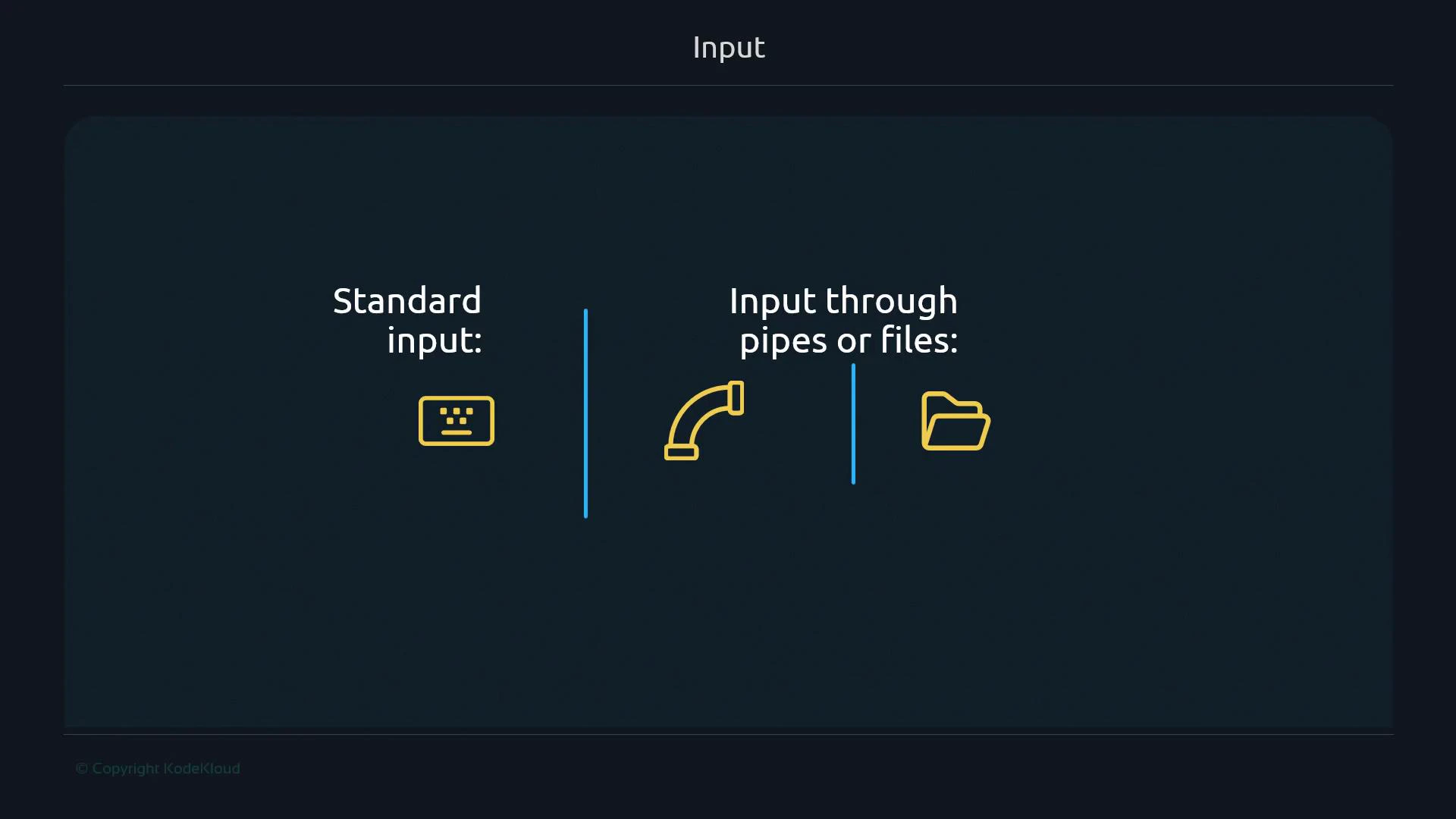
Forms of input: interactive vs. redirected/piped
You can think of input in two primary ways:- Standard input (fd 0) — typically the interactive keyboard/terminal.
- Input from pipes or files — the shell connects stdout (fd 1) of one process to stdin (fd 0) of another using the pipe operator (
|), or redirects files into a command with<.
|— anonymous pipe connecting stdout of the left command to stdin of the right command.<and>— file redirection to connect a file to stdin/stdout.- Named pipes (FIFOs) are special filesystem objects created with tools like
mkfifoand are conceptually different from plain redirection.
The
| operator connects the stdout of the left command to the stdin of the right command. Use < and > to connect files to stdin/stdout. Named pipes (FIFOs), created with mkfifo, are separate filesystem objects and not the same as >/< redirections.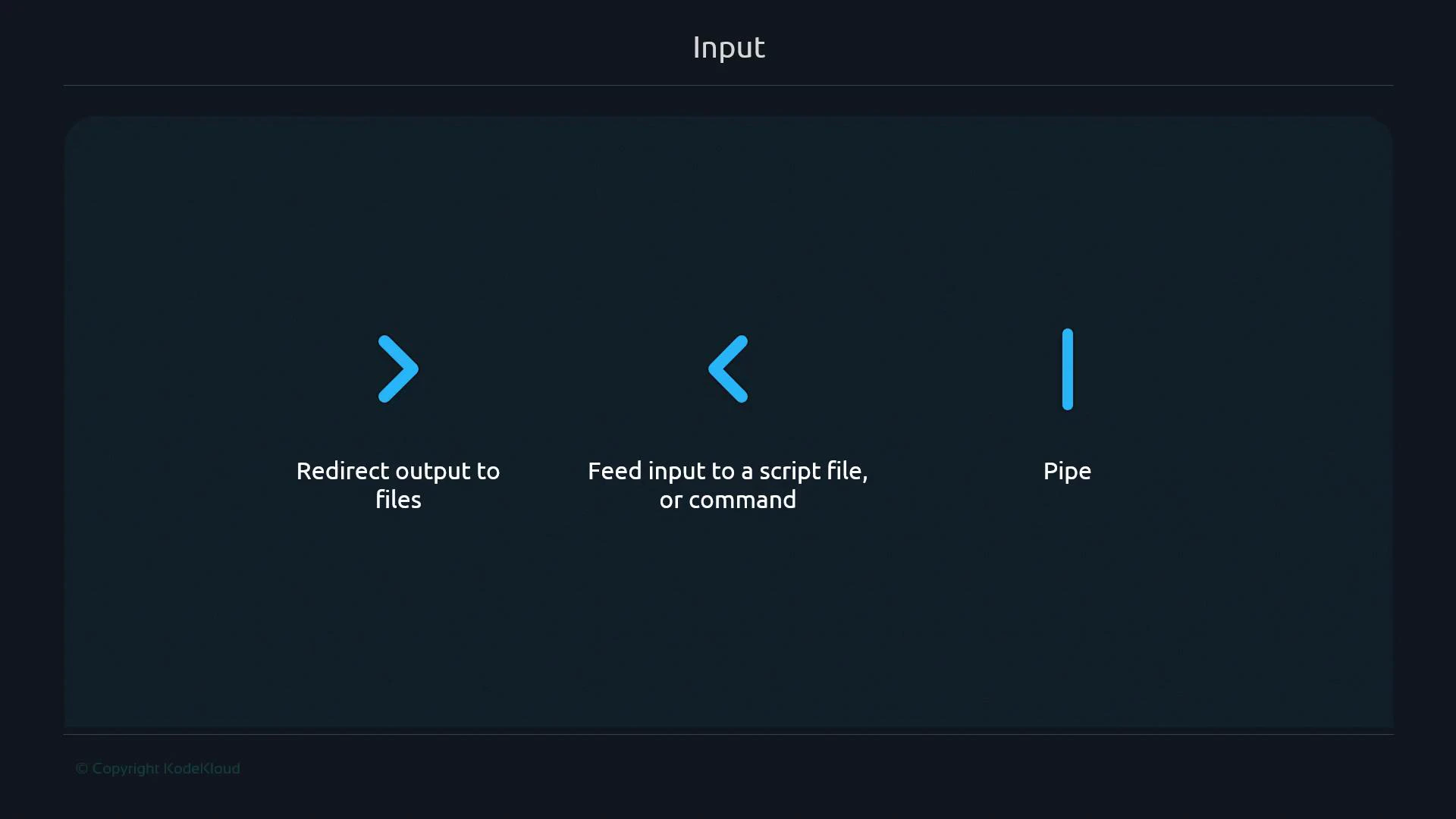
Commands that read/write by default
- Commands like
echoandlsproduce output on stdout by default. - Some commands (for example
wcwith no file arguments) read from stdin — blocking for interactive input when stdin is the terminal, or consuming piped/file input when connected.
1 2 11 = 1 line, 2 words, 11 bytes (newline included).
Same input via a pipe:
echo writes its stdout, and the shell connects that stdout to wc’s stdin using a pipe.
Detecting whether stdin is a terminal
Bash provides the-t test operator to see whether a file descriptor is associated with a terminal. This is useful when your script should behave differently for interactive vs. non‑interactive input.
Example script (detect interactive stdin and read accordingly):
Where piped input originates
Piped input is the stdout (fd 1) of the producing process. The pipe makes that stdout available as stdin (fd 0) for the receiving process. Small demonstrations help illustrate this:test -t evaluates inside pipelines can depend on how the shell sets up descriptors for pipeline stages, but the essential point stands: pipelines connect stdout → stdin.
Feeding files into stdin
Use< to provide a file to a command’s stdin:
System-call perspective (strace)
Tracing syscalls shows what read/write operations a process performs on file descriptors. For example,read(0, ...) indicates data was read from stdin (fd 0).
strace often requires root access (or capabilities) to trace other processes.
Use
sudo cautiously, and only on systems you control.read and write to observe terminal echo and program output:
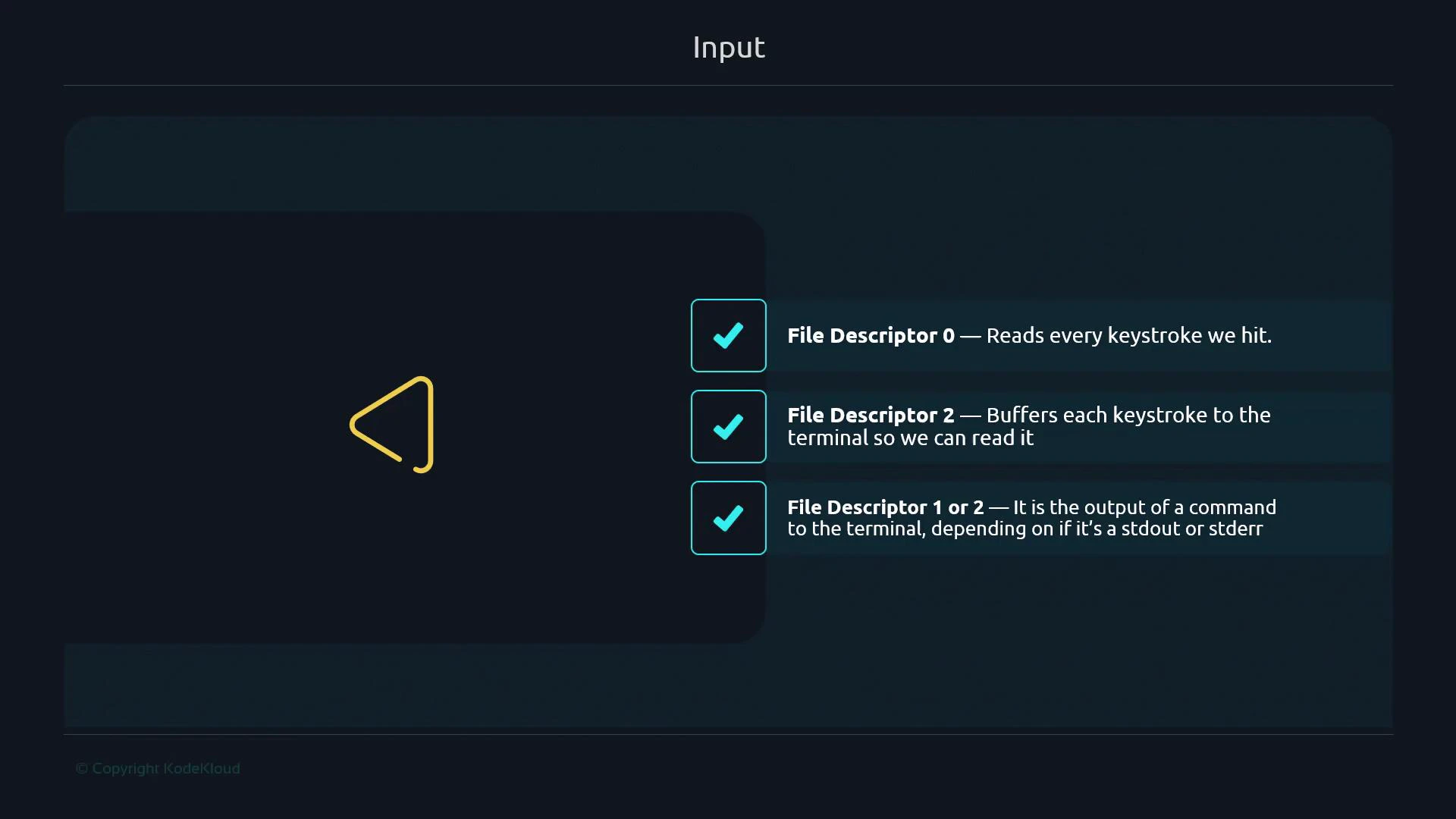
read(0, ...)shows bytes read from stdin (keystrokes if the terminal is the source).write(1, ...)andwrite(2, ...)show output to stdout and stderr respectively.- Terminal echo is often visible as writes to the terminal device.
Capstone exercise: edit a file in-place using a custom file descriptor
This example shows how to open a file on an arbitrary fd (3), advance the file offset, and overwrite a single character without temporary files: Commands:exec 3<> filenameopensfilenameon fd 3 for read/write.read -n 4 <&3consumes four bytes and advances the file pointer to the space.echo -n "." >&3writes a dot at the current offset, overwriting the space.exec 3>&-closes fd 3.
Summary
You’ve seen:- The difference between the general concept of input and the specific standard input (fd 0).
- How pipes (
|) and redirection (<,>) connect processes and files. - How to detect an interactive stdin (
-t FD). - How to observe read/write behavior at syscall level with
strace. - How to use custom file descriptors to manipulate files in-place.
Links and references
- Bash conditional expressions (test, -t)
- mkfifo (named pipes)
- strace manual and usage
- POSIX file descriptors overview