

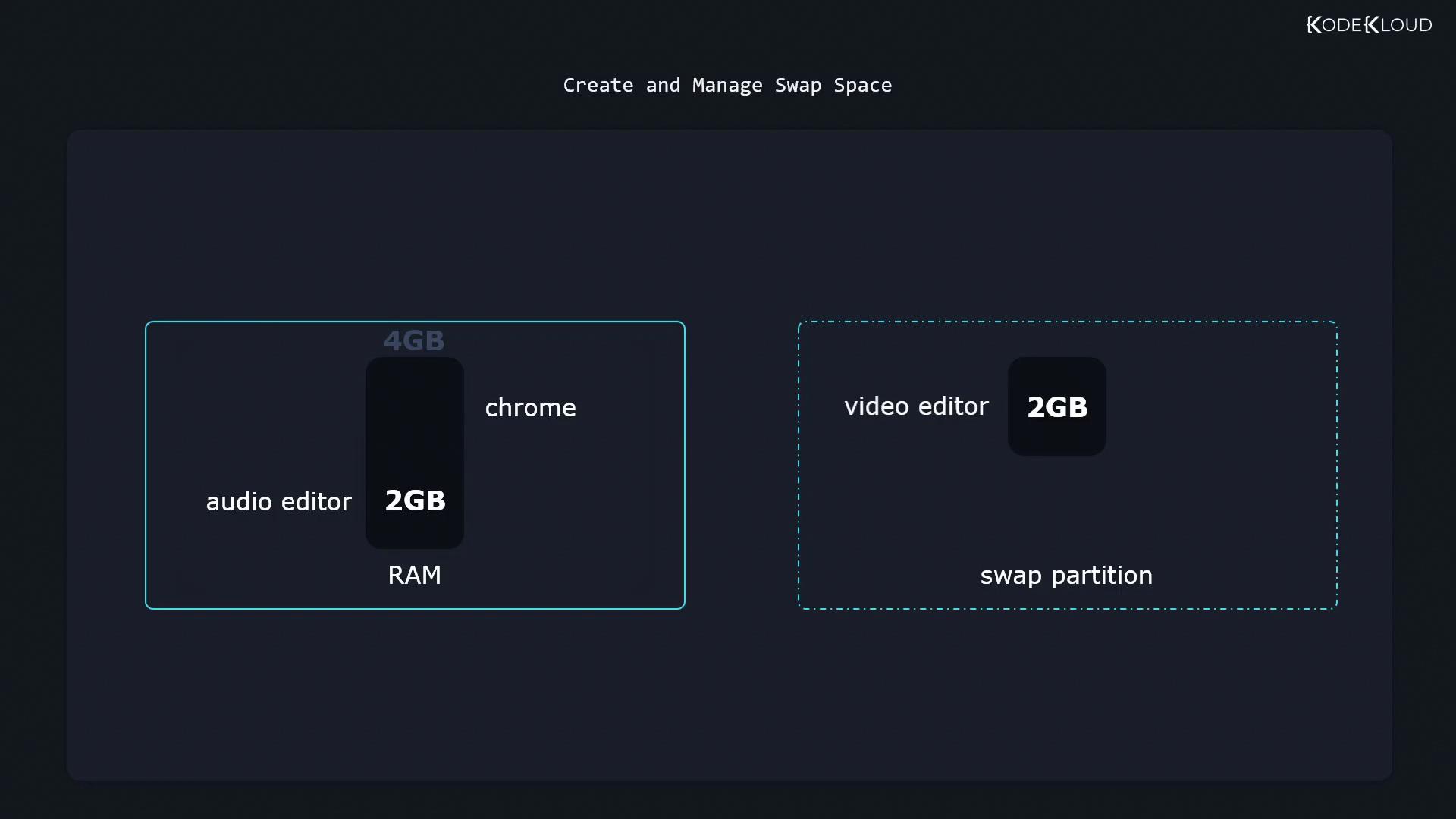
- A computer has 4 GB of RAM.
- A video editor uses 2 GB of RAM.
- An audio editor uses another 2 GB of RAM.
- With no free RAM available, a 2-GB swap partition is activated.
- When launching an additional application like Chrome, Linux shifts inactive data (for example, from the video editor) into swap space to free up RAM.
Checking Active Swap Space
Before making changes, you can verify your current swap configuration. To display active swap areas, run:lsblk command:
/dev/dm-1 is active (2 GB), while /dev/vdb3 is present but not yet enabled for swap usage.
Preparing and Enabling a Swap Partition
Before you can activate a partition as swap space, it must be formatted accordingly. Use themkswap command to initialize the partition:
swapon command in verbose mode to display details:
Linux will utilize all configured swap areas if multiple swap partitions are added.
Making the Swap Configuration Persistent
By default, swap space is not activated after a reboot. To ensure that the swap partition is enabled automatically at startup, add an appropriate entry in the/etc/fstab file. This will also help maintain system stability by ensuring that swap is consistently available. For more details on achieving persistent mounts, refer to the file system documentation.
Disabling Swap Space
There might be times when you need to disable a swap partition—such as for system maintenance or configuration changes. To disable swap temporarily, execute:Creating and Using a Swap File
In addition to swap partitions, Linux supports swap files. Swap files can be a flexible alternative when dedicated partitions are not available.Step 1: Creating the Swap File
First, allocate space for the swap file using thedd command. For example, to create a 128 MB swap file:
if=/dev/zeroreads zeros.of=/swapspecifies the output file location.bs=1Msets the block size to 1 megabyte.countdetermines how many blocks are allocated.status=progressdisplays the progress.
Step 2: Setting Secure Permissions
Ensure that your swap file is secure by adjusting the permissions so that only the root user can access it:Always set the correct permissions on swap files. Improper permissions can expose sensitive data.
Step 3: Formatting the File as Swap
Initialize the file as swap space with themkswap command:
Step 4: Enabling the Swap File
Activate the swap file using theswapon command: