

Process Basics
Every time you launch a program, it runs as a process until it completes its task or is terminated. For instance, when you run the commandls, a temporary process is created to display the directory’s contents and then it ends.
ls command finishes listing the directory, its corresponding process terminates.
The ps Command
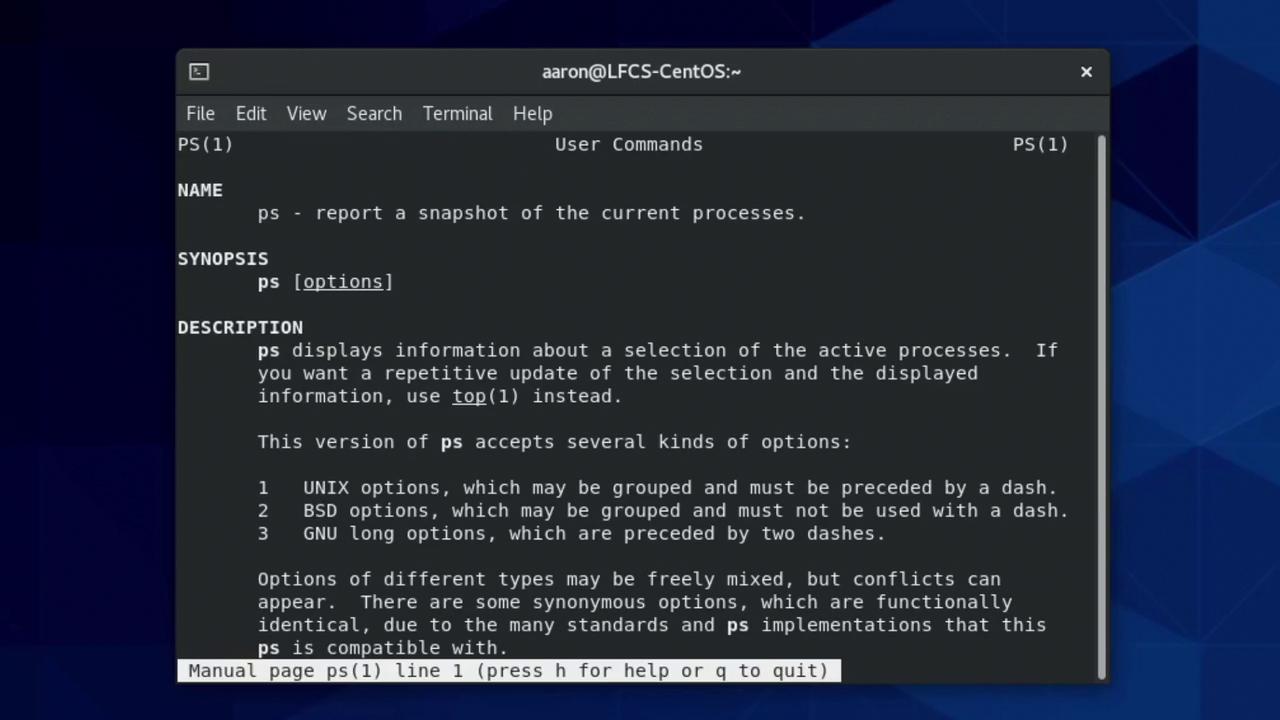
Theps command is an essential tool for inspecting processes on a Linux system. However, it can be a bit confusing because it supports two syntax styles: Unix-style (options prefixed with a dash) and BSD-style (without a dash). For example, ps -a differs from ps a as each produces distinct outputs. For further details, refer to the manual page using:
ps without options displays processes associated with the current terminal session:
a, x, and u:
- USER: The user who initiated the process.
- PID: The Process ID.
- %CPU: The percentage of one CPU core’s capacity consumed.
- %MEM: The percentage of total system memory used.
- START: The time the process started.
- TIME: CPU time consumed by the process.
- COMMAND: The command, along with its arguments, that started the process.
[kthreadd]), while user-space processes are not.
Monitoring Processes with top
Unlikeps, which offers a snapshot view, the top command provides continuous, real-time monitoring of processes. It dynamically orders processes based on CPU usage, offering an interactive overview:
top utility, simply press the Q key.
Filtering and Searching Processes
Viewing a Specific Process with ps
If you need details about a specific process, such as the one with PID 1, use the following:Searching by Process Name with pgrep
Thepgrep command allows you to search for processes by name. For example, to list processes that include “syslog” in their name, along with their full command details:
Process Niceness and Priority
Linux employs a “niceness” value ranging from -20 to +19 to determine process scheduling priority—a lower niceness value equates to a higher priority. For instance, a process with a niceness of -20 can preempt one with a value of 19 when both require CPU time.Setting Nice at Launch
Launch a process with a specified niceness using thenice command. For example, to start a new Bash shell with a niceness of 11:
ps -l:
Processes inherit the niceness value of their parent by default.
sudo allows for a negative nice value:
ps, the Bash process will show a negative niceness value.
Changing Niceness with renice
To adjust the niceness of a running process, use therenice command. For instance, if a Bash shell running as user “aaron” with PID 8209 has a niceness of 12, you can change it to 7 as follows:
As a regular user, you can only decrease the priority once per session. Further priority reductions require root privileges.
Sending Signals to Processes
Linux processes can receive signals to prompt various actions, such as termination or pause. Two critical signals, SIGSTOP and SIGKILL, cannot be ignored or handled by the process:- SIGSTOP: Temporarily pauses the process until a SIGCONT signal is received.
- SIGKILL: Immediately terminates the process without cleanup.
kill command. For example, to send a SIGHUP (hang-up) signal:
Example: Restarting the SSH Service
Start by checking the status of the SSH daemon:sudo resolves the permission issue:
Using pkill
Thepkill command allows you to send signals to all processes that match a specified name. For example, to send SIGKILL to all processes with “bash” in their name, first view the matching processes with:
Be cautious when terminating processes. Ending your shell (bash) could cause you to lose your terminal session.
Job Control: Backgrounding, Foregrounding, and Pausing
Linux provides robust job control mechanisms to allow you to pause, resume, or run processes in the background.Suspending and Resuming Processes
For long-running commands likesleep 180, you might want to interrupt without completely terminating the process. Pressing Ctrl + C aborts a running process. However, for interactive applications like vim, you can suspend it with Ctrl + Z:
Running Processes in the Background
Appending an ampersand (&) to a command runs it in the background, allowing you to continue using the terminal:
jobs command to list active jobs:
Ctrl + Z followed by:
Listing Open Files with lsof
Thelsof command (short for “list open files”) provides a list of files and directories in use by a process. For example, to list files open by your Bash shell (suppose its PID is 8401):
sudo might be required:
/var/log/messages:
Exploring Process Relationships
To visualize the parent–child relationships between processes, use the forest option withps:
ps aux for extra detail.
Process Management Summary
In this article, we covered various techniques for process management in Linux, including:- Viewing process snapshots with
ps - Continuous monitoring using
top - Adjusting process priority with
niceandrenice - Sending signals with
killandpkill - Managing processes with job control commands (
fg,bg, andjobs) - Investigating open files using
lsof - Visualizing process relationships
This concludes our deep dive into diagnosing and managing processes in Linux. With these techniques, you’ll be well-prepared to troubleshoot and manage processes effectively in any Linux environment. Happy troubleshooting!