

Viewing Files
For small files, thecat command allows you to display the entire file content quickly. For example, if you have a file named “users.txt”, you can run:
tac command, which works similarly to cat but in reverse.
For large files such as system logs, you might be interested only in the most recent entries. The tail command displays the last 10 lines by default. You can specify a different number of lines with the -n option:
head command shows the first 10 lines by default. Similar to tail, you can modify the output by using the -n option:
For files with warnings or error messages, consider piping the output to a pager like
less to navigate the content easily.Automating Text Manipulation with sed
Manually editing large files can be tedious, especially when you need to update many occurrences of the same text. Thesed (stream editor) utility automates text transformations.
Imagine you have a file named “userinfo.txt” that includes addresses, phone numbers, and citizenship details. If the country “Canada” is misspelled as “canda” throughout the file, you can preview the correction with:
- The
sstands for substitute. s/canda/canada/gtellssedto replace every occurrence of “canda” with “canada” on each line (thegflag indicates a global replacement).
-i option:
Always preview changes before applying them with the
-i option to avoid accidental modifications.Extracting Specific File Content
Sometimes you need only a part of a file. For instance, to extract the first column (e.g., names) from “userinfo.txt” when fields are space-delimited, use thecut command:
- The
-doption defines the delimiter (a space in this case). - The
-foption selects the field (column 1).
Removing Duplicate Lines
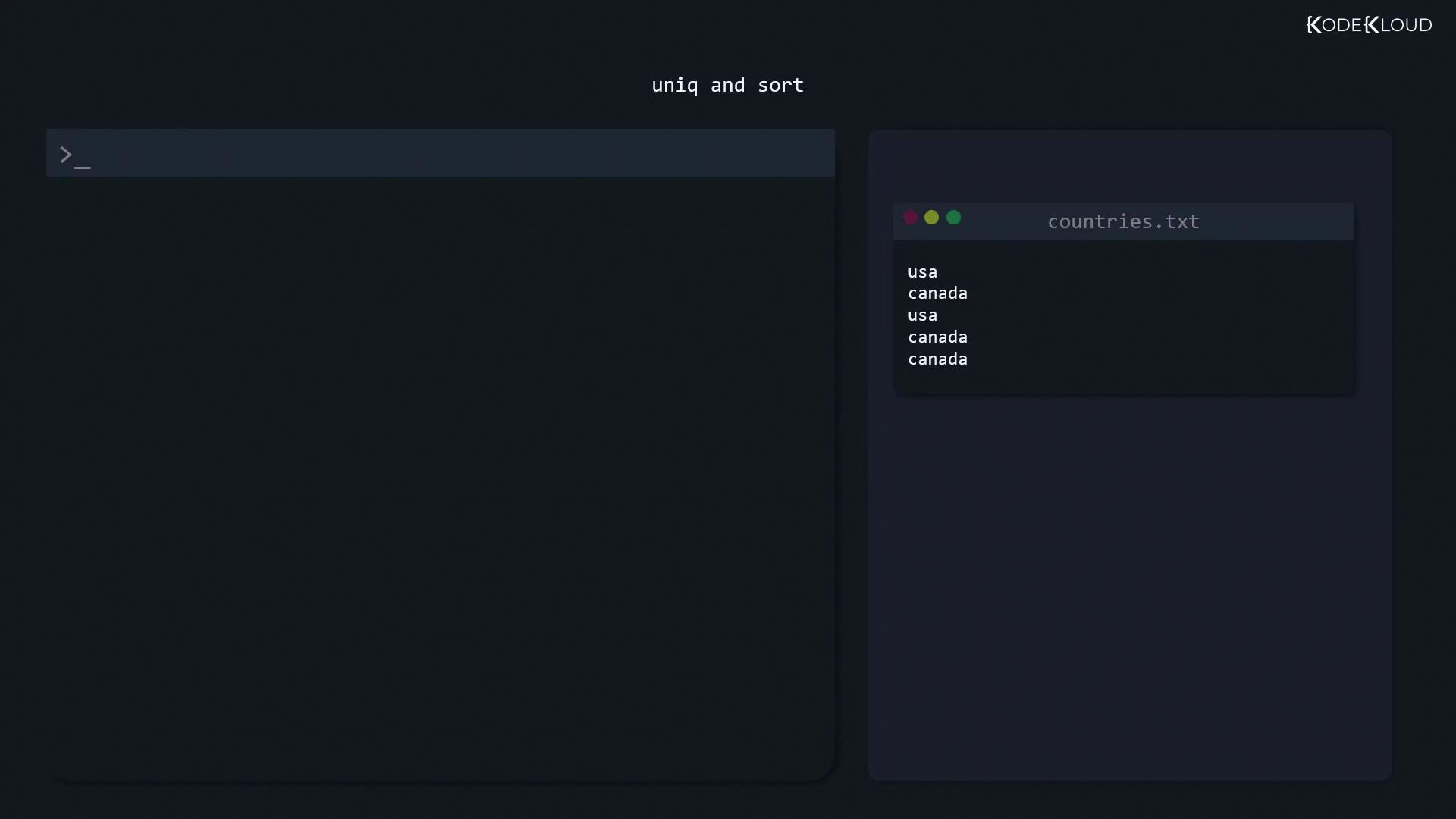
If the output file (e.g., “countries.txt”) contains duplicate entries, theuniq command removes adjacent duplicate lines. However, since it only works with consecutive duplicates, sort the file first:
Comparing Files
When configuration files change during an upgrade, comparing the old and new versions is crucial. Thediff command isolates differences between files, making it easier to identify what has changed.
For a simple comparison:
1c1), and similarly for line 4. Here, < shows content from the first file and > shows content from the second file.
For additional context, use the context option (-c):
-y option or the sdiff command:
|) separates the differing content.
Extracting Names Using Cut
If you need to extract just the names (the first column) from “userinfo.txt”, the command is: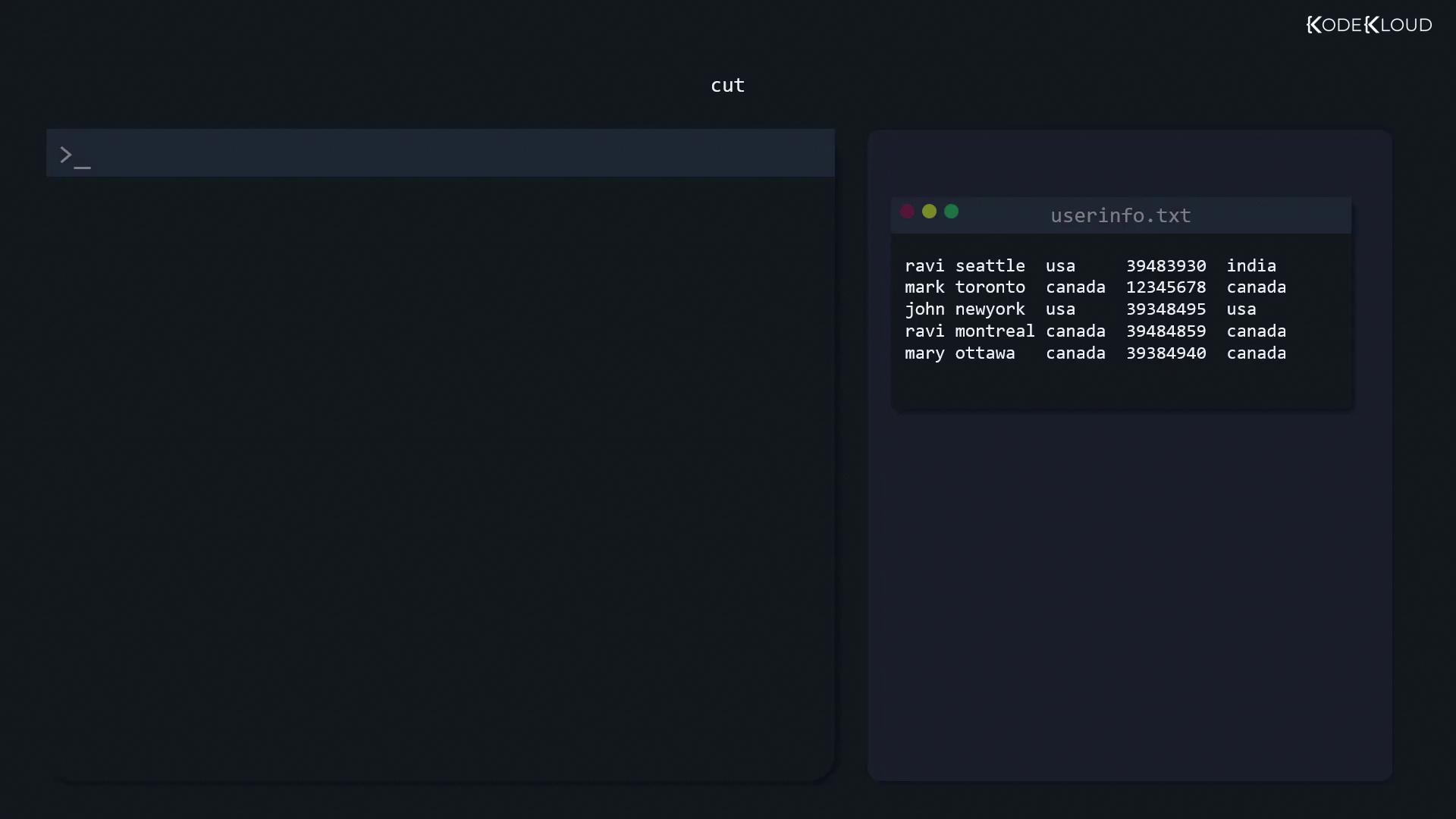
Removing Duplicates and Sorting
After extracting data, such as a list of countries, you might notice duplicates. Combining thesort and uniq commands will both sort the entries and remove duplicates, ensuring an ordered list.
Conclusion
In this article, we’ve covered essential Linux utilities for managing text files, including:- Viewing files with
cat,tac,tail, andhead - Modifying content with
sed - Extracting columns with
cut - Removing duplicates and sorting using
sortanduniq - Comparing files with
diffandsdiff