Viewing File Ownership and Permissions
Every file and directory has an associated owner. To view detailed information—including owner details and permission settings—use the following command:Changing File Group
To change the group of a file or directory, use thechgrp command. The syntax is:
You may only change the group to one that your user belongs to. To check your group memberships, run:This output shows that you can change the file group to “aaron”, “wheel”, or “family” if those groups are associated with your account.
Changing File Owner
To change the owner of a file or directory, use thechown command with the following syntax:
Understanding the Permission String
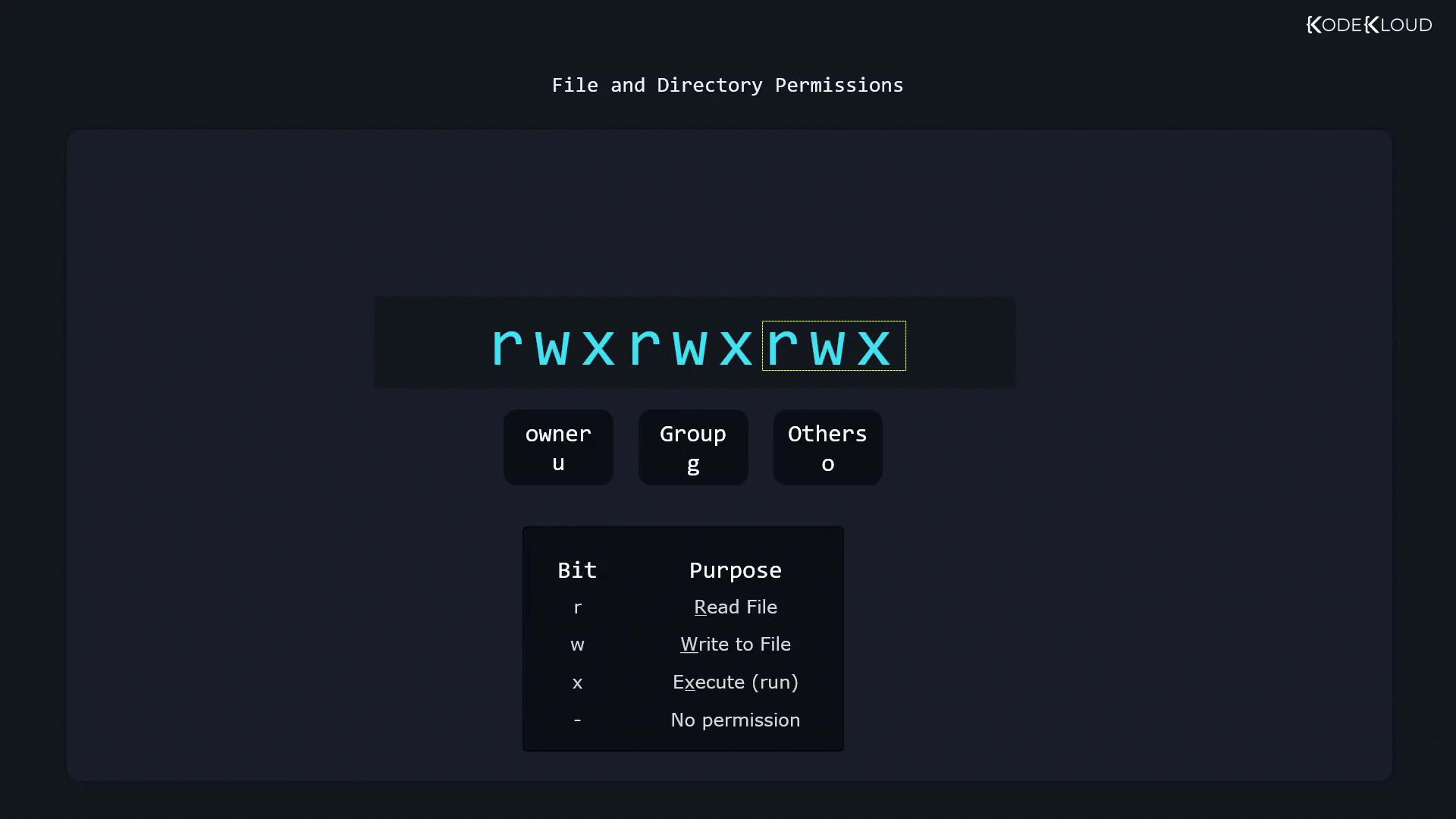
The first character of the output produced byls -l indicates the file type:
- A dash (-) for a regular file
- “d” for a directory
- “l” for a symbolic link
- User (owner) permissions
- Group permissions
- Others (everyone else)
- “r” for read
- “w” for write
- “x” for execute
- “r” allows listing of the directory’s contents,
- “w” permits creating or deleting files,
- “x” enables entering the directory (via the
cdcommand).
Changing Permissions with chmod
Thechmod command is used to modify file or directory permissions. Its basic syntax is:
- “who” can be:
- u for user (owner)
- g for group
- o for others
- The operators:
-
- to add permissions
-
- to remove permissions
- = to set permissions exactly
-
Adding Permissions
For example, if the user “aaron” needs write permission added to his current read-only state, run:Removing Permissions
To remove permissions—for instance, to remove the read permission for others:Setting Exact Permissions
Using the equals operator allows you to define permissions exactly. For example, to set the group’s permissions to read-only (r—):Multiple Changes in a Single Command
To specify multiple permission changes, separate them with commas. For example:Using Octal Values for Permissions
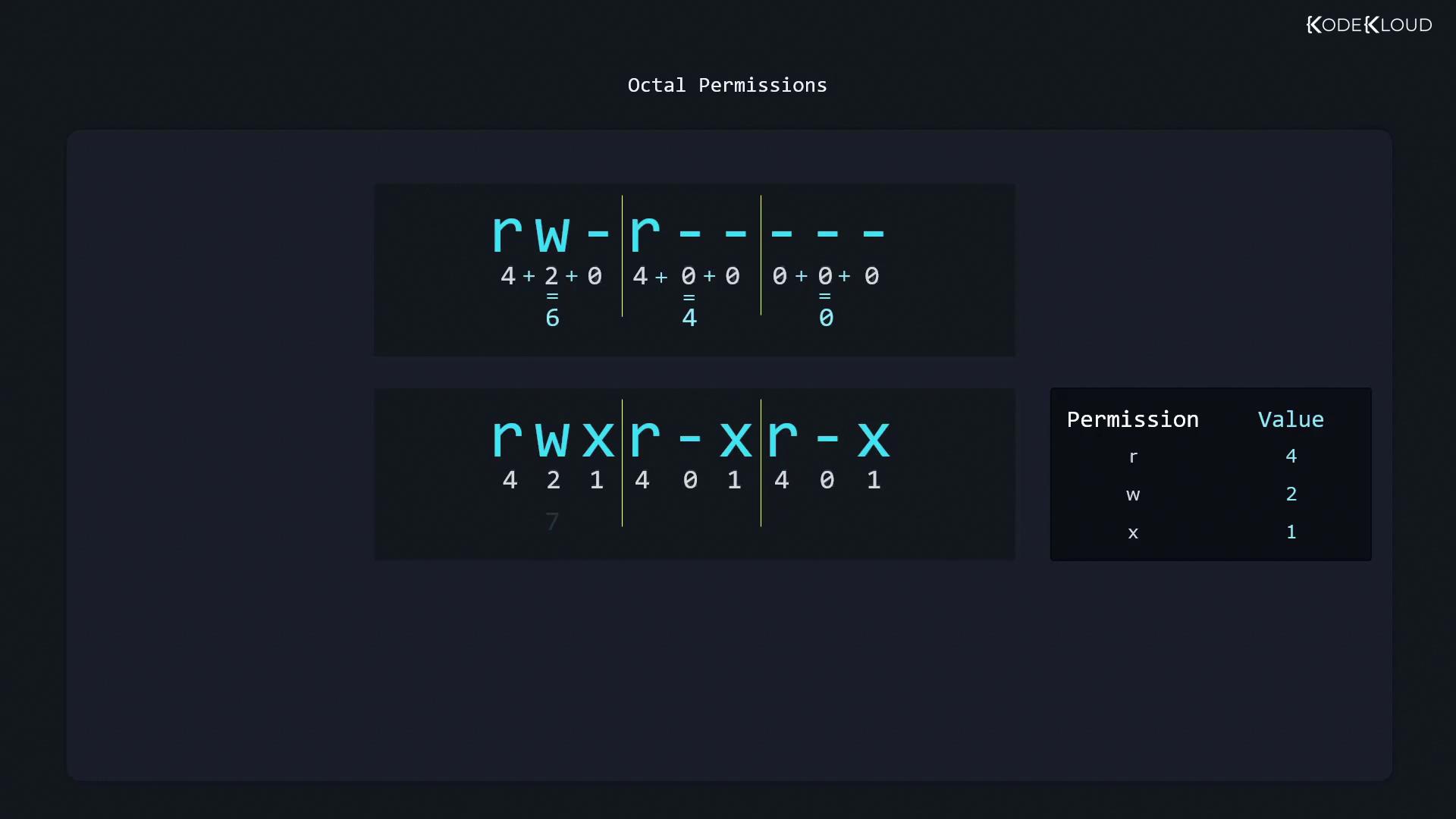
Another method for setting permissions is by using octal values. Thestat command displays file permissions in both symbolic and octal formats:
- 6 (4+2) for the user (read and write)
- 4 for the group (read-only)
- 0 for others (no permissions)
- Read (r) = 4
- Write (w) = 2
- Execute (x) = 1
- rw- equals 4+2 = 6
- r— equals 4
- --- equals 0
- Owner: rw-
- Group: r—
- Others: no permissions