Red Hat Enterprise Linux 8
Begin by logging into your Red Hat Enterprise Linux 8 virtual machine and perform a restart. When the GRUB boot menu appears, press the down arrow key to pause the automatic boot process. This menu displays the available kernel versions. Next, press E to edit the default kernel entry.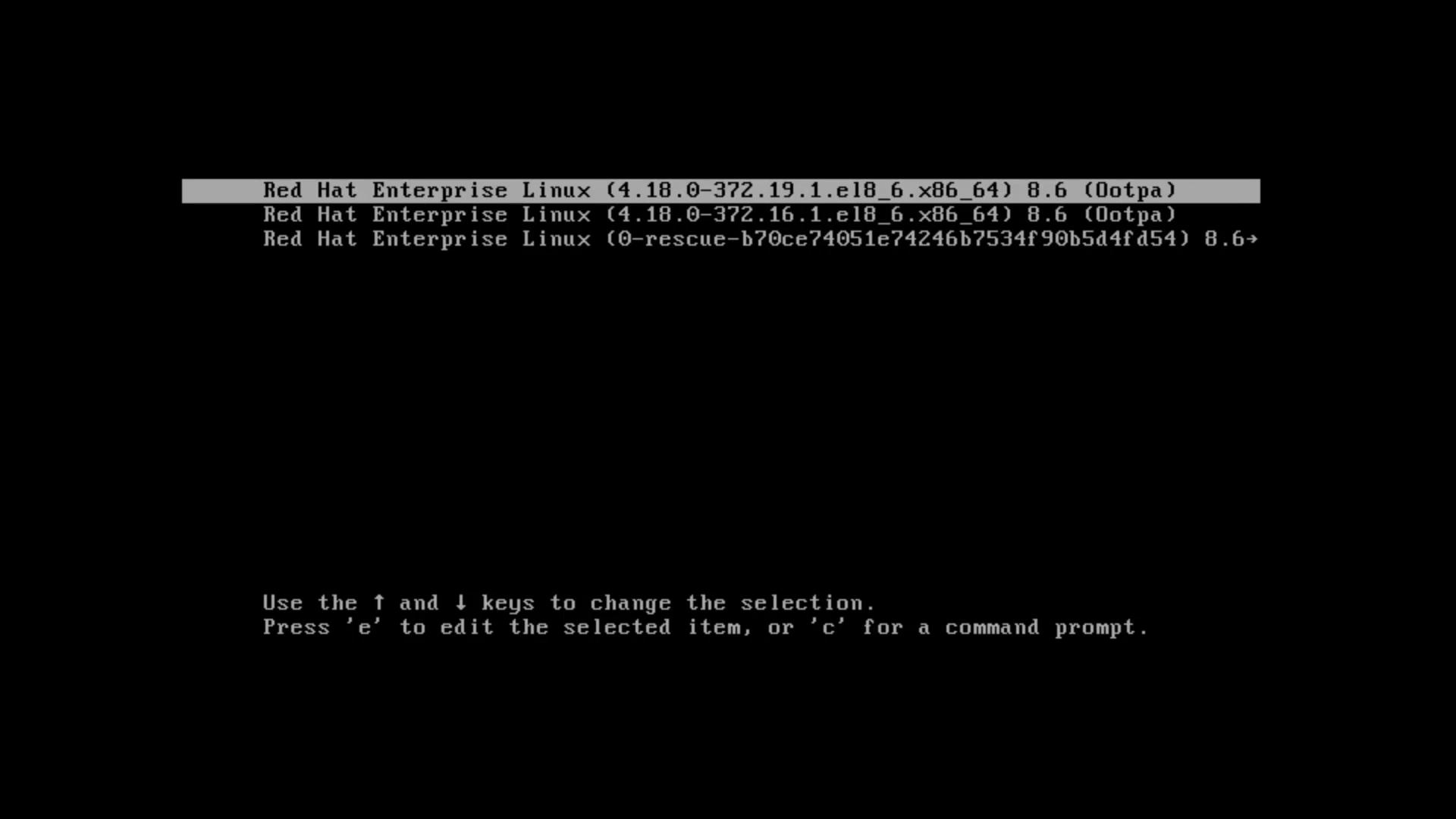
- Scroll down to the Linux kernel line and press Ctrl-E to move the cursor to the end of the line.
- Ensure that there is a single space after the
quietoption. - Append the parameter
rd.breakto introduce a breakpoint, halting the normal boot process.
# prompt.
At this emergency prompt, note that many utilities (such as whoami) might not be available. Although your Linux file system is mounted in read-only mode under /sysroot, you can proceed with the following commands to remount it as read-write, update the root password, and prepare the system for a normal reboot:
chroot command to switch to the actual root environment:
Red Hat Enterprise Linux systems use SELinux for security. It is essential to signal the system to relabel file contexts on the next boot.
.autorelabel in the root directory:
su command:
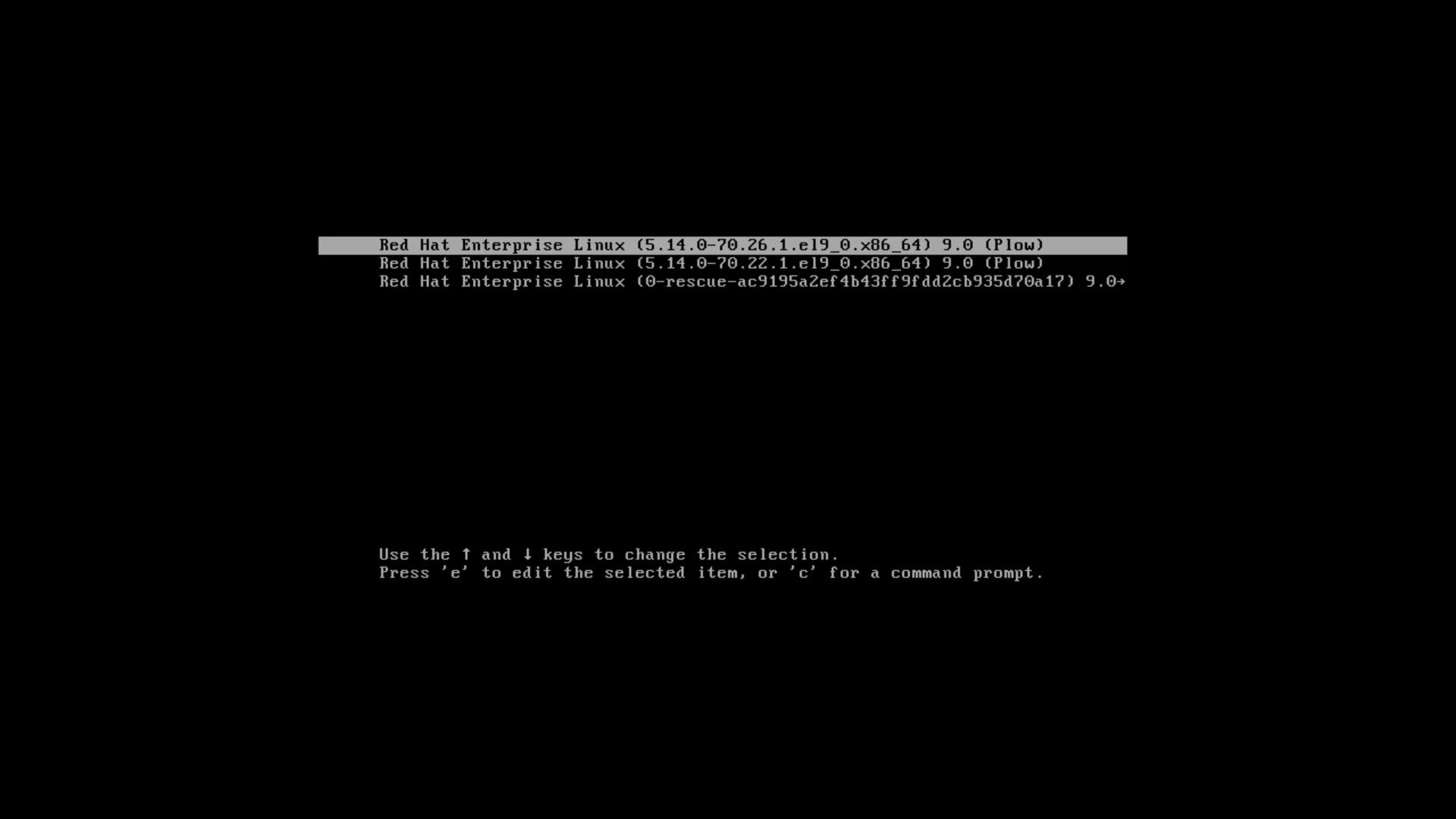
Red Hat Enterprise Linux 9
The process for RHEL 9 is similar, with some adjustments because of changes in Dracut (the tool that creates the initial RAM filesystem). Begin by stopping the virtual machine at the GRUB bootloader screen, then press E to edit the boot parameters. Scroll down to the Linux kernel line. You should see a configuration similar to the following:- Replace the read-only root option (
ro) with read-write (rw) just before thecrashkernelparameter. - Instead of appending
rd.break, add the parameterinit=/bin/bashto launch a bash shell directly.
.autorelabel file to ensure SELinux contexts are corrected on the next boot:
Conclusion
This guide demonstrated how to interrupt the boot process on both Red Hat Enterprise Linux 8 and 9 to recover or modify the root password. By modifying the GRUB boot parameters, you can access an emergency or bash shell to perform system maintenance. Remember, if SELinux is enabled, creating the.autorelabel file is critical to ensure correct file contexts on the subsequent boot.
Thank you for following along. Continue exploring our labs and documentation to further strengthen your Linux system administration skills.