

Understanding Disk Partitions
Disk partitions divide a physical storage device into discrete sections to isolate different file systems. For example, if you have a 2TB solid-state drive intended for both Windows and Linux, you cannot mix the NTFS file system (used by Windows) with Linux file systems like ext4 on a single continuous volume. Instead, you’d allocate separate partitions—for instance, 1TB for Windows and 1TB for Linux—so each operating system uses its dedicated partition.Viewing Partitions with lsblk
Thelsblk command lists block devices and their partitions. In the output, look for entries with “part” under the TYPE column to identify actual partitions. Consider the following example:
sda includes partitions (sda1 and sda2) along with LVM volumes (cs-root and cs-swap). Disk names might vary in virtual environments (e.g., starting with “v”), so always refer to the TYPE column to distinguish between entire devices and their partitions.
Remember:
/dev/sda1 specifically accesses the first partition on /dev/sda, while /dev/sda refers to the whole disk.lsblk command:
Examining Partitions with fdisk
Thefdisk utility is a powerful tool for displaying and altering disk partition tables. To list the partitions on a specific device (for example /dev/sda), run:
Modifying partition tables requires elevated privileges. Double-check the device names and calculations to prevent data loss.
Interactive Partitioning using cfdisk
For a more intuitive management experience,cfdisk provides an interactive text-based interface. In this example, an additional storage device (/dev/sdb) is attached to a virtual machine. Start by running:
/dev/sdb or /dev/vdb. In our guide, we assume /dev/sdb.
Choosing a Partition Table: MBR vs. GPT
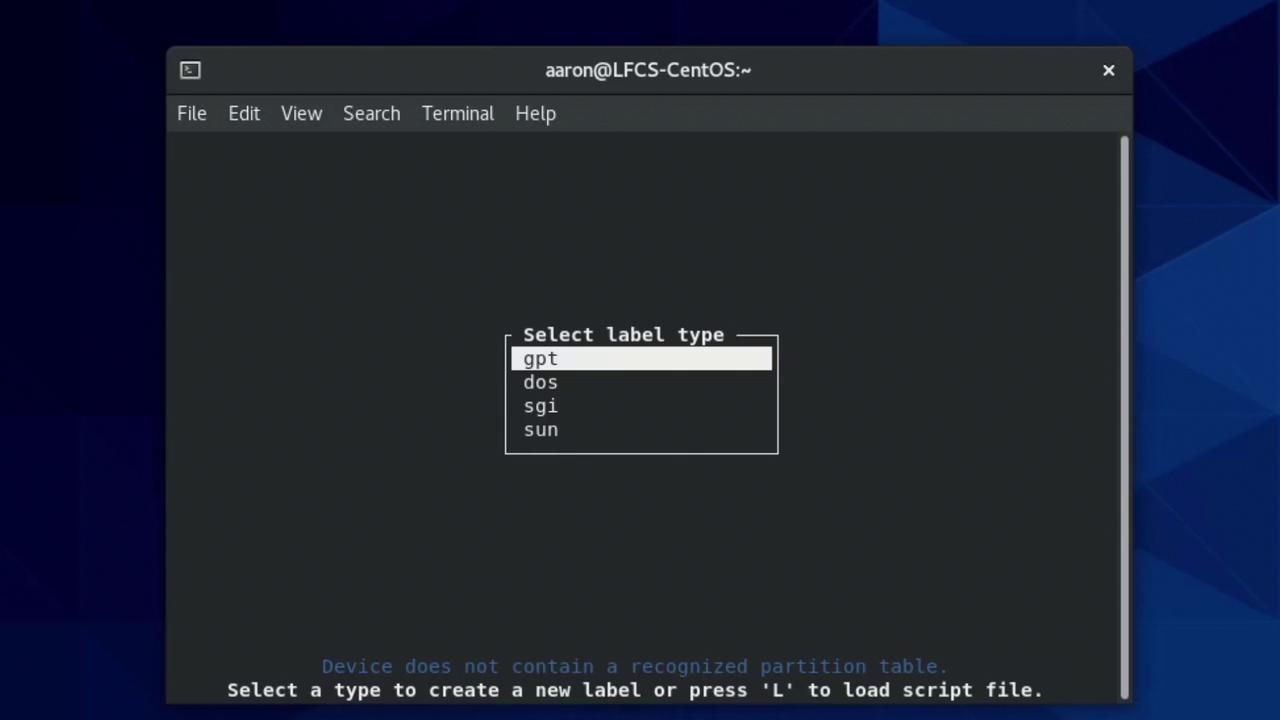
When beginning withcfdisk, you are prompted to choose a partition table type. Historically, the Master Boot Record (MBR) was common, but modern setups typically favor the GUID Partition Table (GPT) due to its support for more partitions and larger drives.
Creating and Adjusting Partitions with cfdisk
Imagine partitioning a 10GB drive into two sections:- 8GB for a new operating system.
- 2GB dedicated to swap space.
cfdisk:
- Navigate to the free space using the arrow keys and select “New.”
- Specify an 8G partition size (using a capital “G” to denote gigabytes) and press Enter.
- Navigate to the remaining free space to create a 2G partition.
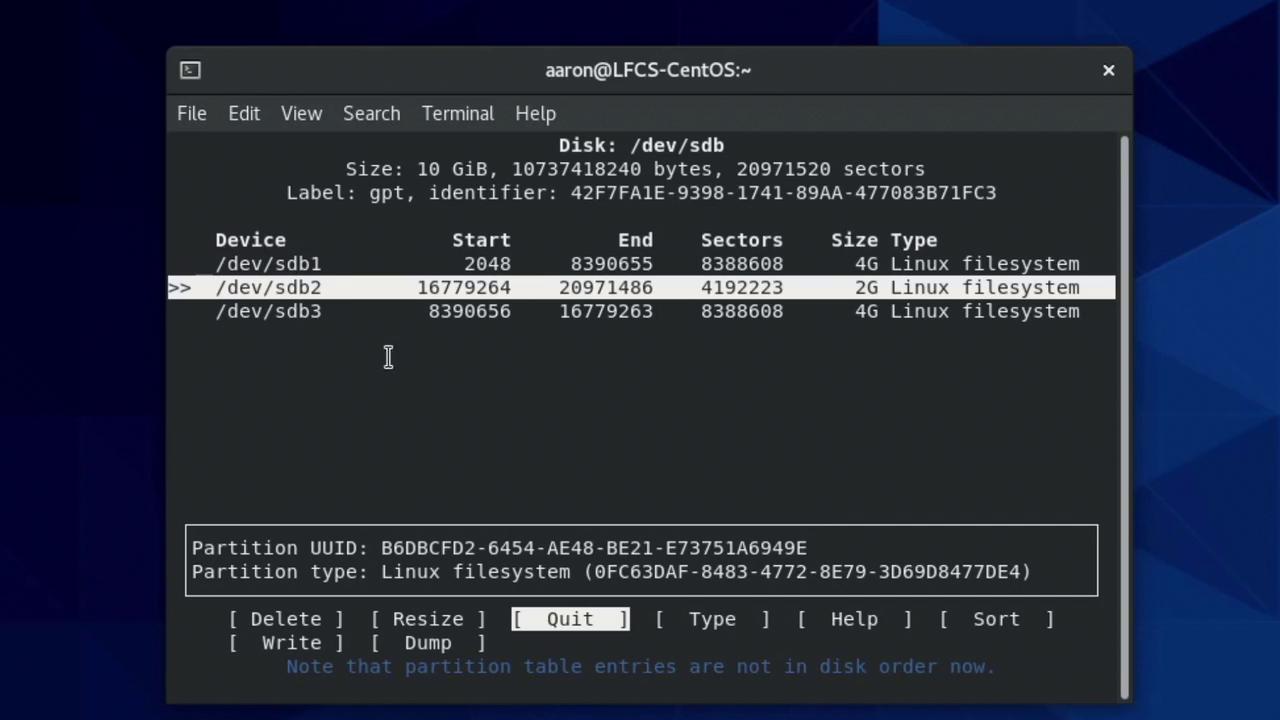
- SDB1 as 4GB
- SDB2 as 2GB
- SDB3 as 4GB
Changing a Partition’s Type
Before committing the changes, you might need to adjust a partition’s type. For example, to designate SDB3 (the 2GB partition) as swap space, navigate to it and press the “Type” button. Then select “Linux swap” from the menu and confirm by pressing Enter.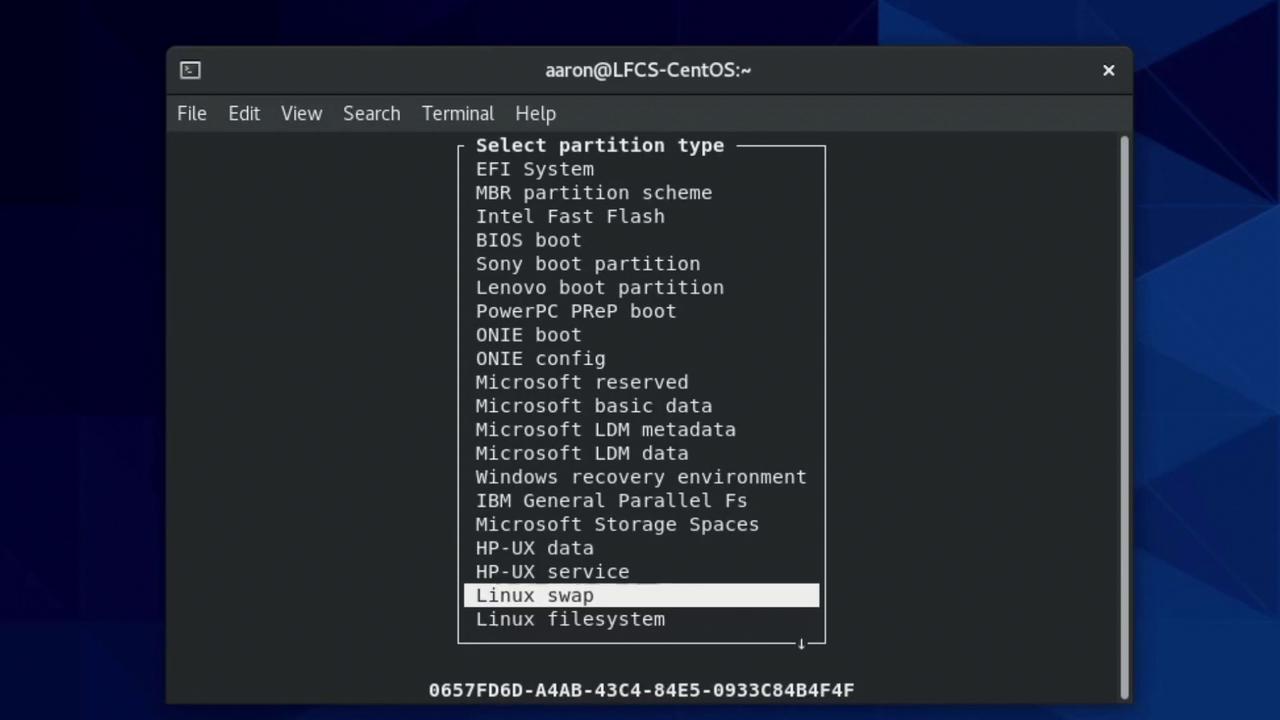
Committing Your Partition Changes
All modifications you make incfdisk are provisional until you commit them. This feature allows you to review your changes and cancel if necessary. When ready, press the “Write” button (or similar) to apply the modifications. The tool will prompt for confirmation—type “Yes” and press Enter to proceed.
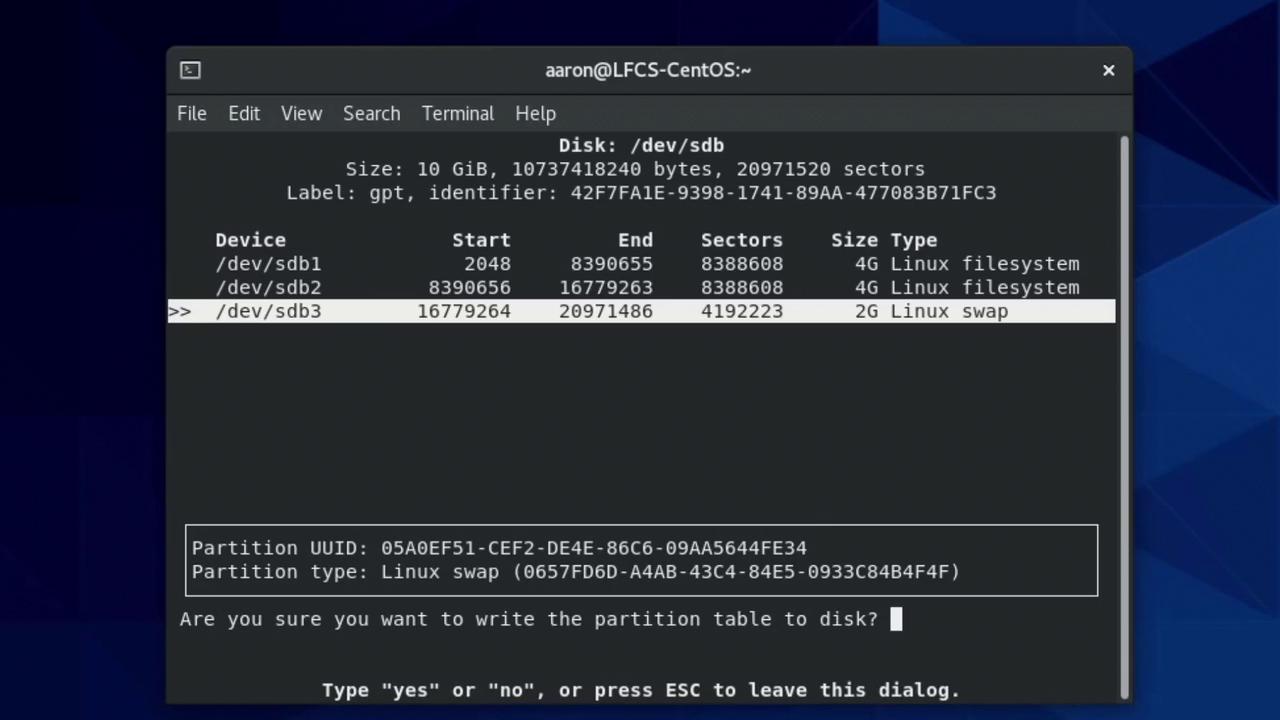
cfdisk by selecting “Quit.” Running the lsblk command again should display the updated partition layout similar to the following:
Summary
In this guide, you learned how to:- Use
lsblkto view existing disk partitions and understand device naming. - Employ
fdiskto examine detailed partition information and perform calculations related to sector sizes. - Utilize
cfdiskfor an interactive approach to creating, deleting, resizing, and modifying partitions. - Choose between MBR and GPT partition tables based on your system’s requirements.
- Commit changes safely after reviewing your planned partition layout.
Properly managing disk partitions is crucial for maintaining system stability and data integrity. Always back up any critical data before making significant changes to your disk structure.