

Using the Less Pager
The “less” pager offers a richer feature set compared to “more.” To view a file with less—such as the DNF Package Manager log file—simply run:- Press
/followed by your search term (e.g.,/debug) to highlight matches. - Press
nto navigate to the next occurrence orN(Shift + n) to go back to the previous match. - Keep in mind that searches are case sensitive by default. To perform a case-insensitive search, include the
-ioption right after the slash (e.g.,/ -i debug).
When finished, press
Q to exit the less pager.Using the More Pager
The “more” pager provides basic functionality similar to less, although with fewer features. To open the log file using more, execute:- Press the space bar to advance one page at a time.
- To exit the more pager at any time, press the
Qkey.
Vim Text Editor
Next, we explore Vim (Vi Improved), a modal text editor known for its efficiency and powerful features. When you launch Vim, you’ll be greeted by a welcome screen that includes useful information, version details, and basic commands: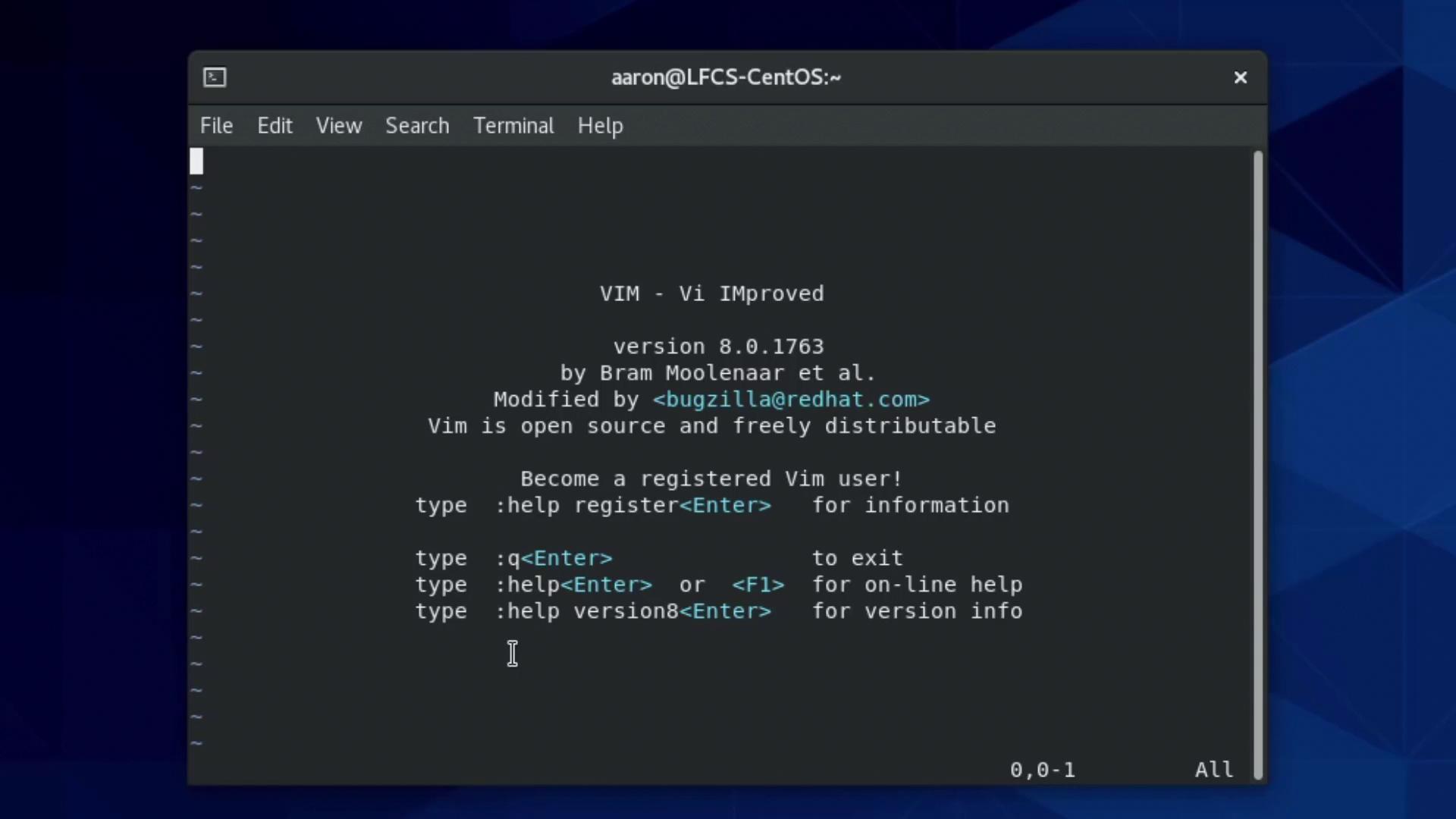
Inserting and Editing Text
Vim operates in different modes. To begin editing a file, switch to insert mode by pressing thei key. Upon doing so, you’ll see the word “INSERT” displayed in the lower left-hand corner. Once in insert mode, you can type or modify your text.
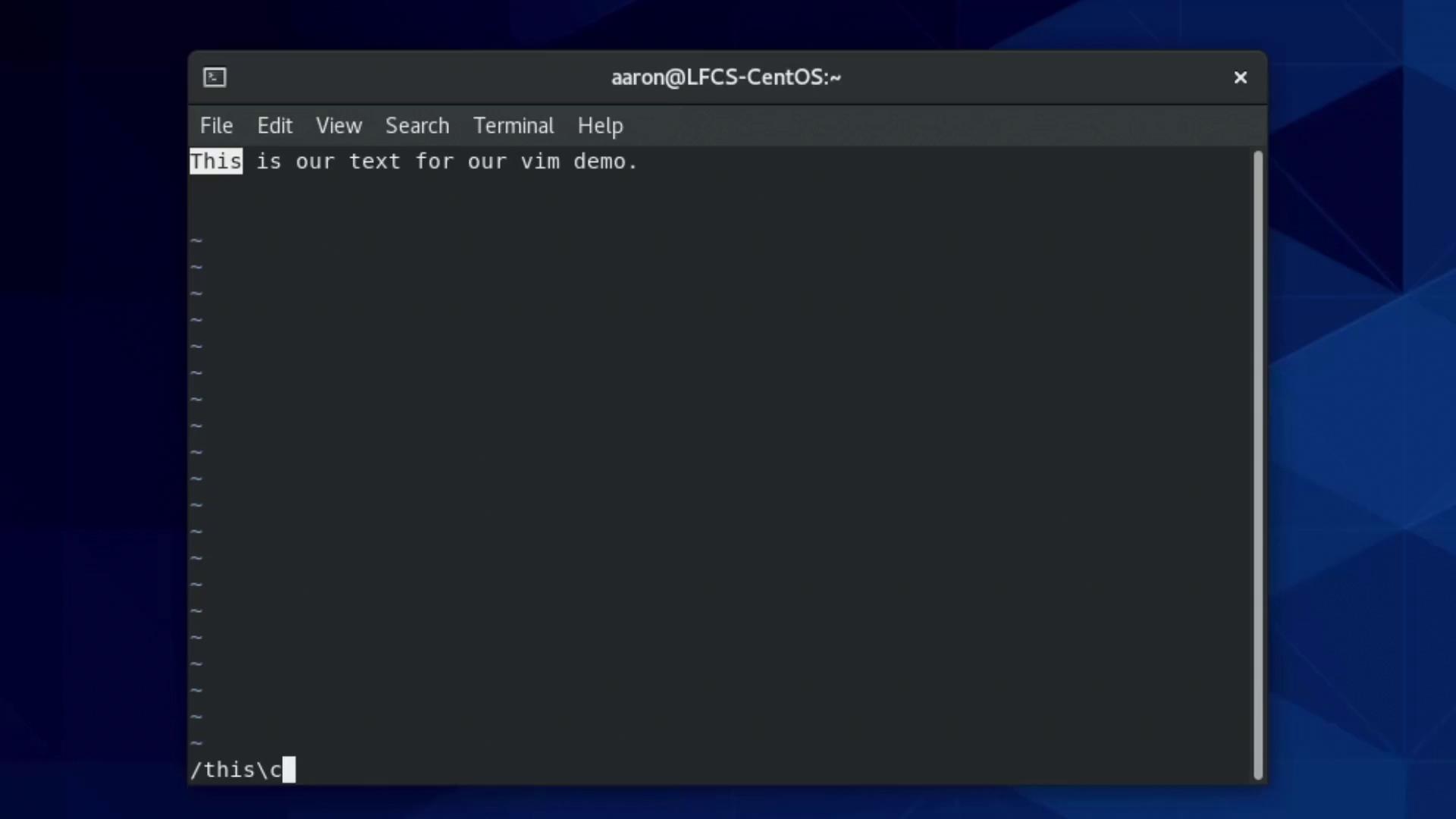
Below is an example corresponding to entering text in Vim:
Navigating and Searching in Vim
- Press
Escto return to normal (command) mode. - To search for text, press
/followed by your search term. The search is case sensitive by default. - For a case-insensitive search, type
/\cfollowed by your term (thecstands for “case”). - To jump directly to a specific line, type
:followed by the line number (for example,:3navigates to line three).
Copying, Cutting, and Pasting
Here are some essential operations in Vim:Exiting Vim
New users often find exiting Vim challenging. Use these commands based on your needs:- To save your changes and exit, type
:wq(write and quit). - If you wish to exit without saving changes, type
:q!to force quit.
Remember that practice is key when learning Vim. The more you use it, the more intuitive its modal operations become.
This guide provides a brief overview of the “less” and “more” pagers, along with essential Vim commands to help you navigate, search, and edit text efficiently. For further reading on Vim and advanced pager functionalities, check out the Vim documentation. Happy learning!