

- What is a file system tree?
- What is an absolute path?
- What is a relative path?
Listing Files and Directories
Thels command lists the files and directories in your current (or working) directory. The term ls is short for “list.” Here are several common usages:
Basic Listing
Running the simplels command in a typical home directory might display:
.ssh) are hidden by default. To view hidden files, include the -a option:
Listing Files in a Specific Location
To list files from another directory, provide the path to thels command:
Long Listing Format
For extended details like permissions, ownership, and modification times, use the-l option:
Combining Options for Detailed and Inclusive Listings
The-a and -l options can be combined, and their order is not important:
-h option:
Understanding the File System Tree
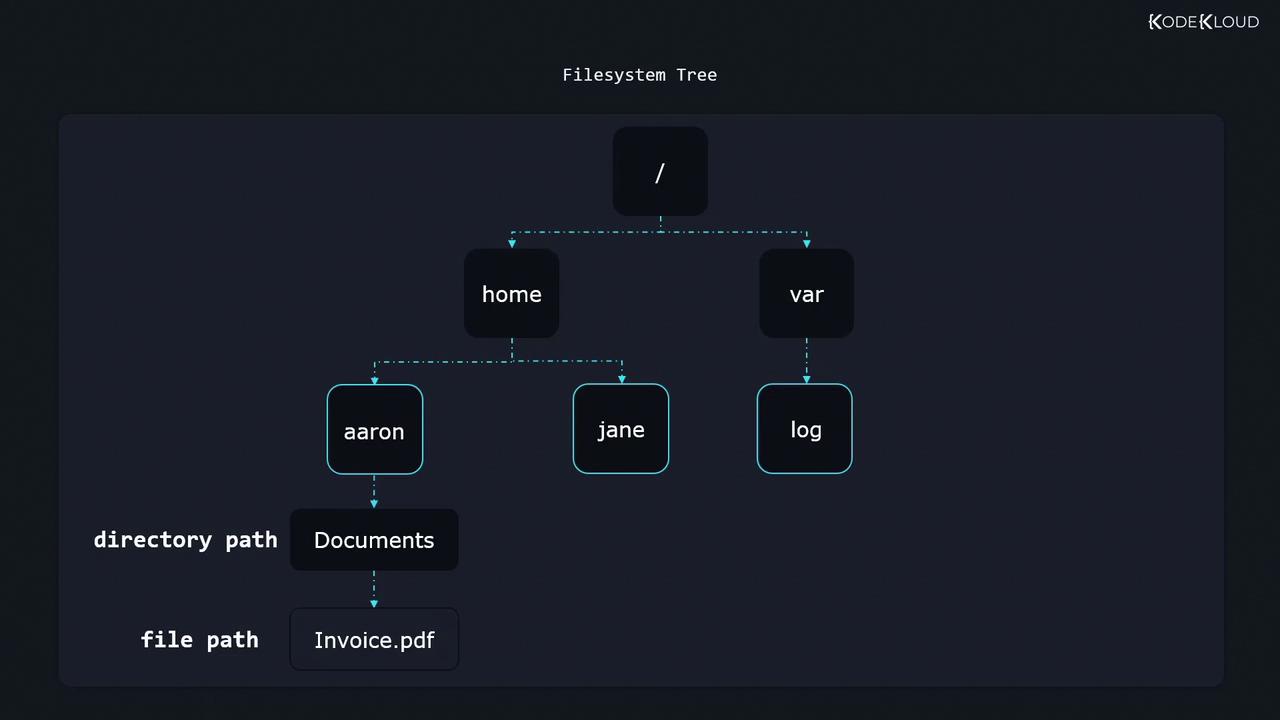
Linux organizes all files and directories into a hierarchical structure known as the file system tree. Think of it like an inverted tree, where the root directory (/) sits at the top, and all subdirectories branch out from there.
Paths Explained
Absolute Path
An absolute path starts from the root directory. For example:/), moves through the home directory, then aaron, followed by Documents, and finally accesses the file Invoice.pdf.
Relative Path
A relative path describes a location relative to the current working directory. To see your current working directory, use thepwd command:
/home/aaron, the path Documents/Invoice.pdf would reference /home/aaron/Documents/Invoice.pdf. Likewise, Invoice.pdf without any directory designation refers to a file in the current directory, while ../Invoice.pdf navigates one level up.
Consider this structure: the root directory (/) branches into several subdirectories and further levels until it eventually leads to files like “Invoice.pdf”.
- Use
cd /var/logto change to the/var/logdirectory using an absolute path. - Enter
cd ..to move up one directory level (to the parent directory). - Simply type
cdwithout arguments to return to your home directory. - Use
cd -(orcd --in some shells) to switch back to your previous directory.
Creating Files and Directories
Creating files and directories in Linux is simple with the following commands:Creating Files
Thetouch command creates a new, empty file. For example, to create a file named Receipt.pdf in the current directory:
Creating Directories
Use themkdir command (short for “make directory”) to create new directories. For instance:
Copying Files and Directories
Thecp command copies files and directories with ease.
Copy a File
To copy a file, provide its source path and destination path:/) to indicate that the destination is a directory. You can also copy a file and rename it simultaneously:
Copy a Directory Recursively
To duplicate an entire directory and its contents, use the-r (recursive) flag:
Ensure the destination directory (e.g.,
BackupOfReceipts/) does not exist if you intend to create a new copy of the source directory.Moving and Renaming Files and Directories
Themv command is versatile—it moves files or folders and also renames them.
Moving a File
To move a file to a different location:Renaming a File or Directory
To renameReceipt.pdf to old_receipt.pdf:
mv automatically processes all contained files and subdirectories without needing a recursive flag.
Deleting Files and Directories
Deleting files and directories is straightforward with therm command.
Deleting Files
To remove a file:Deleting Directories Recursively
To delete a directory and all its contents, use the-r option:
Be cautious when using the
rm -r command. Once executed, recovering a deleted directory and its contents can be difficult.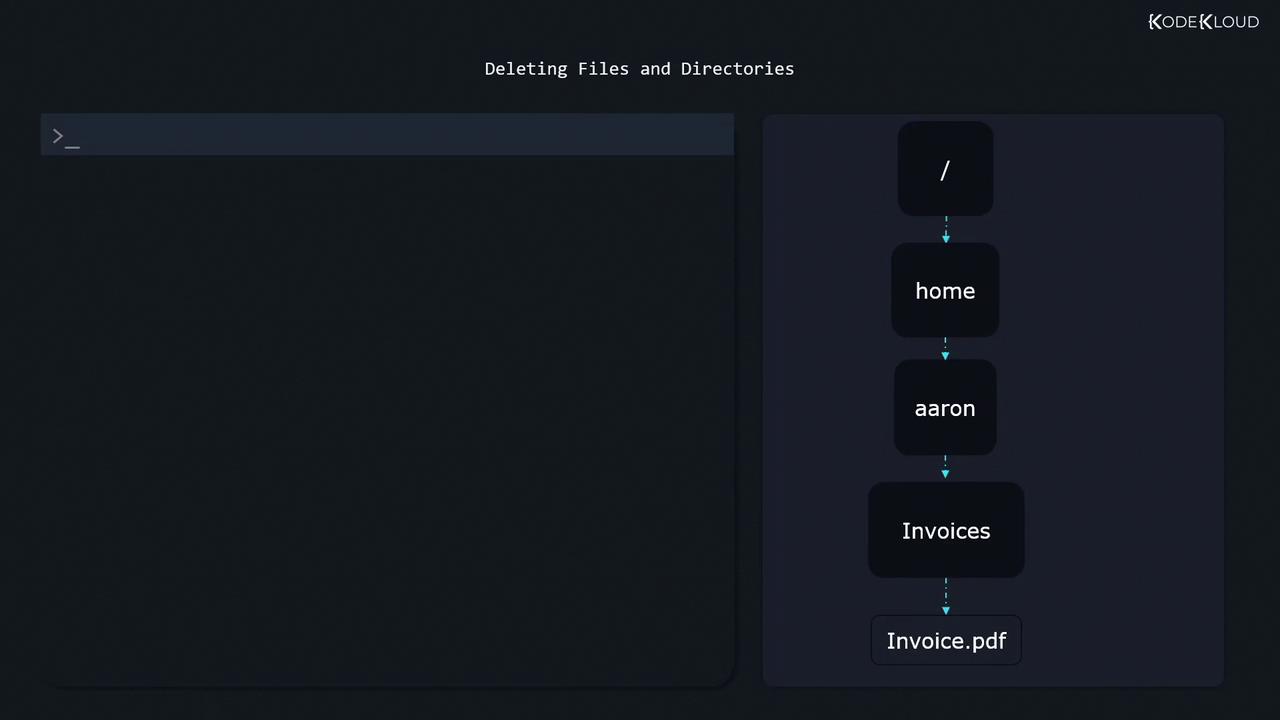
Summary
In this lesson, you learned how to:- List files and directories utilizing
lsand its various options (-a,-l,-h). - Understand the differences between absolute and relative paths.
- Create files with
touchand directories withmkdir. - Copy files and directories using
cp, including the recursive copy option for entire directories. - Move and rename files or directories with
mv. - Delete files using
rmand remove directories recursively withrm -r.