Using Boolean Values to Modify SELinux Settings at Boot Time
We’ll start by modifying SELinux behavior directly from the GRUB boot screen of a RHEL machine.
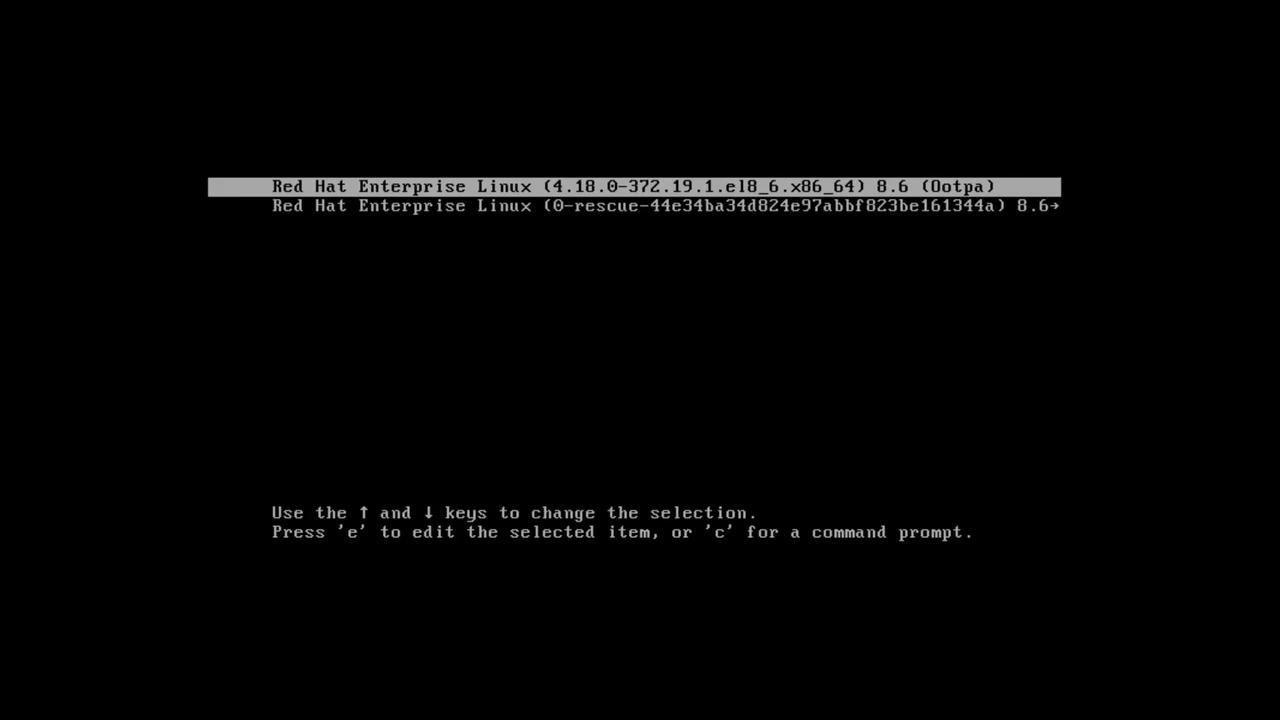
At the GRUB screen, press “E” to edit the default kernel entry. In the editor, scroll down to the line beginning with “linux”. Press Control + E to jump to the end of this line, then move the cursor one space before the “quiet” keyword. Here, you can append one of the following Boolean parameters to adjust SELinux behavior at boot:
Appending enforcing=0 will start SELinux in permissive mode while still applying the appropriate SELinux labels. This method is the Red Hat recommended approach to boot in permissive mode. For example:
Alternatively, you can disable SELinux entirely during boot by appending selinux=0 to the kernel command line. When this parameter is used, no SELinux components will be loaded by the kernel. A subsequent boot without this parameter will trigger an automatic filesystem relabel.
Diagnosing and Addressing Routine SELinux Policy Violations
Once the system has booted, log in to your RHEL system.
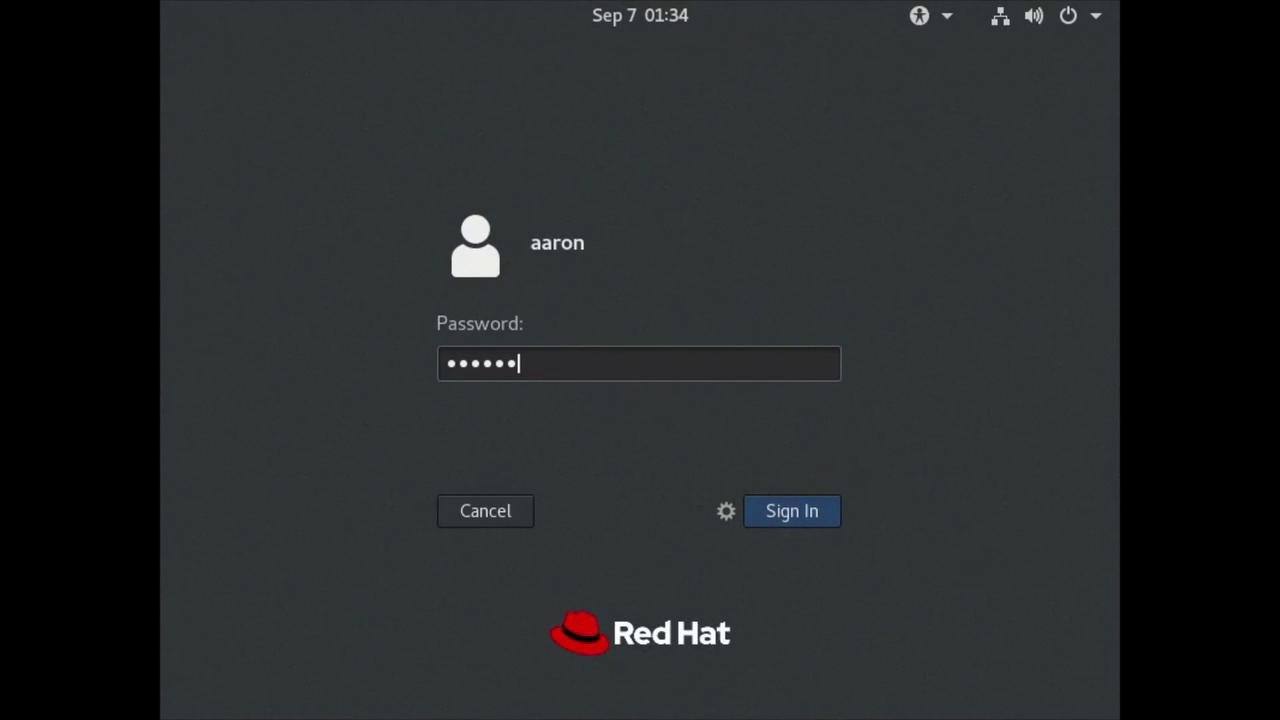
Even though some systems may boot into a text console, this demonstration uses graphical mode for ease of use. Next, we will explore how to handle one common SELinux issue by changing the default HTTPD port.
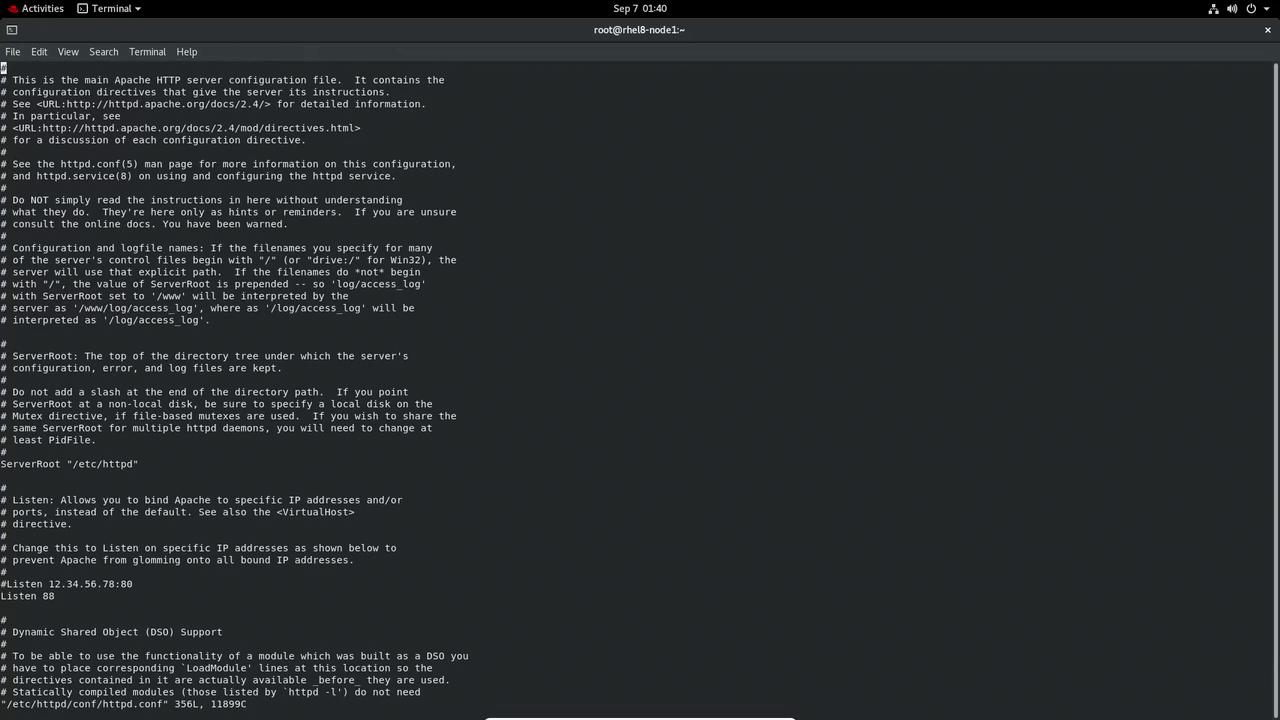
A typical issue arises when you modify the default port for the Apache HTTPD service. First, verify HTTPD is installed, then inspect the Apache configuration file to locate the Listen directive.
By default, Apache listens on port 80. Assume you change this setting to port 88. Edit the configuration file with:
Copy
Ask AI
sudo vi /etc/httpd/conf/httpd.conf
After saving your changes, attempt to start Apache:
Copy
Ask AI
sudo systemctl start httpd.service
If the service fails to start, you might see an error similar to:
Copy
Ask AI
Job for httpd.service failed because the control process exited with error code.See "systemctl status httpd.service" and "journalctl -xe" for details.
Checking the status helps reveal that Apache encountered a permission error when binding to port 88:
Copy
Ask AI
sudo systemctl status httpd.service
Example output:
Copy
Ask AI
httpd.service - The Apache HTTP Server Loaded: loaded (/usr/lib/systemd/system/httpd.service; disabled; vendor preset: disabled) Active: failed (Result: exit-code) since Wed 2022-09-07 01:36:08 CDT; 29s ago Docs: man:httpd.service(8) Process: 3853 ExecStart=/usr/sbin/httpd $OPTIONS -DFOREGROUND (code=exited, status=1/FAILURE) Main PID: 3853 (code=exited, status=1/FAILURE)Sep 07 01:36:08 rhel8-node1 httpd[3853]: (13)Permission denied: AH00072: make_sock: could not bind to address 0.0.0.0:88Sep 07 01:36:08 rhel8-node1 httpd[3853]: AH00015: Unable to open logs
Investigating further with journalctl -xe may point out that SELinux is preventing HTTPD from binding to port 88:
Copy
Ask AI
... SELinux is preventing /usr/sbin/httpd from name_bind access on the tcp_socket port 88. For complete SELinux messages run: sealert -l <alert_id>
The error message advises generating a local policy module with the following commands:
Once the policy module my-httpd is installed, restart Apache:
Copy
Ask AI
systemctl start httpd.servicesystemctl status httpd.service
A successful service status should indicate that Apache is active and running on port 88:
Copy
Ask AI
httpd.service - The Apache HTTP Server Active: active (running) since Wed 2022-09-07 01:39:14 CDT; 95s ago ...Sep 07 01:39:14 rhel8-node1 httpd[3977]: Server configured, listening on: port 88
Confirm the service response with a curl command:
Copy
Ask AI
curl 127.0.0.1:88
You should see the HTML content of Apache’s default page in the terminal.
Another common issue occurs when file contexts do not align with SELinux expectations, particularly when Apache’s DocumentRoot is changed to a non-default directory.In this scenario, modify the Apache configuration file to update the DocumentRoot. For example, change it to /kodedu:
Copy
Ask AI
# DocumentRoot: The directory out of which you will serve your documents.DocumentRoot "/kodedu"# Further configuration...
After updating the configuration, create the new document root directory and add a simple HTML file:
When you access http://127.0.0.1:88/kodekloud.html, you might receive a “Forbidden” error. This error indicates that SELinux is denying access because the file contexts are incorrect. Check the current SELinux labels with:
Copy
Ask AI
ls -laZ /kodedu/
Files in /kodedu often have a generic context (e.g., default_t) instead of the required httpd_sys_content_t.
To resolve this, use the semanage command to assign the proper context.
Apply the correct file context with:
Copy
Ask AI
semanage fcontext -a -t httpd_sys_content_t '/kodedu(/.*)?'
Then, run the following command to update the file contexts recursively:
Copy
Ask AI
restorecon -R /kodedu/
Confirm the updated context by checking again:
Copy
Ask AI
ls -laZ /kodedu/
Finally, verify that the Apache default page is accessible:
Copy
Ask AI
curl 127.0.0.1:88/kodekloud.html
The output should display the expected HTML (“KodeKloud”) content.