This article explores the creation and management of soft links in Linux, providing explanations and examples for effective implementation.
In this article, we explore the creation and management of soft links (symbolic links) in Linux. Soft links operate similarly to Windows shortcuts, enabling you to access files and directories located elsewhere on your system. This guide provides detailed explanations and examples to help you understand and implement soft links effectively.When you install a program on Windows, a shortcut is commonly added to the desktop. This shortcut points to the executable file, even if the actual application files reside in a different directory (for example, C:\Program Files\MyCoolApp\application.exe). In Linux, soft links serve a similar purpose by referencing the target file or directory.Unlike hard links, which point directly to file inodes, a soft link is a separate file containing the path to another file or directory. To create a soft link, use the ln command with the -s (or —symbolic) option. The general syntax is:ln -s [path_to_target_file_or_directory] [path_to_link]
For instance, to create a symbolic link that points to the file /home/aaron/Pictures/family_dog.jpg, run:
Copy
Ask AI
# Create a symbolic link to /home/aaron/Pictures/family_dog.jpg$ ln -s /home/aaron/Pictures/family_dog.jpg family_dog_shortcut.jpg
After creating the link, you can verify its creation using the ls -l command. The output will display an “l” at the beginning of the permissions string, indicating that it is a soft link, along with the reference to the target path:
Copy
Ask AI
$ ls -llrwxrwxrwx. 1 aaron aaron family_dog_shortcut.jpg -> /home/aaron/Pictures/family_dog.jpg
The permission bits shown for soft links are generally set to read, write, and execute (RWX) for everyone. However, these permissions do not affect the target file. Writing to the link will adhere to the permissions of the actual destination file.
Using an absolute path (as in /home/aaron/Pictures/family_dog.jpg) ensures clarity but may lead to issues if the directory structure changes (for example, if the “aaron” directory is renamed). In such cases, the soft link will become broken and typically appear in red when using ls -l.To mitigate this risk, you can create soft links using relative paths. This approach allows the system to interpret the path relative to the location of the soft link, preserving its functionality even if the absolute directory structure shifts. Consider the following examples:
Copy
Ask AI
# Create a symbolic link using an absolute path$ ln -s /home/aaron/Pictures/family_dog.jpg family_dog_shortcut.jpg$ ls -llrwxrwxrwx. 1 aaron aaron family_dog_shortcut.jpg -> /home/aaron/Pictures/family_dog.jpg$ readlink family_dog_shortcut.jpg/home/aaron/Pictures/family_dog.jpg# Attempt to write to a file via a soft link (will fail due to target file permissions)$ echo "Test" >> fstab_shortcutbash: fstab_shortcut: Permission denied# Create a symbolic link using a relative path$ ln -s Pictures/family_dog.jpg relative_picture_shortcut
When creating soft links with absolute paths, be aware that any changes in the directory structure can lead to broken links. Using relative paths can provide better resilience against such changes.
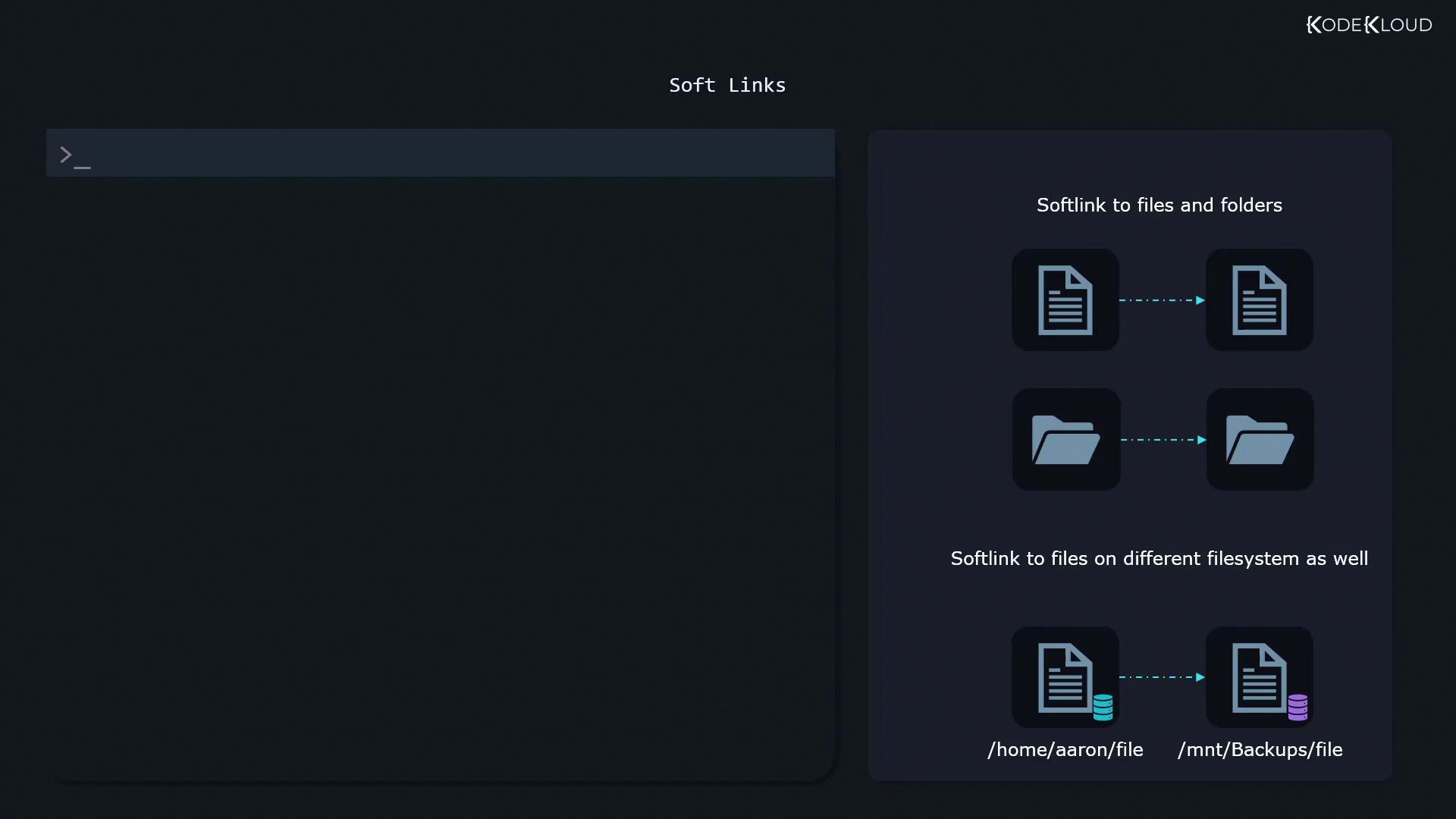
Soft links are versatile. They can be used not only to reference files but also directories. Furthermore, unlike hard links, soft links can span across different file systems, making them particularly useful for various system management tasks.
That concludes our discussion on creating and managing soft links in Linux.Let’s move on to some hands-on labs.