

Using the —help Option
When you only need a quick reminder of command options, the--help flag is your best friend. For example, if you want to see the long listing format for the ls command but can’t remember the correct flag, simply run:
-l.
Exploring More Complex Help: The Journalctl Example
Certain commands offer more detailed information beyond a brief overview. Thejournalctl command, used for querying system log files, is one such example. When you run:
Q.
Accessing Manual Pages
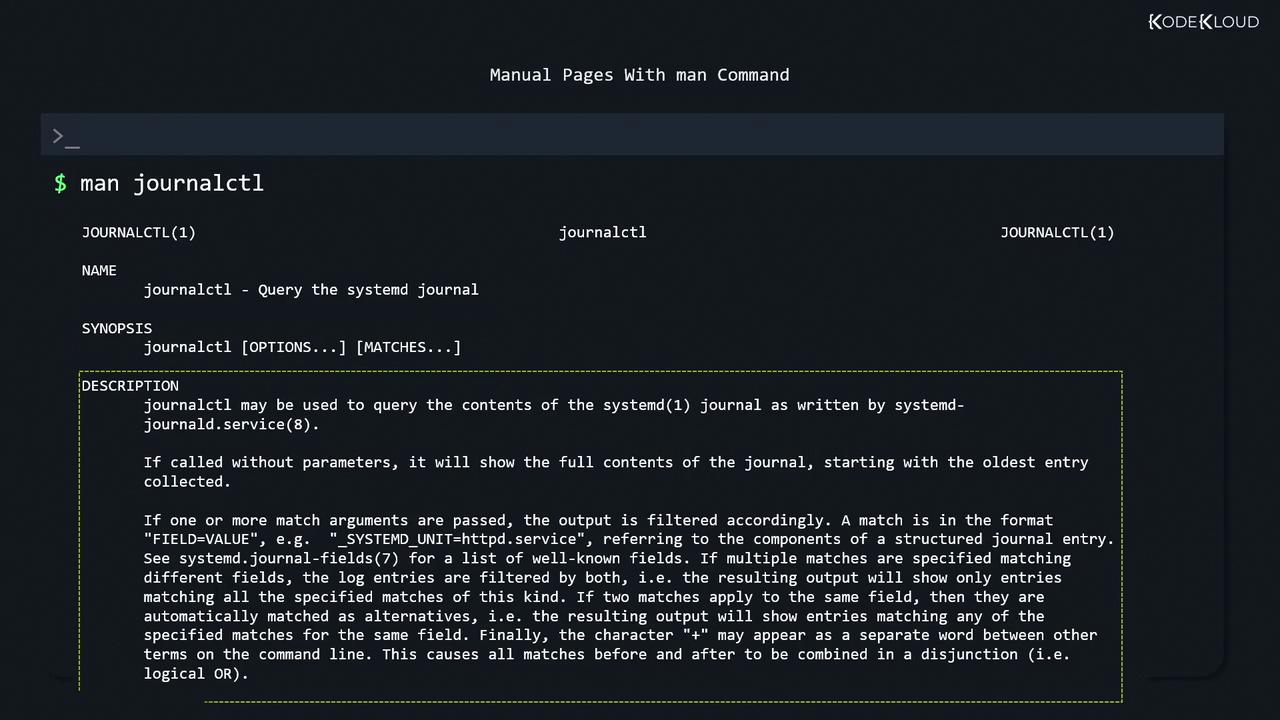
Linux provides comprehensive manual pages for most commands, accessible with theman command. For instance, to read about journalctl, run:
- NAME: A brief description of the command.
- SYNOPSIS: The command syntax.
- DESCRIPTION: An in-depth explanation of command functionality.
- OPTIONS: A detailed list of command options.
- EXAMPLES: (Occasionally) practical usage examples.
journalctl command, including sections such as NAME, SYNOPSIS, and DESCRIPTION.
printf exists both as a command and a programming function. Manual pages are divided into sections, and you can specify which one to view. To see the manual page for the printf command, use:
printf function, run:
man itself:
Searching for Commands with Apropos
At times, you might forget the specific command you need, such as the one for creating a new directory. Theapropos command searches through manual pages by examining their short descriptions. To search for manual pages that mention “directory,” run:
apropos database hasn’t been built, you can create it manually with:
apropos generates multiple entries, including those for mkdir. To filter the search results to only include commands (typically found in sections 1 and 8), use the -s option:
Using Autocompletion
Autocompletion can significantly speed up your work at the command line. For instance, if you start typing “system c” and press the TAB key, the shell will automatically complete it tosystemctl.
Many commands also provide suggestions when you press TAB twice. For example, typing systemctl followed by a space and pressing TAB twice may present a list of available subcommands:
/usr/. Hitting TAB again typically displays the available directories in /usr/ without the need for an explicit ls command:
wordpress_archive.tgz, typing a few unique characters and pressing TAB will quickly complete the name.
Final Recommendations
While
man pages and --help options offer extensive information about commands, they might not always provide complete clarity at first glance. Select an unfamiliar command and explore its usage solely through its manual and help output. This practice is especially valuable for exam settings such as the LFCS exam, where quickly locating documentation can be a game changer./usr/ directory: