

Configuring the SSH Server (sshd)
The main configuration file for the SSH server is located at/etc/ssh/sshd_config. Since the OpenSSH daemon runs by default, you can begin modifying its settings immediately.
Editing the Configuration File
Start by opening the SSH server configuration file with Vim:Changing the Listening Port
By default, the SSH daemon listens on port 22. Although this directive is commented out, you can customize it by uncommenting it and specifying a new port. For example, to change the port to 988, update the file as shown below:Setting the Address Family and Listen Address
TheAddressFamily directive determines whether the daemon will use IPv4, IPv6, or both. Here are the available options:
• any (default)• inet (IPv4 only)
• inet6 (IPv6 only) If your server has multiple IP addresses—for example, a public IP (203.0.113.1) and an internal IP (10.11.12.9)—you can restrict SSH connections to internal hosts by specifying the listen address:
Logging and Authentication Settings
Below the network configuration, you will find directives related to logging and authentication. For example:PermitRootLogin directive from yes to no:
Enabling or Disabling Password Authentication
By default, password authentication is enabled. However, using SSH keys is recommended for stronger security. To disable password authentication, update these lines:Configuring the SSH Client
The SSH client is available by default on Windows 10, macOS, and Linux. Its configuration files are typically stored in a user’s.ssh directory.
Creating a Client Configuration File
If you connect to multiple servers, streamlining connection details with a client configuration file can be very beneficial. First, verify that the.ssh directory exists:
~/.ssh/config:
Generating SSH Key Pairs
To use SSH keys for authentication instead of passwords, generate a key pair on your local machine:/home/aaron/.ssh/id_rsa) and decide whether to secure the key with a passphrase. This process creates:
• A private key: id_rsa• A public key:
id_rsa.pub
Copying the Public Key to the Server
To enable key-based authentication, copy your public key to the server’sauthorized_keys file. The easiest method is using the ssh-copy-id command:
~/.ssh/authorized_keys file. If ssh-copy-id is not available, you can manually copy the public key. First, display it on your client:
Managing Known Hosts
The first time you connect to an SSH server, its fingerprint is stored in theknown_hosts file. If the fingerprint changes—such as after a server reinstallation—you might need to remove the outdated entry:
known_hosts file:
Customizing Client Default Settings
System-wide SSH client settings are stored in/etc/ssh/ssh_config. For example, you might see directives like:
/etc/ssh/ssh_config.d directory:
Diagrams and Manual Page Searches
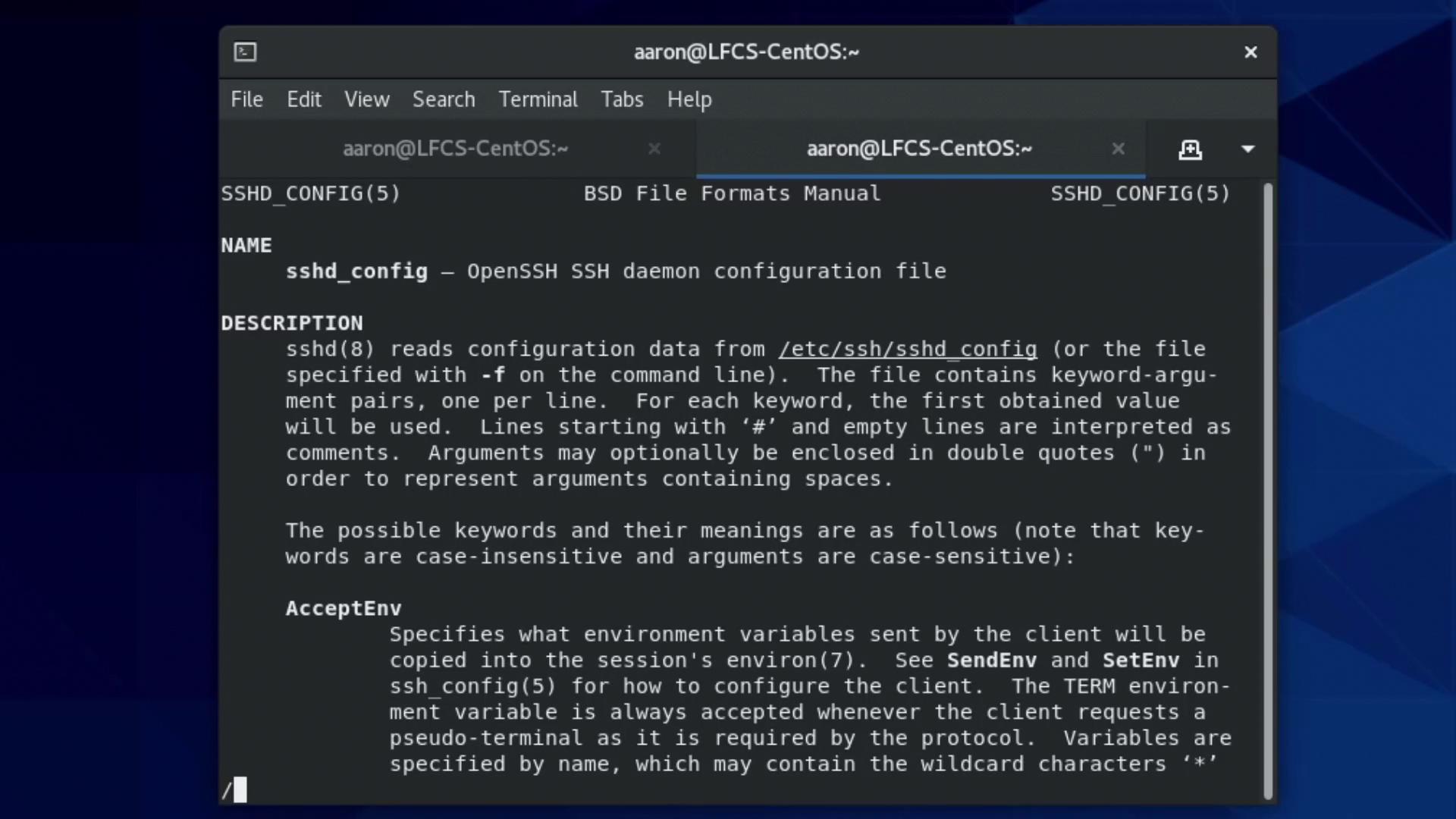
For further details on configuration options, consult the manual pages. Here are some examples:- When reviewing the manual for the SSH daemon configuration, you can search for “AddressFamily” by typing
/Familyin the less pager. This highlights the corresponding section in the manual.
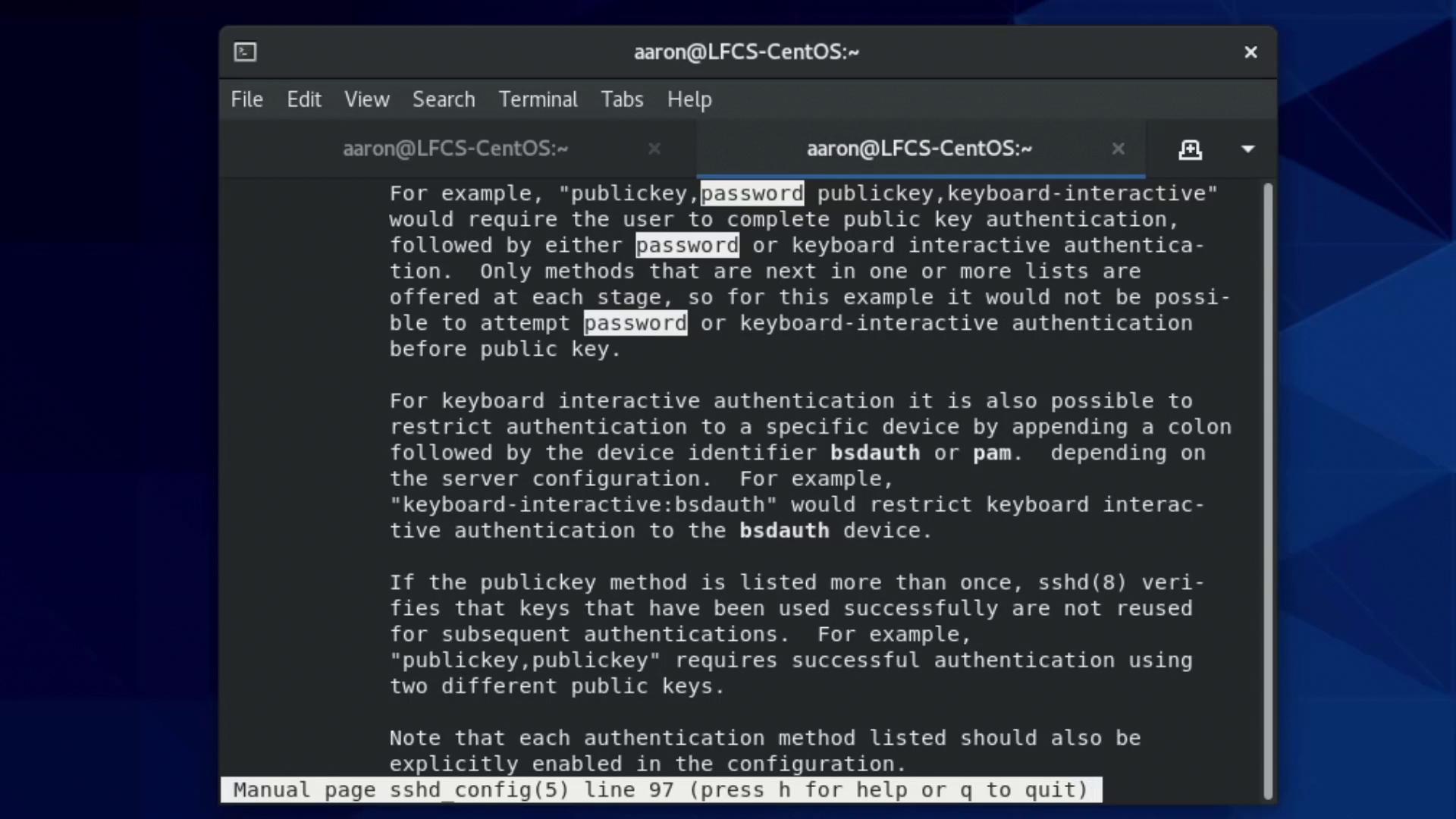
- To better understand various SSH authentication methods, search for “password” in the SSHD manual page. This returns information on public key, password, and other authentication techniques.
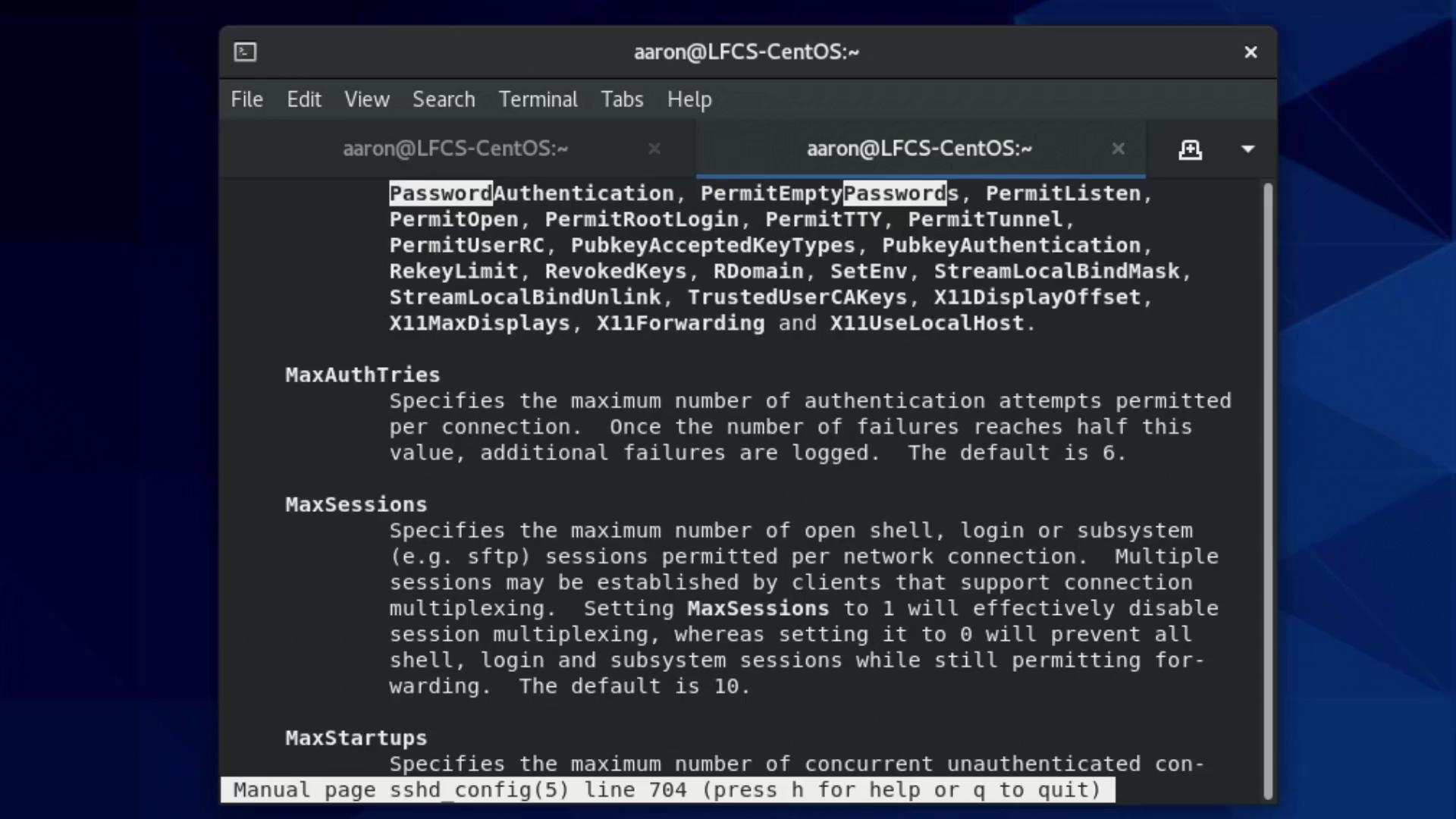
- Additional details on settings such as
PasswordAuthenticationandMaxAuthTriesare visible further down the manual page.
Conclusion
This guide has walked you through configuring both the SSH server and client on Linux with a focus on securing connections through key-based authentication. Begin by editing/etc/ssh/sshd_config to update your network and authentication settings. Generate SSH keys and update your client’s configuration for streamlined, secure connections.
:::note
Whenever you modify the SSH server configuration, remember to reload the daemon:
:::