

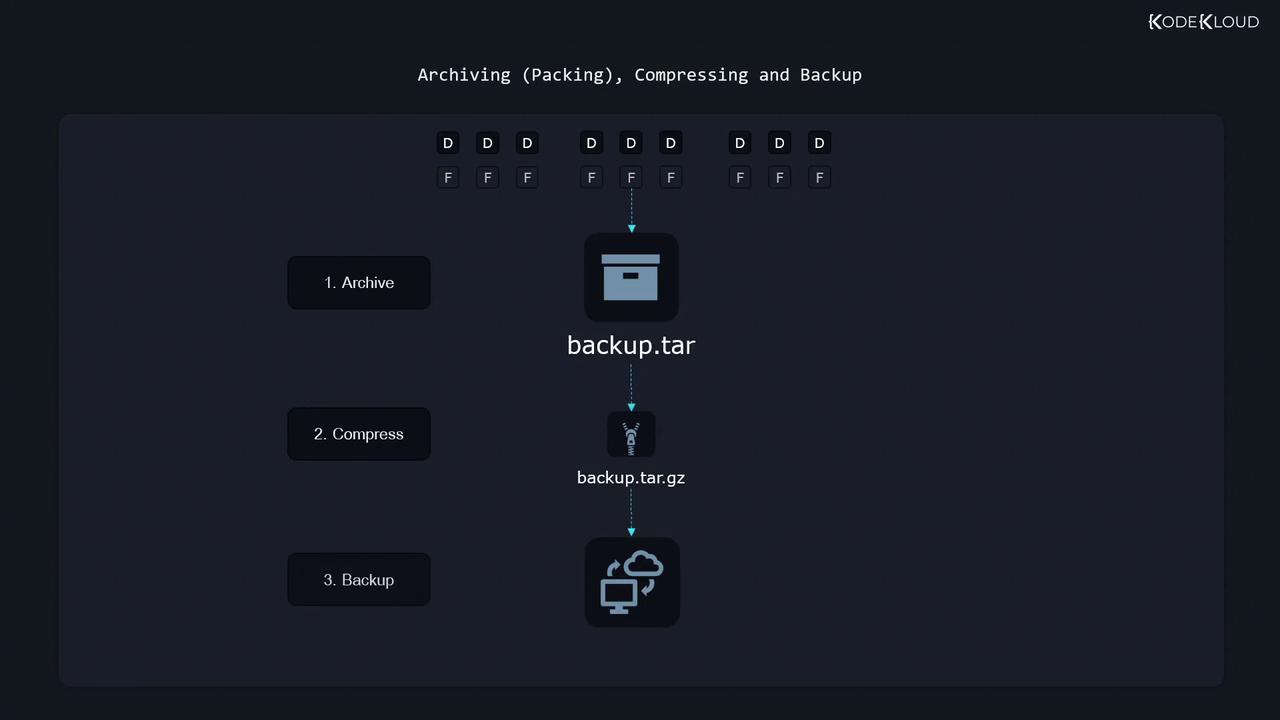
- Archive: Pack files and directories into a single file (e.g., backup.tar).
- Compress: Reduce the archive size by compressing it (e.g., backup.tar.gz).
- Backup: Transfer the compressed file to a remote system, shared drive, or cloud storage for safekeeping.
Understanding the Tar Utility
Tar, which stands for Tape Archive, was originally designed to back up data onto magnetic tapes. Despite the decline in tape usage, tar remains popular because it efficiently packages files and directories into a single file, commonly known as a “tarball” (with a .tar extension). This tarball can then be transferred and later unpacked on any system.Viewing the Contents of a Tar Archive
Assume you have an archive file namedarchive.tar. Tar offers various command-line options to manipulate this archive. To display its contents, you can use either the long option (--list) or the short option (-t). The following commands all yield the same result:
While the short option (
t) is quick to type, the long option (--list) is easier to remember when you’re just starting with tar.--file (or -f) option after listing the other options to indicate which archive file you’re working with.
Creating and Modifying Tar Archives
Creating a New Archive
To create a new tar archive and add a specific file (for example,file1), use the --create option:
Appending Files to an Archive
After creating the archive, you can add more files using the--append option:
Archiving Directories
You can also archive entire directories with all their contents. Note that the stored path in the archive depends on whether you use a relative or an absolute path. For example:Before extraction, it is advisable to list the archive contents to check the stored paths. This step ensures you understand how files will be extracted to your system.
Listing Archive Contents
To preview the stored paths in an archive:Extracting Files from a Tar Archive
When you extract files, tar places them in your current directory, preserving the stored directory structure:Extracting to a Specific Directory
If you need to extract the archive to a directory other than the current one, use the--directory (or -C) option. For instance, to extract the contents to the /tmp directory:
Handling File Permissions and Ownership
Tar archives retain file permission and ownership information. When extracting files owned by another user, you might not preserve these attributes if you extract them as a standard user. In such cases, consider usingsudo to extract the files as the root user to restore all permissions and ownership accurately.
When extracting sensitive archives containing files owned by other users, always use
sudo to ensure file permissions and ownership are maintained.