

1. Authenticate to the AWS Lab Account
When the lab starts, you’ll receive a URL and temporary credentials: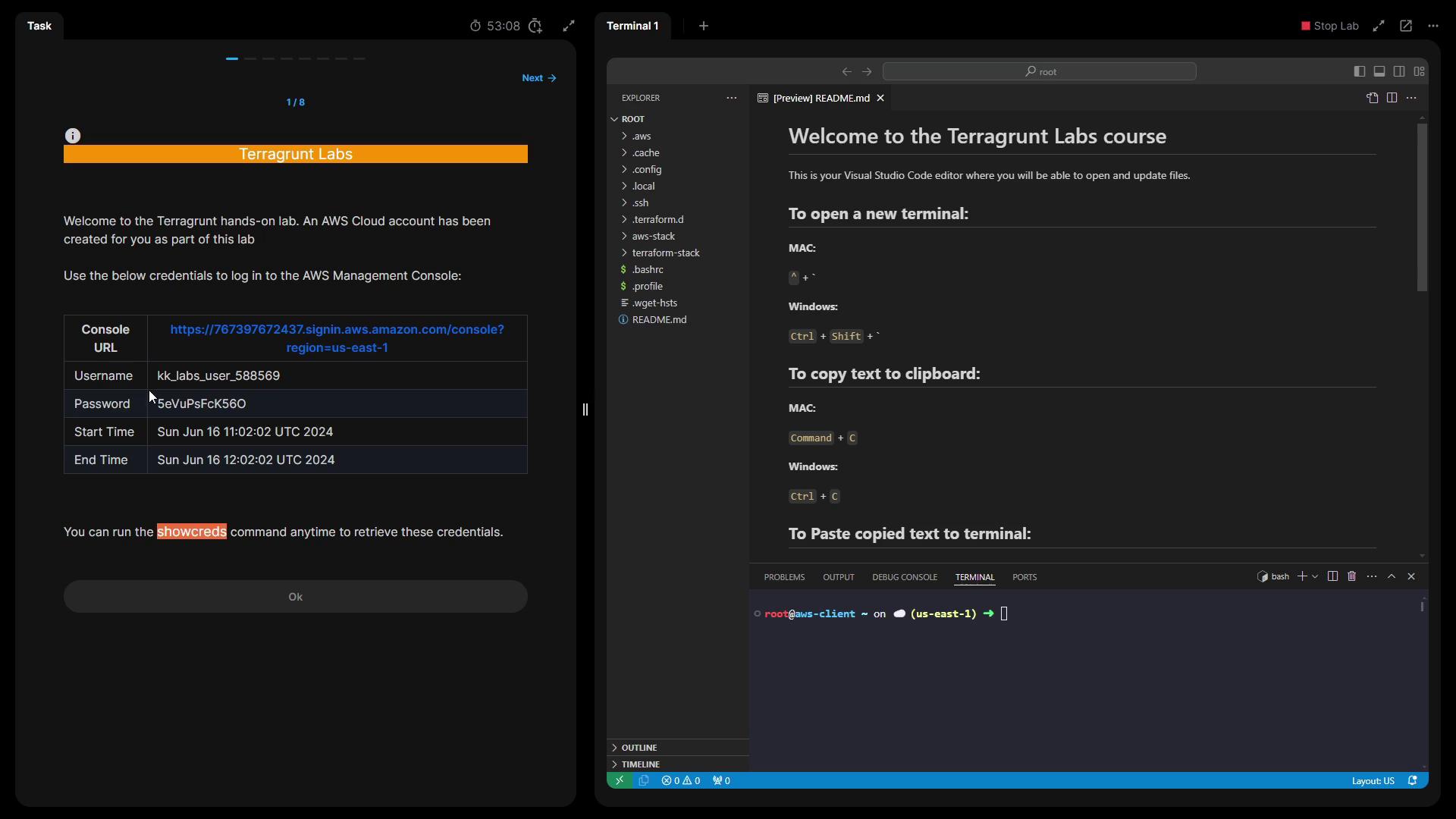
- Open the provided URL in your browser.
- Log in with the displayed username and password.
-
If you lose your credentials, run:
This lab account has limited AWS permissions. Only perform the tasks outlined in this lesson to avoid permission errors.
2. Confirm Terraform & Terragrunt Versions
SSH into the AWS client server and verify your toolchain:3. Inspect the VPC Module
Navigate to theaws-stack/vpc directory where the VPC module lives:
terragrunt.hcl to review:
Provider Version Override
To ensure compatibility, this module locks the AWS provider to major version 5:Locking the AWS provider version prevents unexpected breaking changes when Terraform and modules update.
4. Initialize the Terragrunt Project
Initialize the backend and download provider plugins:5. Plan the VPC Deployment
Generate and review the execution plan:6. Apply the Configuration
Create the VPC resources:yes when prompted. After completion:
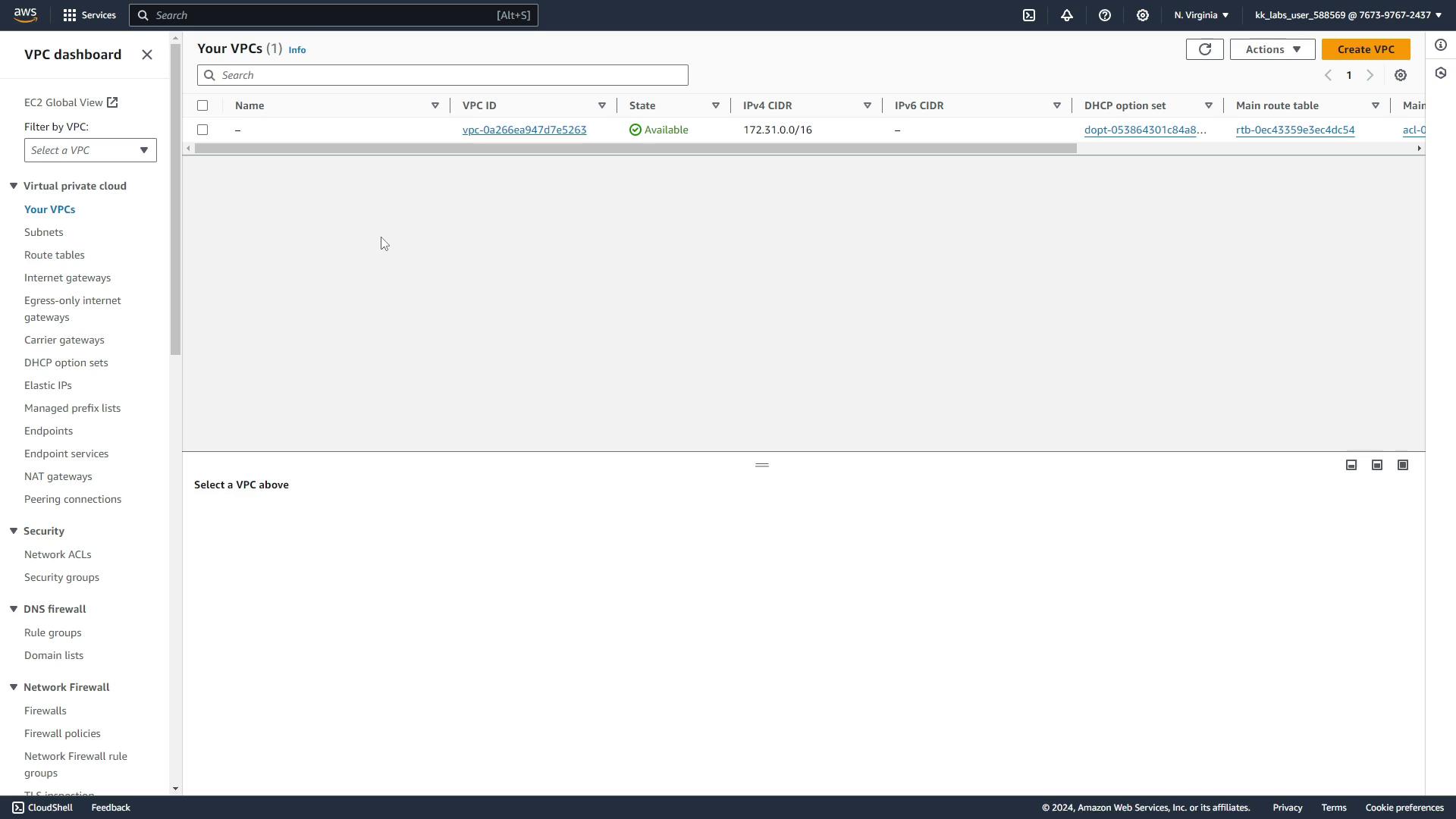
7. Clean Up: Destroy the VPC
Remove all created resources to avoid incurring costs:yes. You’ll see: