

nslookup inside a pod returns nothing, the pod usually cannot reach cluster DNS. Use this guide to quickly diagnose whether the issue is CoreDNS itself or cluster networking (for example, a NetworkPolicy blocking DNS).
Start by checking the DNS provider. In Kubernetes, pods use CoreDNS (running in the kube-system namespace) which is exposed via a Service commonly named kube-dns. When DNS fails, the two primary areas to investigate are:
- Is CoreDNS healthy and configured correctly?
- Can the pod reach CoreDNS across the network (e.g., no NetworkPolicy or firewall blocking egress)?
1) Check CoreDNS pods and logs
List CoreDNS pods and look at their status:2) Inspect the Corefile (CoreDNS configuration)
CoreDNS uses a Corefile composed of plugins. Typical plugins include:kubernetes— resolves in-cluster services and pod names to IPs (e.g.,orders.default).forward— forwards external queries (e.g.,google.com) to upstream resolvers.cache— caches responses for a configurable TTL.loop— detects and prevents forwarding loops.
loop plugin:
If CoreDNS logs indicate a forwarding loop and pods are shutting down, correct the Corefile (fix upstream addresses or add
loop) and then roll the CoreDNS pods to apply the fix.3) If CoreDNS is healthy, check network access (NetworkPolicy / firewall)
When CoreDNS pods areRunning but pods still cannot resolve names, the next likely cause is blocked network traffic. By default, pods can egress anywhere. But if a namespace has a default-deny egress NetworkPolicy (or other firewall rules), you must explicitly allow DNS traffic.
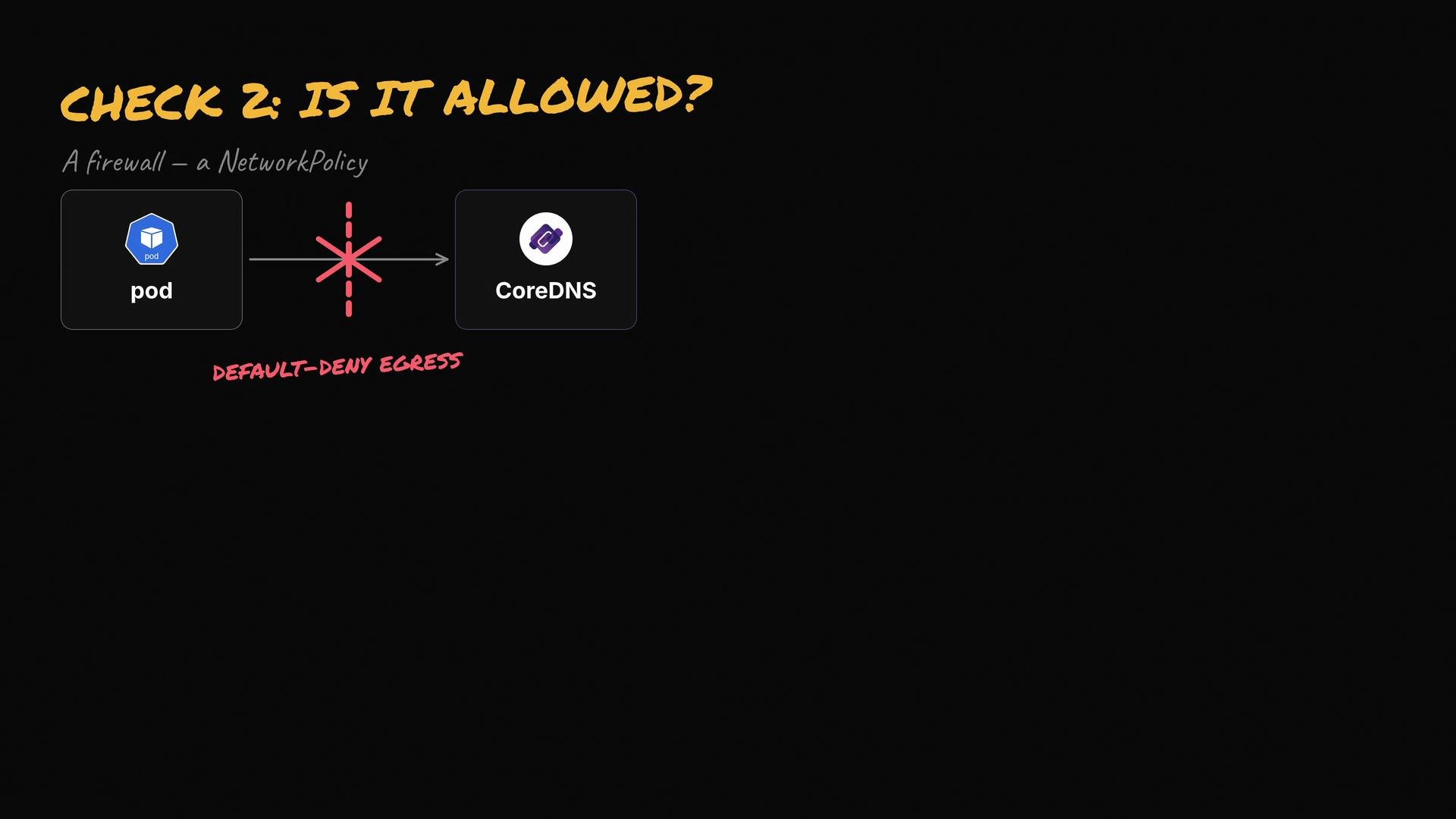
- Egress to CoreDNS pods (select by pod labels) or to the cluster DNS IP block (
IPBlock). - Both UDP and TCP on port
53(DNS primarily uses UDP; TCP is used for large responses and zone transfers).
kube-system by namespace + pod labels:
- NetworkPolicy cannot target a
Servicedirectly. Allow traffic to the CoreDNS pods (via podSelector and namespaceSelector) or to the DNS IP range. - If your cluster uses a single cluster DNS IP (ClusterIP Service), you can also allow the cluster IP via an
IPBlockif you prefer allowing IPs rather than pod selectors.
Always allow both UDP and TCP on port
53 in egress rules to ensure full DNS functionality.Quick troubleshooting checklist
Summary
- If a pod can’t reach cluster DNS, either CoreDNS is unhealthy (check pods, logs, and the Corefile) or network rules (NetworkPolicies) are blocking DNS traffic.
- Check CoreDNS pod status and logs first. If CoreDNS is healthy, verify NetworkPolicies allow UDP/TCP port
53to the CoreDNS pods or the DNS IP address range.