

Why context matters
- Context is the information provided to the model that helps it understand your requirements and produce appropriate responses.
- Good context improves suggestion relevance and accuracy, reduces repeated clarifications, and speeds up development.
- When Copilot consistently understands your codebase and intent, you spend less time editing suggestions and more time solving problems.
- Increase the relevance of Copilot suggestions by providing the most appropriate information.
- Reduce back-and-forth clarifications by giving the right context up front.
- Improve development efficiency by receiving accurate suggestions faster.
What is context for Copilot?
Context is everything that helps the model understand what you’re trying to accomplish: code files, selected text in your editor, terminal output, recent source-control changes, repository-level instructions, and any explicit instructions you provide.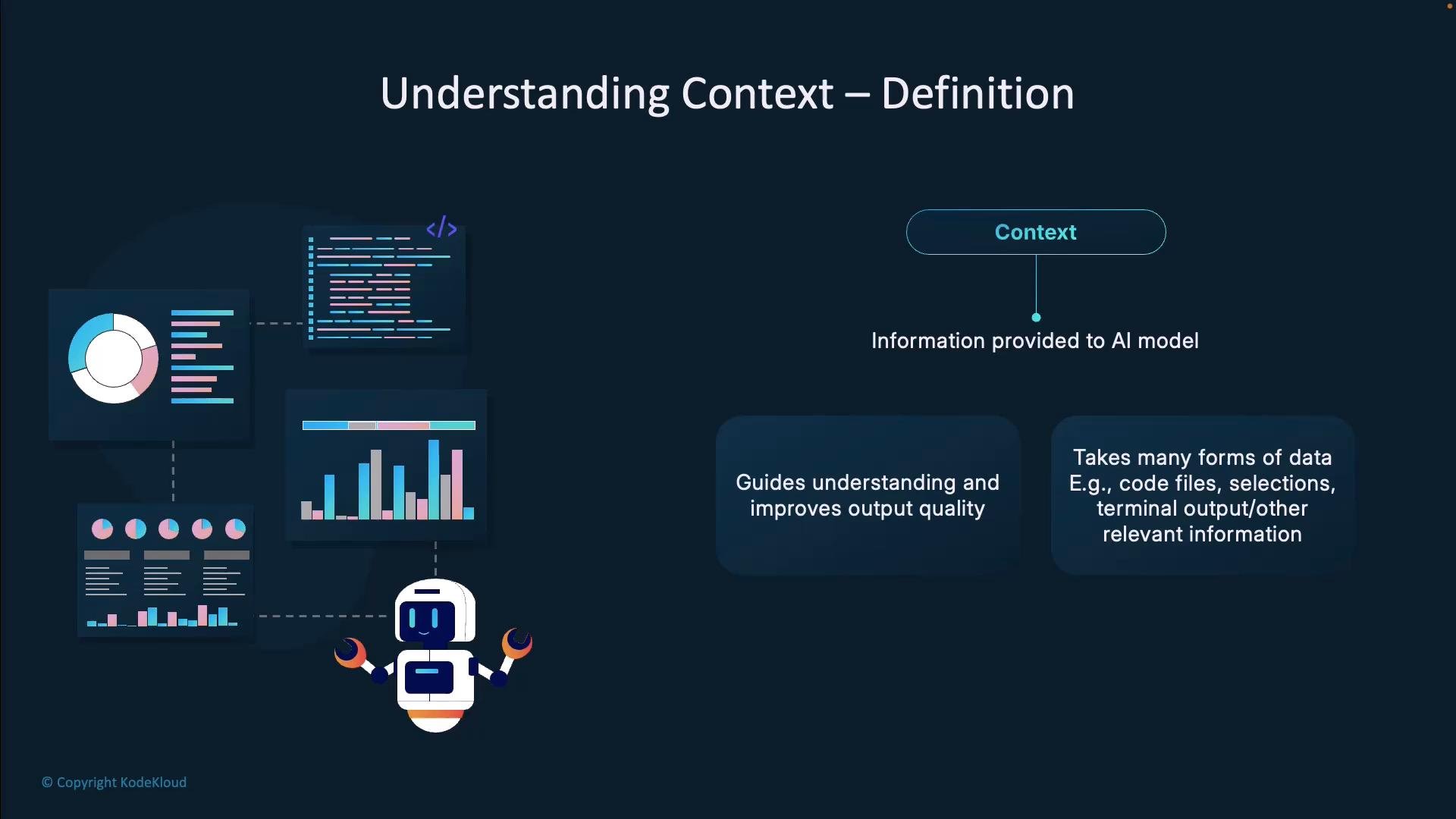
Types of context
There are three main types of context that influence Copilot’s suggestions: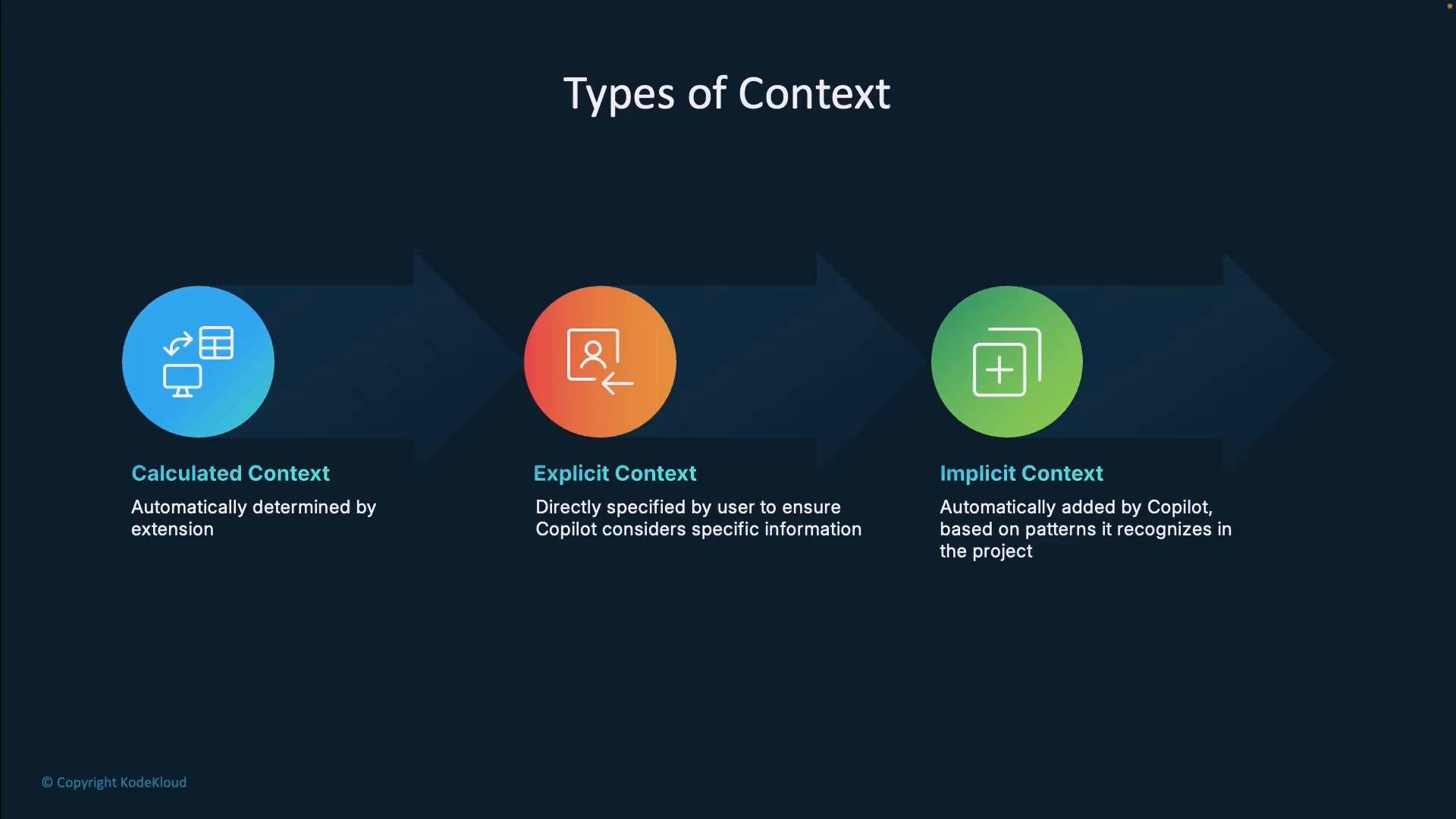
Calculated context
Calculated context is chosen automatically by Copilot to maximize relevance. For example, when you use the@workspace agent or ask a project-level question, Copilot analyzes your prompt and selects files from your workspace that it considers most relevant. This reduces manual work and narrows the surface area, letting you focus on describing what you need.
Explicit context
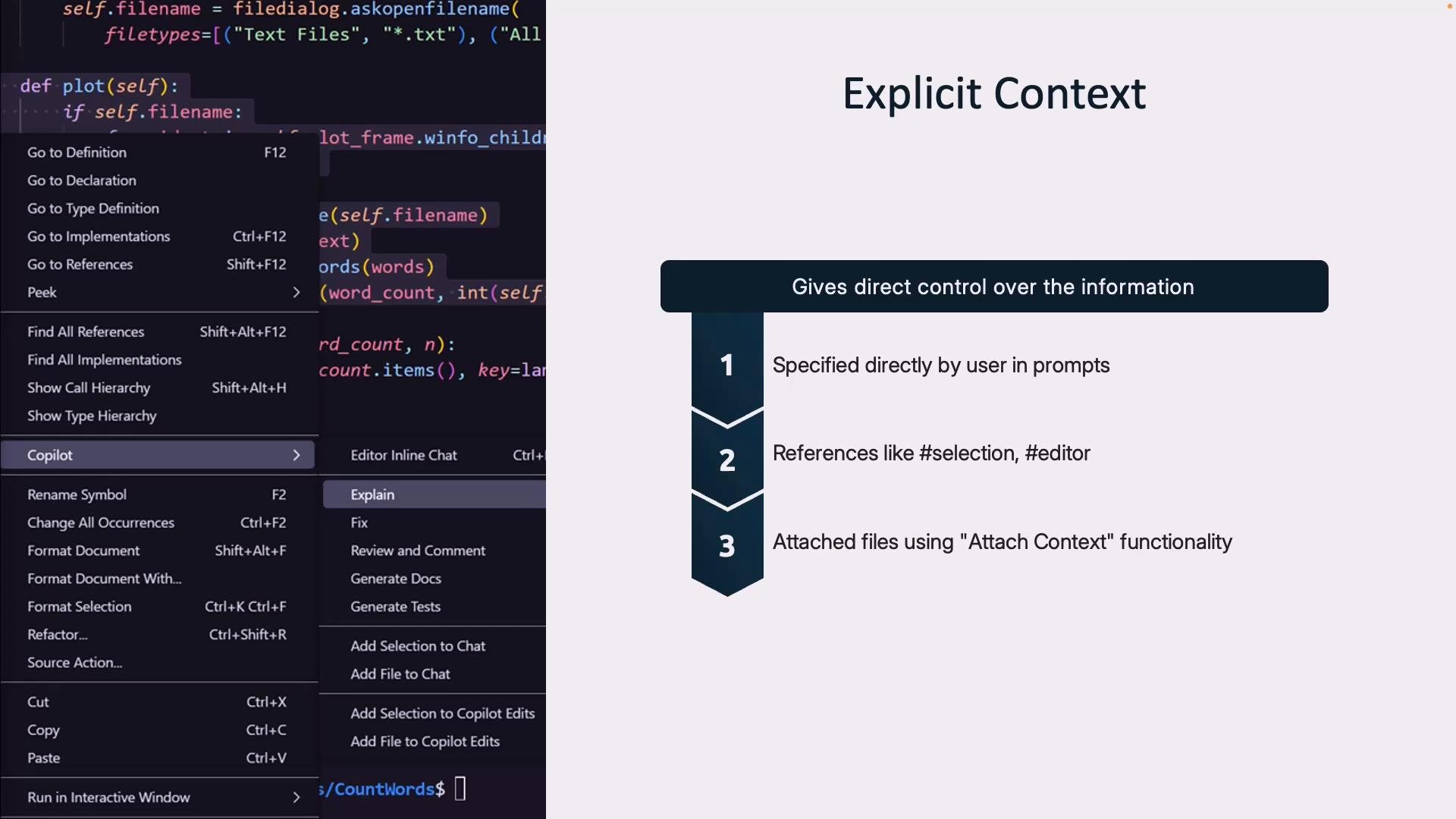
Explicit context is where you tell Copilot exactly what to consider. Common approaches:- Describe the context in natural language within your prompt.
- Use references like
#selectionand#editorto point to editor content. - Attach files via Attach Context when the relevant files are not part of calculated context.
Implicit context
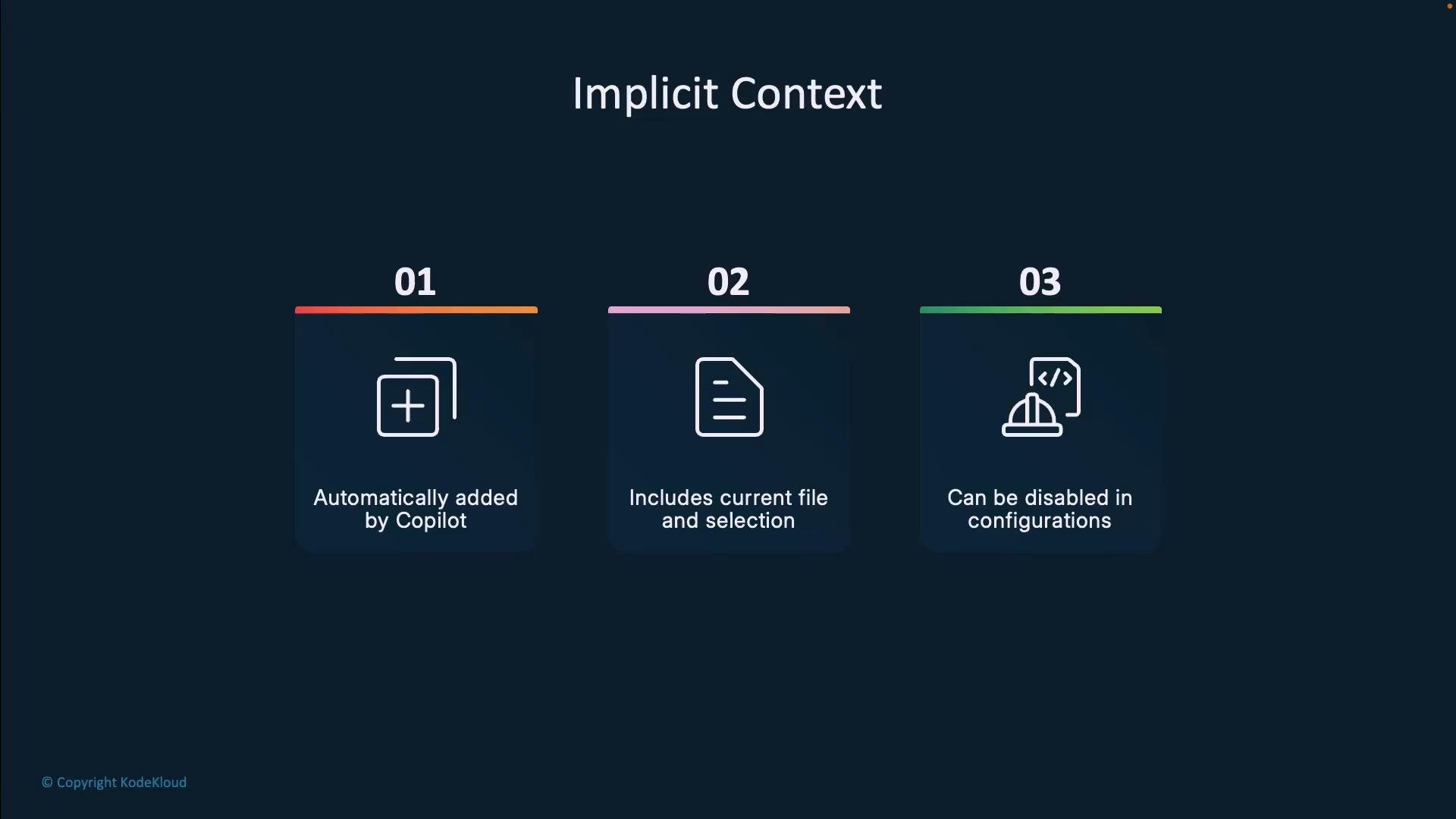
Implicit context is added automatically by Copilot and typically includes:- The current file you’re editing
- Any selected text in the editor
- Visible editor contents (when
#editoris used)
Sources of context Copilot can draw from
- Code files and project structure (modules, dependencies, and architecture)
- Current editor selection and visible editor content
- Terminal output (errors, build logs, command results)
- Source-control metadata and recent changes
- Repository-level instructions such as
.github/copilot-instructions.md
Practical example: Word Count GUI (consolidated)
Below is a consolidated, corrected example of a simple Tkinter-based Word Count application. This shows how file selection, text processing, and Matplotlib plotting can be structured in a single module.FigureCanvasTkAgg import from matplotlib.backends.backend_tkagg so it can be embedded into a Tkinter application. For more on Tkinter and Matplotlib integration, see the Python docs for Tkinter and Matplotlib’s user guide: https://docs.python.org/3/library/tkinter.html and https://matplotlib.org/stable/users/index.html.
Specialized agents
Copilot exposes specialized agents you can reference in chat to access different types of context: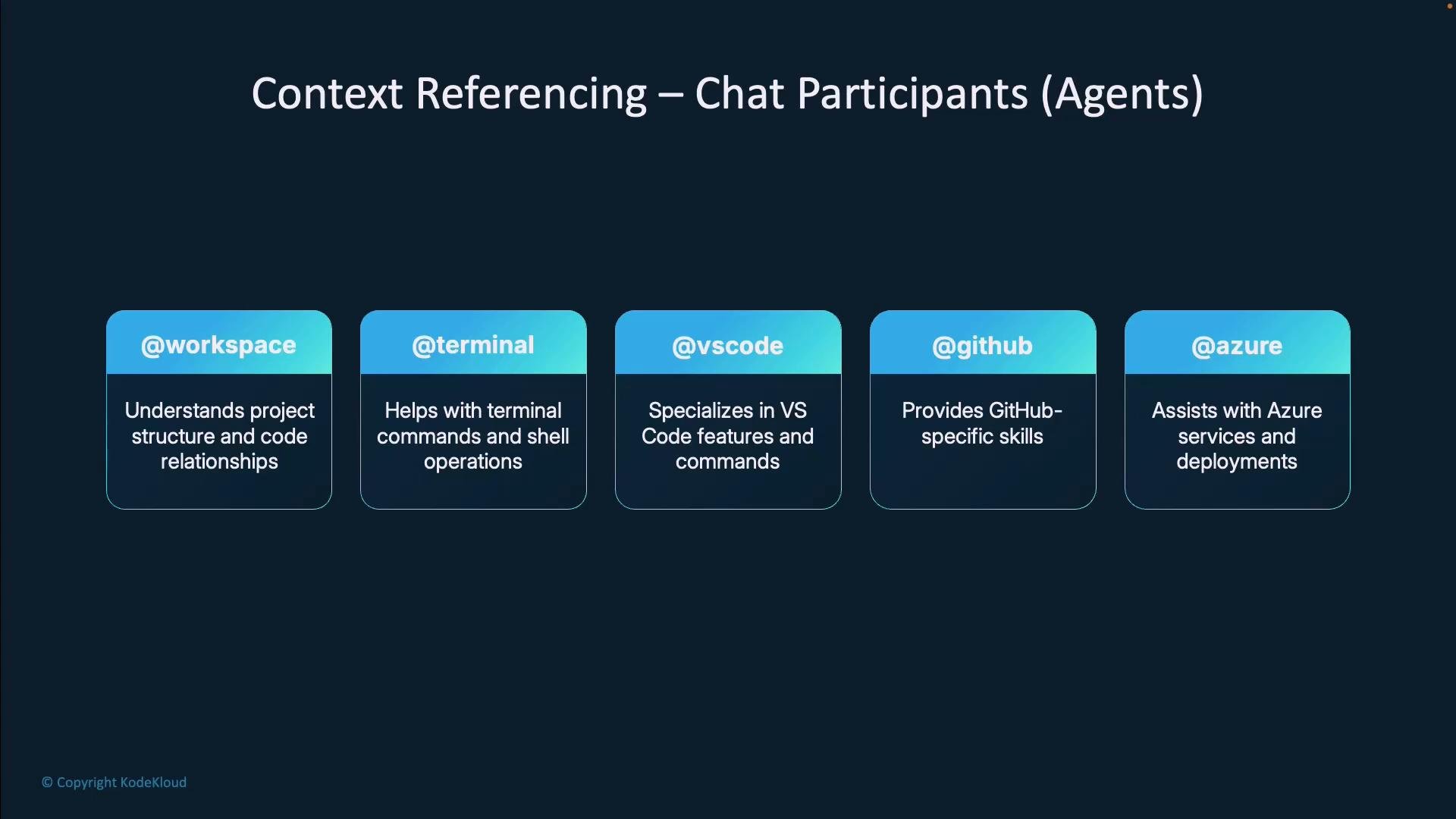
References and symbol targeting
When you need to reference files or symbols precisely, use these directives:#file <filename>— point Copilot to a specific file in the repo.#sym— target a specific symbol (function, class, or variable) and open a symbol picker.#selection— direct Copilot to the current editor selection.#editor— include the visible contents of the active editor.#codebase— give Copilot relevant workspace content.#changes— include source-control changes (recent modifications).#terminal— reference terminal output or last command.
Promoting inline chat to full chat
If you start a short, inline chat in the editor and the discussion grows longer or requires referencing earlier messages, promote the inline chat to a full chat window. This preserves context and provides a larger workspace for longer troubleshooting or code review sessions. Context references are especially useful for debugging, resolving build issues, or reviewing recent changes because they let Copilot see relevant parts of your repo beyond a single file.Repository-level and custom instructions
For fine-grained control over Copilot behavior, add repository-level instructions in.github/copilot-instructions.md. Copilot considers these instructions for interactions in that repository. Use repository-level instructions to encode team conventions, code style preferences, test requirements, and other project-specific rules.
Example (place in .github/copilot-instructions.md):
Balancing context volume
Too little context and Copilot lacks necessary information; too much context and the model may be distracted by irrelevant data. Shape the context you provide — prefer concise, relevant context for the task at hand. Use#selection, #sym, and repository-level instructions to narrow Copilot’s focus.
Provide enough targeted context (files, symbols, and short instructions) and avoid dumping entire large files unless they are directly relevant. Use
#selection, #sym, and repository-level instructions to keep suggestions focused.Wrap-up
Context manipulation is a decisive skill for getting the most out of GitHub Copilot. Understanding calculated, explicit, and implicit context, how to provide them, and how to use specialized agents and repository-level instructions will help you obtain highly relevant suggestions, reduce clarification cycles, and accelerate development. Further reading and references:- GitHub Copilot docs: https://docs.github.com/en/copilot
- VS Code docs: https://code.visualstudio.com/docs
- Python Tkinter docs: https://docs.python.org/3/library/tkinter.html
- Matplotlib user guide: https://matplotlib.org/stable/users/index.html