

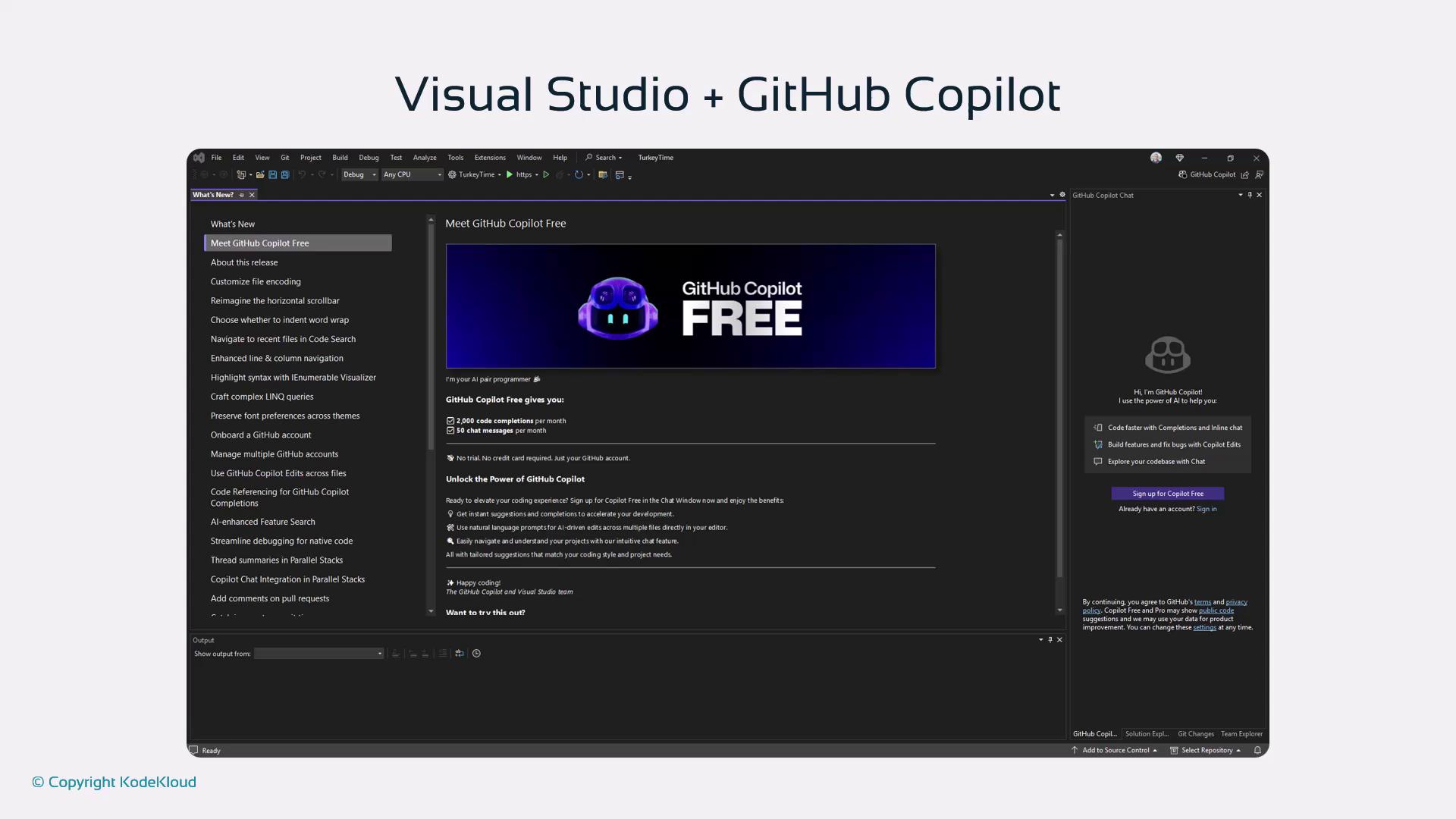
Visual Studio subscribers get Copilot Free automatically. Monthly limits reset on your billing date. To unlock unlimited completions, sign in with an existing GitHub Copilot subscription.
Core Slash Commands
Use these four slash commands for everyday productivity: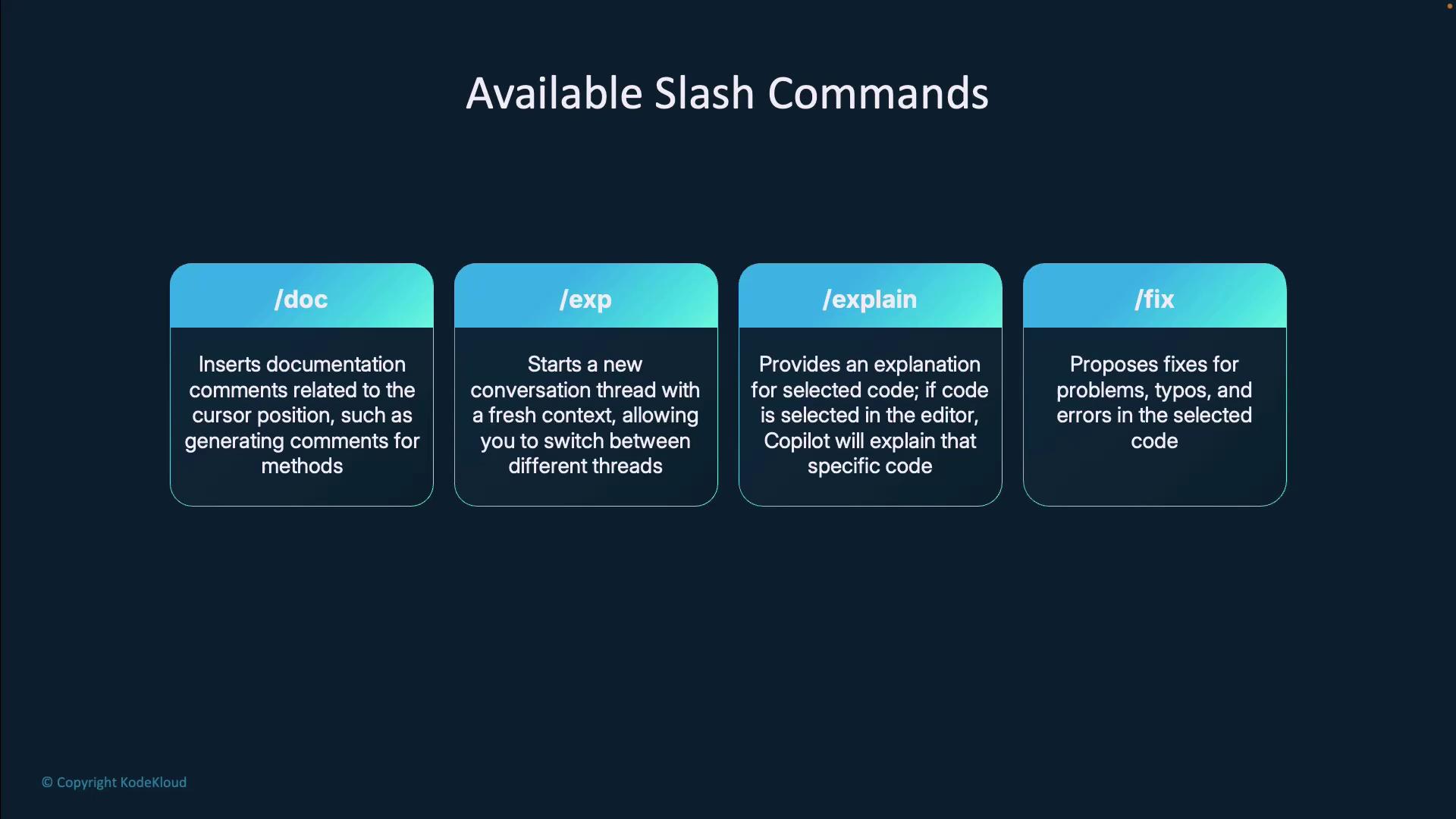
Additional Slash Commands
Beyond the essentials, Copilot offers specialized commands to streamline your workflow: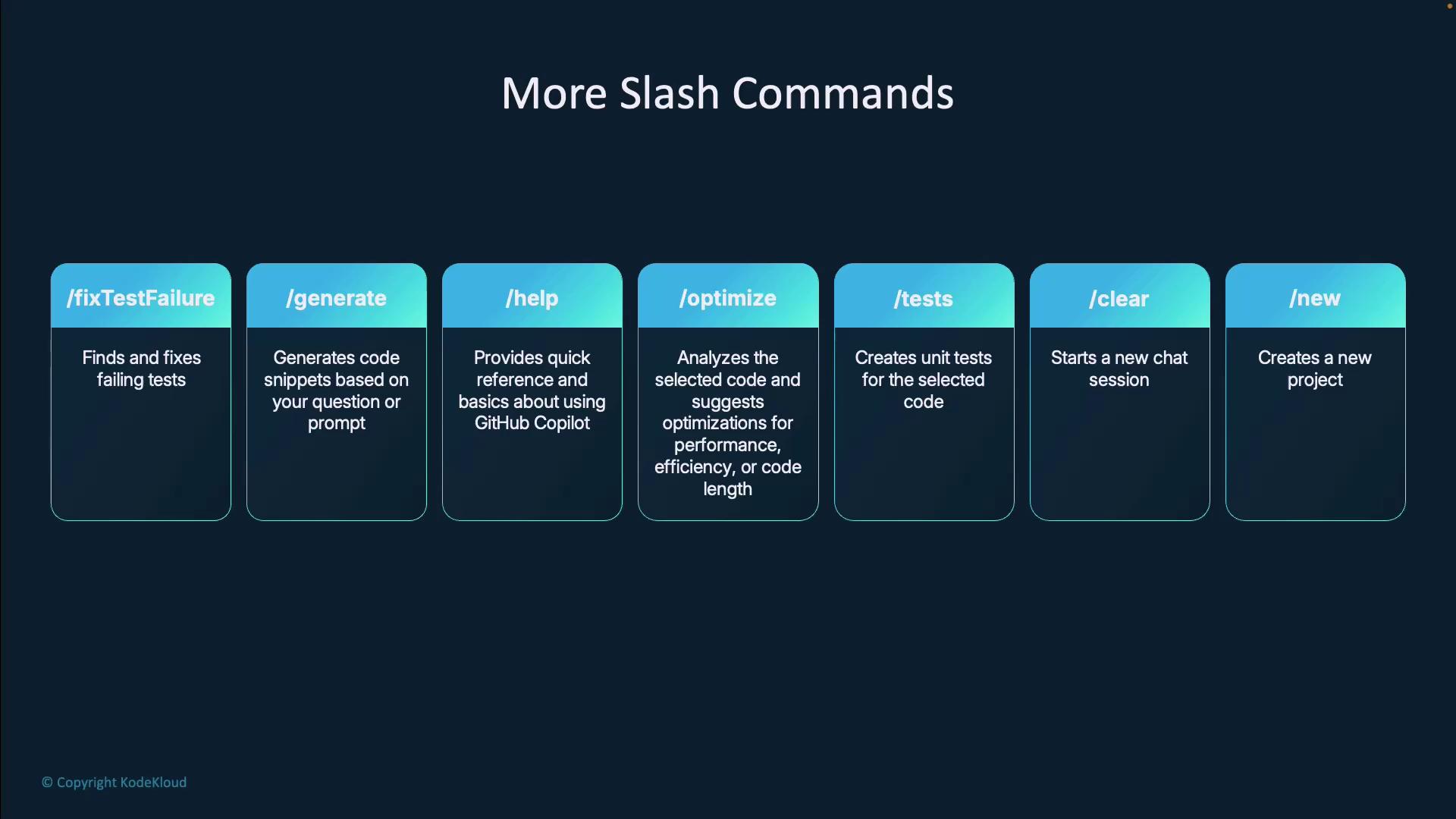
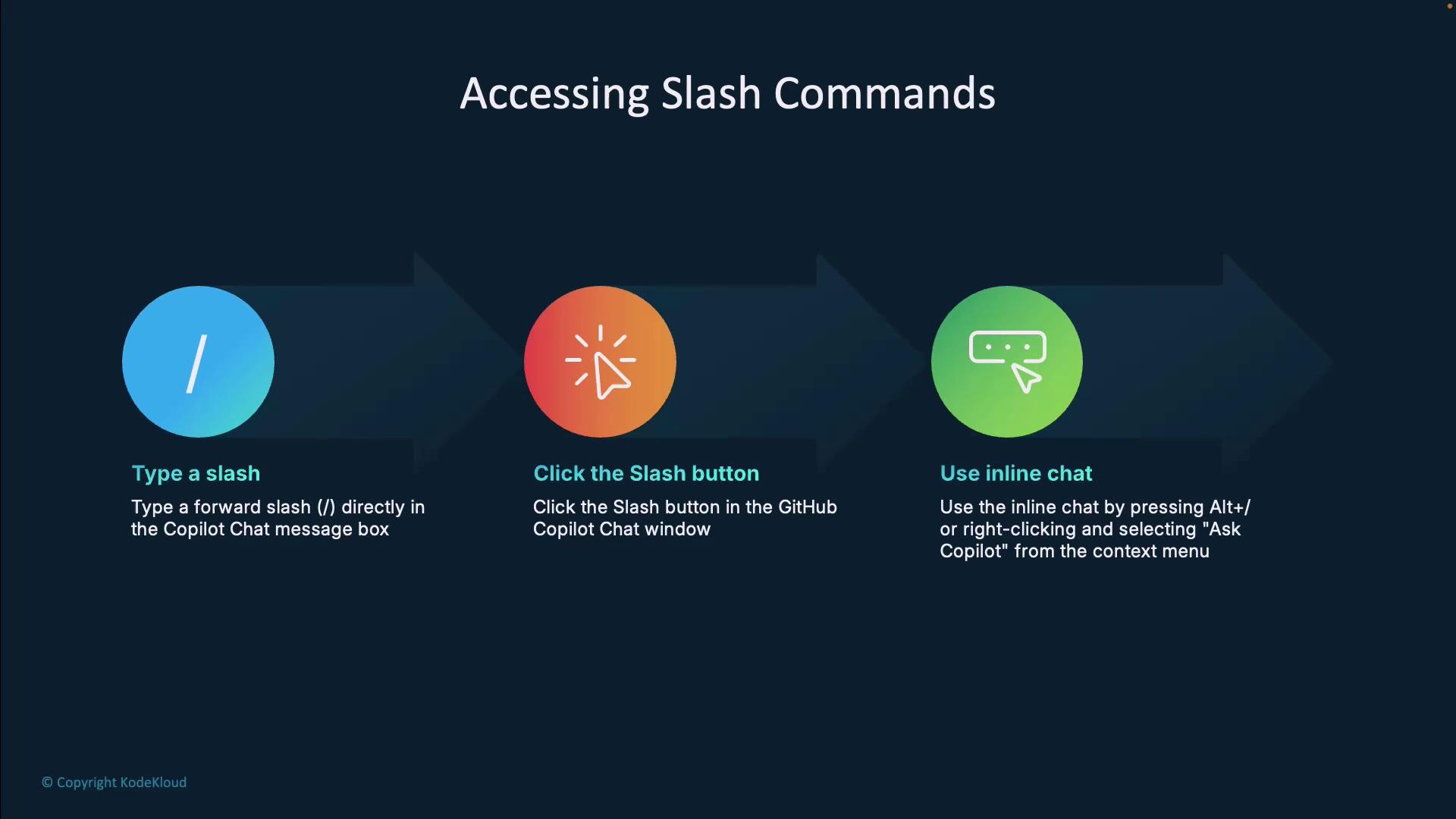
How to Access Slash Commands
Invoke slash commands in three simple ways:- Type a forward slash (
/) in the Copilot Chat message box. - Click the Slash button in the GitHub Copilot chat pane.
- Use inline chat: press Alt + / (or your custom shortcut), right-click in the editor, and choose Ask Copilot.
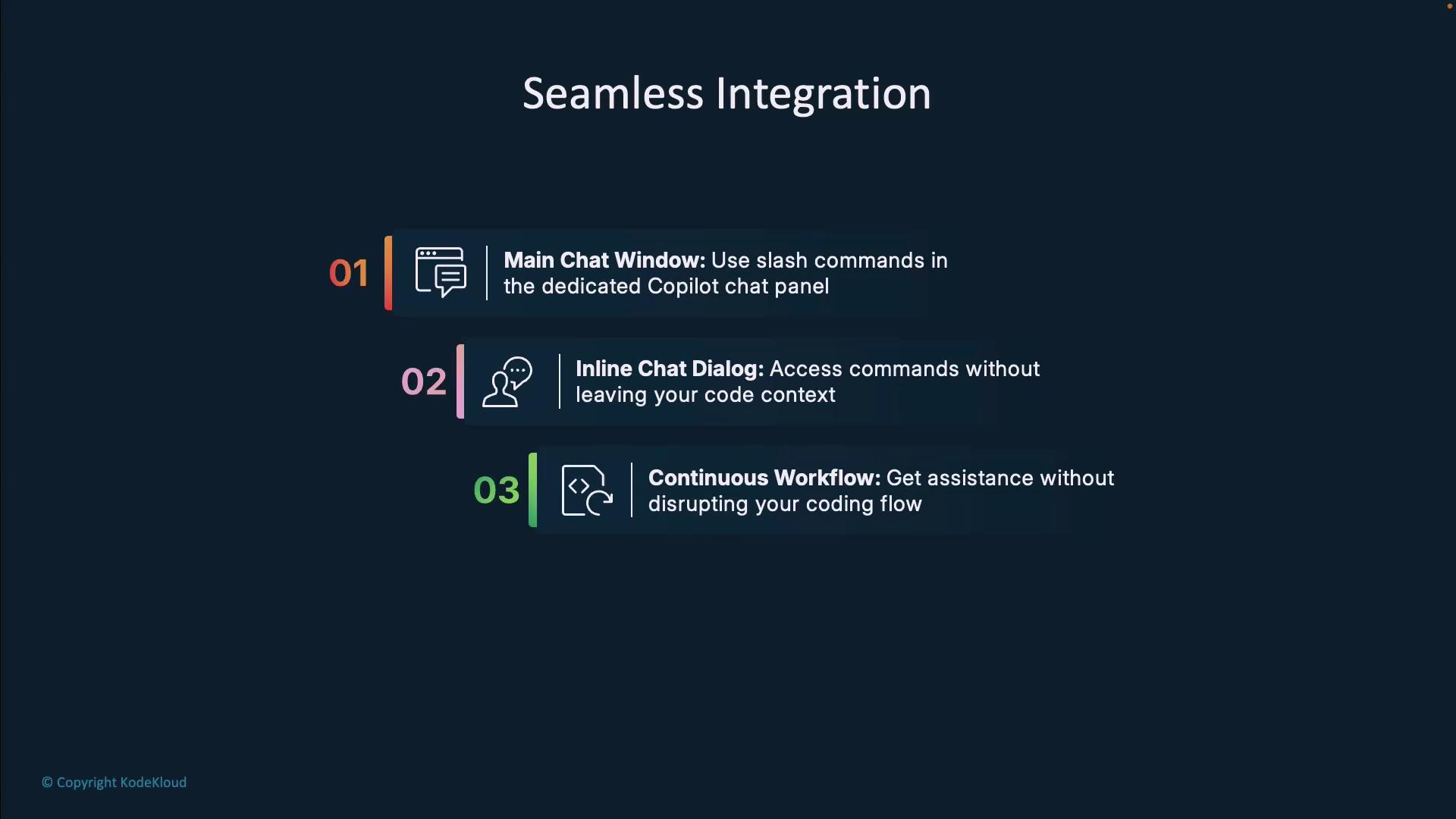
Seamless Integration
Whether you prefer a dedicated chat window or inline interactions, slash commands keep you focused:- Dedicated Chat Pane: Maintain a continuous conversation without switching contexts.
- Inline Chat: Invoke Copilot suggestions right beside your code.
- Unified Workflow: Both methods preserve your coding flow and history.
Demo: Slash Commands in Visual Studio
Below is a quick walkthrough showing how slash commands speed up documentation, explanation, and testing tasks.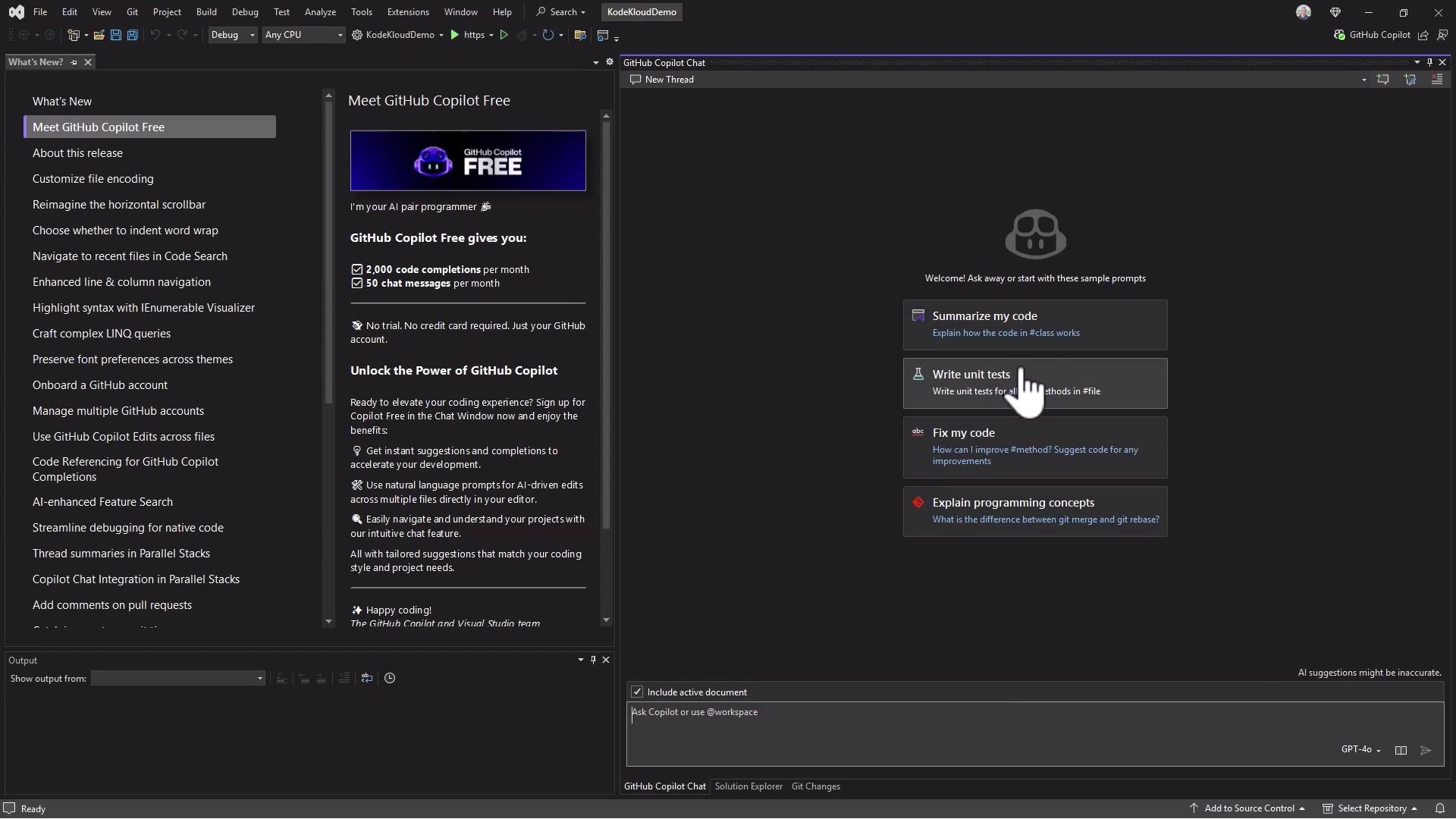
1. Generate XML Documentation
Open Program.cs, position the cursor, and type:2. Explain Code with /explain
Select a block:
/explain to get a step-by-step breakdown of each API call.
3. Generate Unit Tests with /test
Highlight methods and type:
If you use
/clear, all previous chat history is lost. Make sure to save important context or prompts before resetting.With these slash commands at your fingertips, you can document, explain, fix, test, and optimize your code—all without leaving your editor.
Links and References
- GitHub Copilot Slash Commands
- Visual Studio Documentation
- Visual Studio Code Slash Commands
- PEP 257 – Python Docstring Conventions
- xUnit Documentation