

Install GitHub Copilot
- Open the Extensions pane in VS Code and search for “GitHub Copilot”.
- Click Install.
- If this is your first installation, you’ll be prompted to sign into GitHub in your browser to authorize the extension.
Installing a pre-release version may expose experimental features that can change or break unexpectedly. Use pre-release builds only for testing or in non-critical environments.
Basic Copilot behavior and preferences
Copilot works out-of-the-box after installation, but several preferences let you control how and when suggestions appear. Key options:- Inline completions: show inline suggestions while typing. Disable if you prefer fewer distractions during focused editing.
- Per-language enable/disable: control Copilot per language. By default
*is enabled for all languages; you can disable specific languages (e.g., Markdown, plaintext). - Completion model: specify a model ID for enterprise/custom usage; leave blank to use the default model.
settings.json.
Table: useful Copilot settings at a glance
Example settings.json snippets
General editor settings with a placeholder for Copilot advanced configuration:If you add or change workspace-level Copilot instructions, reload the VS Code window (Command/Ctrl+Shift+P → “Developer: Reload Window”) so Copilot picks up the changes.
GitHub Copilot Chat (how it differs from inline completions)
GitHub Copilot Chat is a conversational interface that complements inline suggestions. It excels at tasks that benefit from multi-turn interaction, such as explaining code, fixing tests, generating unit tests, creating feature scaffolding, and performing code reviews. Key Chat features and options:- Fix test failure intent: automatically generate fixes for failing tests.
- Follow-up suggestions: control whether Copilot suggests follow-up messages (options include
always,firstOnly,never). - Locale override: change the language used by Copilot Chat.
- Chat scope selection: prompt to select a symbol or file scope for commands like
/explain. - Terminal chat location: choose where Quick Chat or full Chat appears (Chat view, Quick Chat, or Terminal).
- Use project templates: allow Copilot to suggest starter code from relevant GitHub repositories during
/new.
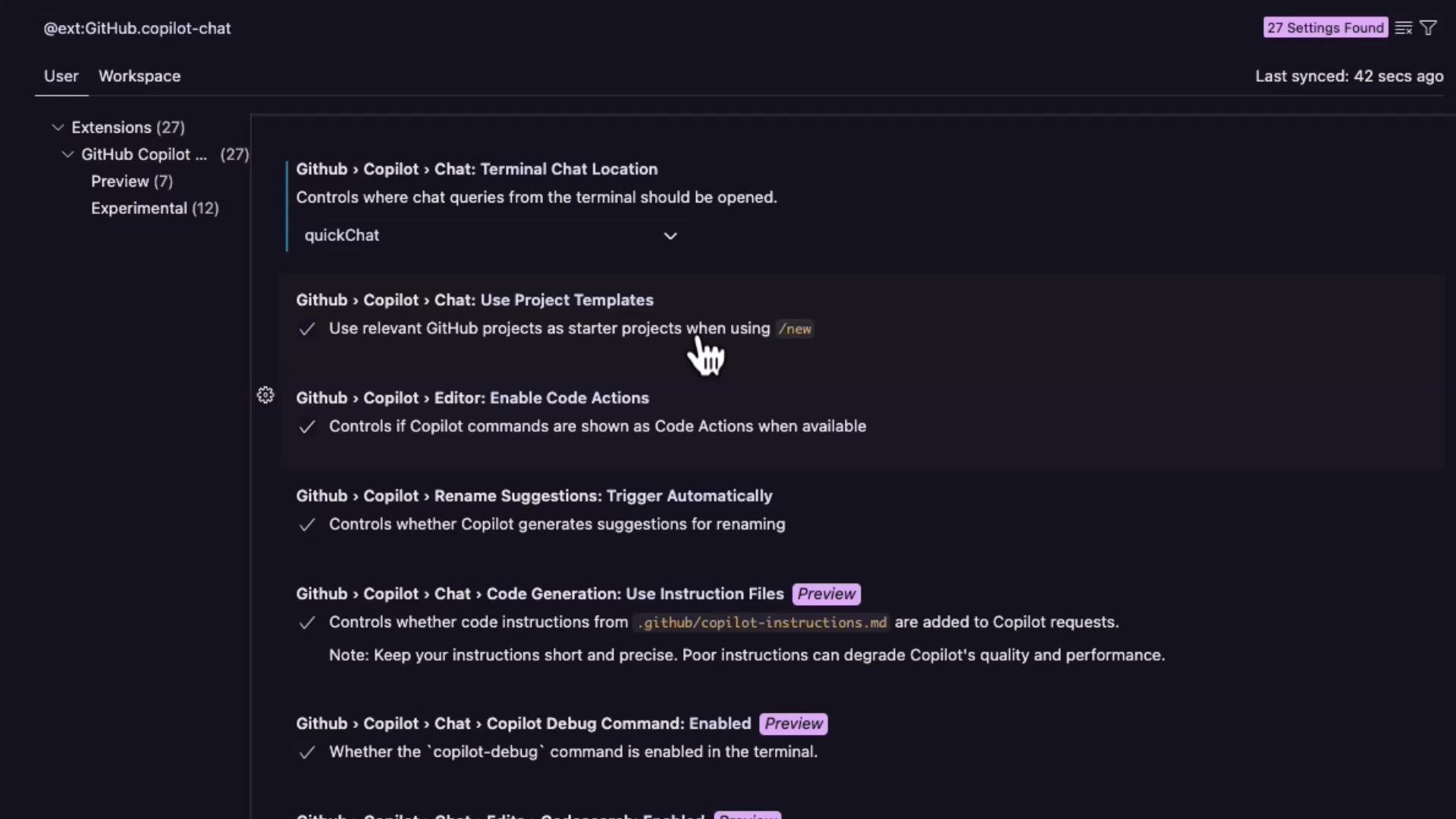
Code actions, rename suggestions, and experimental features
Copilot integrates with common editor affordances:- Code actions (lightbulb menu): Copilot can surface commands such as “generate documentation” or “generate tests” when applicable.
- Rename suggestions: Copilot may propose renames to match language and project conventions.
- Experimental and preview features: items labeled “Preview” or “Experimental” can change over time; examples include “suggest related files”, “temporal context”, and “test generation”. Expect these features to evolve.
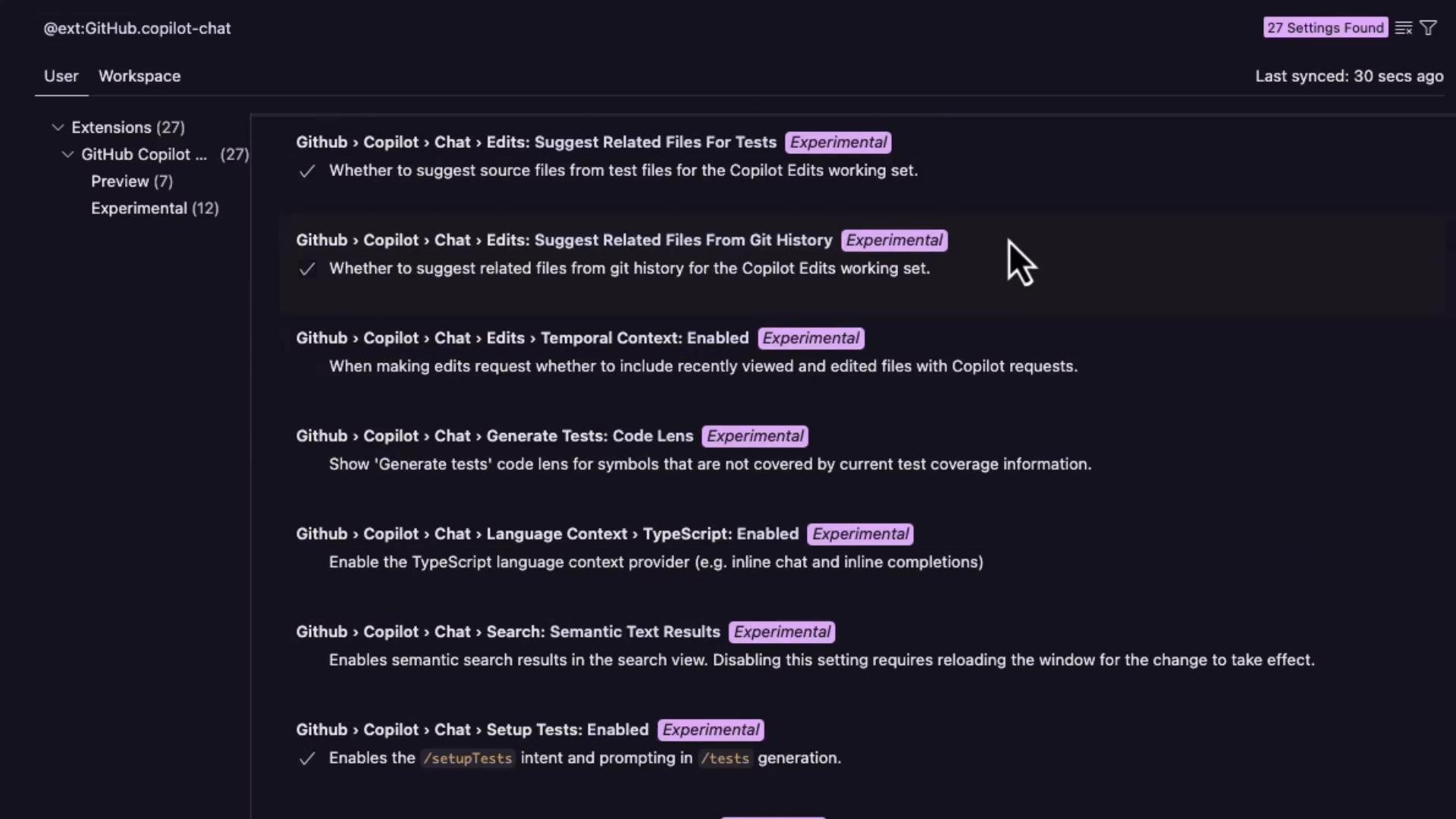
Advanced workspace instructions for Copilot
To influence how Copilot generates and reviews code across a repository, add a repository-level instructions file. These repository instructions are respected by Copilot and Copilot Chat. Create the directory and file from the terminal:.github/copilot/instructions.md:
Review tools and security checks
Copilot Chat offers quick code review suggestions for selected regions. It frequently flags obvious vulnerabilities or insecure patterns and provides recommended fixes, making it a useful first-line reviewer. However, do not rely solely on Copilot for security audits—use dedicated security tooling and manual reviews for production code.How Copilot uses context
Copilot combines local file content, project files, and explicit additions you make to the chat to produce relevant suggestions. Ways to provide context:- “Add File to Chat”: includes entire file content for the chat session.
- Select text + “Add Selection to Chat”: provides targeted context for multi-turn tasks.
- The chat UI will display which file(s) are in context (e.g., “app.py — current file”).
/new— create a new starter project (can use relevant GitHub repos if enabled)./fixTestFailureand/fix— request fixes for failing tests or specific issues./explain— ask Copilot to explain code in the selected scope./startDebugging— request a launch configuration or debugging steps.
Example: Using Copilot with a simple Flask app
This minimal Flask application demonstrates CRUD endpoints and keeps data in memory. Use it to test Copilot Chat prompts like “Generate tests for create_item” or “Create a /ping route”.app.py to Copilot Chat (using “Add File to Chat”), try prompts such as:
- “Explain what this file does”
- “Generate pytest tests for the create_item endpoint”
- “Review the create_item function for potential security issues”
- “Create a
/pingroute that usesping_dbto check connectivity”
Example workflow commands
Create repository-level instructions from the terminal:.github/copilot/instructions.md and add your project rules and coding standards. Commit this file to the repository so Copilot will respect these guidelines when editing or generating code.
Summary
- Install GitHub Copilot from the VS Code Extensions pane and authorize with your GitHub account.
- Control behavior via the Settings UI or
settings.json(inline completions, per-language enable/disable, completion model). - Use GitHub Copilot Chat for deeper interactions: explanations, test generation and fixes, code review, and scaffolding.
- Add
.github/copilot/instructions.mdfor repository-level guidance and use file-level comments for per-file instructions. - Populate the chat context (files or selections) to get more accurate and relevant suggestions.
Links and References
- GitHub Copilot documentation
- Visual Studio Code documentation
- Flask documentation
- Kubernetes Documentation