

1) Repository-level Copilot instructions
A simple, high-impact step is to add repository-specific instructions so Copilot knows your coding standards and style preferences. Create a.github folder at the repo root and add a Markdown file named copilot-instructions.md. GitHub Copilot will consult this file when generating code for that repository.
Steps to create the file:
Example
copilot-instructions.md (PEP 8–oriented) — this is a practical template you can adapt to your project:
.github/copilot-instructions.md biases Copilot toward the conventions you enforce across the repository, producing more consistent and reviewable suggestions.
Put repository-wide rules in
.github/copilot-instructions.md so Copilot automatically uses them for code generation in that repo.2) Example output you can expect
When Copilot follows the PEP 8 guidance above, generated Python code will be more consistent: proper naming, type hints, docstrings, and readable formatting. Here are two concise examples that illustrate the expected style. Example: function with type hints and docstring# function to calculate the sum of two integers can produce quick results, but using Copilot Chat or the completions panel typically yields suggestions that better respect copilot-instructions.md.
3) Copilot Chat, completions panel, and keyboard shortcuts
Copilot provides both a Chat interface and a Completions panel. The Completions panel surfaces multiple candidate implementations so you can compare alternatives (different shapes of type hints, various docstring styles, handling edge cases, etc.) and pick the best fit. Customizing and memorizing keybindings for actions like opening Copilot Chat, toggling completions, and accepting suggestions saves time. Make sure you know the shortcuts your editor exposes and optionally customize them to match your workflow.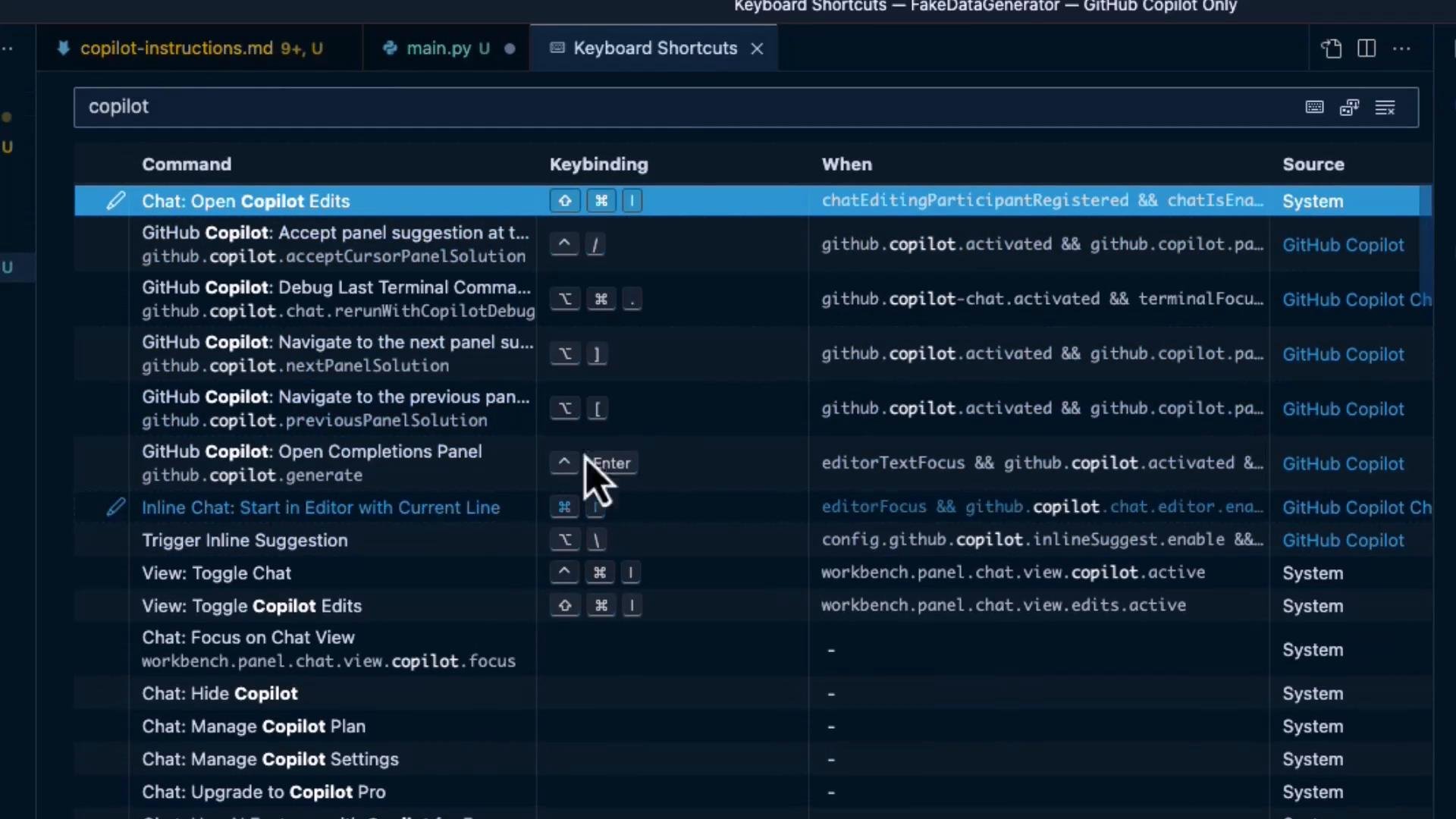
4) Model selection and editor context
Copilot may offer different backend models depending on your plan and environment. Switching models is a fast way to get a different style or level of reasoning when the first set of completions isn’t ideal. Also ensure the file you want Copilot to consider (for example,main.py) is the active editor tab — Copilot uses the active editor context to generate relevant completions. If the wrong file is active or the editor has too many open tabs, Copilot may use less relevant context.
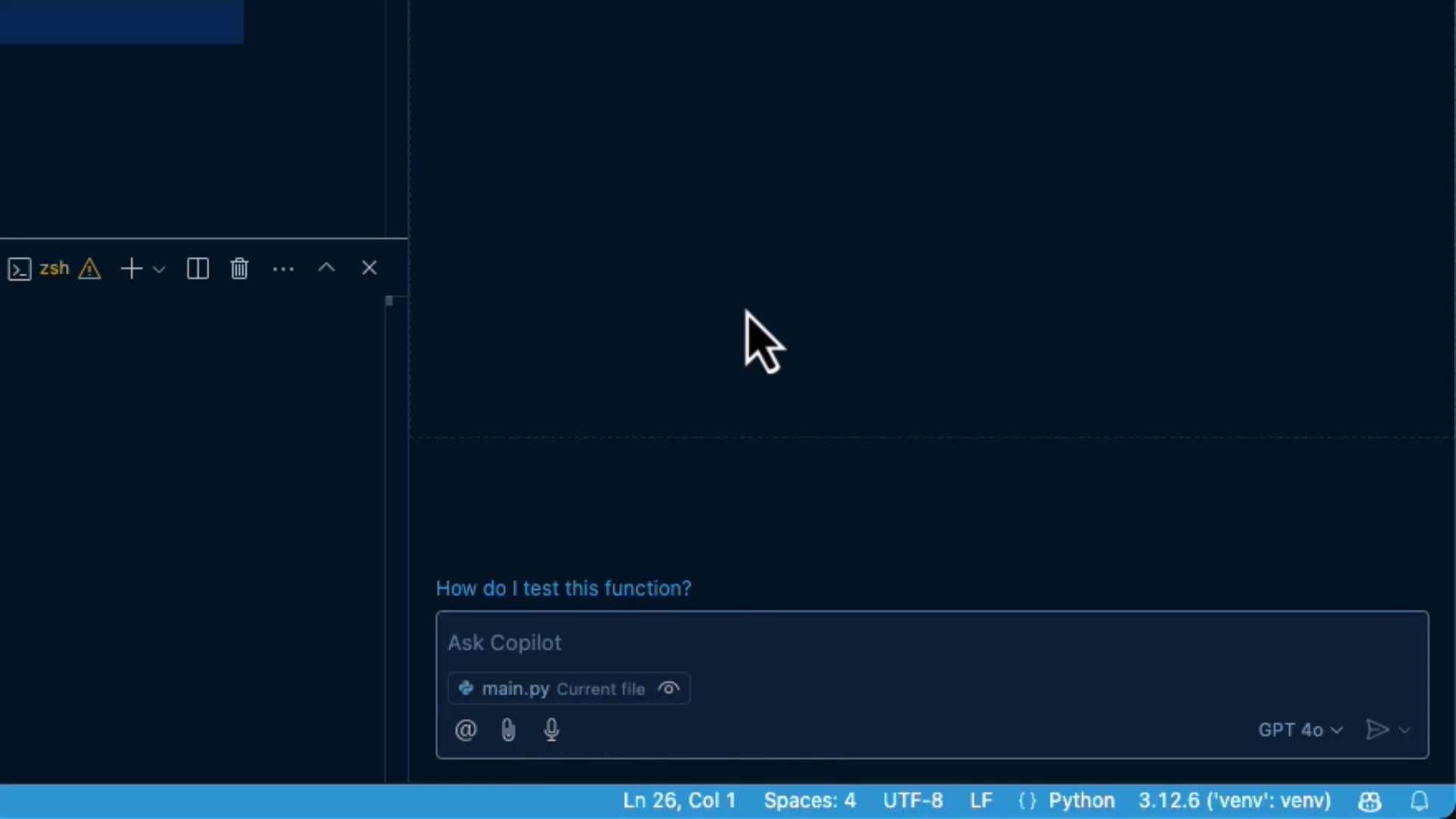
- Try switching models if suggestions lack creativity or precision.
- Keep the target file open and active during code generation.
- Use Copilot Chat for stepwise reasoning or to ask clarifying questions.
5) Keep the editor context focused
Large projects and many open files can push relevant code out of Copilot’s context window. To improve suggestion accuracy:- Close unrelated tabs and only keep files relevant to the current task open.
- Fold large files or split work into smaller focused files/modules where possible.
- Open and highlight the specific function or class you want Copilot to reason about.