

- Setup options (GitHub CLI extension or Windows Terminal Canary)
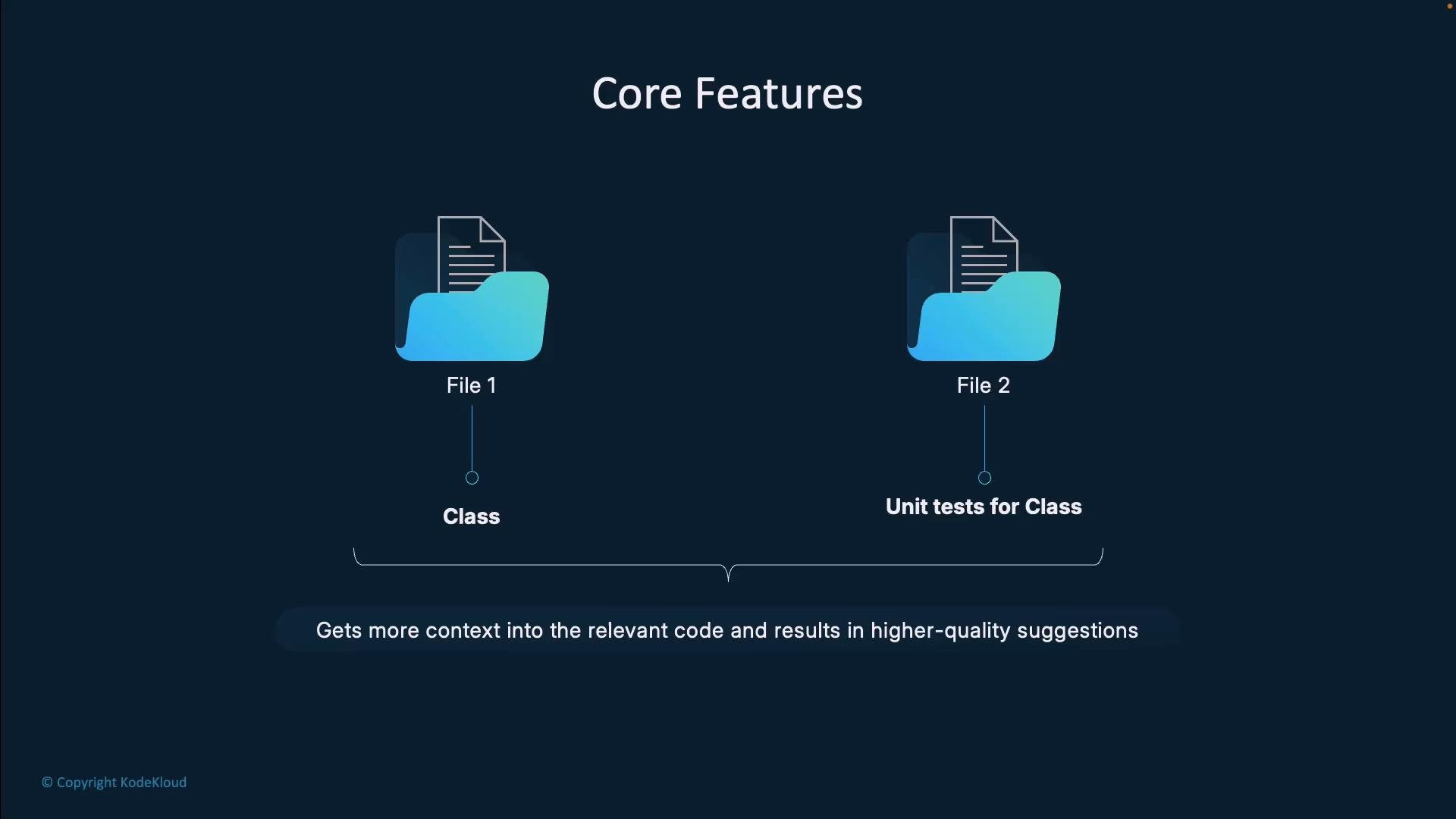
- How Copilot uses editor and file context (prompts)
- Key command-line features and example workflows
- Shell aliases and quick shortcuts
- Practical use cases, VS Code integration, and best practices
- Hands-on demo: authentication, install, explain, and suggest examples
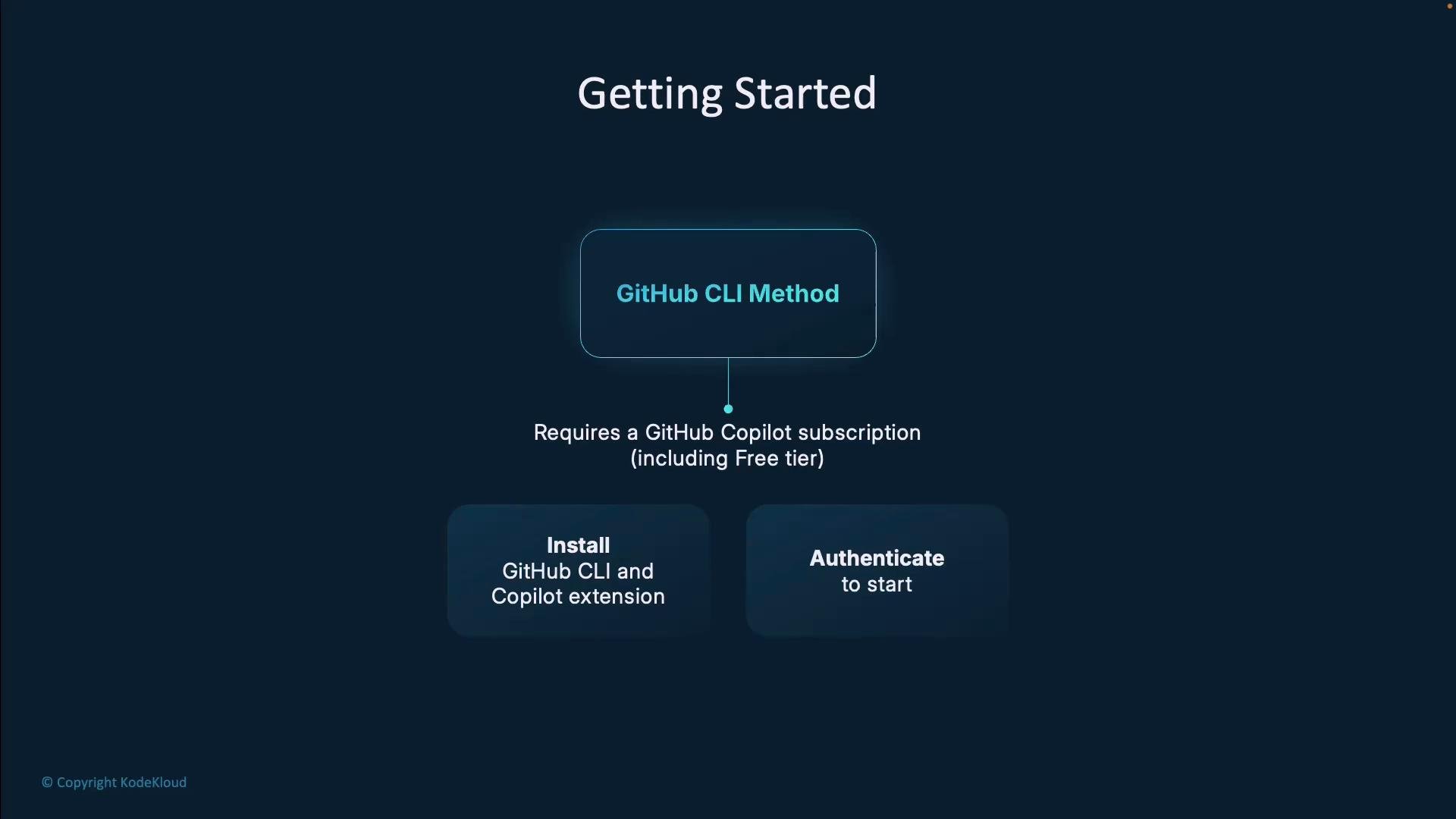
- GitHub CLI extension: cross-platform and works in most shells. Requires a GitHub Copilot subscription (there are free tiers for eligible users). Install the GitHub CLI, then add the Copilot extension.
- Windows Terminal Canary: some Canary builds include native Copilot integration where you can link your GitHub account directly in terminal settings.
- Explain: Ask Copilot to explain a given command or pipeline, so you understand its effects and risks.
- Suggest: Request commands by intent (e.g., “delete a git branch locally and remotely”) and get ready-to-run suggestions you can refine.
- Terminal chat: Interact with the terminal using natural language (available in Windows Terminal Canary and via the CLI chat).
- Flags and context: Some Copilot CLI commands accept flags (for example
-t) to provide extra context or target a specific shell.
Editor-driven context example
Below is a cleaned-up Python tkinter example that represents the sort of file context Copilot can use to suggest completions, tests, or refactors.
Set-Alias or add functions to your PowerShell profile.
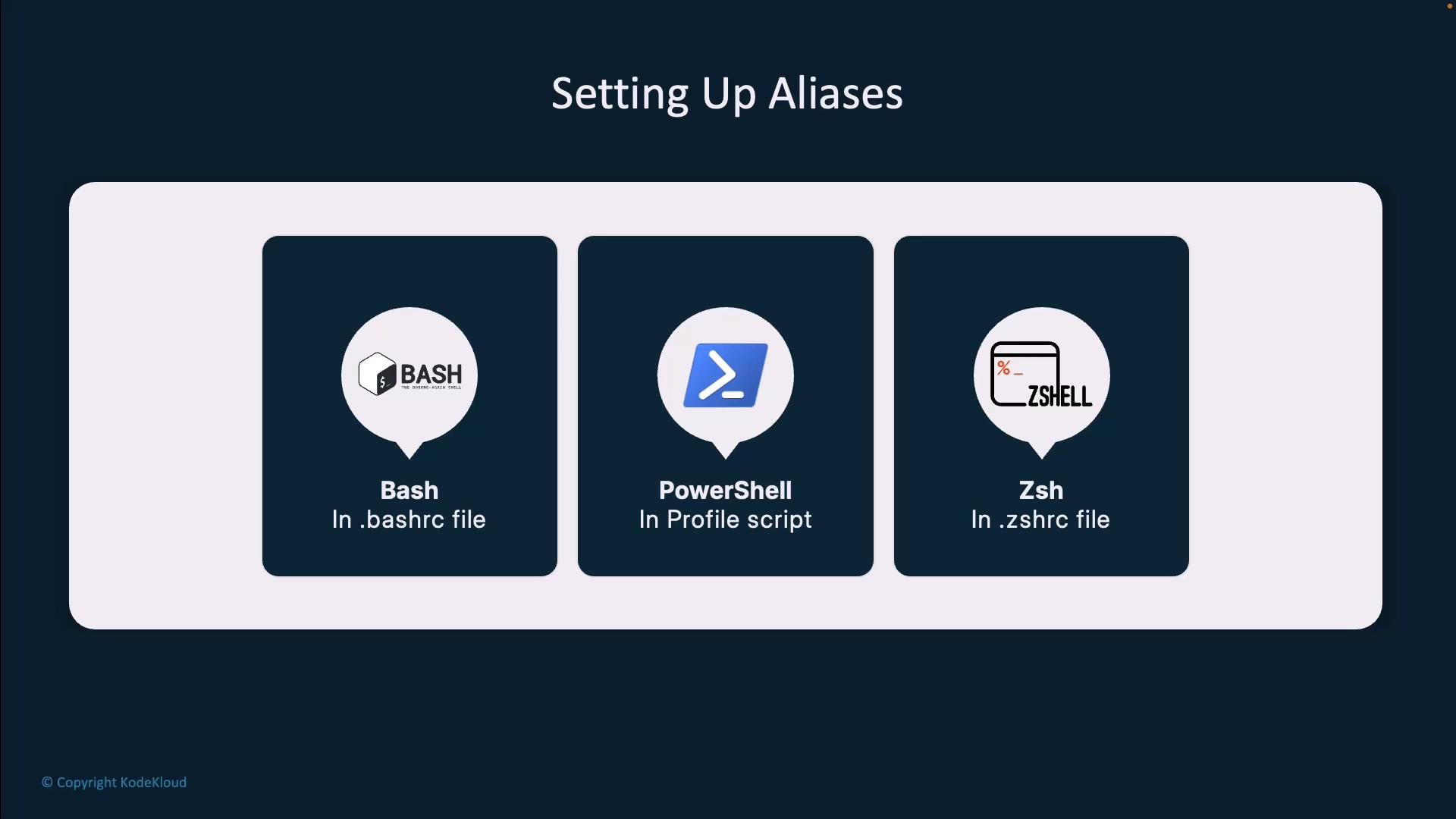
~/.bashrc):
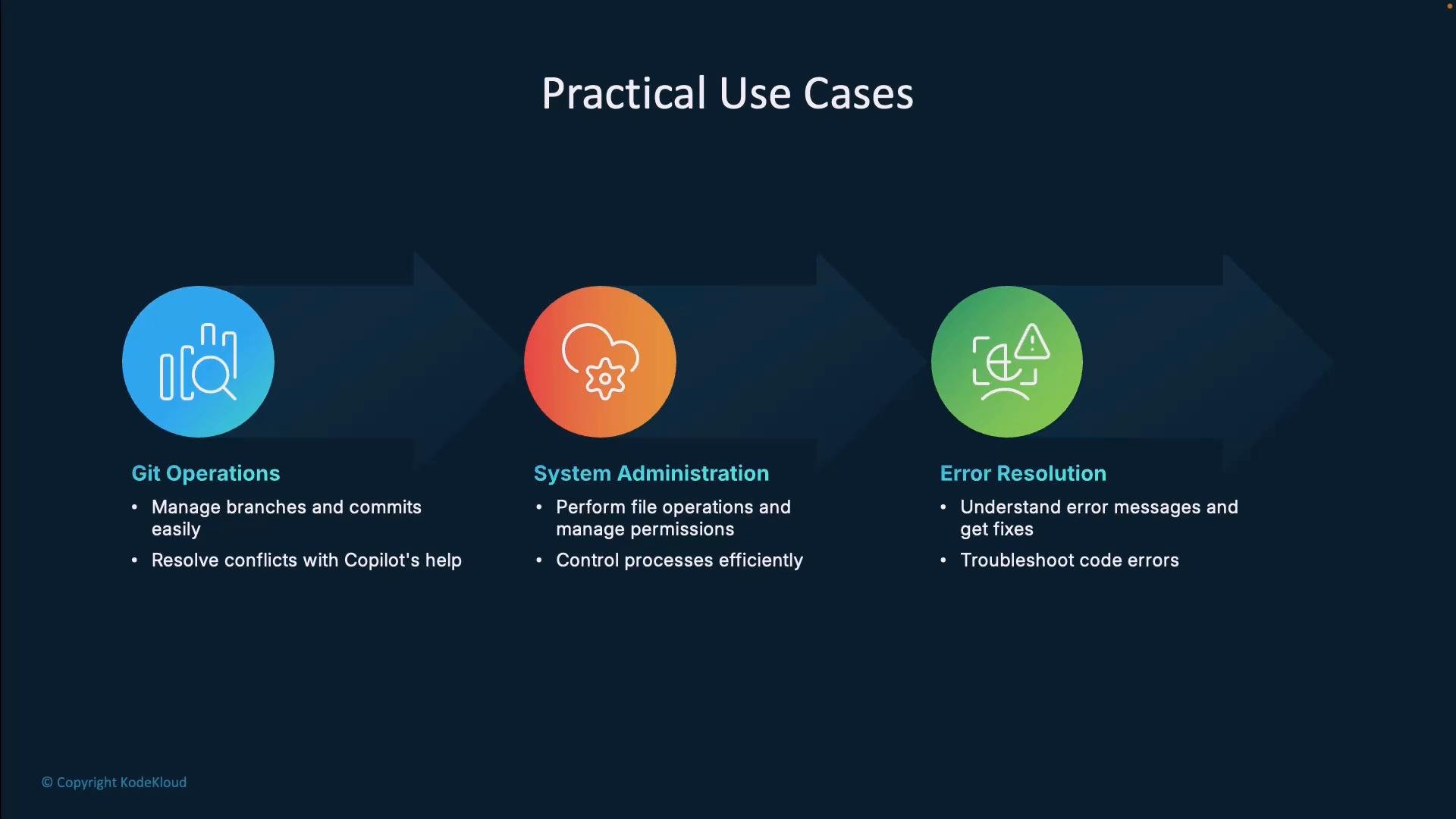
Practical use cases
- Git operations: Craft and format commits, delete branches locally and remotely, and resolve merge issues with plain-language prompts.
- System administration: Accelerate file operations, permission changes, process management, and infrequent one-off tasks.
- Error resolution: Translate cryptic error messages into plain English and receive suggested fixes or debugging steps.
@terminal chat participant to keep context between editing and executing commands.
- Windows: Ctrl+I
- Mac: ⌘I
- Use
@terminalparticipant in Chat view
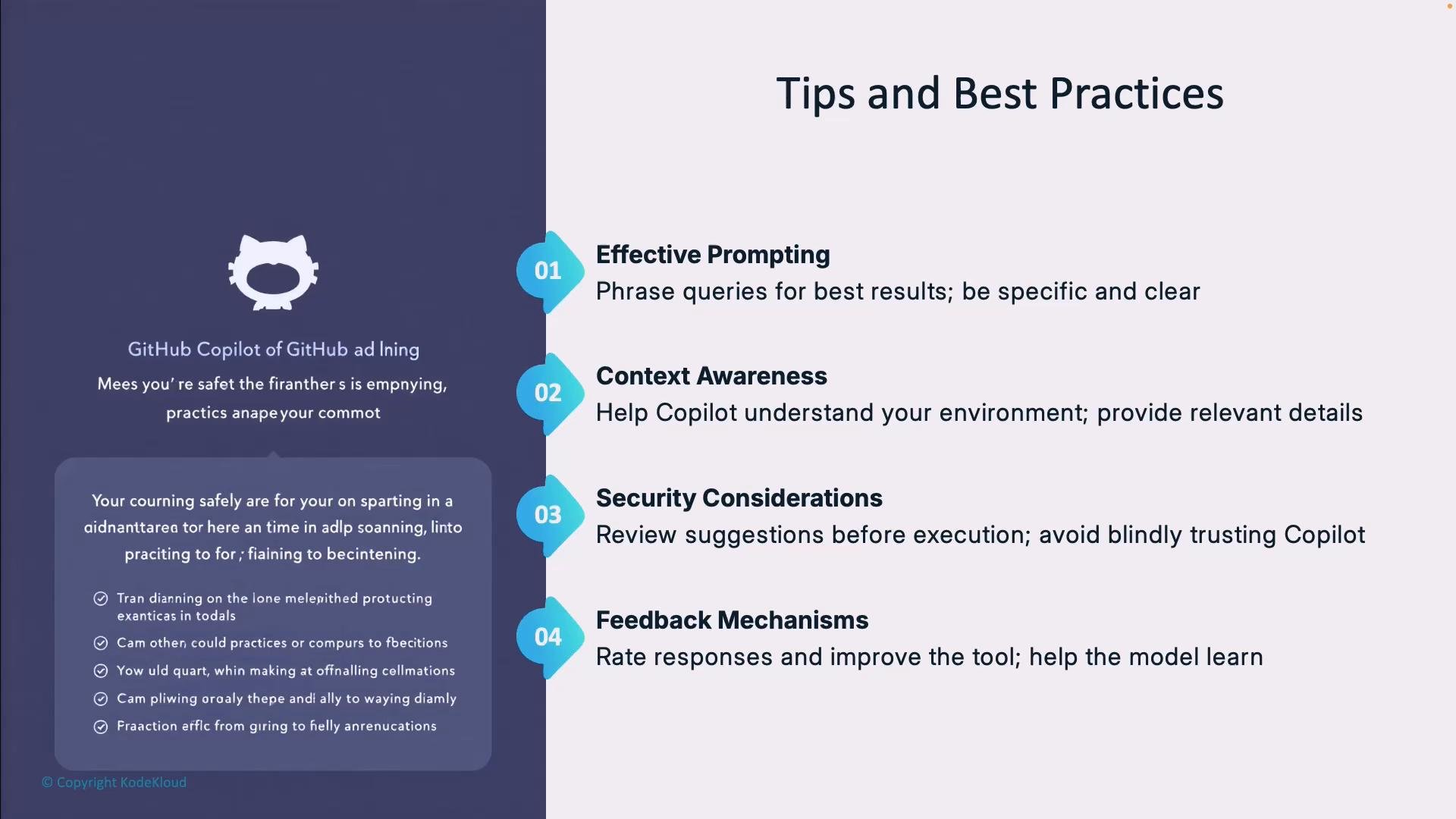
- Effective prompting: Be explicit about what you want—include filenames, expected outputs, or constraints.
- Provide context: Include relevant files, tests, or dependency lists to improve suggestions.
- Security first: Always review suggestions, especially commands that modify files, change permissions, or run as root.
- Feedback: Rate outputs via built-in feedback mechanisms to improve future suggestions.
Tip: When asking for suggestions, include example file paths, expected outputs, or the repository name to help Copilot produce more precise commands.
- Authenticate with the GitHub CLI:
- Install the Copilot extension for gh:
Danger:
chmod 777 grants read, write, and execute permissions to everyone (owner, group, and others). This can create security vulnerabilities and should be used with extreme caution. Always confirm the target and necessity before running such commands.- Use clear, specific prompts,
- Provide relevant project context,
- Review suggested commands before running them, and
- Treat Copilot as an assistant—not an automatic executor—to avoid accidental or unsafe operations.