

Why On-Demand Mounting?
- Defers mounting until a path is accessed
- Saves network bandwidth for NFS and CIFS shares
- Automatically unmounts after inactivity
- Simplifies management of rarely used mount points
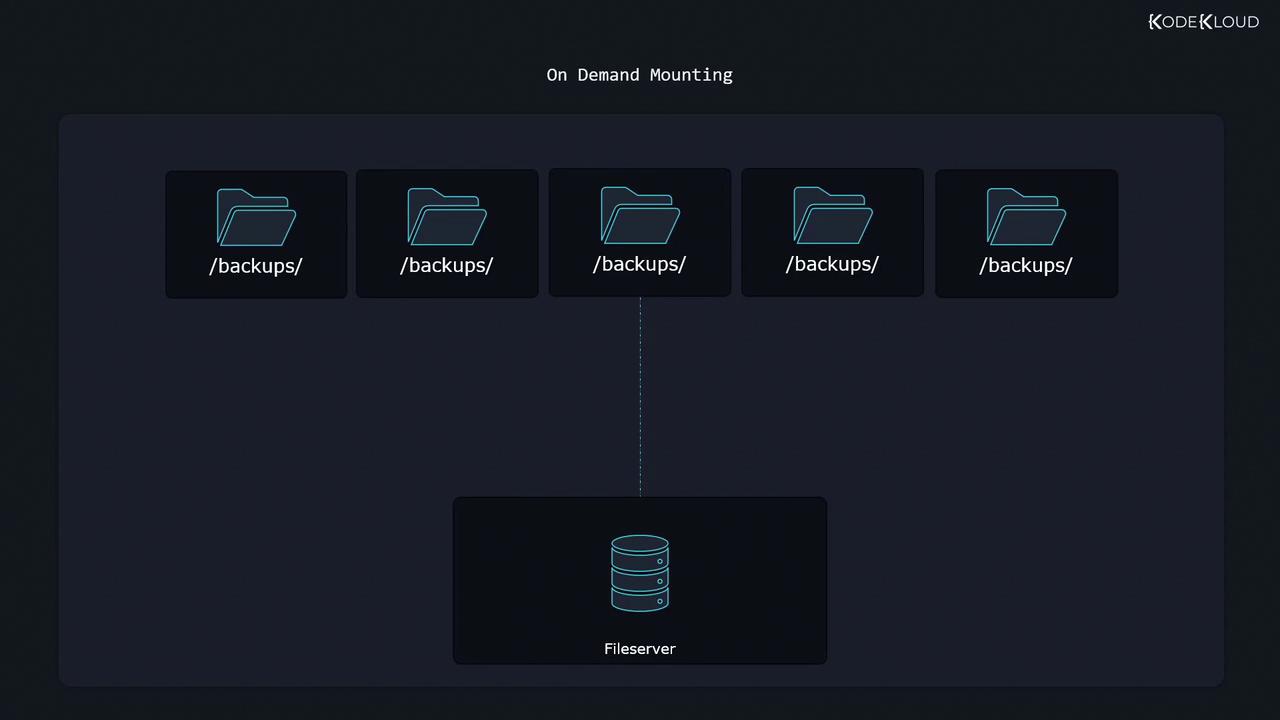
/backups. With on-demand mounting, nothing is mounted at boot or during idle periods. As soon as an application or user reads or writes /backups, the OS mounts the remote share automatically:
Prerequisites
- A Linux distribution with
dnforyum(RHEL, CentOS, Fedora) - Root or sudo privileges
- Basic knowledge of NFS or other network filesystems
1. Install and Enable AutoFS
The most common tool for on-demand mounts is autofs. Install and start the service:If you’re using a different package manager such as
yum or apt, adjust the install command accordingly.2. Set Up a Simple NFS Server
To demonstrate, we’ll configure a basic NFS export on the local machine.- Install NFS utilities:
- Start and enable the NFS server:
- Add an export in
/etc/exports: - Reload the server to apply changes:
3. Configure AutoFS Maps
AutoFS uses a master map and one or more map files to define mounts.3.1 /etc/auto.master
Open the master configuration:- /shares: Parent directory that AutoFS will create
- /etc/auto.shares: Map file listing the mounts
- —timeout=300: Unmount after 300 seconds of inactivity
3.2 /etc/auto.shares
Edit the map file to define individual mounts:
Reload AutoFS:
4. Test the On-Demand Mount
- Verify that
/sharesis empty: - Access the share to trigger the mount:
- After 5 minutes of inactivity, AutoFS will unmount the share automatically.
5. Direct Mount Points (No Common Parent)
If you prefer absolute mount paths instead of a shared parent:-
Update /etc/auto.master:
Replace the
/sharesentry with: -
Modify /etc/auto.shares:
-
Reload AutoFS: