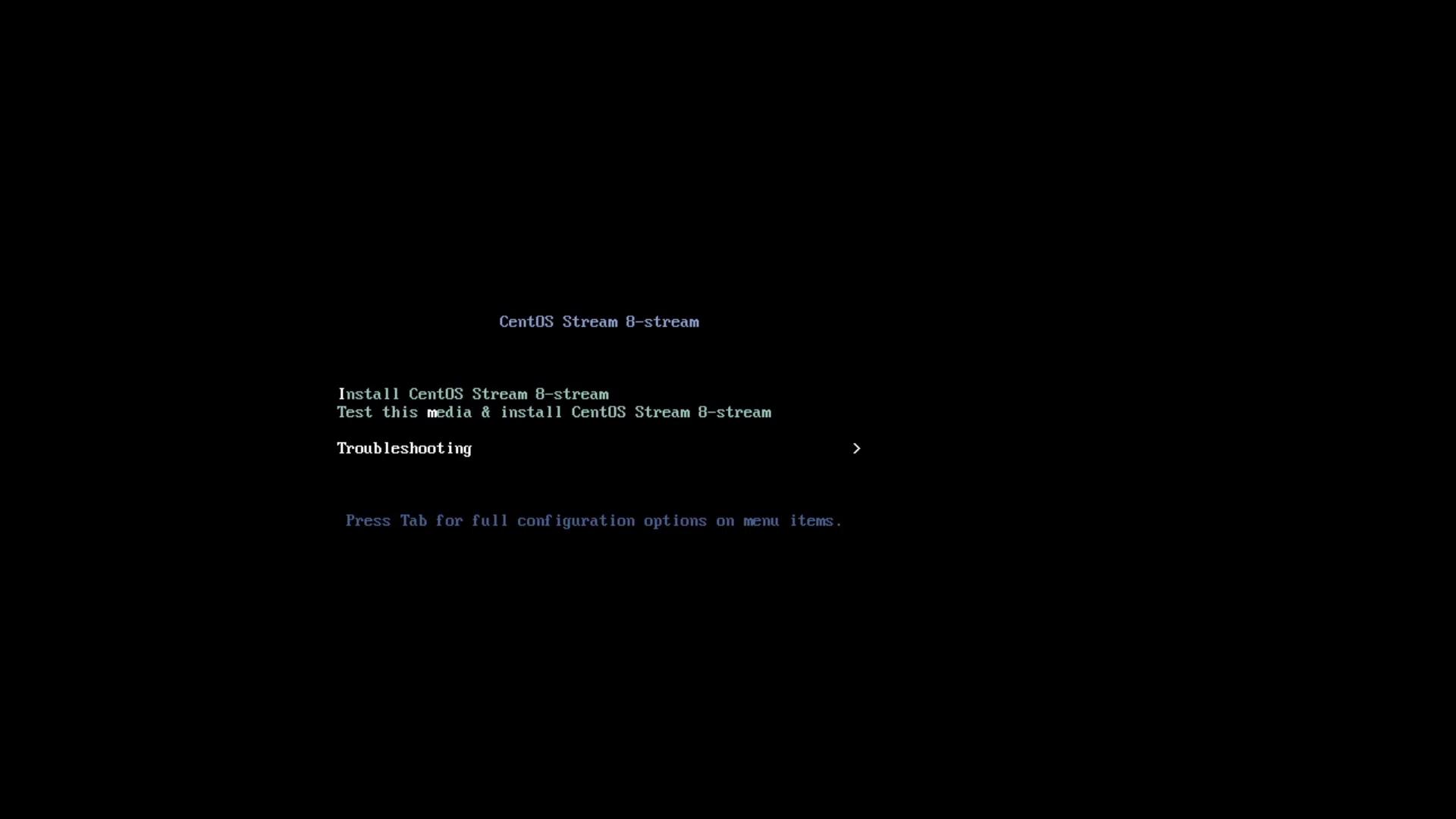
Welcome to this comprehensive guide on installing, configuring, and troubleshooting the GRUB2 bootloader on CentOS Stream 8. You’ll learn how to recover a non-booting system using rescue media, install GRUB in BIOS or UEFI mode, customize its settings, and verify your changes.
The image shows a boot menu for CentOS Stream 8-stream, offering options to install, test media, or troubleshoot.

1. Prerequisites

Before you begin, ensure you have:
  • A CentOS Stream 8 installation USB/DVD.
  • Physical or virtual access to the target machine.
  • A basic understanding of Linux shell commands.
You will need root (or sudo) privileges to run most commands in this tutorial.

2. Boot into Rescue Environment

  1. Insert your CentOS Stream 8 installation media and power on the machine.
  2. At the main menu, select TroubleshootingRescue a CentOS Stream System.
  3. Wait for system messages, then choose 1) Continue at the rescue prompt:
    The rescue environment will now attempt to find your Linux installation
    and mount it under /mnt/sysroot. You can then make any changes required.
    
    1) Continue
    2) Read-only mount
    3) Skip to shell
    4) Quit (Reboot)
    
The installer will mount your root filesystem at /mnt/sysroot.

3. Chroot into Your System

Change root into the mounted filesystem:
chroot /mnt/sysroot
You’re now operating inside your installed system as if you had booted normally.

4. Generate a New GRUB Configuration

GRUB’s configuration file must be regenerated after installation or any changes to /etc/default/grub.
Boot ModeConfiguration File Path
BIOS/boot/grub2/grub.cfg
UEFI/boot/efi/EFI/centos/grub.cfg
Use one of these commands:
# For BIOS-based systems
grub2-mkconfig -o /boot/grub2/grub.cfg

# For UEFI-based systems
grub2-mkconfig -o /boot/efi/EFI/centos/grub.cfg

5. Install GRUB to the Disk (BIOS Mode)

  1. Identify your disks:
    lsblk
    
    Example output:
    NAME   MAJ:MIN RM  SIZE RO TYPE MOUNTPOINT
    sda      8:0    0   20G  0 disk
    ├─sda1   8:1    0    1G  0 part /boot
    ├─sda2   8:2    0    2G  0 part [SWAP]
    └─sda3   8:3    0   17G  0 part /
    
    Here, /dev/sda is our target disk.
  2. Install GRUB to the MBR:
    grub2-install /dev/sda
    
You should see:
Installing for i386-pc platform.
Installation finished. No error reported.
Ensure you specify the correct disk (e.g., /dev/sda). Installing GRUB to the wrong device can overwrite another OS or data.

6. Exit Rescue Mode and Reboot

Exit the chroot environment and reboot the system:
exit     # leaves chroot
exit     # leaves rescue shell
Remove the installation media when prompted so the machine boots from the hard drive.

7. Customize GRUB Settings

Once back in your CentOS Stream system, you can fine-tune GRUB by editing /etc/default/grub:
sudo vi /etc/default/grub
A typical configuration:
GRUB_TIMEOUT=5
GRUB_DISTRIBUTOR="$(sed 's, release .*$,,g' /etc/system-release)"
GRUB_DEFAULT=saved
GRUB_DISABLE_SUBMENU=true
GRUB_TERMINAL_OUTPUT="console"
GRUB_CMDLINE_LINUX="crashkernel=auto resume=UUID=… rhgb quiet"
GRUB_DISABLE_RECOVERY="true"
GRUB_ENABLE_BLSCFG=true

Change the Boot Timeout

To reduce the wait time:
-GRUB_TIMEOUT=5
+GRUB_TIMEOUT=1
Save and exit (:wq in vi).

8. Regenerate Configuration After Edits

Apply your changes by regenerating grub.cfg:
# BIOS
sudo grub2-mkconfig -o /boot/grub2/grub.cfg

# UEFI
sudo grub2-mkconfig -o /boot/efi/EFI/centos/grub.cfg
Look for:
Generating grub configuration file ...
done

9. Verify and Test

Reboot one final time:
sudo reboot
You should see the GRUB menu for the new timeout duration, and your kernel options will reflect any changes made in /etc/default/grub.

References