

- Viewing logs and files with the
lessandmorepagers - Performing quick edits in Vim (Vi IMproved)
- Verifying your changes after saving
Navigating Files with less
The less pager provides powerful navigation and search features:
- Scroll up/down with ↑ and ↓ or PgUp/PgDn
- The filename appears at the bottom left
- Quit with
q
Searching Inside less
You can enable case-insensitive search at any time by typing
-i inside less.Paging with more
A simpler alternative, more advances one screen at a time:
- Spacebar: Next page
- Enter: Next line
- q: Quit
For large files or complex searches,
less is generally preferred over more.Getting Started with Vim
Vim is a modal editor: it has Normal, Insert, and Command modes.Switching to Insert Mode
- Press
ito enter Insert Mode (-- INSERT --appears) - Type your content
- Press
Escto return to Normal Mode
Essential Vim Commands
Unsaved changes will be lost if you use
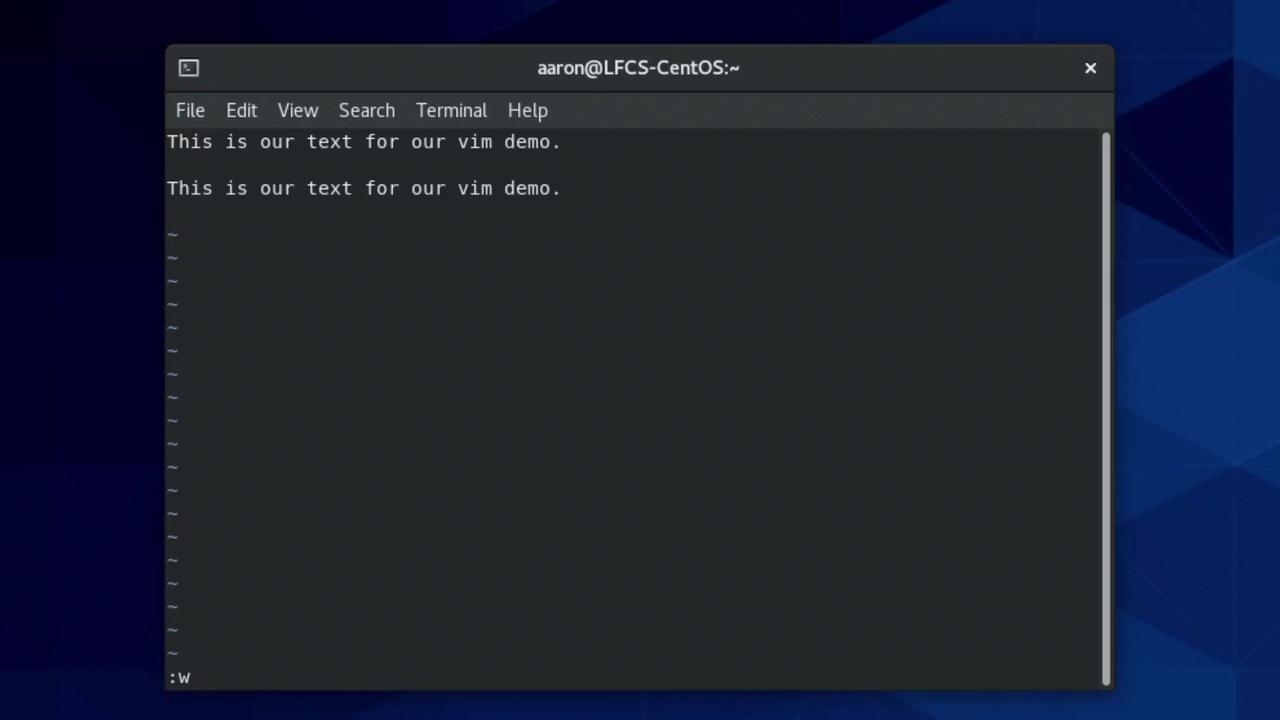
:q!. Always use :w or :wq to preserve your edits.Saving Your Work
Comparing less vs more
Verifying Your Edits
After saving a file (e.g.,testfile), confirm the contents: