

Table of Contents
- Key Concepts
- Listing Files and Directories
- Filesystem Structure
- Creating Files and Directories
- Copying Files and Directories
- Moving and Renaming
- Deleting Files and Directories
- Summary of Commands
- References
Key Concepts
Before you begin, make sure you understand:- The Linux filesystem tree and hierarchy
- The difference between absolute paths and relative paths
- How to navigate directories with
cdand identify your location withpwd
Absolute paths start at the root directory
/ while relative paths are based on your current working directory.Listing Files and Directories
Use thels command to display directory contents:
-a:
-l:
Filesystem Structure
Linux organizes files in an inverted tree structure:- Root directory:
/ - Standard subdirectories:
/home,/var,/etc,/usr, etc. - Each folder can contain files and more subdirectories
Absolute Paths
Absolute paths always begin at/.Example:
Relative Paths
Relative paths depend on your current directory. Check it with:cd:
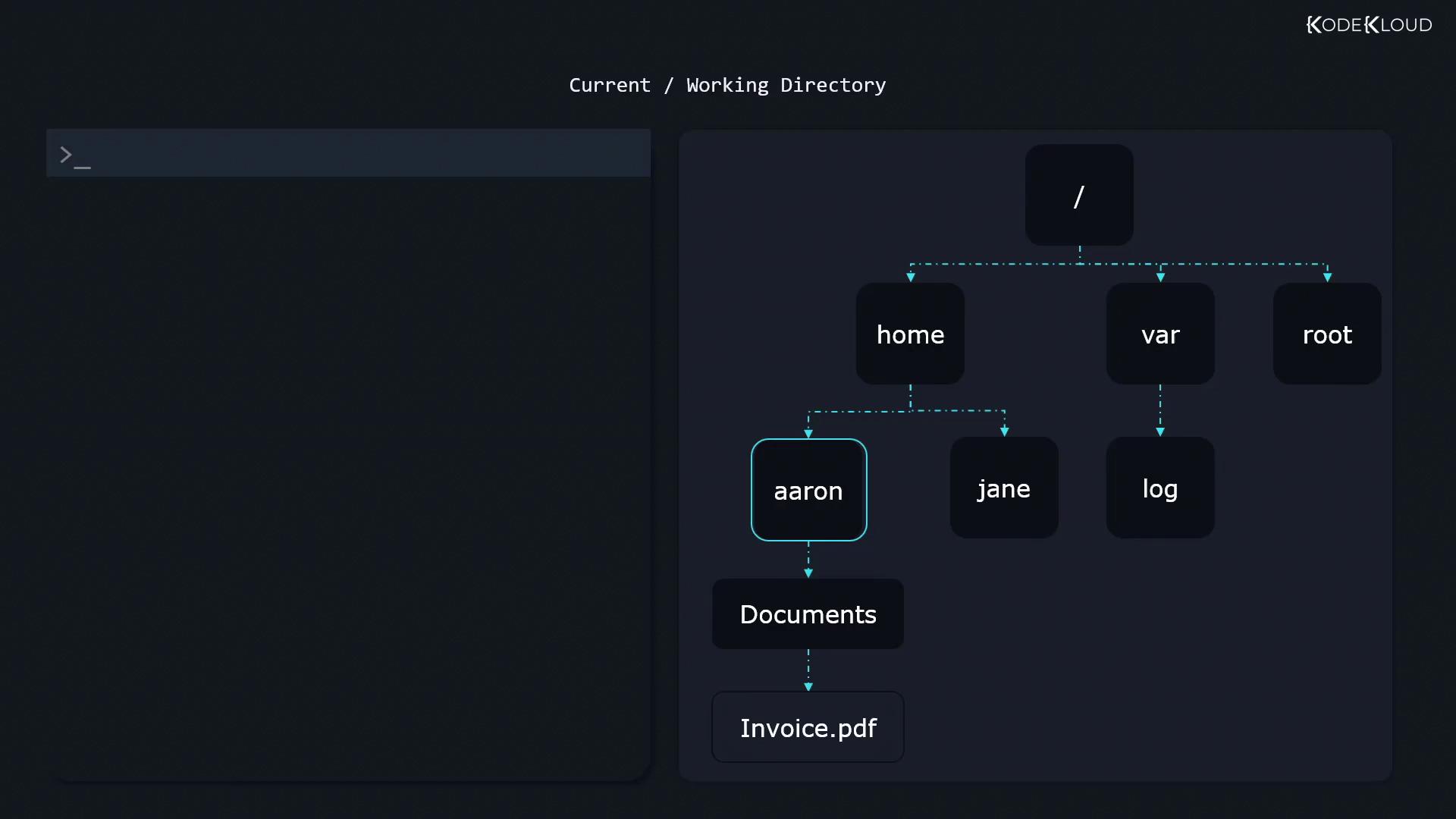
/home/aaron, these relative paths resolve to:
documents/invoice.pdf→/home/aaron/documents/invoice.pdfinvoice.pdf→/home/aaron/invoice.pdf../invoice.pdf→/home/invoice.pdf../../invoice.pdf→/invoice.pdf
cd shortcuts:
Creating Files and Directories
-
Create an empty file:
-
Create a new directory:
Copying Files and Directories
Usecp [source] [destination]:
-
Copy a file into a directory:
-
Copy and rename:
-
Copy a directory recursively:
Ensure
backup_of_receiptsdoes not already contain areceiptssubdirectory.
Moving and Renaming
Usemv [source] [destination] to move or rename:
mv works seamlessly on both files and directories.
Deleting Files and Directories
rm -r permanently deletes directories and their contents. Use with caution to avoid data loss.-
Remove a file:
-
Remove a directory recursively:
-r when deleting directories.