In this lesson we’ll explore how to configure and manage swap space in Linux. Swap is a dedicated area on disk where the kernel moves inactive pages from RAM when physical memory is exhausted. We’ll cover both swap partitions and swap files, with step-by-step examples.

Understanding Swap with a Simple Scenario

Imagine a system with 4 GiB of RAM:
  • A video editor consumes 2 GiB.
  • An audio editor consumes another 2 GiB.
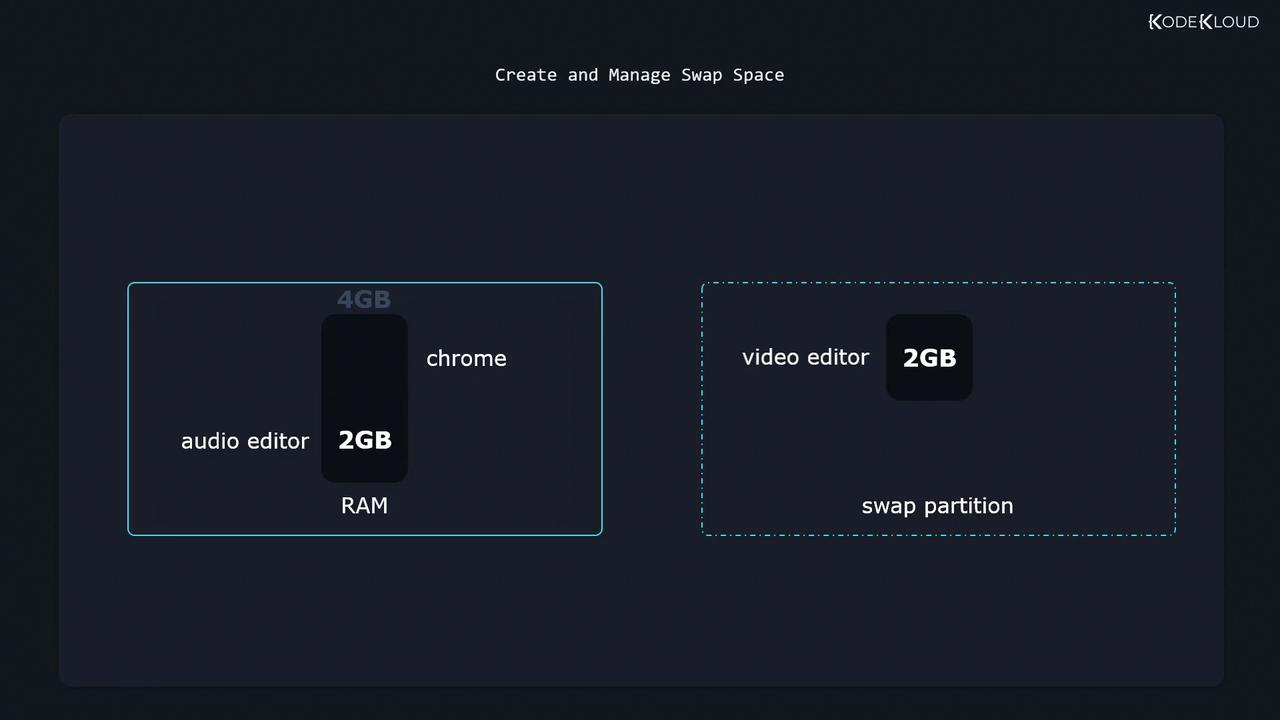
At this point, RAM is full. With a 2 GiB swap partition, Linux can relocate the idle video editor’s memory pages to swap, freeing up 2 GiB of RAM for a new application such as Chrome.
The image illustrates the concept of managing swap space, showing a 4GB RAM with 2GB used by an audio editor and Chrome, and a 2GB swap partition used by a video editor.
Swap space is much slower than RAM. Use it as overflow memory, not as a substitute for adequate physical RAM.

Checking Existing Swap

List active swap areas:
swapon --show
Inspect block devices and partitions:
lsblk
Example output:
NAME   MAJ:MIN RM  SIZE RO TYPE MOUNTPOINT
vda      8:0    0   20G  0 disk 
├─vda1   8:1    0    1G  0 part /boot
├─vda2   8:2    0   19G  0 part 
 ├─cs-root 253:0 0   17G  0 lvm  /
 └─cs-swap 253:1 0    2G  0 lvm  [SWAP]
vdb      8:16   0   10G  0 disk 
├─vdb1   8:17   0    1G  0 part 
├─vdb2   8:18   0    4G  0 part 
└─vdb3   8:19   0    2G  0 part
In this example, /dev/vdb3 is reserved for swap but not yet active.

Command Reference

TaskCommand
List active swapswapon --show
List block deviceslsblk
Format a swap partitionsudo mkswap /dev/vdb3
Enable a swap areasudo swapon --verbose /dev/vdb3
Disable a swap areasudo swapoff /dev/vdb3
Create a swap file (2 GiB)sudo dd if=/dev/zero of=/swap bs=1M count=2048
Secure swap file permissionssudo chmod 600 /swap
Format a swap filesudo mkswap /swap
Enable swap filesudo swapon --verbose /swap

Creating and Enabling a Swap Partition

  1. Format the partition:
    sudo mkswap /dev/vdb3
    
  2. Activate it immediately:
    sudo swapon --verbose /dev/vdb3
    
  3. Verify it’s active:
    swapon --show
    
  4. Make it persistent by adding to /etc/fstab:
    /dev/vdb3 none swap sw 0 0
    

Disabling Swap

To turn off a swap partition or file:
sudo swapoff /dev/vdb3

Creating and Using a Swap File

If you cannot repartition the disk, create a swap file instead:
  1. Create a zero-filled file (2 GiB):
    sudo dd if=/dev/zero of=/swap bs=1M count=2048 status=progress
    
  2. Restrict permissions:
    sudo chmod 600 /swap
    
  3. Format the file as swap:
    sudo mkswap /swap
    
  4. Enable the swap file:
    sudo swapon --verbose /swap
    
  5. Persist across reboots by adding to /etc/fstab:
    /swap none swap sw 0 0
    
Excessive swapping (thrashing) can severely degrade performance. Monitor swap usage with free -h, vmstat, or htop.
Practice these commands to master swap space management on Linux.