

- Perform a local graphical login on a CentOS VM
- Connect remotely via Remote Desktop Protocol (RDP)
- Access the shell in text mode using SSH
Table of Contents
- Local Graphical Login on CentOS
- Remote Graphical Login via RDP
- Text-Mode Login via SSH
- Summary and References
Local Graphical Login on CentOS
First, verify that your CentOS VM is set to boot into the graphical target with GNOME installed:If the VM defaults to text mode, start the graphical login with
sudo systemctl start gdm or install the necessary GNOME packages.- Select your username.
- Enter your password.
- Click Sign In.
Remote Graphical Login via RDP
To enable RDP access on a CentOS server, install and configure the xrdp service:Exposing RDP (port 3389) on public networks may introduce security vulnerabilities. Use a VPN or SSH tunnel when possible.
- Launch the RDP client application.
- Input the IP address (for example,
192.168.0.18) and click Connect. - At the login prompt, the username field may auto-fill with
student. Enter the password and proceed.
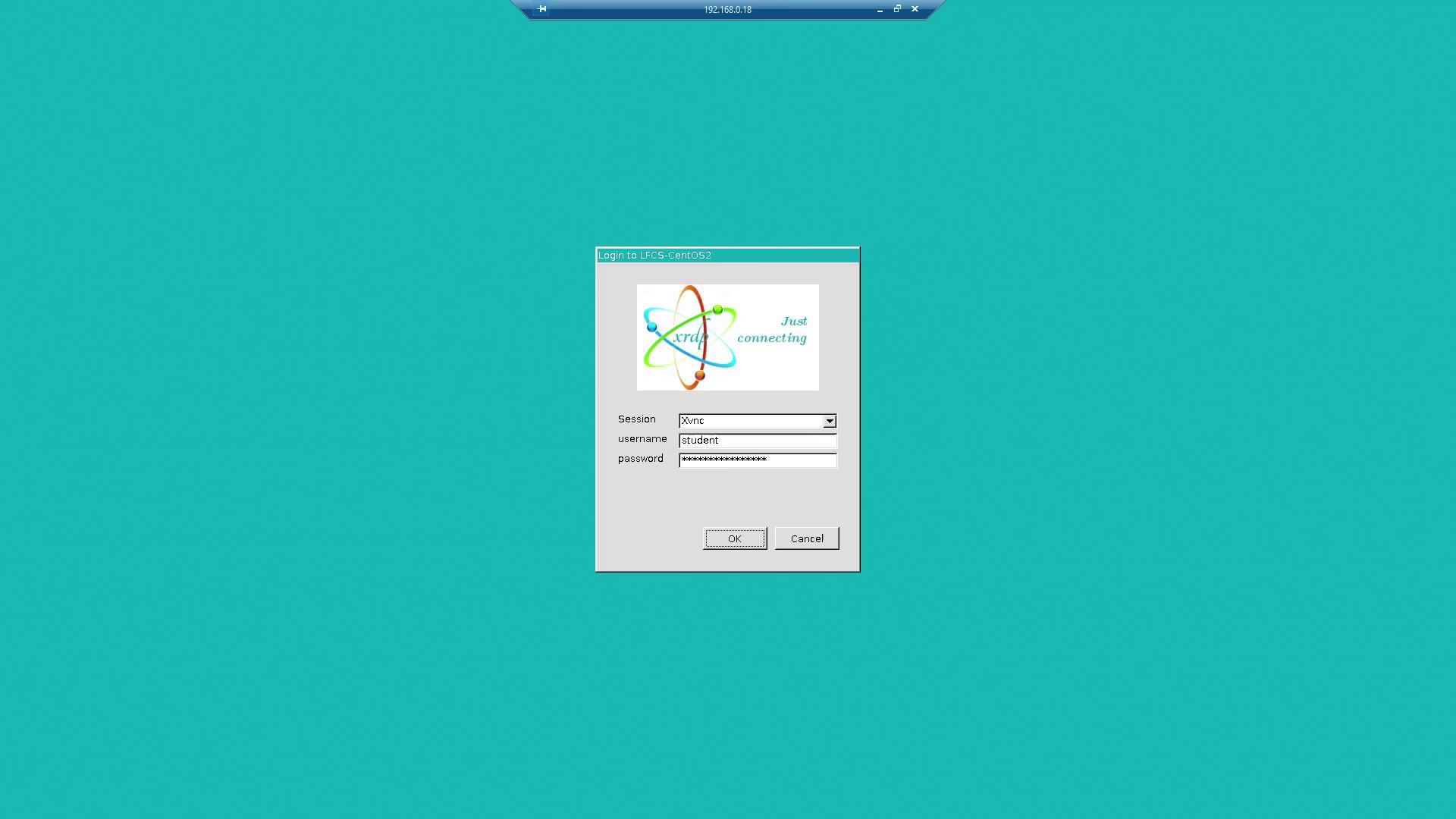
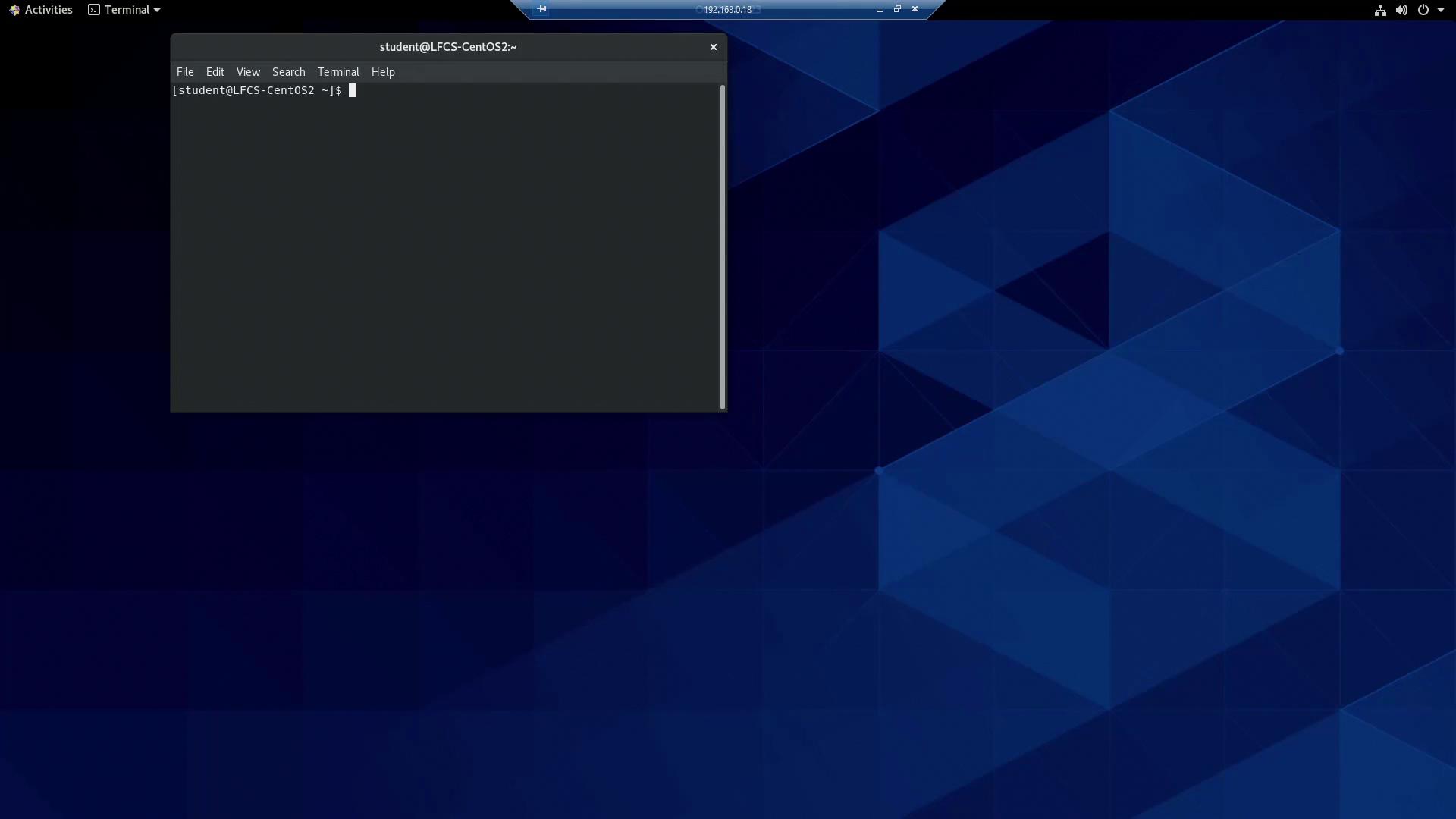
Text-Mode Login via SSH
From the GNOME Terminal in the RDP session, initiate an SSH connection to your CentOS VM at192.168.0.17 with the aaron account:
Summary and References
This lesson covered three login methods for CentOS:
Further reading: