Understanding how to manage processes is fundamental for any Linux administrator. A process is simply a running instance of a program, from short-lived commands like ls to long-running services.
1. Launching a Process
For example, running:
[aaron@LFCS-CentOS ~ ]$ ls
absolute_picture_shortcut all_output.txt archive.tar archive.zip Desktop
Documents Downloads file1 file1.gz file2
file2.bz2 file3 file3.xz fstab_shortcut Music
nomachine_7.7.4_1_x86_64.rpm Pictures Public shortcut_to_directory
script.sh Templates testfile videos
[aaron@LFCS-CentOS ~ ]$
creates a short-lived ls process that exits once the directory contents are shown.
2. Inspecting Processes with ps
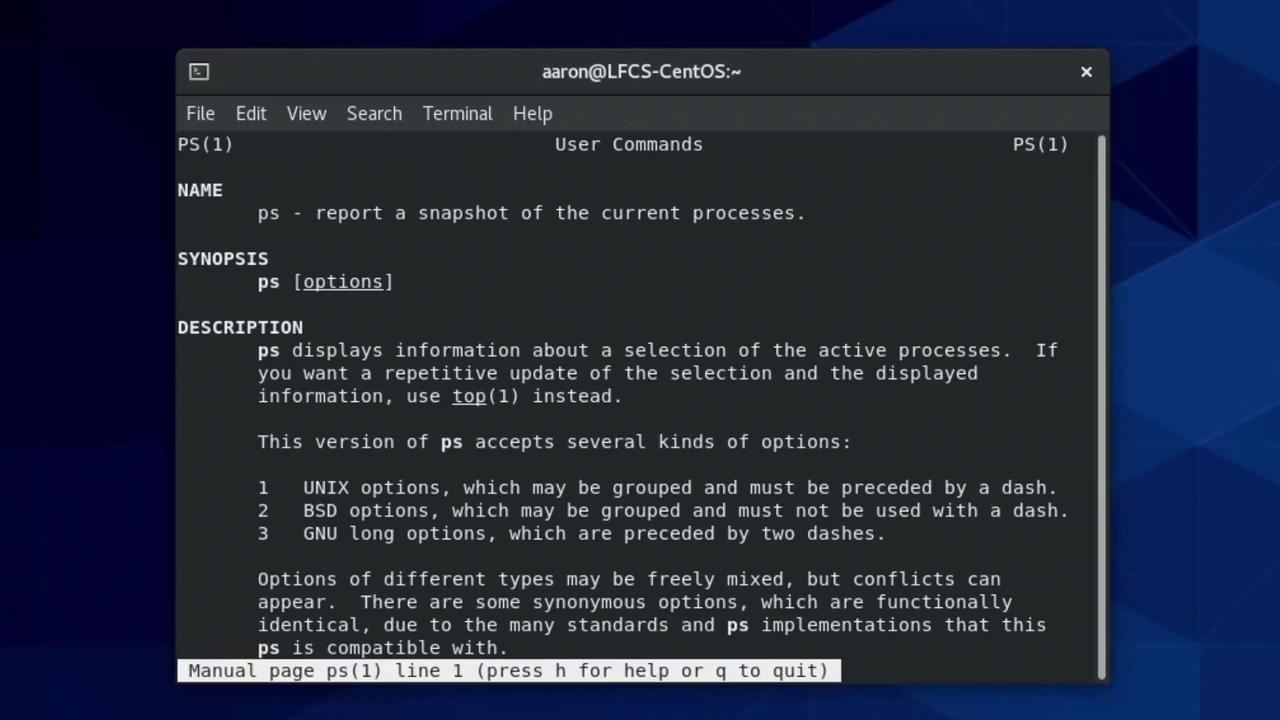
The ps command lists active processes. It has two distinct option styles:
Syntax Style Example Description UNIX-style ps -eShow every process BSD-style ps axuAll processes in user-oriented format
To view all processes in a user-friendly layout, combine a (others’ processes), x (no controlling terminal), and u (user format):
USER PID %CPU %MEM VSZ RSS TTY STAT START TIME COMMAND
root 1 0.0 0.3 241296 14000 ? Ss Mar23 0:01 /usr/lib/systemd/systemd
aaron 6601 6.2 4.8 3142460 185096 ? S 10:27 0:06 gnome-shell
… more …
2.1 Exploring ps Options
Common invocations from the manual:
Full format
ps -ef # UNIX full format
ps axu # BSD with user columns
Process tree
Thread details
2.2 Understanding ps aux Columns
Column Description USER Process owner PID Process ID %CPU CPU usage at sample time %MEM Physical memory usage VSZ Virtual memory size (KB) RSS Resident Set Size (KB) STAT Process state START Start time or date TIME Cumulative CPU time COMMAND Command with arguments
Kernel threads run in kernel space and appear in square brackets, e.g., [kworker/0:1].
3. Real-Time Monitoring with top
To watch processes live:
top - 10:15:42 up 2:31, 1 user, load average: 0.01, 0.05, 0.03
Tasks: 236 total, 1 running, 235 sleeping, 0 stopped, 0 zombie
%Cpu(s): 0.5 us, 0.2 sy, 99.3 id, 0.0 wa, 0.0 hi, 0.0 si, 0.0 st
MiB Mem : 3731.4 total, 1588.9 free, 915.6 used, 1227.1 buff/cache
MiB Swap: 2048.0 total, 2048.0 free, 0.0 used. 2554.1 avail Mem
PID USER PR NI VIRT RES SHR S %CPU %MEM TIME+ COMMAND
6601 aaron 20 0 3142460 185096 104268 S 6.2 4.8 00:06.60 gnome-shell
1 root 20 0 241296 14000 8912 S 0.0 0.4 00:01.26 systemd
…
Use arrow keys or Page Up/Page Down to navigate.
Press Q to quit.
4. Targeted Process Listings
Task Command By PID ps -p 1 or ps -p 1 -uBy user ps -u aaronBy name (with pgrep) pgrep -a syslog
# Find syslog processes:
pgrep -a syslog
# Kill them:
pkill -KILL syslog
5. Managing Process Priority (Niceness)
Niceness spans -20 (highest priority) to 19 (lowest). Lower niceness → higher scheduling priority.
5.1 Launching with nice
5.2 Viewing Niceness
ps -l | head -n 6
F UID PID PPID PRI NI VSZ RSS WCHAN STAT COMMAND
…
0 1000 6543 6540 20 0 658840 19268 – SL+ /usr/bin/gnome-shell
4 1000 6673 6669 20 11 302924 8516 – Sl bash
The NI column shows the niceness value.
5.3 Changing with renice
# Increase niceness (lower priority):
renice 15 6673
# Decrease niceness (requires sudo):
sudo renice -5 6673
6. Signals and kill
Linux uses signals to control processes:
Signal Number Description SIGHUP 1 Hangup/reload SIGINT 2 Interrupt (Ctrl+C) SIGTERM 15 Graceful shutdown SIGKILL 9 Force kill (uncatchable)
# List all signal names and numbers:
kill -l
You can omit the SIG prefix:
kill -s KILL 1234
kill -9 1234
kill 1234 # defaults to SIGTERM
Using SIGKILL (kill -9) does not allow cleanup and may leave resources in an inconsistent state. Use SIGTERM first.
Example: Restarting sshd
systemctl status sshd.service
sudo kill -SIGHUP 1147
systemctl status sshd.service
# sshd[1147]: Received SIGHUP; restarting.
7. Shell Job Control
Action Keystroke or Command Interrupt (SIGINT) Ctrl+C Pause/Stop (SIGTSTP) Ctrl+Z Background a command sleep 180 &List jobs jobsBring job to foreground fg %1Resume in background bg %1
8. Open Files with lsof
List files opened by a PID:
Find which process holds a file:
sudo lsof /var/log/messages
Use sudo when required to avoid permission denied errors.
That concludes our guide on creating, monitoring, and killing processes in Linux. Practice these commands in a lab environment to master process management.
Links and References